The shape of the traffic rather than the requests themselves: what is being attacked, from where, by whom, how the rules are behaving, and what it is costing.
Analytics answers questions about a period. Security Events answers questions about a request. Everything here is computed from the same events, over the time range and site chosen in the top bar — change either and every panel follows.
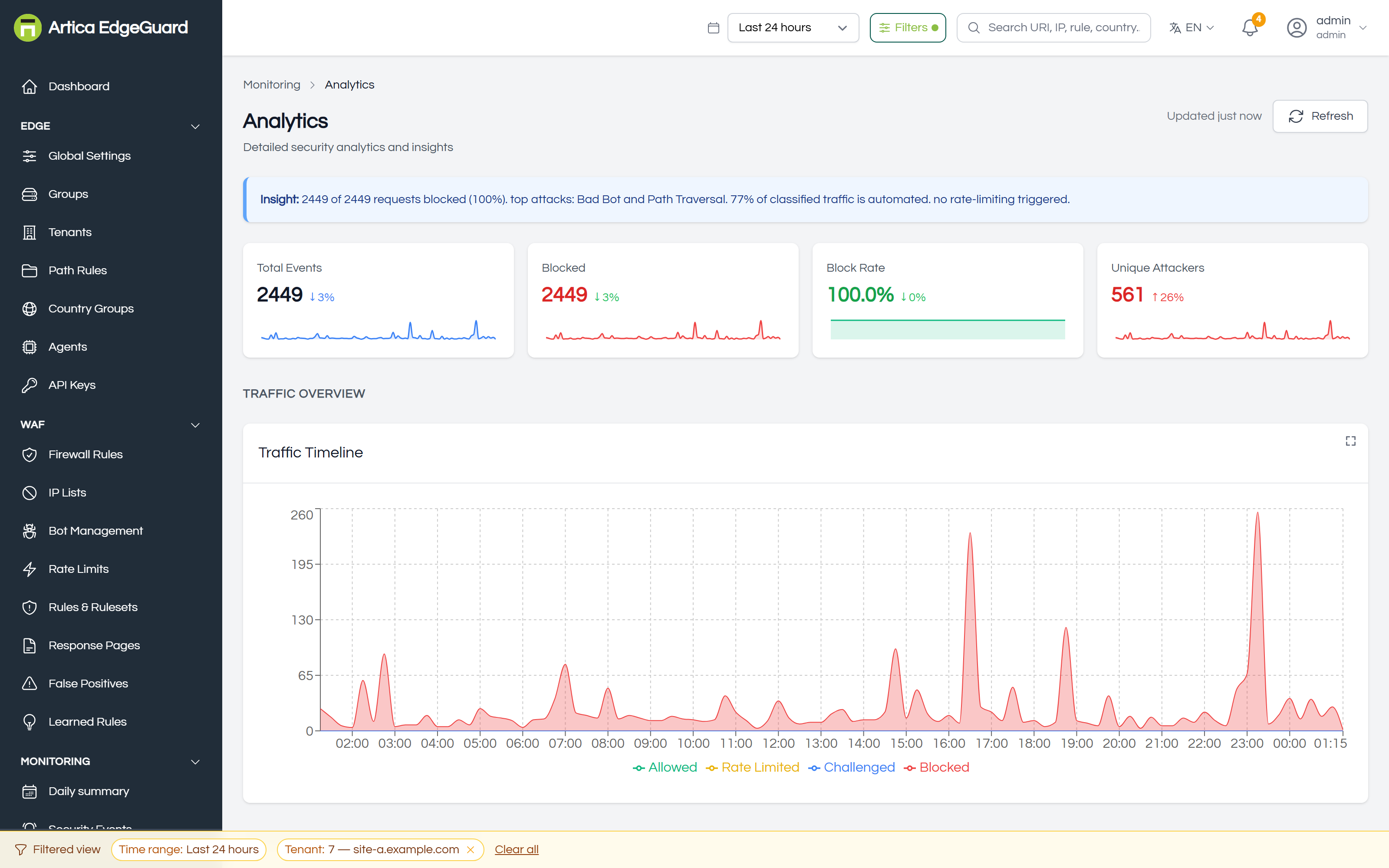
The headline figures each carry a comparison with the previous period of the same length, which is what makes them worth reading: 4 000 blocks means nothing, 4 000 blocks against 400 last week means something. An Insight line above them states in a sentence what the numbers add up to.
¶ Traffic overview
The timeline: requests over the period, split by what EdgeGuard did with them. The shape is usually more informative than the totals — a flat line with one spike is an incident, a raised floor is a campaign.
¶ Geographic and attacker overview
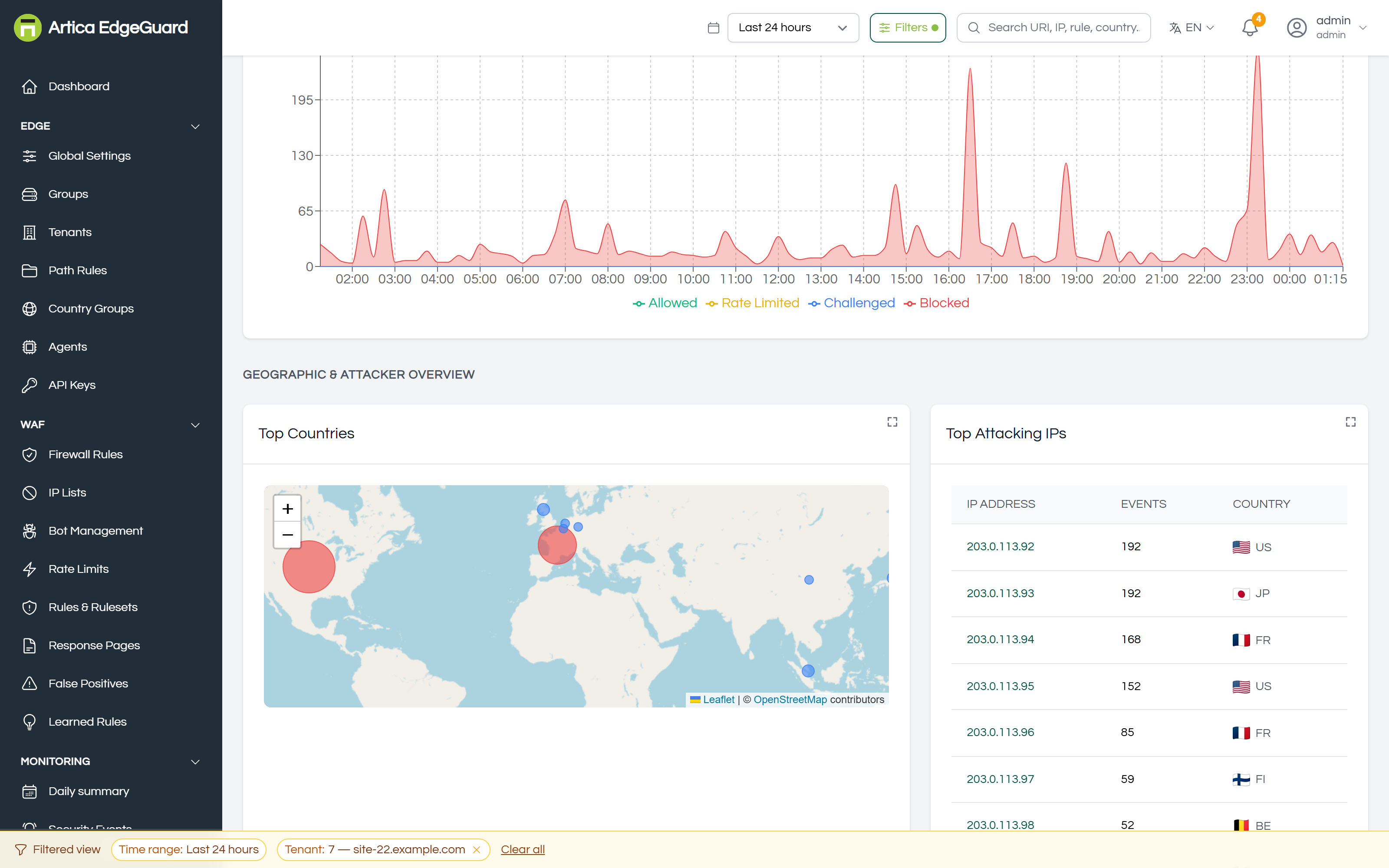
Top countries and Top attacking IPs, the latter with the country and a link that opens that address's own events. This is where a geographic rule usually starts: you see three countries accounting for most of the refusals and go and write @EU or a block. The vocabulary for that is on the Firewall Rules page.
¶ Attack trends
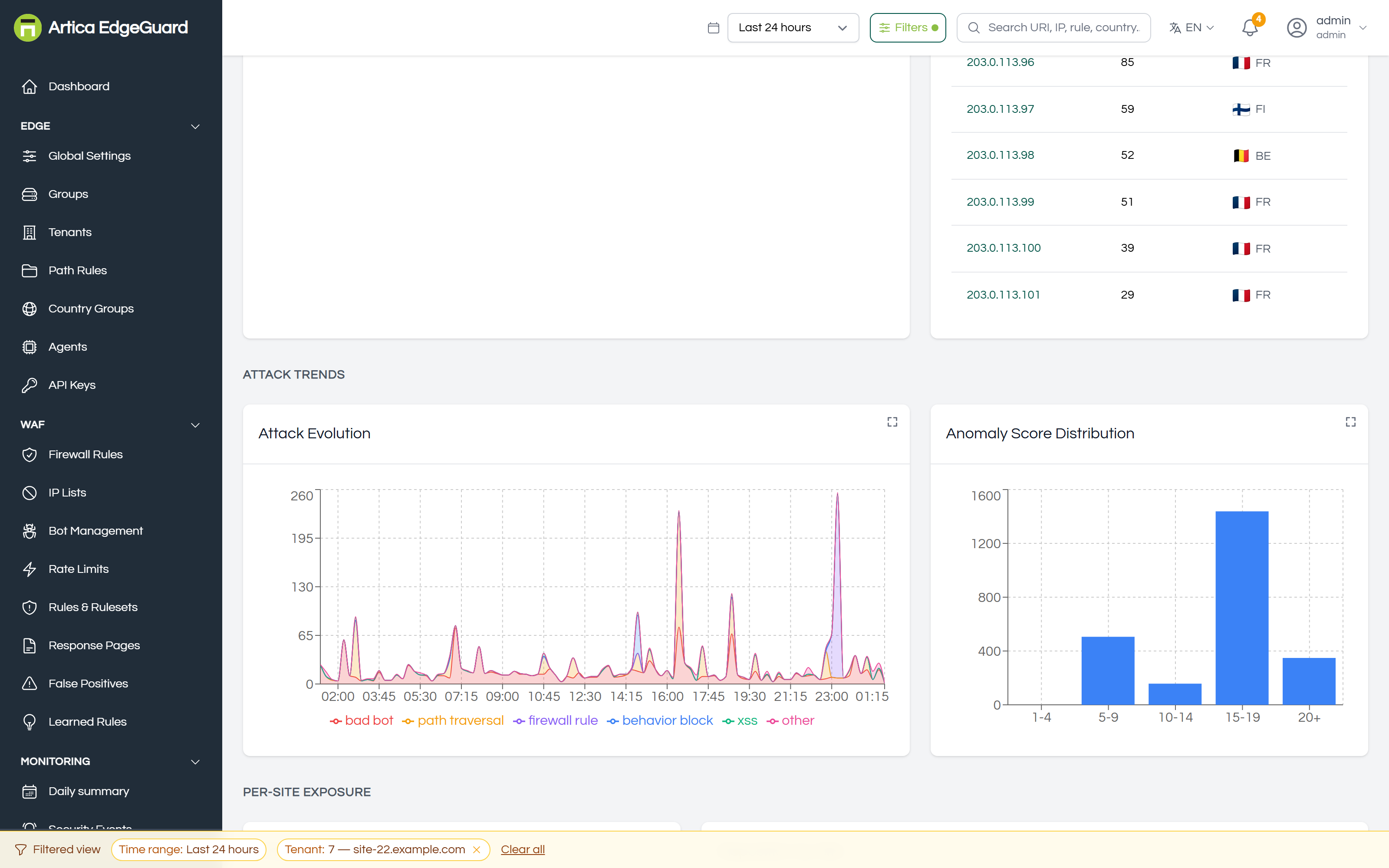
Attack evolution — each category over time, so you can see one class of attack replace another.
Anomaly distribution — how many events landed in each score band. Policy decisions (a geo block, an IP list) carry no score and are deliberately left out: including them would dwarf every real band and tell you nothing about the scoring.
Read this chart before changing a threshold. If the bulk of your traffic sits at 3–4 and the threshold is 5, lowering it by one is not a small change.
¶ Per-site exposure
Attack volume by site — each site's share of everything the node saw.
Disposition by site — how much of each site's traffic is being stopped, with allowed, blocked and unique addresses side by side. A site with an unusually high block share is either genuinely under attack or misconfigured, and the next panel usually says which.
Top targets — the endpoints taking the most, with occurrences, unique addresses and when they were last seen. A single endpoint taking everything is a signature; traffic spread evenly is a scan.
¶ Rule coverage
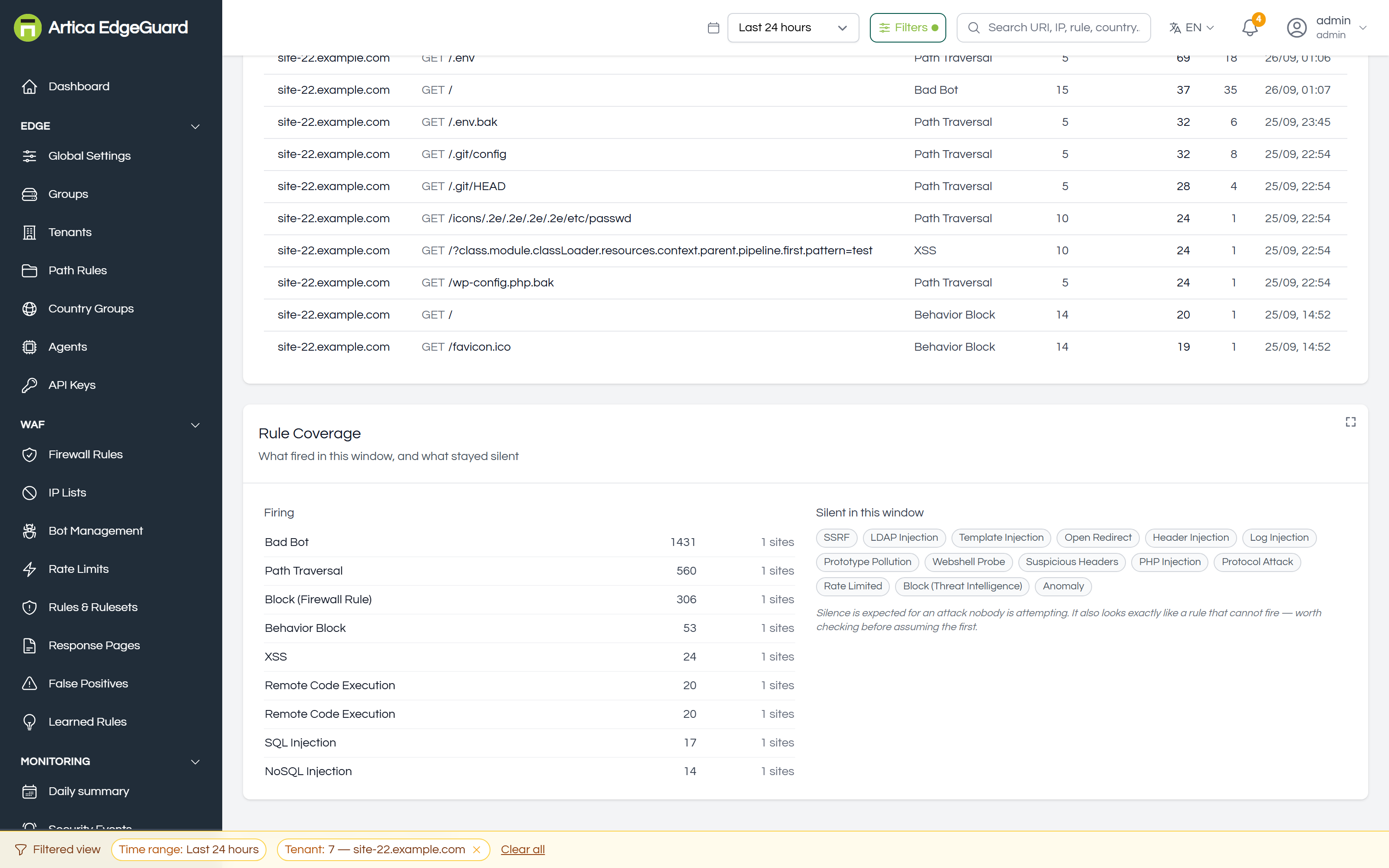
Two lists: which rules fired in this window, and which stayed silent.
The silent list is the useful one, and the panel says why in as many words: silence is expected for an attack nobody is attempting. It also looks exactly like a rule that cannot fire. A rule that has never fired on any site is worth ten seconds of checking — it may be excluded somewhere broad, or switched off in a category you turned off for another reason.
¶ Bot and challenge intelligence
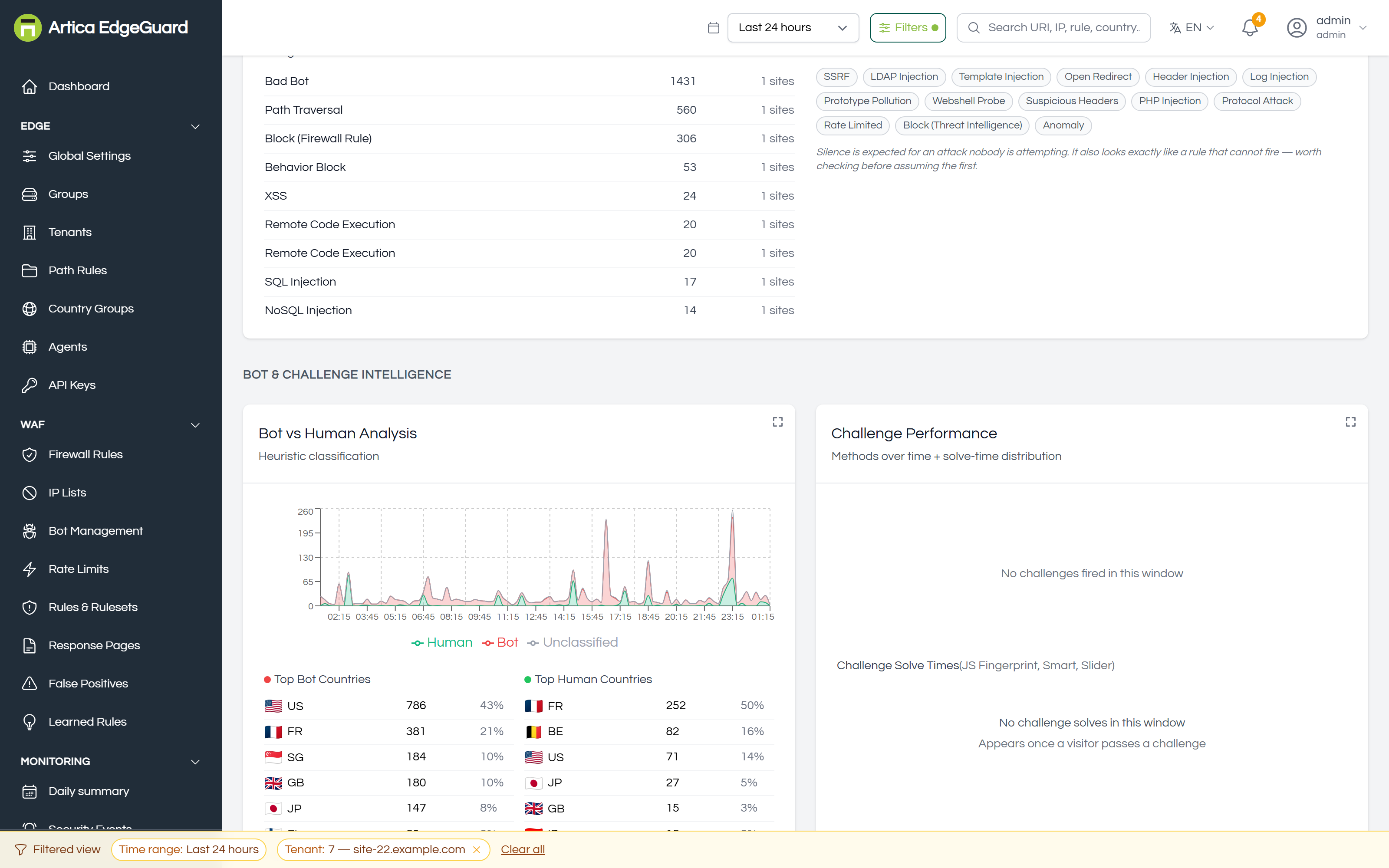
Bot vs human — a heuristic classification, not a certainty, with the top countries and user agents on each side.
Challenge performance — which challenge methods were issued and how they went, plus the distribution of solve times. Solve times matter in both directions: a challenge nobody solves is a wall in front of your customers, and a challenge solved in under half a second was almost certainly solved by a program. The console flags that band.
¶ Performance and quality
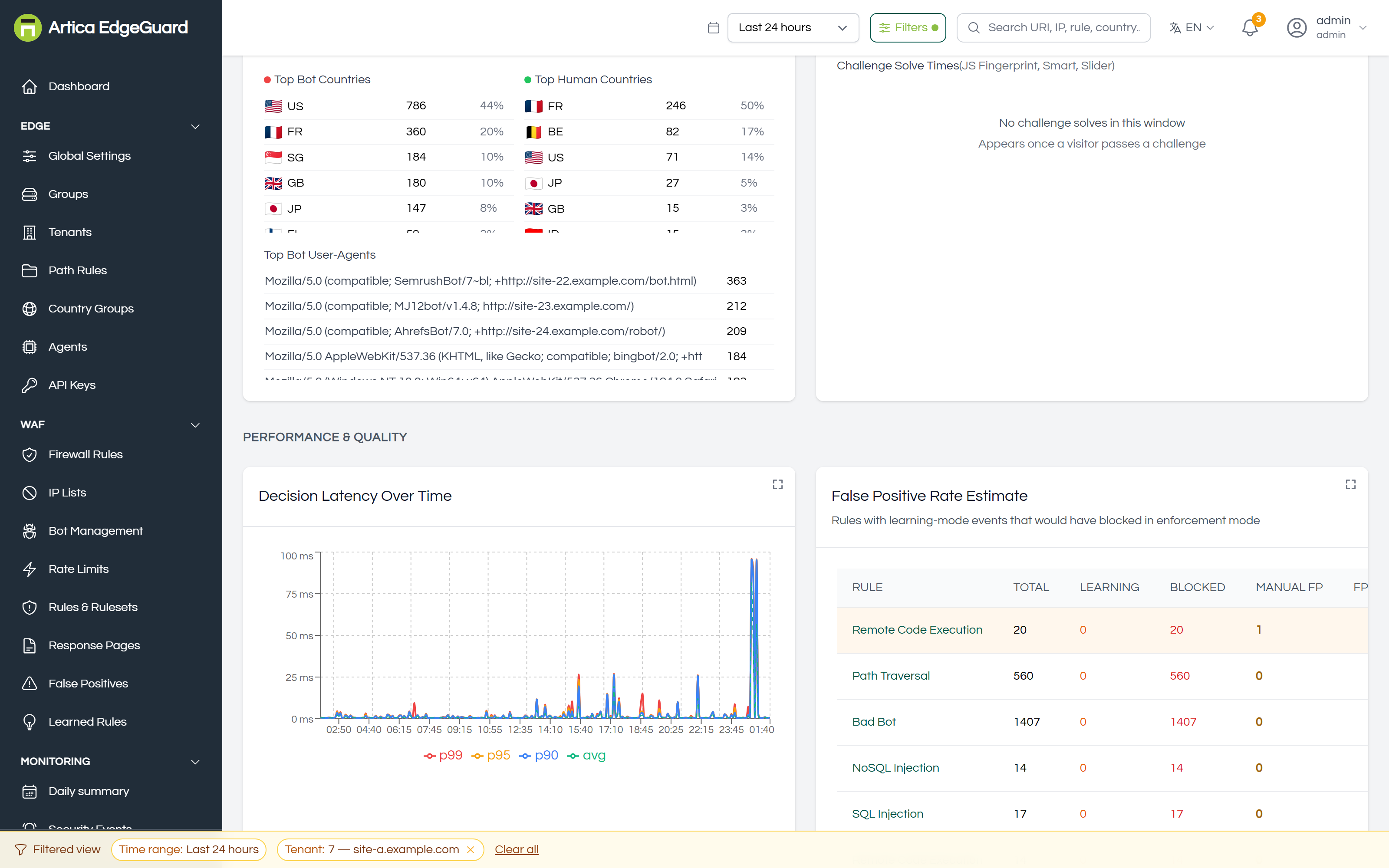
Decision latency over time — how long EdgeGuard took to decide, plotted as the average and the p90, p95 and p99. This is EdgeGuard's own share of the response time, not the origin's. If a page is slow and this chart is flat, the WAF is not the reason — and being able to say so with a number ends a class of argument that otherwise runs for days. Read the p99 rather than the average: the average hides the request that somebody complained about.
Where no latency has been recorded for the window, the same panel shows engine throughput instead, so the space says something rather than nothing.
False-positive rate estimate — one row per rule, with Total events, how many were in Learning mode, how many were Blocked, how many a person marked as a false positive (Manual FP), and the resulting FP rate. The estimate is exactly that, and the panel says what it is built from: rules with learning-mode events that would have blocked in enforcement mode.
Use it to decide what to tune first. A rule with 5 000 events and no flags is working; a rule with 40 events and 12 flags is costing somebody their afternoon.
¶ Rate limiting
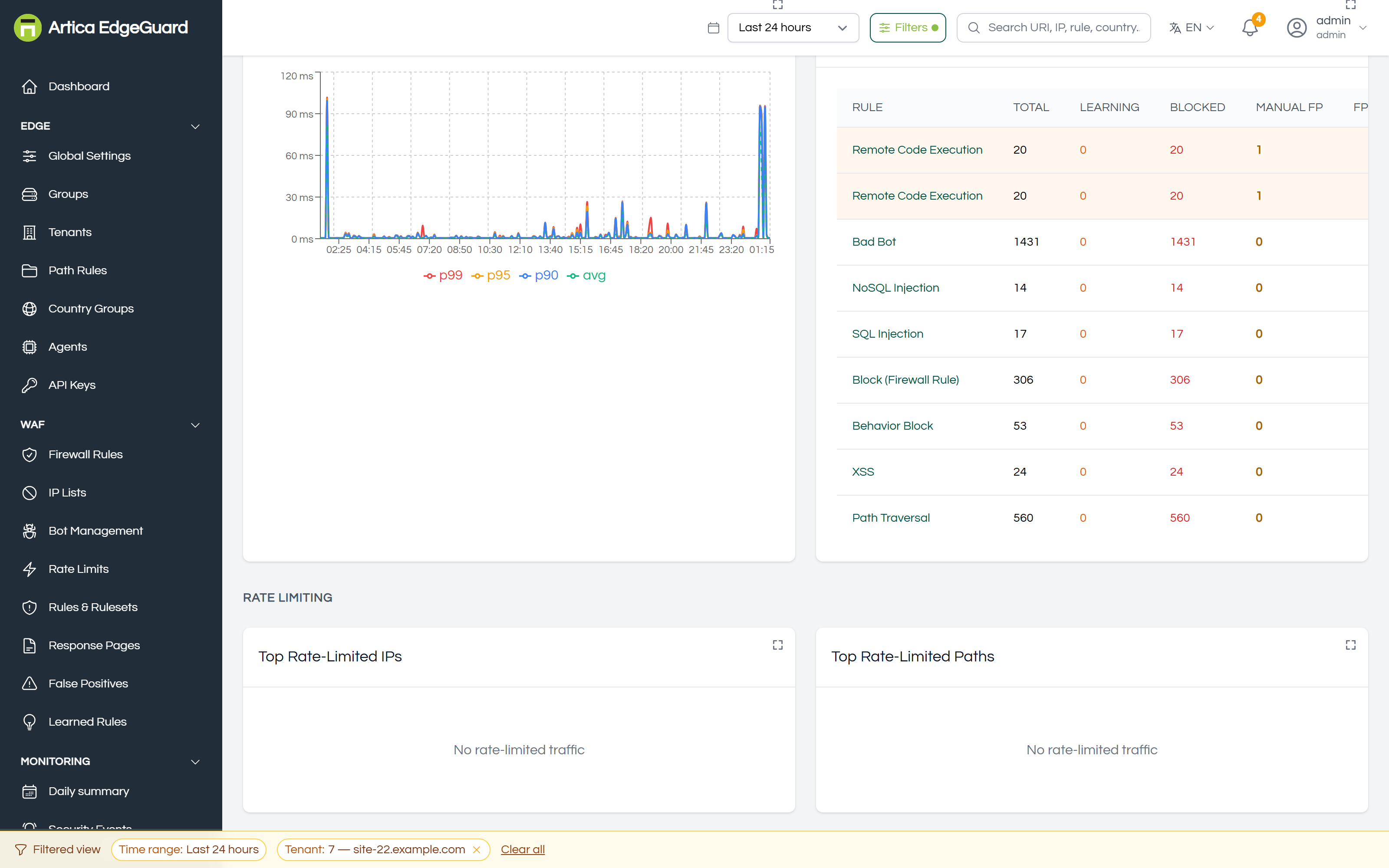
Top rate-limited addresses and top rate-limited paths. A path appearing here that you did not expect usually means a client is retrying rather than attacking — a mobile app with an aggressive retry loop looks identical to a scraper until you look at which addresses.
¶ Making the numbers trustworthy
- The range is inclusive of the site filter. "Everything is quiet" and "you are looking at one site" render identically. The bar along the bottom of the console always says which filters are on.
- The period must be inside retention. Events are pruned at the retention set in Global Settings — 90 days by default — so a range that reaches further back is not wrong, it is empty. Ship to a log connector if you need longer.
- Synthetic traffic is classified separately so health checks and synthetic monitoring do not inflate a total that somebody will later quote.
- Zero is not the same as no data. Where a panel has nothing to show it says so rather than drawing an empty chart that reads as a measurement of zero.
¶ Verifying
1. Compare one number against the source. Pick a rule in Rule coverage, note its count, then open Security Events filtered to that rule over the same range. The totals should agree.
2. Check the comparison period. A figure "up 300%" against a previous period that contained a maintenance window is arithmetic, not a finding. The range picker makes the previous period explicit.
3. Watch latency after a rule change. Add a paranoia level or a large rule set, then look at p95 the next day. This is the only panel that will tell you what protection is costing you.
¶ Where Analytics is the wrong tool
- One request → Security Events.
- A statement for an auditor → Compliance Reports.
- A campaign across many events → Attack Chains.
- What endpoints exist at all → Attack Surface.
- What changed in the configuration → Audit Log and Configuration Drift.