Compliance reports: what EdgeGuard can evidence for PCI-DSS, SOC 2, HIPAA, GDPR and eleven other standards, how a report is put together, and what it will not claim.
A report is a statement about a period, built from what EdgeGuard actually recorded in that period. It is generated on demand or on a schedule, stored, and downloaded as PDF, HTML or CSV.
It is evidence, not a certificate. EdgeGuard can show that a control was in place and that it acted; it cannot show that your organisation is compliant, and the reports are careful about that distinction — where a control is outside a WAF's reach, the report says so rather than passing over it.
¶ Where the console shows it
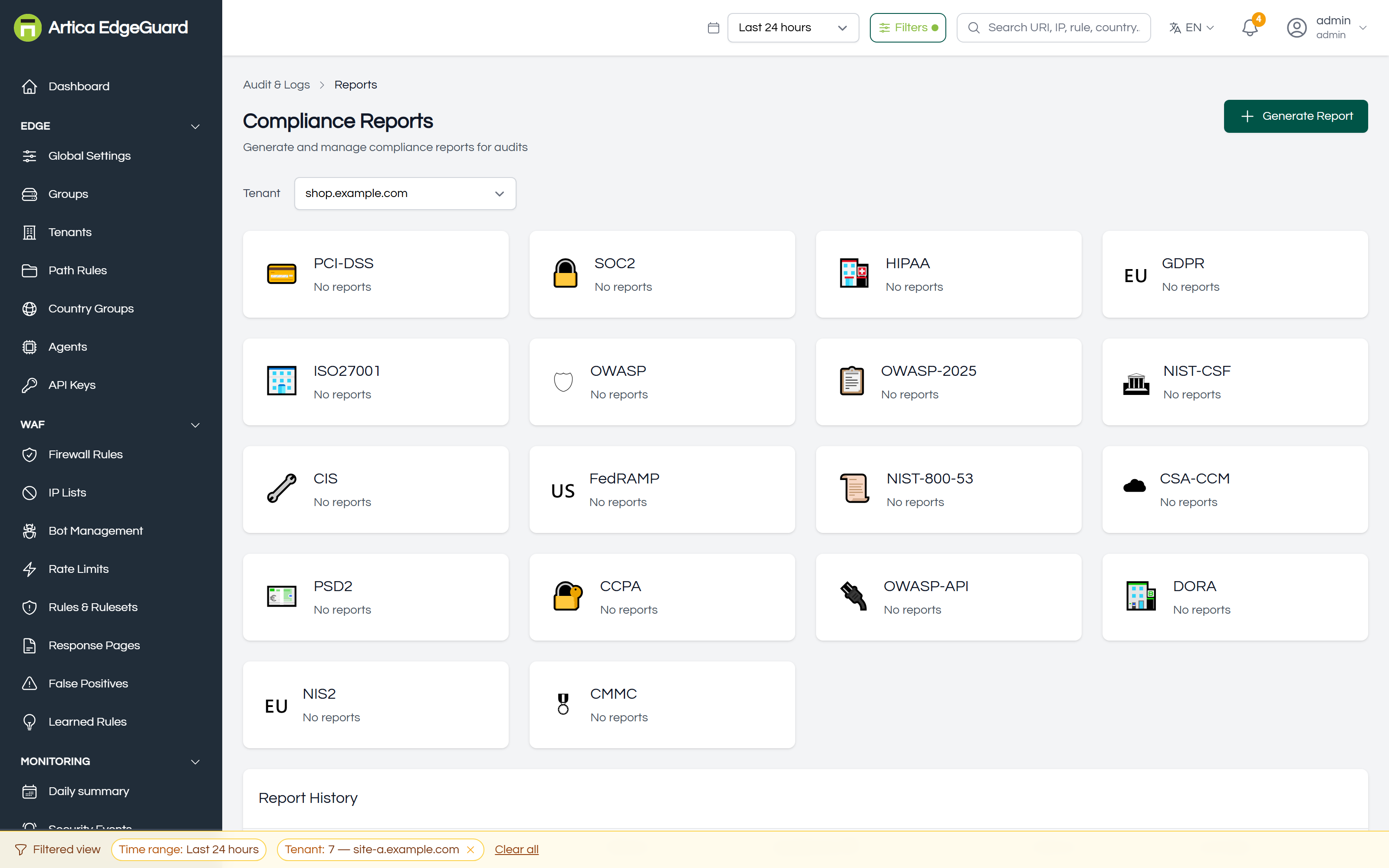
Every report generated, with its standard, period, who generated it, and when. Download gives you the file; Delete removes the stored report.
Page actions: Generate Report · download · delete · manage the schedules listed below the table.
¶ Generating one
Click Generate Report.
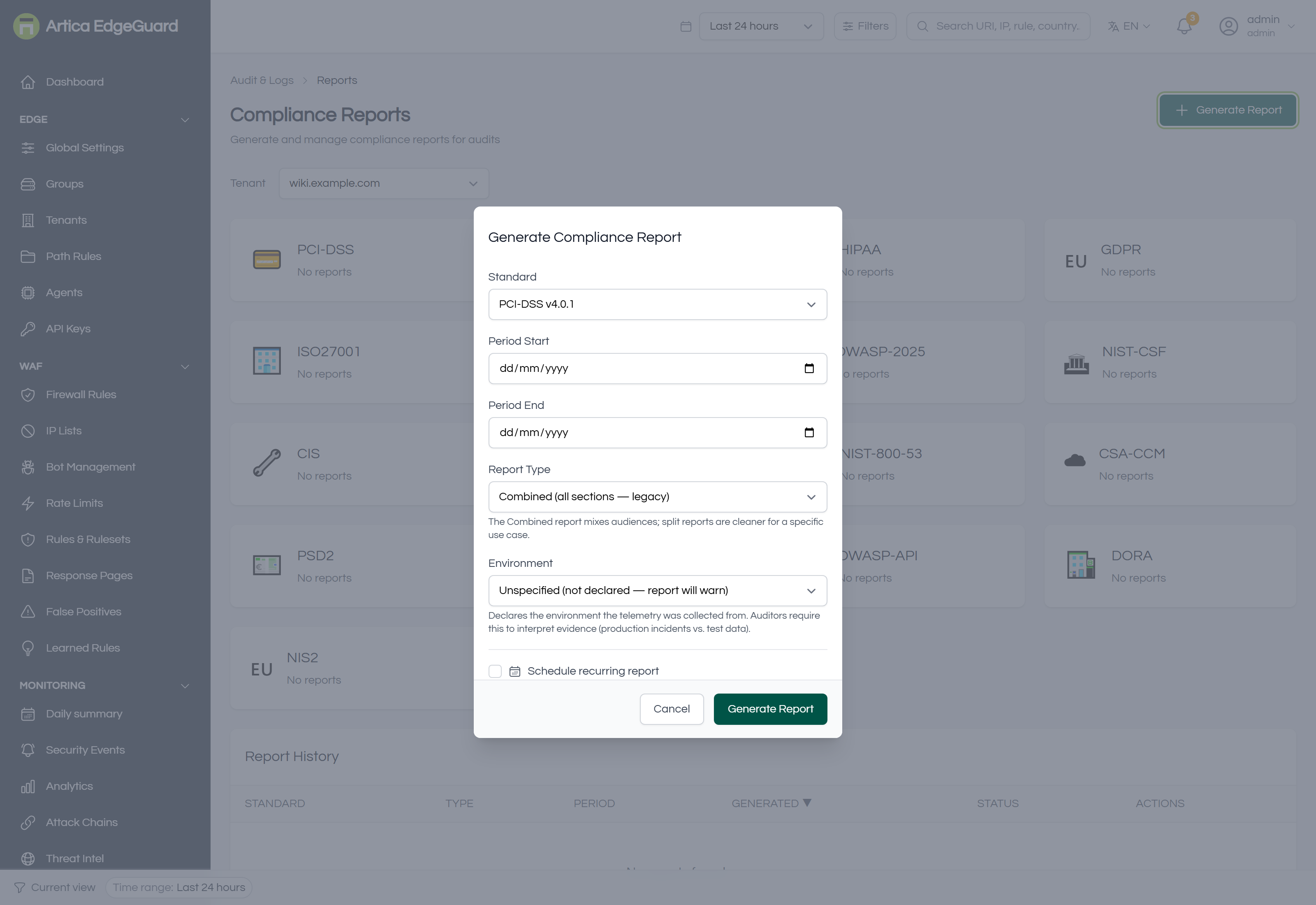
- Standard — one of the fourteen below.
- Period Start and Period End. The end date is included in full: a period ending on the 30th covers the 30th up to 23:59:59.
- Report Type — see the table below.
- Environment — production, staging, UAT, pen-test. This is not cosmetic: a report with an unusually high block rate and no declared environment carries a warning on its face, because a pen-test week and a production week make the same numbers mean opposite things.
- Schedule recurring report, optionally — weekly, monthly or quarterly.
- Generate Report.
Generation is synchronous and takes a few seconds; the report appears in the table when it is done.
¶ The four report types
| Type | What it contains | Who reads it |
|---|---|---|
| Evidence | the raw telemetry for the period — traffic, blocks, attack categories, top sources, incidents | operations, and an auditor who asks for underlying data |
| Control Mapping | each control of the standard against the EdgeGuard capability that addresses it | gap analysis, before an assessment |
| Compliance Readiness | status per control, with gaps and findings stated plainly | the auditor |
| Combined | all three | the usual choice |
¶ The standards
PCI-DSS v4.0.1 · SOC 2 Type II · HIPAA · GDPR · ISO 27001:2022 · OWASP Top 10 · NIST CSF v2.0 · CIS Controls v8 · FedRAMP · NIST SP 800-53 · CSA CCM · PSD2 · CCPA/CPRA · OWASP API Security Top 10.
¶ What a report is built from
Everything in it comes from data EdgeGuard already holds for the period: the security events, the audit trail, the configuration as it stands, the agents' reported state, the incidents and the attack surface inventory.
Two consequences follow, and both matter more than they look.
The period must be inside your retention. Security events are pruned at the retention set in Global Settings — 90 days by default. A report for a period older than that is not wrong; it is empty, because the evidence was deleted. If you need annual reports, either raise retention or ship events to a destination that keeps them (see Log Connectors).
The audit trail is not pruned. Administrative history is kept indefinitely, whatever the event retention says. A report's remark about retention refers to the event retention setting; the trail of who changed what goes back to the day you installed.
¶ Reading a report honestly
The reports are written to survive being read by somebody sceptical, which means several sections exist to undermine over-claiming:
- Attribution. Every report records the account that generated it, their role and the address they generated it from. A scheduled report records the schedule instead, as
schedule (someone@example.com)— the distinction an auditor asks about first. - Environment warnings. An unspecified environment with an abnormal block rate produces a banner, not a silent number.
- Data-gated statements. Where there is no data to support a claim, the report says there is no data, rather than reporting zero as though it were a measurement.
- Non-compliance stated as such. If event retention is 90 days and the standard requires 365, a PCI report says it is non-compliant with 10.5.1 and gives the number. It does not round up.
- Collapsed duplicate rows. Identical consecutive audit rows are shown once with a ×N multiplier — an access and refresh token invalidated in the same transaction are one action, not two. The raw rows stay in the audit table.
¶ Downloading
The download offers three formats:
- PDF (the default) — the report as an auditor expects to receive it.
- HTML — the same content in a browser, for attaching to a ticket.
- CSV — the sections as data, for a spreadsheet.
# The same three, over the API
curl -H "Authorization: Bearer $TOKEN" \
  "https://central.example.com:8082/api/v2/compliance/reports/$ID/download?format=pdf" -o report.pdf
curl -H "Authorization: Bearer $TOKEN" \
  "https://central.example.com:8082/api/v2/compliance/reports/$ID/download?format=csv" -o report.csv
¶ Scheduling
A schedule generates the same report automatically, for the window that just closed: weekly covers the previous seven days, monthly the previous month, quarterly the previous three months. The worker checks every fifteen minutes; a schedule created today first runs when its next date arrives.
The schedules table shows Next run and Last run. A schedule that has never produced anything says not yet; one whose generation failed says failed, with the reason on hover.
Scheduled reports need central 2.4.24 or later. Before that the schedule was stored and never executed — if you have schedules older than that upgrade, their first real run is after it.
Scheduled reports are always the combined type: a schedule records a standard and a frequency and nothing narrower, so narrowing it would be inventing an answer nobody gave.
¶ Verifying
1. Generate a short one first. A week, evidence type, the site you know has traffic. If the totals match what Analytics shows for the same week, the pipeline is sound.
2. Check the period boundaries. The report states its window in UTC on the first page. A report that looks empty is usually a window that ended before the traffic.
3. Check attribution. Your own email on a manual report; schedule (…) on an automatic one. This is what tells the auditor the monthly report was not produced the morning of the audit.
4. Confirm a schedule actually ran. After its first due date, Last run carries a date. If it says not yet well past the date, central was not running then — the worker catches up on its next tick rather than skipping the window.
¶ Where a report is the wrong tool
- You need to know what is happening now → the Dashboard and Security Events.
- You need an alert → the daily summary, the notification bell, or a SIEM fed by a connector.
- You need to prove one request was blocked → Security Events, by its EdgeGuard ID. A report is about a period, not a request.
- You need evidence older than your retention → a log connector, before you need it. A report cannot reconstruct what was deleted.