EdgeGuard — Bot Management
Bot Management in EdgeGuard: which automated clients are welcome, how a claim is verified, and what an allowed bot really gets.
Bot Management decides which automated clients are welcome. Not all bots are attackers — search engines, uptime checks and partner integrations are all bots — and not everything calling itself Googlebot is Googlebot.
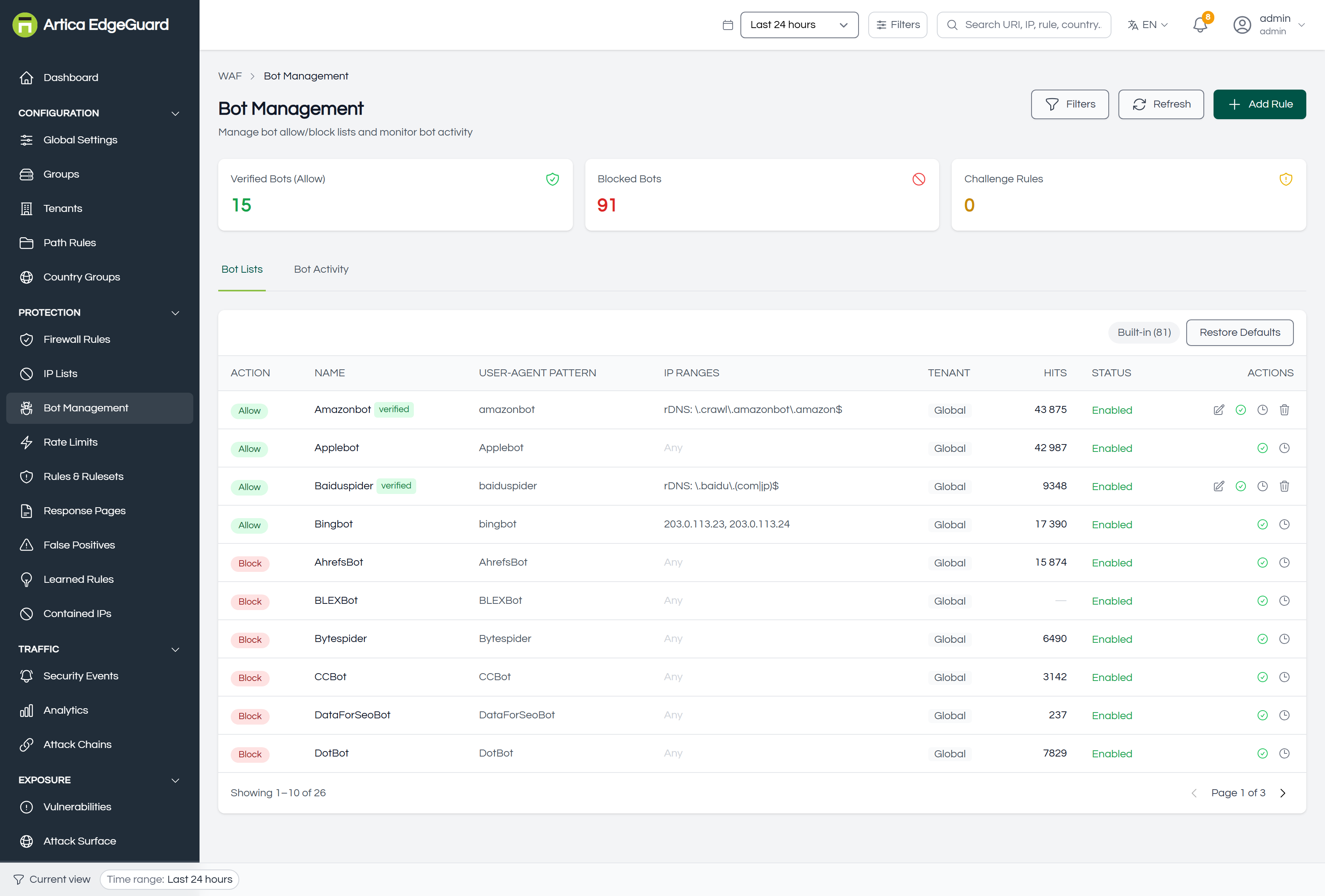
Two tabs
- Bot Lists — your rules, plus the Built-in list of 81 known signatures: search engines, SEO crawlers, monitoring services, scrapers. Restore Defaults puts the built-in list back if it has been edited.
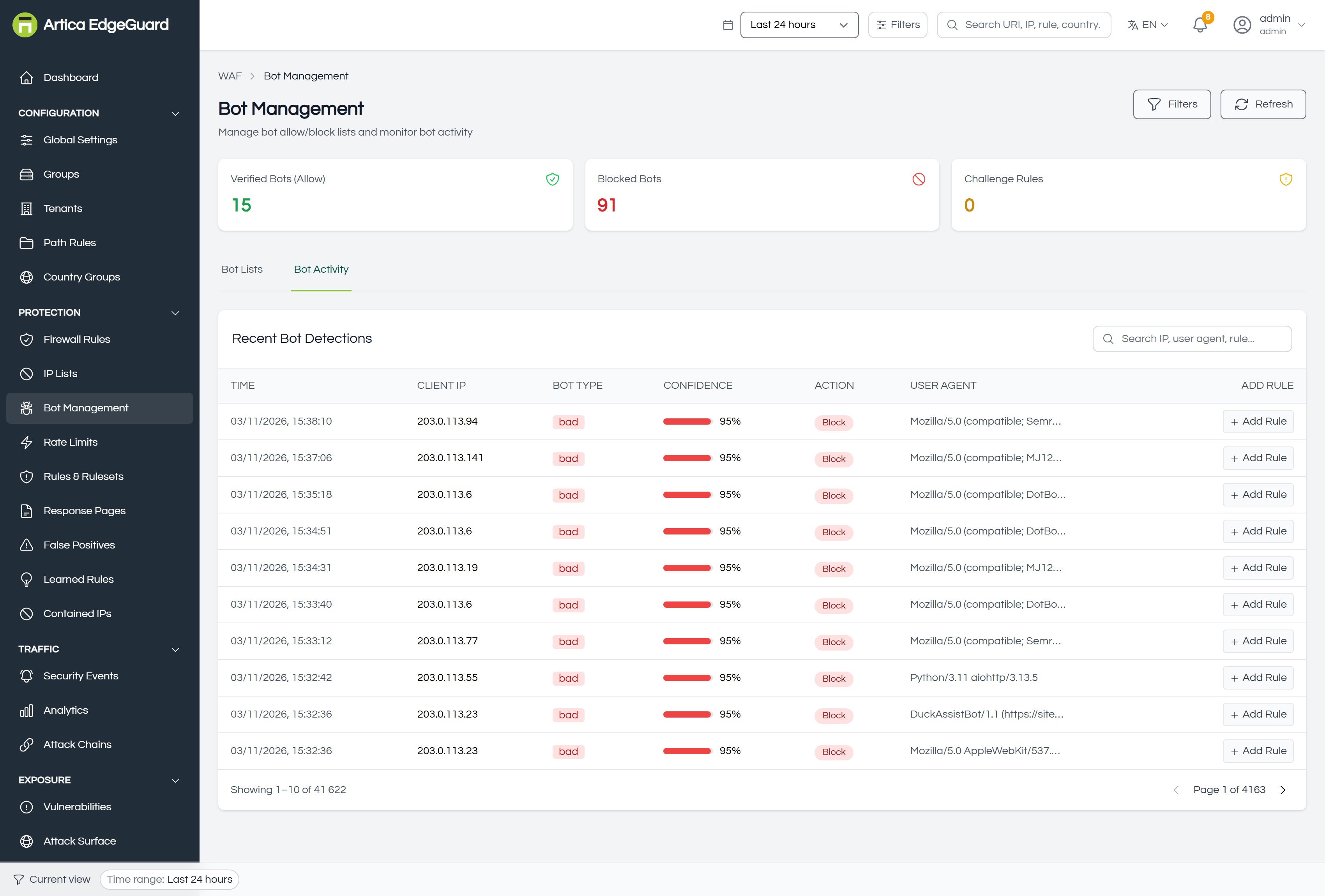
- Bot Activity — Recent Bot Detections: which bot was seen, on what, from where, and what happened to it. Check this before changing a rule; it usually answers the question the rule was going to guess at.
What an allowed bot actually gets
This is the part worth reading twice.
An allowed bot bypasses bot challenges and bad-bot blocking — and nothing else. It still meets every other check: injection rules, IP lists, rate limits, learned rules. Allowing Googlebot does not hand it a key to the application.
That is a deliberate correction. Allowing a bot once returned immediately, which meant anybody who set their User-Agent to Googlebot walked past SQL injection and XSS detection as well. Now the allowance covers exactly the checks it should.
Verifying who a bot says it is
A User-Agent is a claim, and claims are free. Two mechanisms turn one into evidence:
Reverse DNS. The engine resolves the client's address and checks that the name belongs to the crawler it claims to be. The logic is careful in a way worth knowing:
- The lookup contradicts the claim → the client is an impersonator, and is blocked if bad-bot blocking is on. The event reads
bot_impersonation. - The lookup does not complete — slow or failing DNS → the rule is skipped, and the client is judged by everything else. Slow DNS can never block a real crawler.
IP ranges. Give the rule the networks the bot really uses. A User-Agent that matches but arrives from outside them does not match the rule at all.
Use both together when you can: the name says who it claims to be, the address says where it really is, and reverse DNS ties the two.
Creating a bot rule
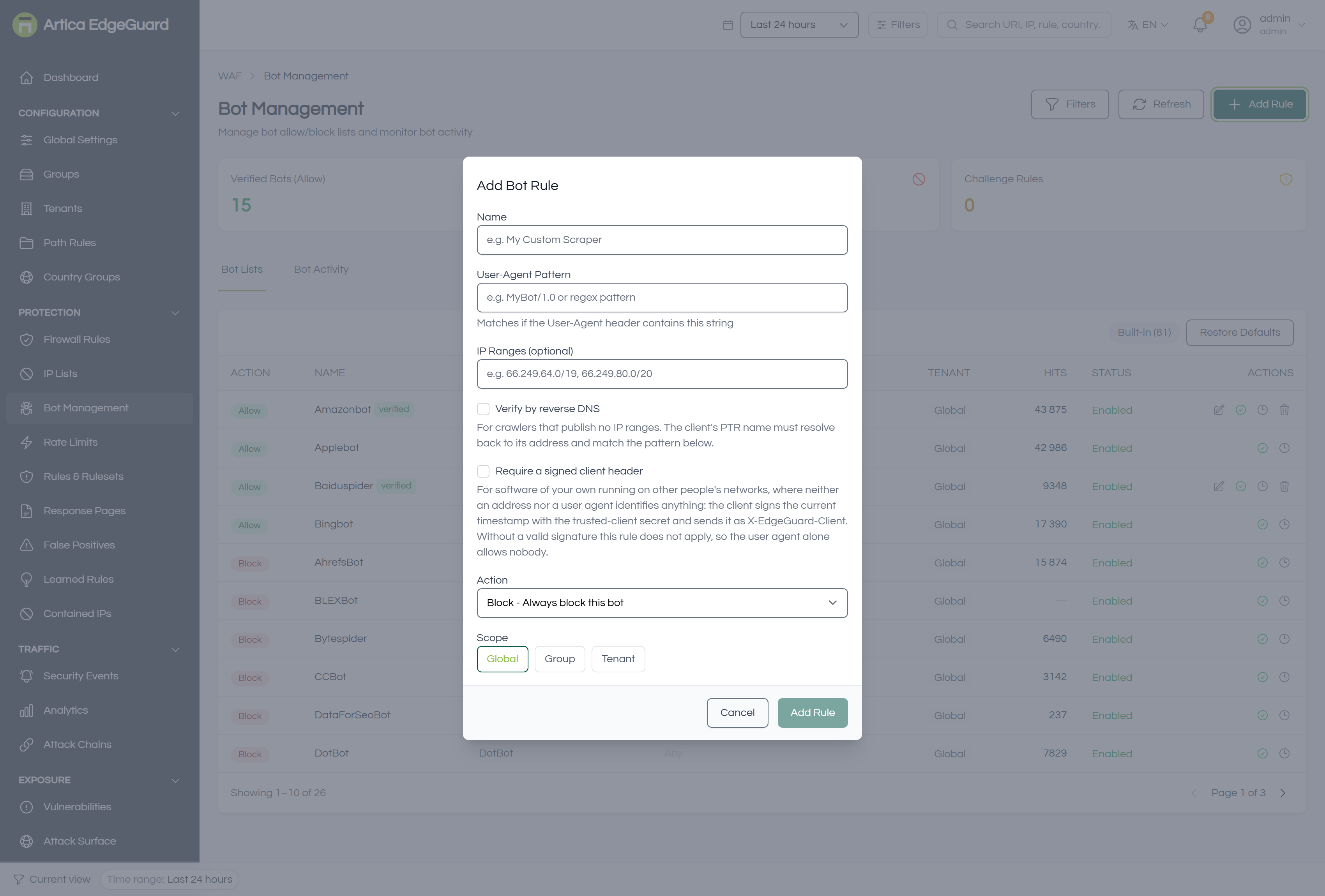
Click Add Rule.
- Name — e.g.
Partner integration. - User-Agent Pattern — matched when the User-Agent contains this string. Not a regular expression, and not case sensitive.
- IP Ranges (optional) — the networks the bot really uses, comma-separated CIDRs.
- Verify by reverse DNS — for crawlers that publish resolvable names, which is all the major ones.
- Require a signed client header — for bots of your own that can sign their requests.
- Action:
- Allow — always permit this bot (with the limits described above).
- Block — always refuse it.
- Challenge — show a CAPTCHA or JavaScript challenge; a real browser-driven bot passes, a script does not.
- Rate limit — admit it but cap how often. The right answer for a crawler you want, but not at full speed.
- Scope — Global, Group or Tenant → Add Rule.
A rule with Rate limit and no ceiling set behaves as an allow. Set the ceiling, or choose Allow and mean it.
The global switches
The behaviour that applies when no rule matches lives in Global Settings → Bot & Browser:
- Bot Detection — the master switch.
- Block Bad Bots — refuse known bad signatures. This is also what decides whether an impersonator is blocked or merely recorded.
- Block Empty UA — refuse requests with no User-Agent at all.
- Challenge Unknown — challenge User-Agents that match nothing known.
- Headless browser detection — block confirmed Puppeteer, Playwright and Selenium. Off by default, and a bot rule that allows a user agent takes precedence over it.
- Challenge browsers from datacentres — a JavaScript challenge for browsers arriving from hosting networks; verified crawlers are never challenged. Needs an ASN database.
Verifying a rule
1. Impersonate the bot you just allowed — from an address outside its ranges, if the rule has them:
curl -o /dev/null -w '%{http_code}\n' \
  -H 'User-Agent: Mozilla/5.0 (compatible; Googlebot/2.1; +http://www.google.com/bot.html)' \
  "https://site.example.com/"
With reverse DNS verification on, this should be refused — you are not Google, and the lookup says so. That is the rule working, not failing.
2. The real crawler. Look in Bot Activity for its name and what happened, or filter Security Events by the site: an impersonation reads bot_impersonation, a bad-bot block reads bad_bot with the bot's name.
3. Is the rule matching at all? Each rule counts its own hits, so a rule with a typo in its pattern is distinguishable from a rule nothing matches — which a category counter alone could never tell you.
When a bot rule is the wrong tool
| Situation | Better tool |
|---|---|
| The crawler is welcome but too fast | Rate limit inside the bot rule, or a rate limit rule on the paths it hammers |
| It is one address rather than one client | an IP list entry |
| It is a whole hosting provider | a firewall rule matching the ASN |
| The requests are malicious, not merely automated | the rulesets — they are what inspects content |