Connecting an Artica appliance to the Artica AI appliance
Connect the Artica AI assistant of an appliance to an Artica AI appliance of your network: benefits, concepts, use cases and step-by-step setup.
This page connects the Artica AI assistant of an appliance to an Artica AI appliance of your network.
The assistant then writes its answers with a model that runs on your own hardware.
No question and no log leaves your network.
For the principles of Artica AI, read the Artica AI page first.
Functional benefits
- Your data stays at home.
Questions, logs and investigation results go only to the AI appliance.
Nothing is sent to an Internet provider. - No cost per question.
The model runs on a machine you already own.
There is no account, no API key and no bill per token. - One model for the whole fleet.
A single AI appliance serves every Artica appliance you allow.
Each client needs no GPU and no extra memory. - Works without Internet.
Isolated sites and closed networks get the full assistant. - Encrypted and filtered.
Clients talk to the AI appliance over HTTPS, with a certificate authority of its own.
Only the addresses you allow are answered. - Ready in three steps.
Allow the client, download one certificate, paste it in the client.
Concepts
| Term | Meaning |
|---|---|
| AI appliance | An Artica appliance that runs a local model server (Ollama with Qwen 2.5). It is installed from Your system > AI appliance. See Artica AI appliance. |
| Client appliance | Any Artica appliance whose Artica AI assistant uses the AI appliance as its language model. |
| Allowed client | An IP address or a network (CIDR) that the AI appliance answers. Any other address is refused. |
| Certificate authority (ca.pem) | The authority that signs the certificate of the AI appliance. Each client trusts it to check that it really talks to your AI appliance. The certificate covers the host name and every IP address of the AI appliance. |
| Quick connection | The provider Artica AI appliance (LocalIA) of the client. It asks only for the AI appliance, the port and the certificate. It fills in the endpoint, the model and the timeout by itself. |
| Context length | How much text the model reads at once, in tokens. The assistant needs 32768 tokens: its instructions and the list of its checks are about 9000 tokens long. |
| Warm-up | The client sends its instructions to the AI appliance when it starts, then every 10 minutes. The AI appliance keeps them ready, so questions do not wait for them. |
How it works
- The administrator allows the address of the client on the AI appliance.
- The client trusts the certificate authority of the AI appliance.
- When the assistant of the client needs the model, it sends an HTTPS request to the AI appliance on port 11443.
- The AI appliance checks the address of the client, then passes the request to its local model.
- The model answers.
The client shows the diagnosis with the evidence it collected itself.
The model never reaches the client appliance.
It only writes text.
Every check runs on the client, under its own policy, and every change waits for an approval.
The AI appliance works on its processor only.
Reading the instructions of the assistant for the first time takes a few minutes.
The warm-up does this work in the background, before anyone asks.
Then an answer usually takes between 20 seconds and one minute.
Use cases
| Situation | What the AI appliance brings |
|---|---|
| Data protection rules (GDPR, sector rules) | Logs and host names never leave the company. |
| Isolated or classified network | The assistant keeps working without any Internet access. |
| Fleet of proxies, gateways and firewalls | One AI appliance serves them all. Each one keeps its own policy and its own audit log. |
| Predictable budget | No bill per question, even with many incident investigations. |
| Small appliances | A proxy or a mail gateway with little memory cannot host a model. The AI appliance does the heavy work for it. |
For a first test without dedicated hardware, a hosted API is faster to set up: see Connecting an Artica appliance to DeepSeek.
Prerequisites
- An installed AI appliance.
See Installing an Artica AI appliance. - The Artica AI service installed on the client appliance (Your system > Artica AI > Installation).
- TCP port 11443 open from the client to the AI appliance.
- An administrator account on both Web consoles.
Step 1: check the AI appliance
On the AI appliance, open Your system > AI appliance.
The Status tab shows the local server, then the panel To enter on the client appliances.
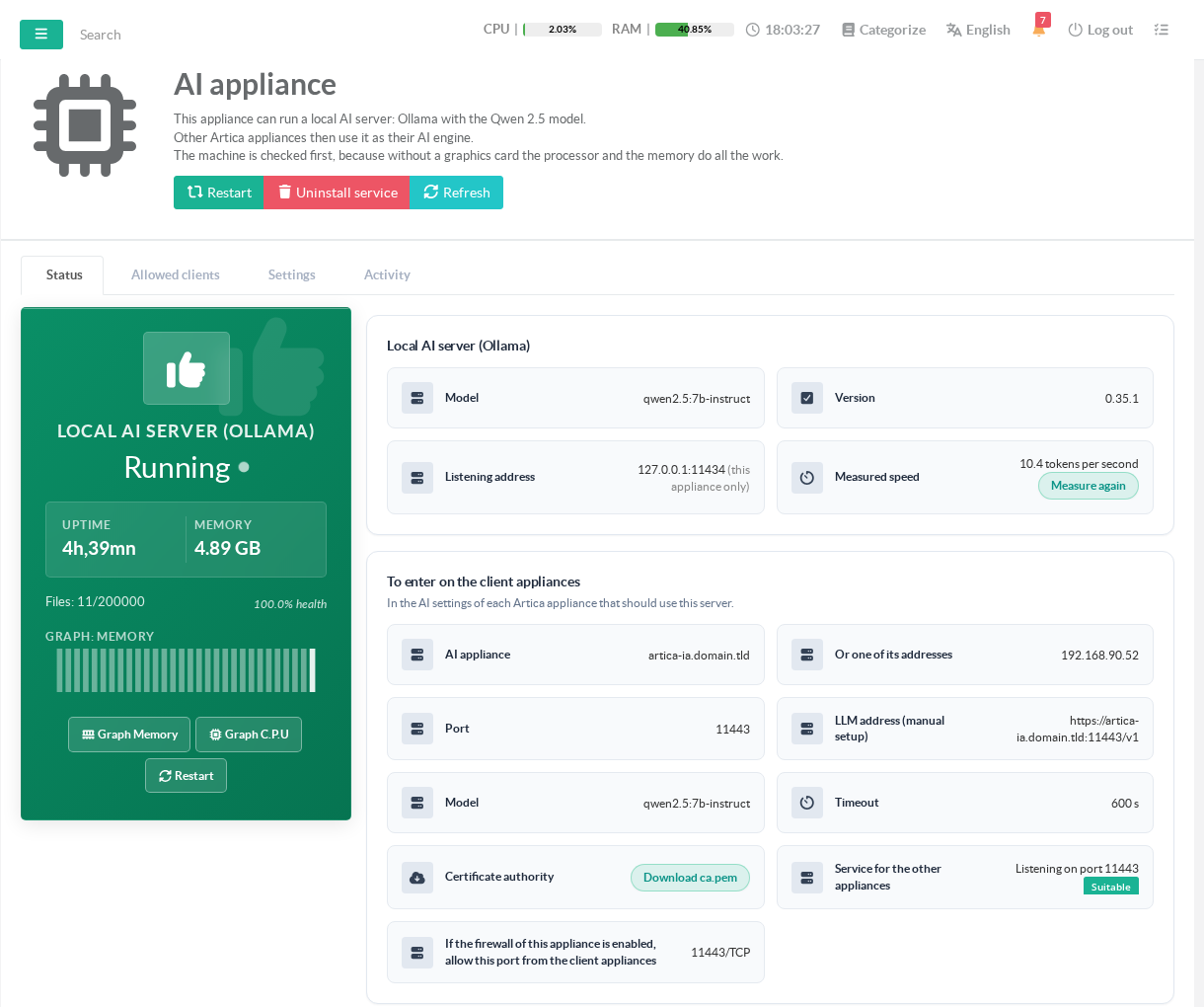
Note these values:
- AI appliance: the host name of the AI appliance.
Use it when the clients can resolve it in the DNS. - Or one of its addresses: the IP addresses to use when the clients cannot resolve the name.
All of them are in the certificate. - Port: 11443 by default.
- Certificate authority: click Download ca.pem and keep the file.
If the firewall of the AI appliance is enabled, allow TCP 11443 from the clients.
Step 2: check the context length
Open the Settings tab, then the model server parameters.
Context Length (Tokens) must be 32768.
New installations use this value.
An AI appliance installed with 8192 must be changed: with less, the model only sees the end of the instructions and every investigation fails.
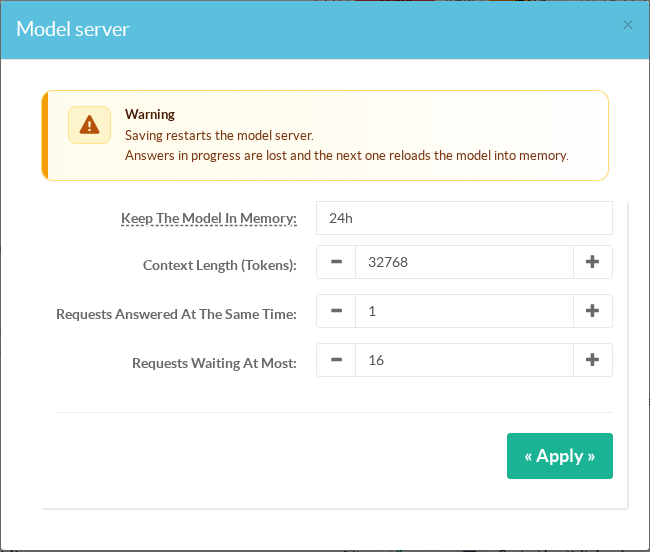
Keep Keep The Model In Memory at 168h.
A model that leaves memory loses the prepared instructions, and the next answer waits for them again.
Saving restarts the model server.
Step 3: allow the client
Open the Allowed clients tab and click New client.
Enter the IP address of the client, or a network such as 192.168.1.0/24.
Add a comment, keep Enabled on, and click Apply.
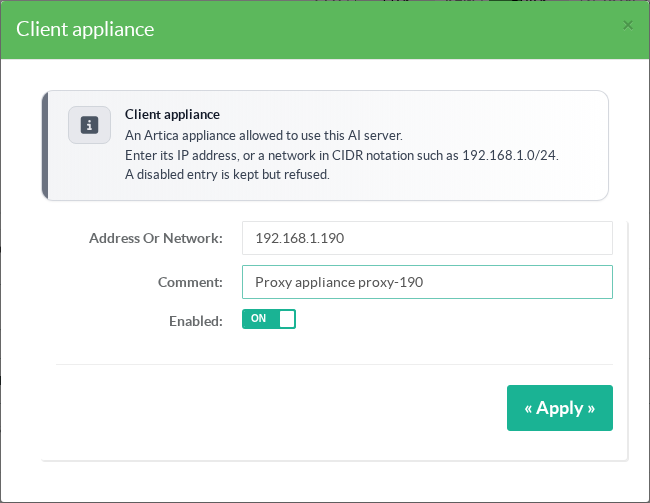
Use the address the AI appliance sees.
When a router translates addresses between the two, allow the translated address.
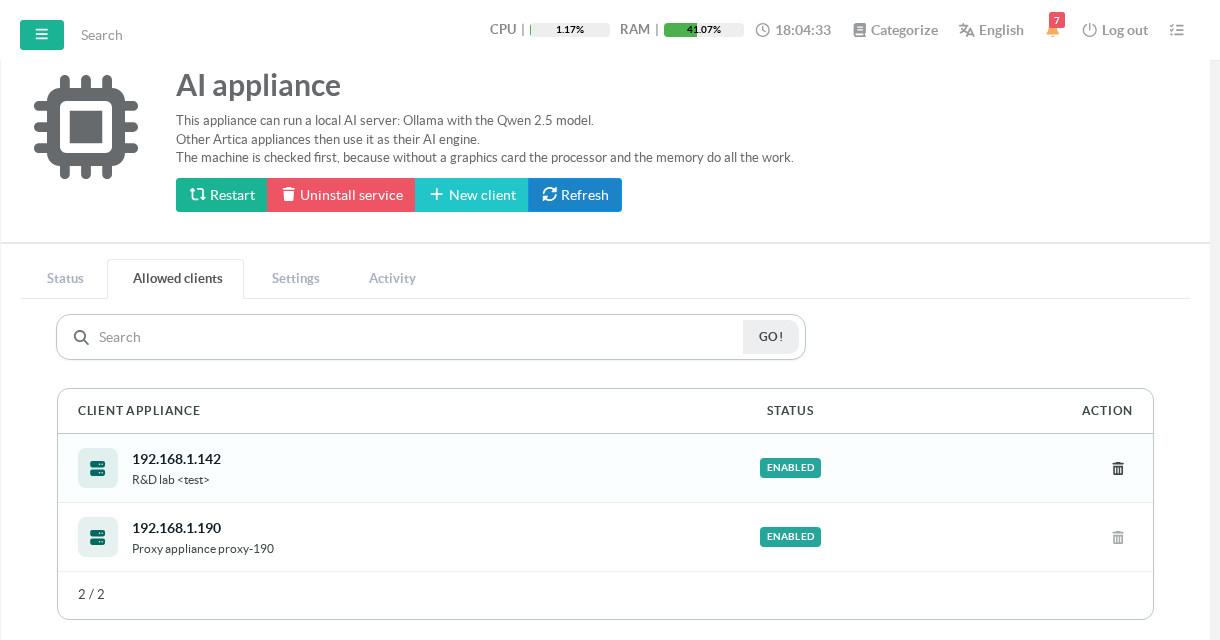
A disabled entry is kept but refused.
Step 4: connect the client
On the client appliance, open Your system > Artica AI.
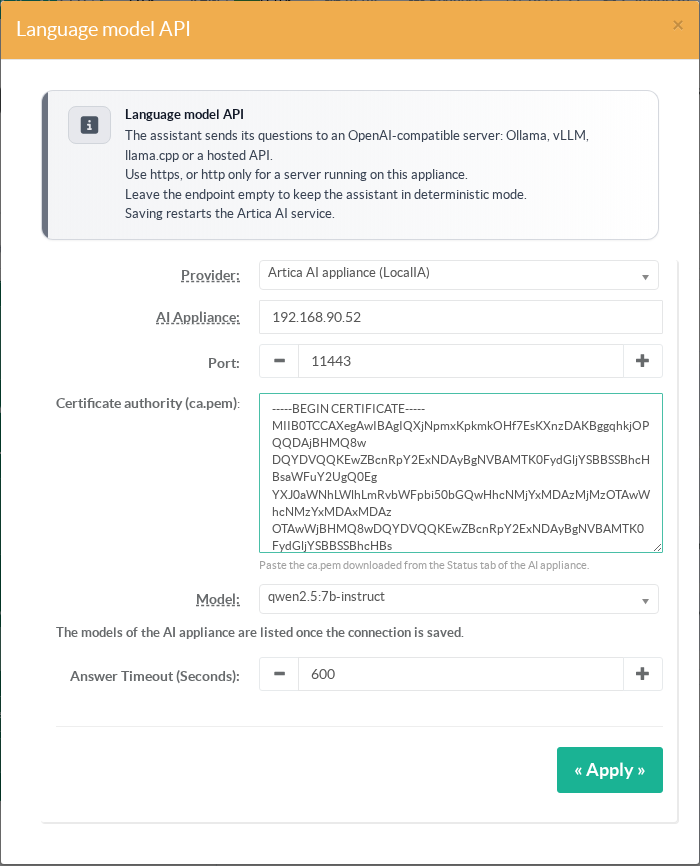
In the card Engine and language model, click Parameters.
- In Provider, choose Artica AI appliance (LocalIA).
- In AI Appliance, enter the host name or one of the addresses noted in step 1.
- In Port, keep 11443 unless it was changed.
- Open the ca.pem file in a text editor and paste its whole content in Certificate authority (ca.pem).
- Keep the model qwen2.5:7b-instruct and the timeout of 600 seconds.
- Click Apply.
No API key is needed.
The AI appliance filters its clients by address.
A key saved for a previous provider is removed, so that it never travels to the AI appliance.
Saving restarts the Artica AI service of the client.
Step 5: check the connection
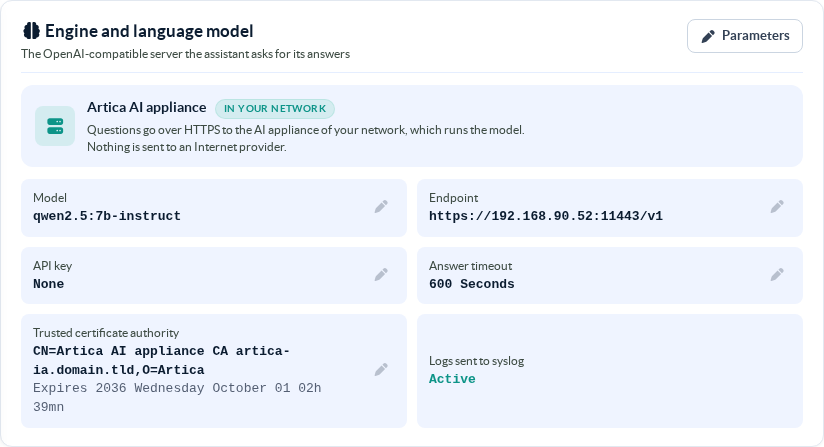
The card now reads Artica AI appliance with the badge IN YOUR NETWORK.
The endpoint points to the AI appliance, and the certificate authority is the one of the AI appliance.
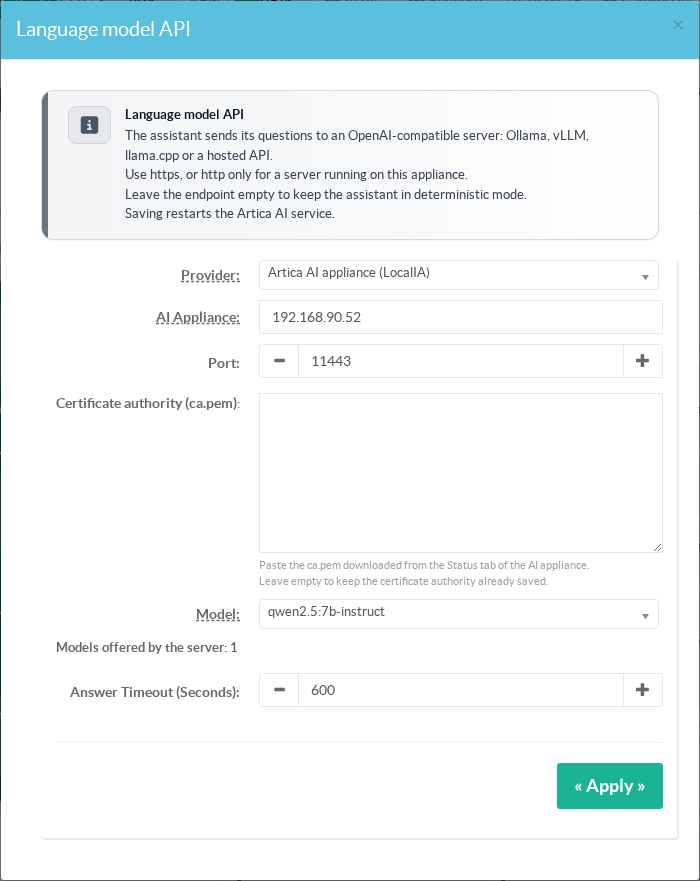
Open Parameters again.
The line under the model reads Models offered by the server: 1.
This proves that the client reaches the AI appliance, trusts its certificate and is allowed.
Leave Certificate authority empty to keep the saved one, and close the window.
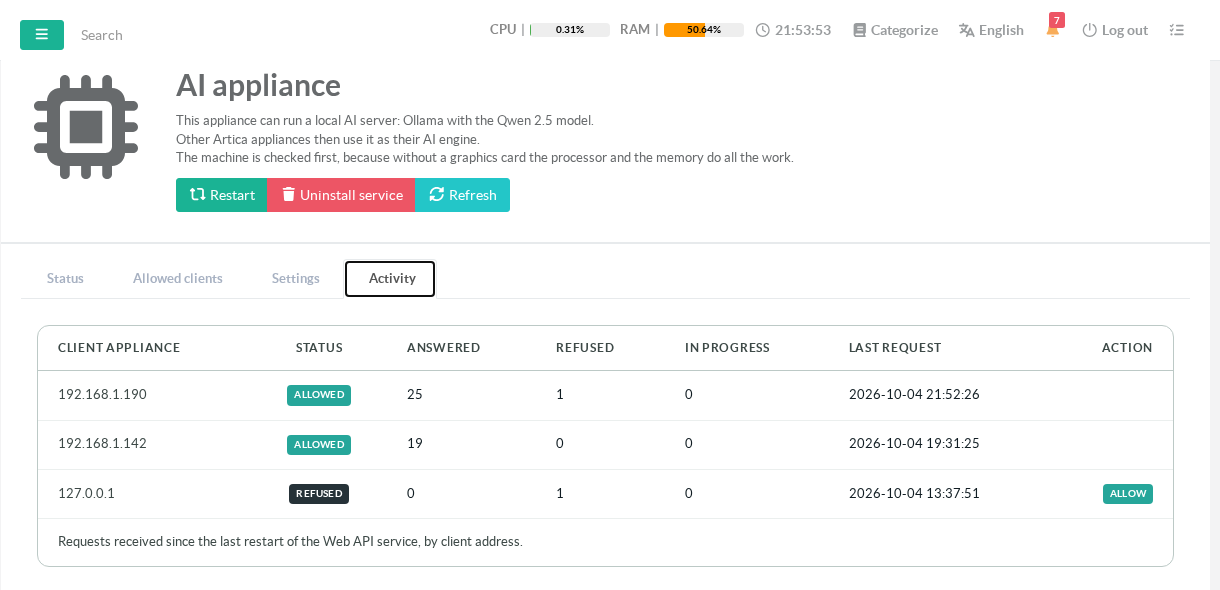
On the AI appliance, the Activity tab counts the requests of each client.
A refused address appears there too, with an Allow button.
Step 6: ask a first question
Right after the connection, the client prepares the instructions on the AI appliance.
This takes a few minutes the first time.
Then click Ask ArticaAI in the top bar and type a question.
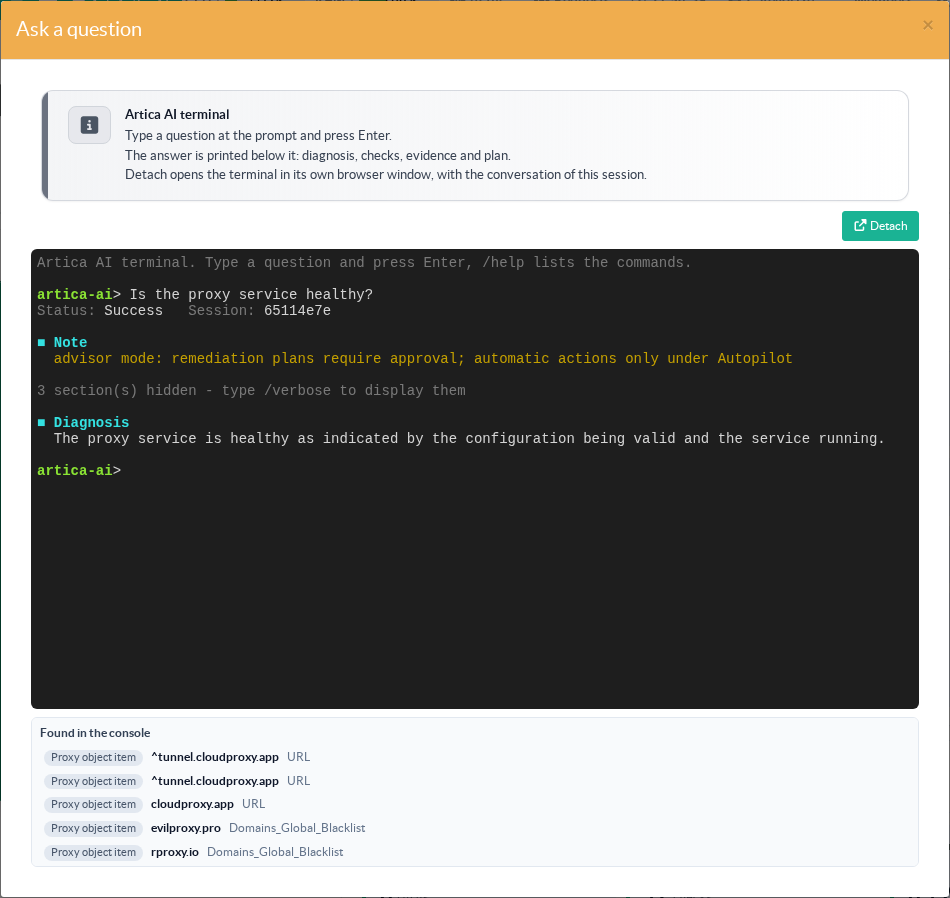
The Diagnosis section is the text written by the model of the AI appliance.
Type /verbose to display the checks, the evidence and the plan.
Performance
- Without a graphics card, the AI appliance writes about 6 to 10 tokens per second.
A short diagnosis takes 20 to 60 seconds. - A question asked in the terminal must be answered within about 5 minutes.
A longer investigation ends with the deterministic summary of the assistant. - The investigations started by an incident run in the background, without this limit.
For them, raise Investigation timeout in the card Assistant agent to 600 or 900 seconds. - The model of the AI appliance is smaller than a hosted model.
Its diagnoses are shorter and sometimes less precise.
The assistant always shows the evidence it collected, so you can check them.
Troubleshooting
| Symptom | Cause and fix |
|---|---|
| HTTP 403 under the model, or Refused in the Activity tab | The address of the client is not allowed. Allow the address that the Activity tab shows. |
| Certificate error | The pasted ca.pem is not the one of this AI appliance, or the name used is not in its certificate. Download ca.pem again, or use one of the listed addresses. |
| No answer, connection timeout | TCP 11443 is blocked between the client and the AI appliance. Check the firewalls on the way. |
| Answers end with protocol error | The context length of the AI appliance is too small. Set it to 32768 (step 2). |
| The first question after a restart ends without a diagnosis | The instructions were not prepared yet. Wait a few minutes and ask again. |
See also
- Artica AI: principles, operating modes and choice of the model.
- Artica AI appliance: concepts, prerequisites and performance of the AI appliance.
- Installing an Artica AI appliance: installation step by step.
- Connecting an Artica appliance to DeepSeek: the hosted alternative.