Connecting an Artica appliance to DeepSeek
Connect the Artica AI assistant of an appliance to the hosted DeepSeek API: benefits, concepts, use cases and step-by-step setup.
This page connects the Artica AI assistant of an appliance to the DeepSeek API.
The assistant then writes its answers and its investigations with a hosted DeepSeek model.
Nothing has to be installed besides the Artica AI service itself.
For the principles of Artica AI, read the Artica AI page first.
Functional benefits
- Answers in plain language.
The assistant explains what it reads on the appliance with real sentences.
Without a model, it only prints the raw results of its own checks. - Automatic investigations.
When an incident opens, the assistant chains read-only checks by itself.
It then writes a diagnosis and, when useful, a remediation plan. - No hardware to buy.
The model runs at DeepSeek.
The appliance needs no GPU and no extra memory. - Ready in two minutes.
Install the service, choose DeepSeek, paste the key, apply. - Low cost.
Thedeepseek-flashmodel is fast and cheap.
It fits the short investigations of the assistant well. - Same safety rules.
The model only writes text.
Every change still goes through the policy, an approval and a verified rollback.
Concepts
| Term | Meaning |
|---|---|
| Artica AI service | The daemon that runs on the appliance. It reads the state of the appliance, keeps the audit log and applies the policy. |
| Language model | The remote server that writes the text of the answers. Here, the DeepSeek API. |
| Endpoint | The address of an OpenAI-compatible API. For DeepSeek: https://api.deepseek.com/v1. |
| API key | The secret that identifies your DeepSeek account. It starts with sk-. The console never displays it again once saved. |
| Deterministic mode | The mode used when no model is configured. Every answer comes from the local rules engine. Nothing leaves the appliance. |
| Remote mode | The mode used with a hosted API such as DeepSeek. Questions and observations are sent over HTTPS. Secrets are masked before they are sent. |
| Offline mode | A switch that stops all calls to the model. The settings and the key are kept. The assistant falls back to deterministic mode. |
| Agent | The loop that lets the model run read-only checks one after the other. It is bounded by budgets: 8 turns, 12 checks and 180 seconds by default. |
How it works
The appliance keeps control at every step.
The model never reaches the system directly.
- An administrator asks a question, or an incident opens.
- Artica AI chooses read-only checks from its catalog and runs them on the appliance.
- The results are cleaned: passwords, keys and tokens are masked.
- Artica AI sends the question and the cleaned results to DeepSeek over HTTPS.
- DeepSeek may ask for more checks.
Artica AI runs only the read-only checks that its catalog allows. - DeepSeek returns a diagnosis.
Artica AI displays it with the evidence it collected. - When a fix is needed, the assistant proposes a plan.
The plan waits for the approval of an administrator, unless the Autopilot allows it.
The model only proposes.
The policy decides.
Artica AI never runs a free shell command.
If DeepSeek fails or answers too late, the assistant still answers.
It shows its own deterministic summary and the error of the model.
It never invents a diagnosis.
Use cases
| Situation | What DeepSeek brings |
|---|---|
| First evaluation of Artica AI | Test the full assistant at once, with no local AI server. |
| Small site or single appliance | A local AI appliance would be oversized. A hosted model needs no hardware at all. |
| Daily operations questions | "Is the proxy service healthy?", "Why is the DNS cache slow?". The answer is a short readable diagnosis. |
| Incident follow-up at night | The assistant investigates each new incident by itself. The diagnosis is ready when the administrator arrives. |
| Appliance without spare resources | A proxy or a mail gateway with little memory cannot host a local model. DeepSeek does the heavy work outside. |
When the data must stay inside your network, use an Artica AI appliance instead.
It serves a local model to your other appliances: see Connecting an Artica appliance to the Artica AI appliance.
Prerequisites
- An Artica appliance with the Artica AI service available in Your system.
- A DeepSeek account with credit, and an API key created in the DeepSeek platform.
- Outgoing HTTPS (TCP 443) from the appliance to
api.deepseek.com. - An administrator account on the Web console.
Step 1: install the Artica AI service
Open Your system, then Artica AI.
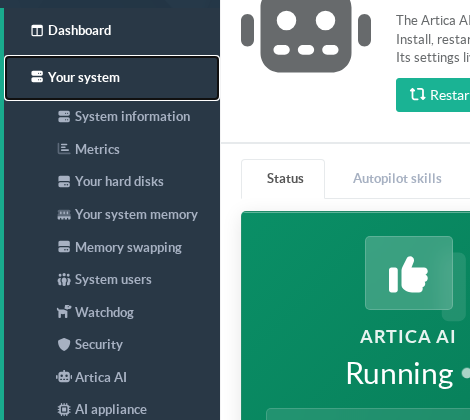
When the service is not installed yet, the page shows what it brings.
Click Installation.
The installation takes a few seconds.
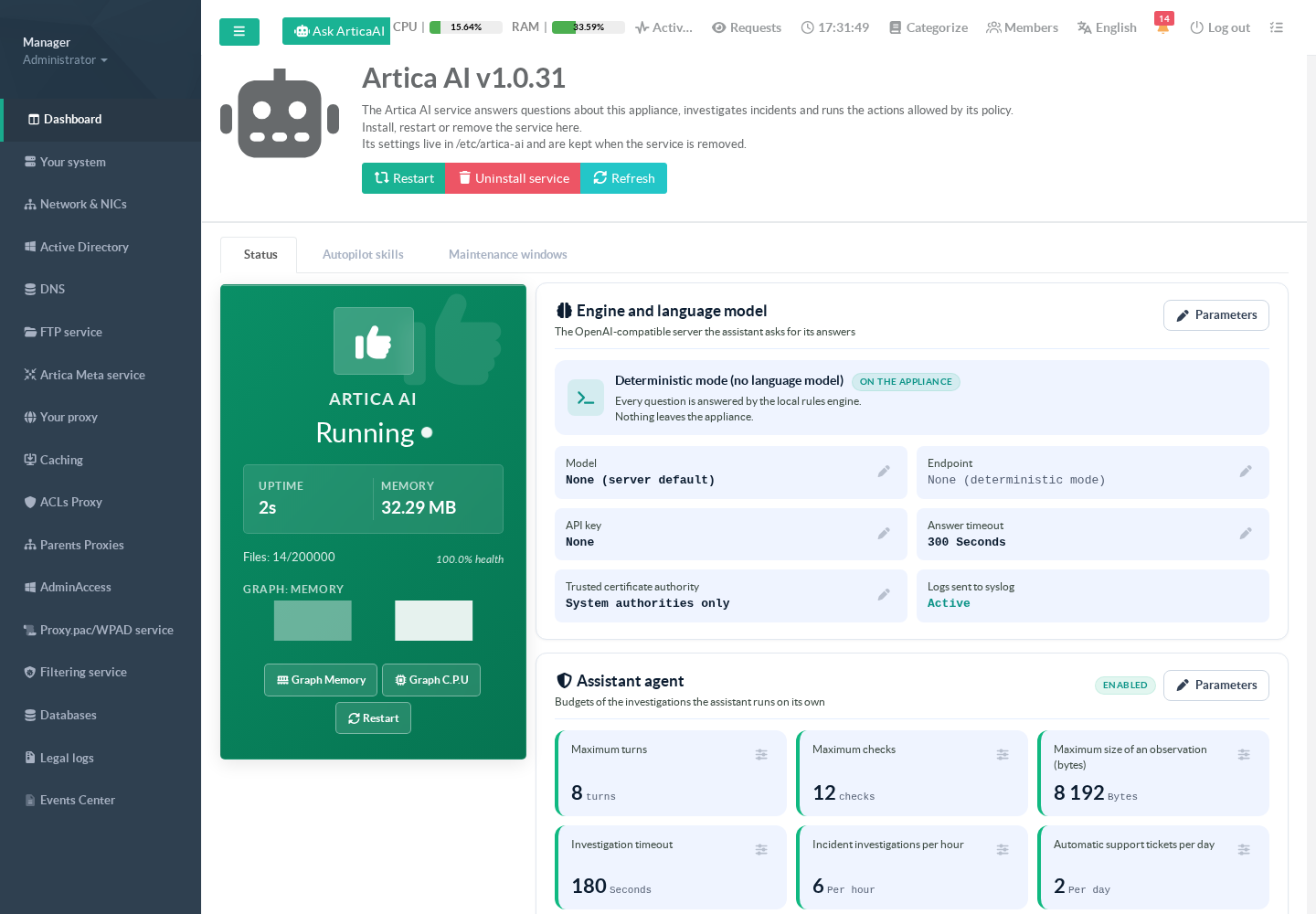
The left menu then shows the pages of the assistant, and the top bar shows the Ask ArticaAI button.
The service starts in deterministic mode: the card Engine and language model reads Deterministic mode (no language model).
Step 2: connect DeepSeek
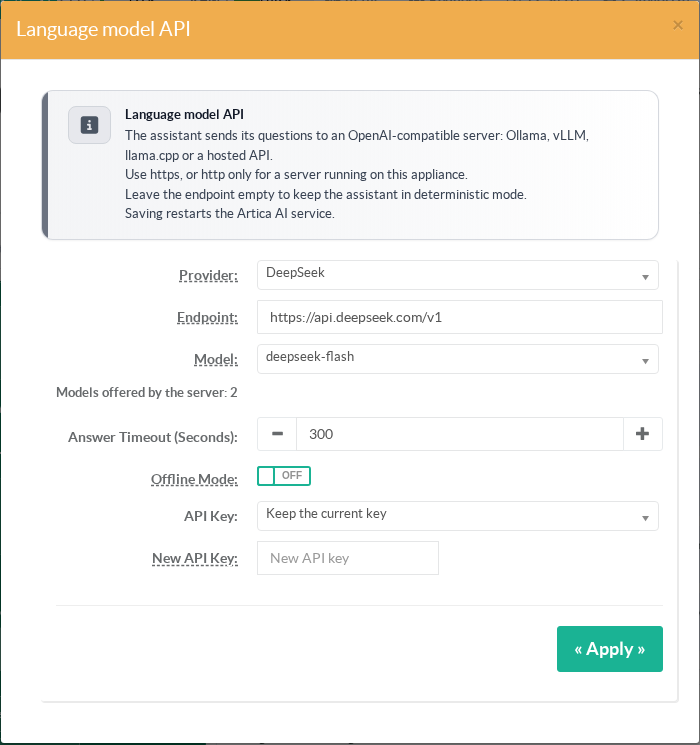
In the card Engine and language model, click Parameters.
- In Provider, choose DeepSeek.
The endpointhttps://api.deepseek.com/v1is filled in. - In Model, choose DeepSeek V4.1 Flash (deepseek-flash).
- Keep Answer Timeout at 300 seconds.
- Leave Offline Mode off.
- In API Key, choose Replace the key.
- Paste your DeepSeek key in New API Key.
- Click Apply.
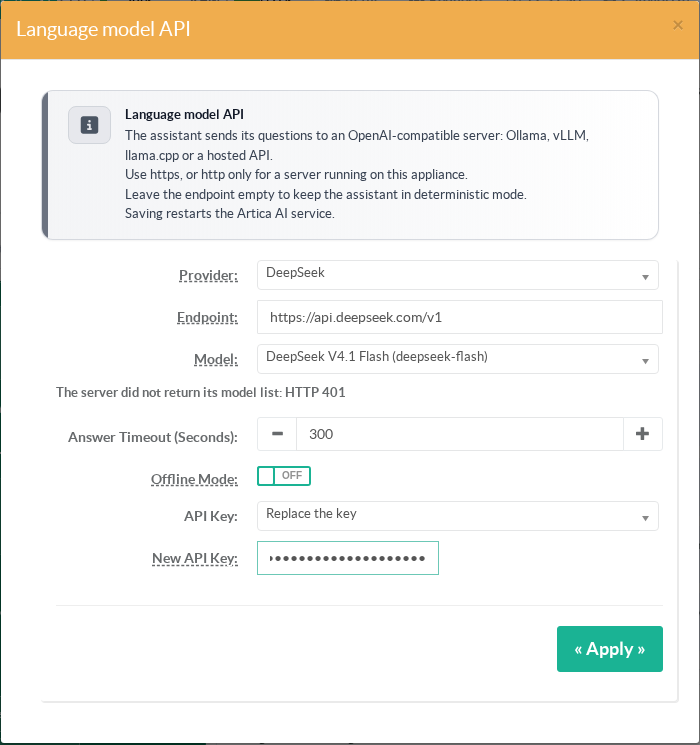
Before the first save, the line under the model may read The server did not return its model list: HTTP 401.
This is expected.
DeepSeek lists its models only to a known key, and the key is not saved yet.
Saving restarts the Artica AI service.
For a few seconds the page may show The artica-ai service does not answer.
Click Refresh.
Step 3: check the connection
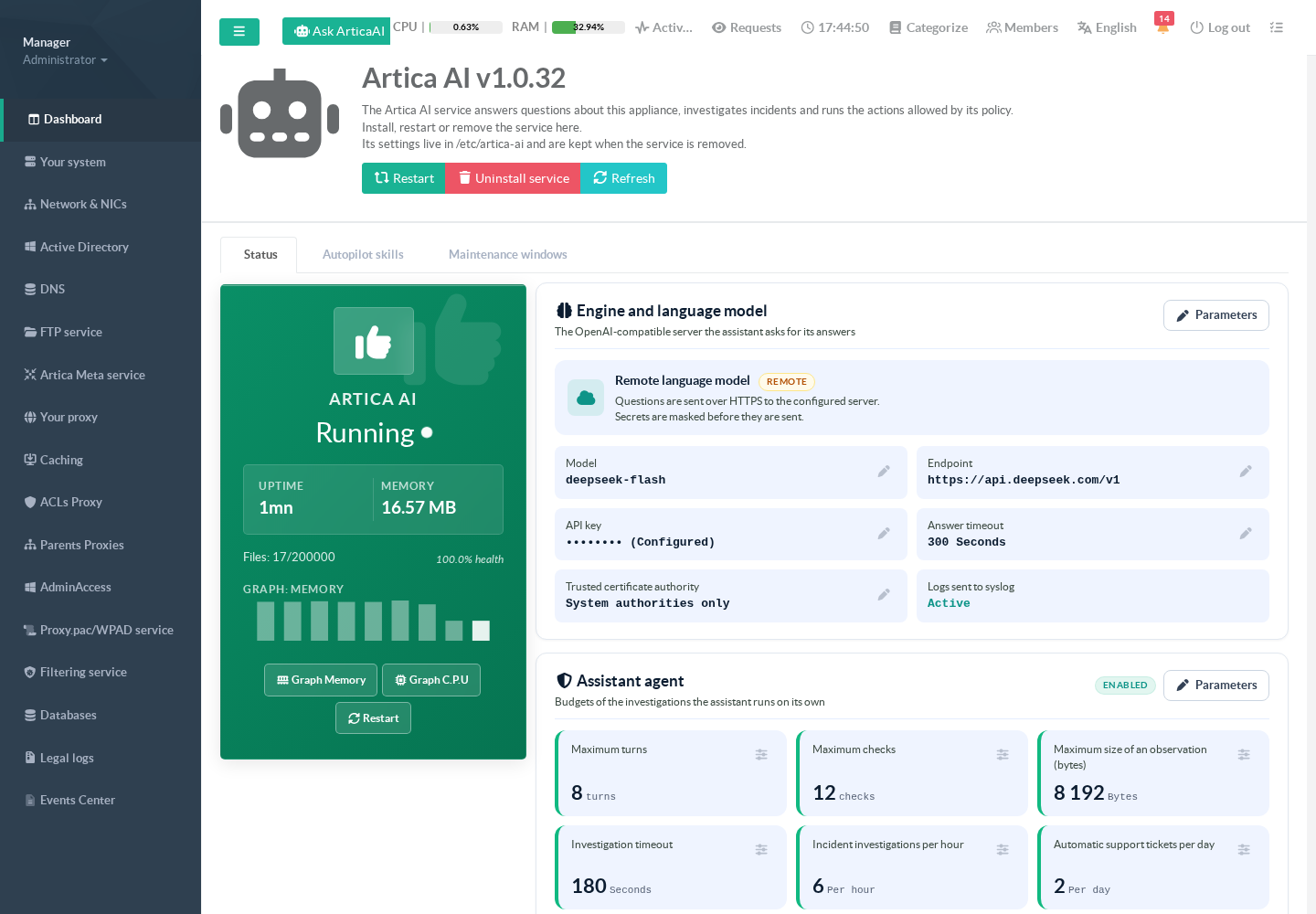
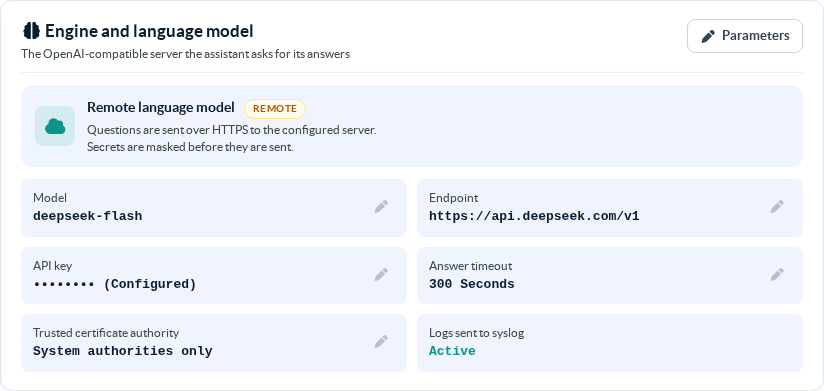
The card now reads Remote language model, with the badge REMOTE.
The model is deepseek-flash and the key shows as Configured.
Open Parameters again.
With the saved key, DeepSeek now returns its list: the line reads Models offered by the server: 2.
This proves that the appliance reaches DeepSeek and that the key is accepted.
Close the window without applying.
Step 4: ask a first question
Click Ask ArticaAI in the top bar.
A terminal opens.
Type a question and press Enter.
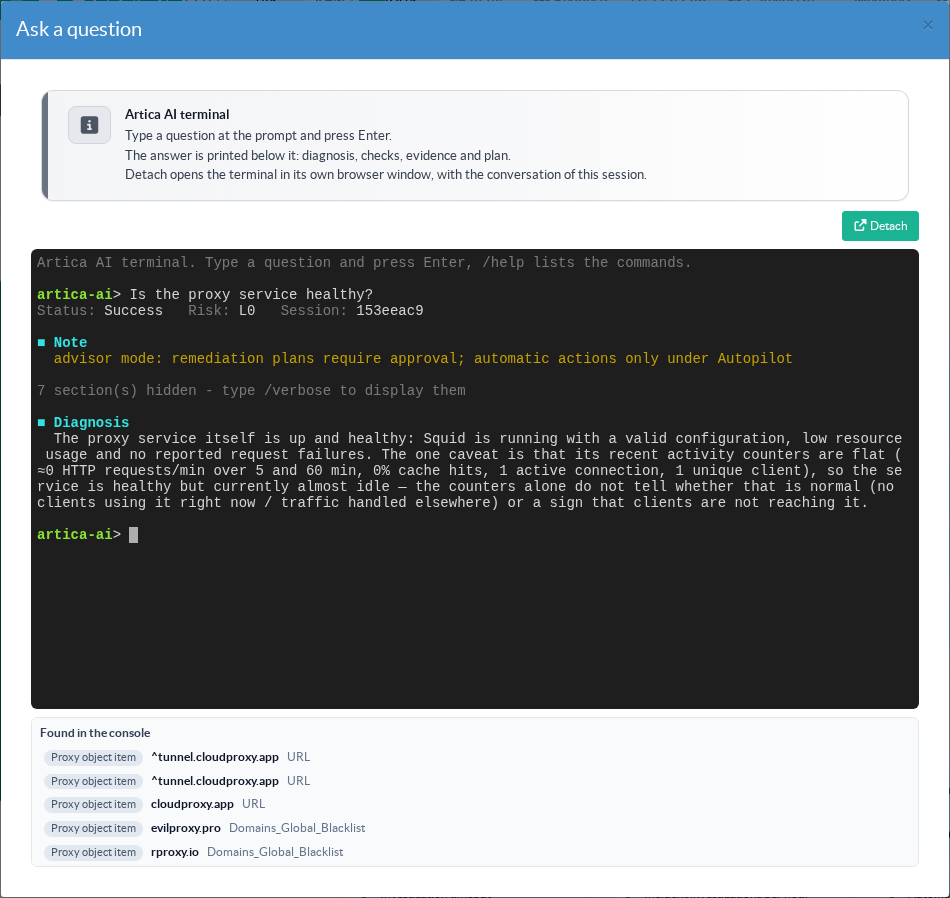
The answer starts with the status, the risk level and the session number.
The Diagnosis section is the text written by DeepSeek.
Type /verbose to display the hidden sections: checks, evidence and plan.
Type /help to list the other commands.
The Detach button opens the terminal in its own browser window.
Choosing the model
| Model | When to use it |
|---|---|
deepseek-flash |
Recommended. Fast and cheap. It completes the investigations of the agent well within their 180 seconds. |
deepseek-v4-pro |
Deeper reasoning, but slower and more expensive. Raise the investigation timeout of the agent if you choose it. |
Cost and data
- Each question sends one or more requests to DeepSeek.
- Each new incident starts an investigation, which also calls DeepSeek.
The card Assistant agent limits them: 6 investigations per hour by default. - The data sent is the question and the results of read-only checks.
Passwords, keys and tokens are masked before sending.
Host names, addresses and service states are sent. - DeepSeek is a hosted service outside your network.
Check that this fits your data policy. - To stop all calls at once without losing the settings, turn on Offline Mode.
Troubleshooting
| Symptom | Cause and fix |
|---|---|
| HTTP 401 under the model, after the key was saved | DeepSeek refuses the key. Create a new key in the DeepSeek platform, then use Replace the key. |
| The answers end with a model error | DeepSeek is unreachable, too slow, or the account has no credit left. Check the outgoing HTTPS flow to api.deepseek.com and the balance of the account. |
| The card still reads Deterministic mode | The endpoint is empty or Offline Mode is on. Open Parameters and check both fields. |
| The artica-ai service does not answer | The service is restarting after a save. Wait a few seconds and click Refresh. |
See also
- Artica AI: principles, operating modes and choice of the model.
- Artica AI appliance: a local model for your appliances, when the data must stay inside.