Assign privileges using the Active Directory
Artica can leverage your existing Active Directory as its back-end for Role-Based Access Control.This AD integration lets you centralize both authentication and authorization
Artica can leverage your existing Active Directory as its back-end for Role-Based Access Control.
This AD integration lets you centralize both authentication and authorization—no separate Artica user database is needed, and all role assignments follow your existing directory structure.
The Active Directory feature allows you to link your Artica server to your domain controller via LDAP.
Even if you don’t use Active Directory for core services—such as the Proxy, RDS Proxy, or SMTP Relay—you can enable this feature solely to integrate the Web Console and leverage RBAC through your AD.
To set this up, you must:
- Install the Active Directory feature
- Configure the LDAP connections to your Active Directory server
Allow AD Users to Logon on Web Console.
By default, Active Directory members are not allowed to be connected to the Web console.
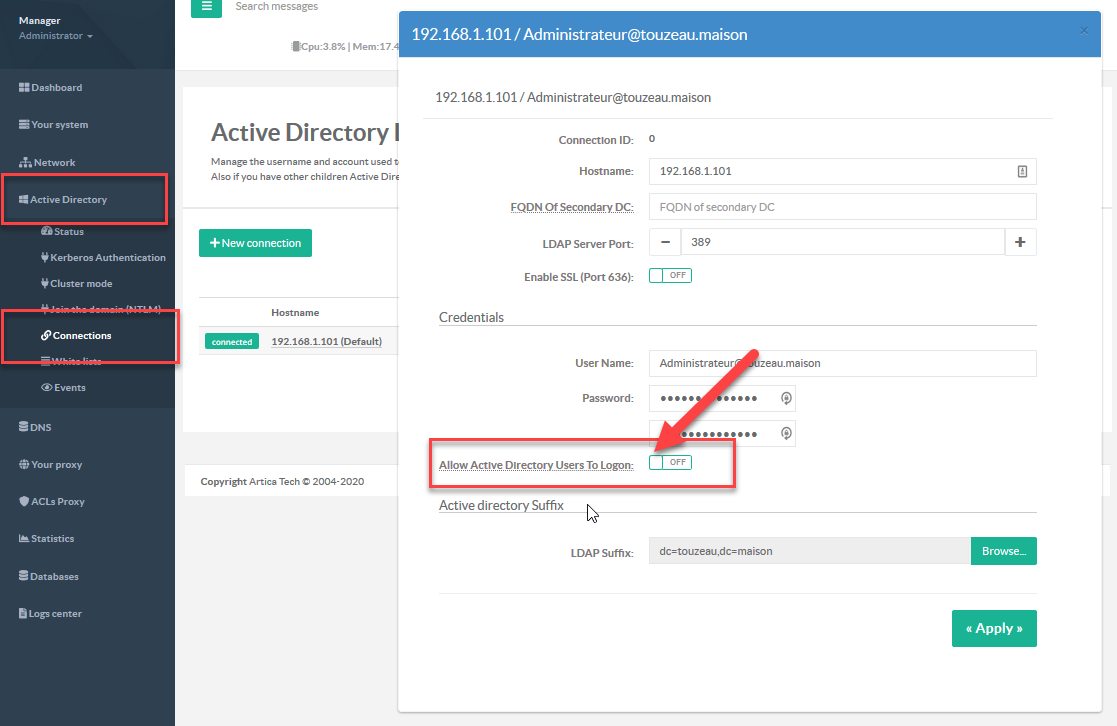
You need first to allow it inside the Active Directory connection.
- On The Active Directory left menu, select “Connections”
- Turn on the “Allow Activbe Directory Users to logon” checkbox.
Set privileges:
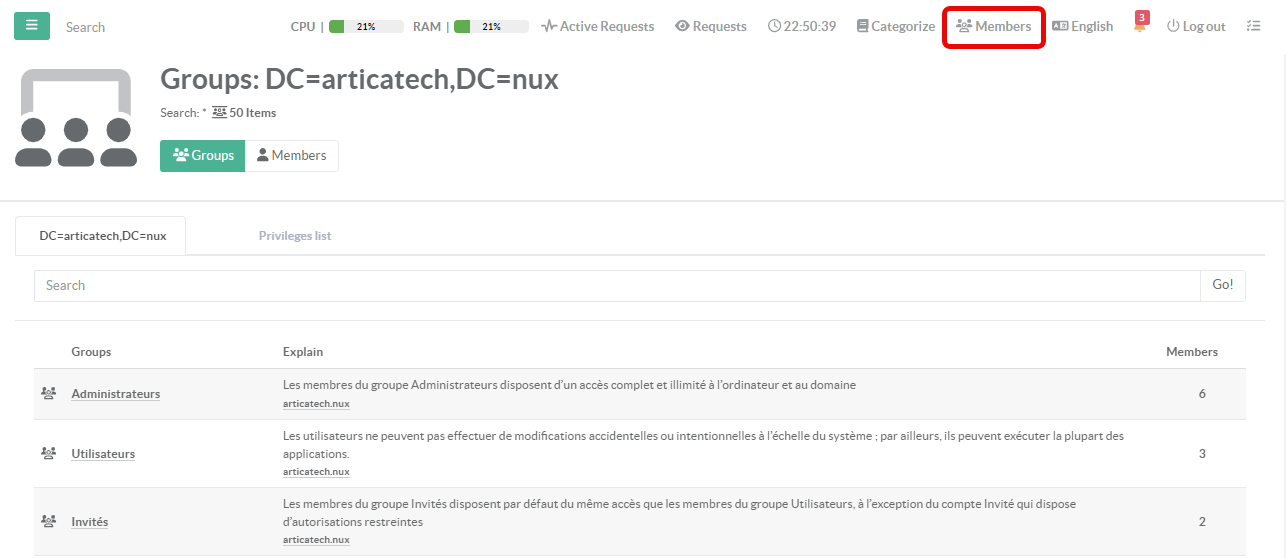
- Open the Members section on the top menu
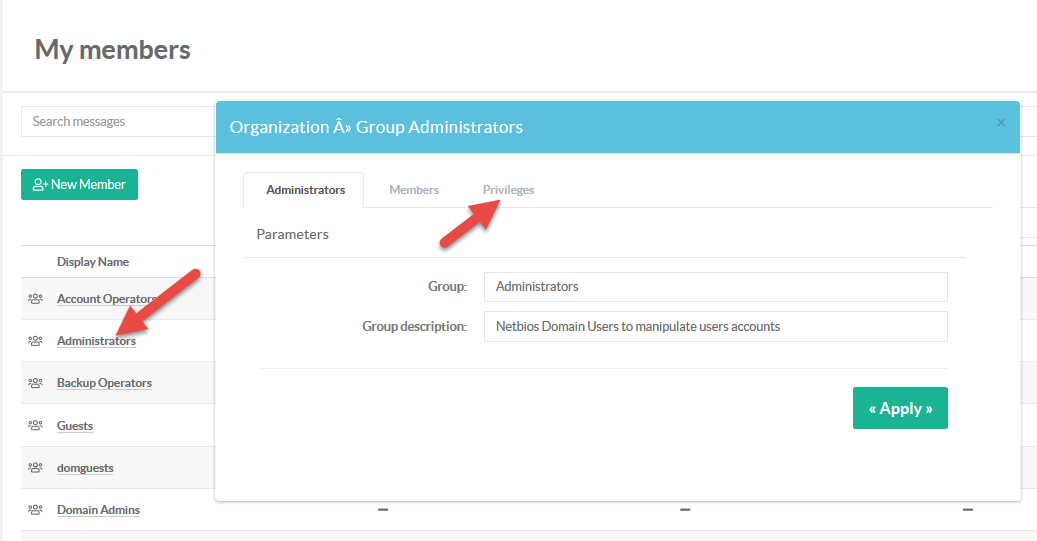
- Choose the group you want to assign privileges.
- Choose the tab “Privileges”
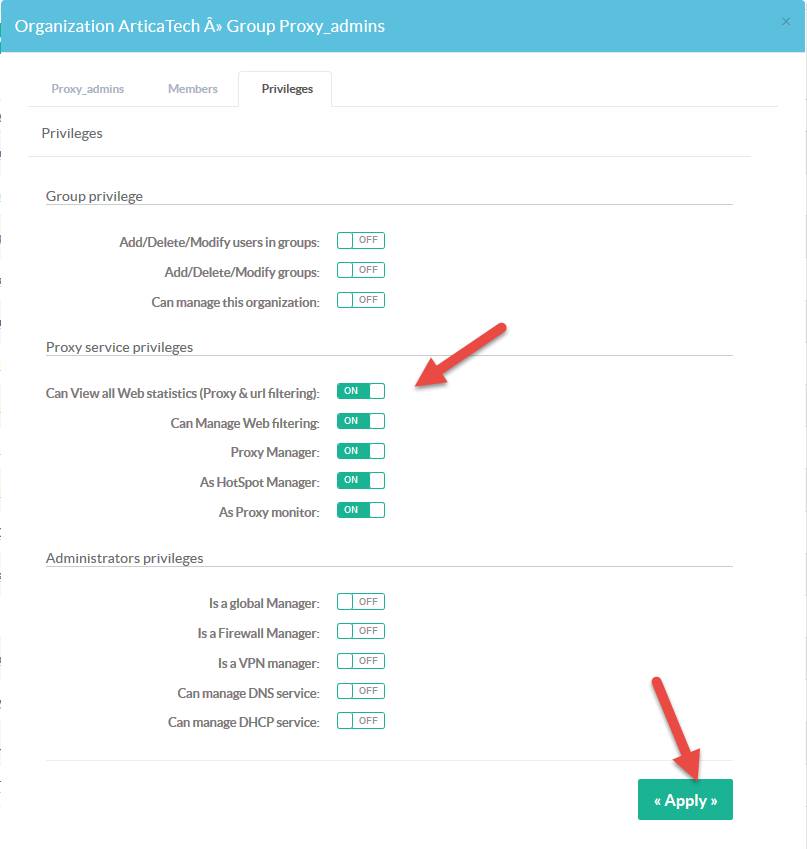
- Assign the desired privileges