This guide explains how to configure an Artica SMTP relay so that Microsoft 365 / Exchange Online accepts mail based on the relay’s TLS certificate identity rather than its public source IP addresses.
Once configured, you can rebuild, move, or re-address the relay without having to re-authorize source IPs in Exchange Online Protection, and without involving Microsoft or hosting provider support teams.This feature is available Artica v4.50 Service Pack 7 or Artica v4.50 Service Pack 6 Hotfix 20260704-16
It solves the classic symptom: after an infrastructure change, outbound mail to Microsoft 365 is rejected with a non-delivery report such as:451 4.7.500-699 (ASxxx) ... your IP address has been blocked
¶ Permanent fix is a certificate-based inbound connector on the Office 365 side.
This feature is the Artica side of that fix:
it makes the relay present a client certificate on every outbound TLS session, so the connector authenticates the relay by certificate name rather than by IP.
- On Office 365: An inbound connector that identifies your organization by the certificate subject name and requires TLS.
- On Artica: An outbound identity certificate plus a forwarding rule that routes the chosen recipient domains to Office 365 over enforced TLS, presenting that certificate.
You configure the Office 365 side first (or in parallel), then the Artica side, then run the built-in connection test to prove both sides match before going live.
¶ Prerequisites
- A publicly trusted TLS certificate:
Issued by a public CA — not an internal/self-signed CA) whose Common Name (CN) or a Subject Alternative Name (SAN) matches your sending domain, e.g. relay.mbnl.net or *.mbnl.net.
Office 365 must be able to build a trust chain to it, so include the intermediate CA certificates.
- The certificate's private key:
Imported together with the certificate into the Artica.
Use the Certificate CenterYour System > Certificates Center.
Renewals just replace the material under the same name.
- Administrative access:
To the Exchange admin center (or Exchange Online PowerShell) for the destination tenant.
- The list of public egress IP addresses of your relay (only needed if you additionally scope the connector by IP — the certificate approach is what frees you from IP changes).
Why a public CA?
Exchange Online only trusts the certificate identity if it chains to a public root.
An internal-CA or self-signed certificate will fail the connector's TLS requirement even though the handshake itself completes.
¶ Configure the connector on Office 365
Reference: Microsoft Learn : "Set up connectors to route mail between Microsoft 365 and your own email servers" and "Fix NDR error 451 4.7.500-699 (ASxxx) in Exchange Online."
Verify prerequisites on the destination:
- The relay must be reachable and speak STARTTLS (TLS 1.2 or higher).
- The certificate it will present must have a subject name matching your sending domain (e.g. mbnl.net), be issued by a public CA, and include its full chain.
Create the inbound connector (Exchange admin center):
- Go to
Mail flow > Connectors > Add a connector. - Connection from: Partner organization.
- Connection to: Office 365.
- Name it (e.g. Hardy DC) and enable it.
- How to identify the partner organization: choose By verifying that the subject name on the certificate... matches this domain name, and enter your sending domain (e.g. mbnl.net).
This is the certificate-based option that makes IP changes irrelevant. - Security restrictions: enable
- Reject email messages if they aren't sent over TLS and "and require that the subject name matches this domain name", entering the same domain.
- Save.
¶ Configure the relay on Artica
In this context, we assume that you have already imported your certificate into the Certificate Center, or that you have created a Let’s Encrypt certificate.
- Open the WebConsole page
SMTP Router > Routing & network > Office 365 Relay.
- Click on the button “Outbound identity certificate”.
This is the certificate the relay presents to Office 365.
It applies per Postfix instance and is shared by every forwarding rule of that instance
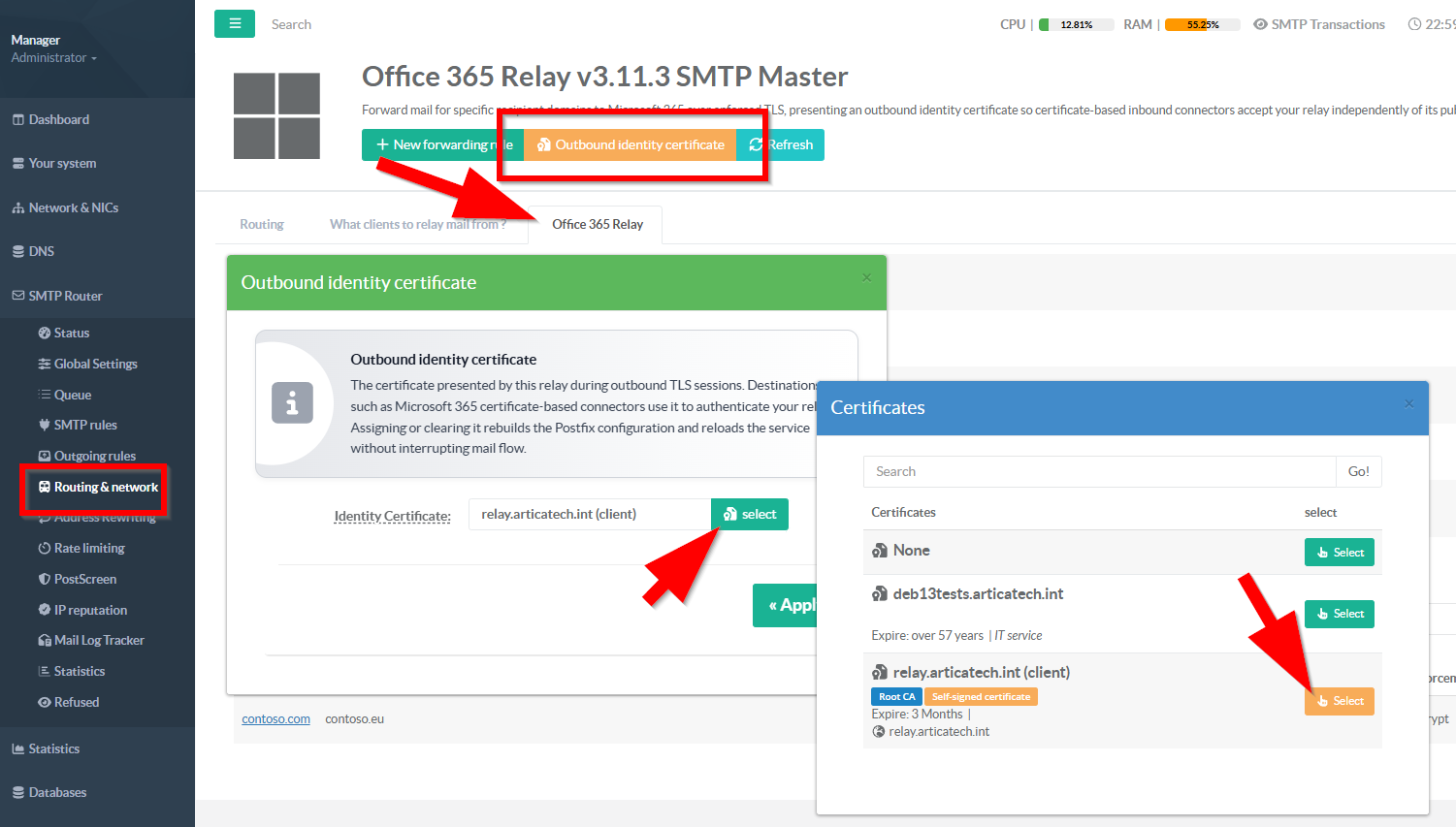
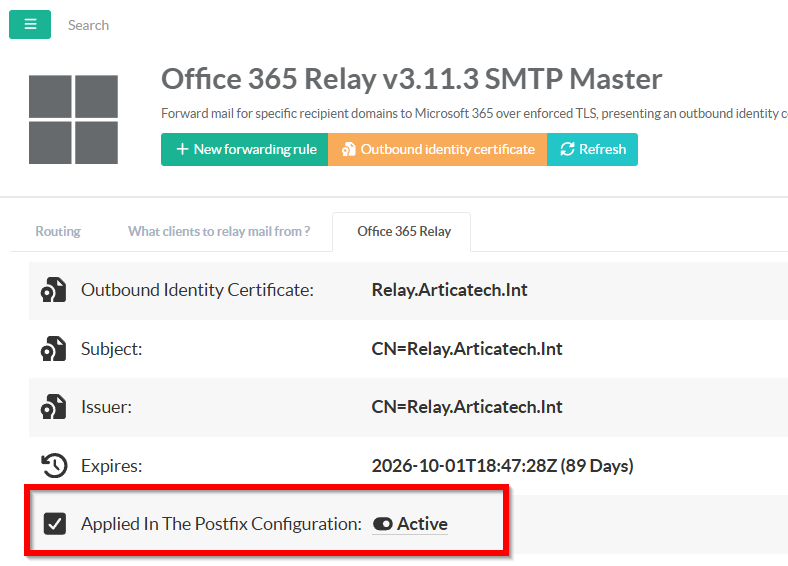
- In Identity certificate, pick your certificate from the Certificate Center (the same one whose subject matches your sending domain).
Artica validates the certificate before applying and reports any problem:
¶ Create a forwarding rule
This routes specific recipient domains to Office 365 over enforced TLS.
Click New forwarding rule and fill in:
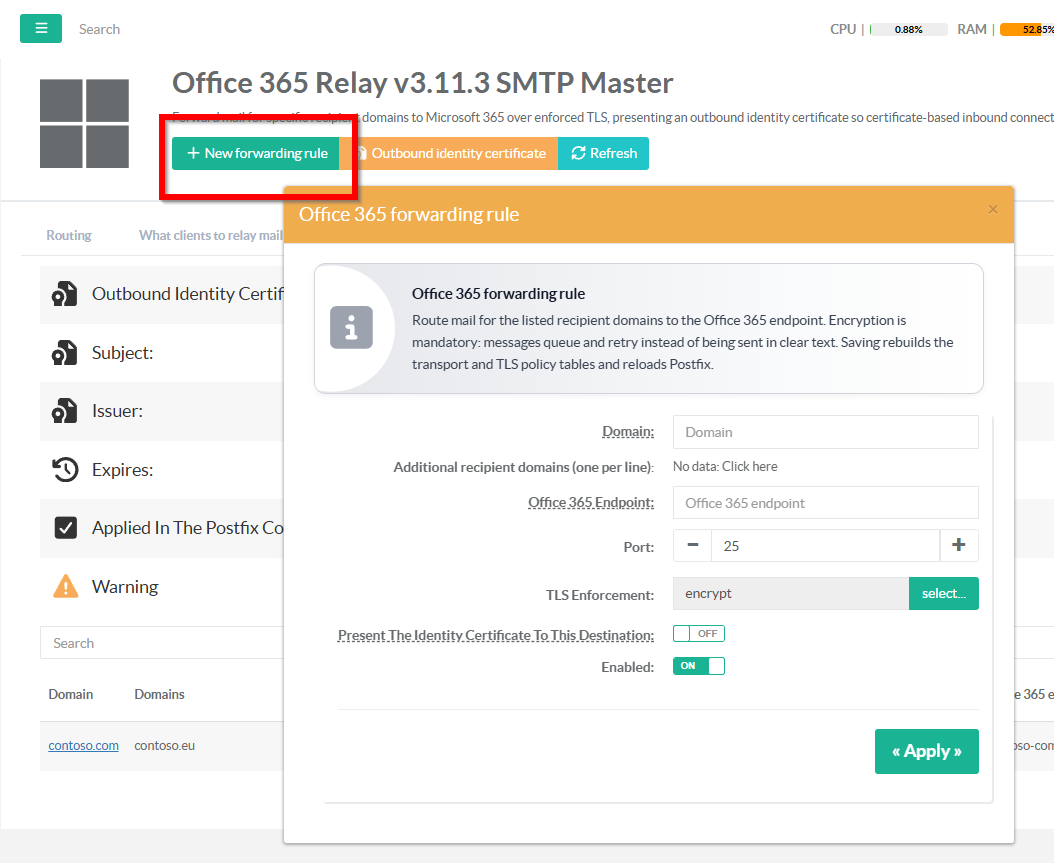
- Domain:
The primary recipient domain to forward.
The domain hosted on Office 365, e.g. contoso.com. - Additional recipient domains:
More domains routed the same way (one per line).
Any secondary domains, e.g. contoso.eu. Leave empty if none.
- Office 365 Endpoint:
The destination host mail is delivered to.
The tenant's MX host, e.g. `contoso-com.mail.protection.outlook.com`.
Find it in the Microsoft 365 admin center (Domains > your domain > DNS records > MX) or vianslookup -type=mx contoso.com
- Port:
Destination SMTP port.
25 (the default for MX delivery).
- TLS Enforcement
How strictly TLS is required to this destination.
encrypt (mandatory encryption). Use verify or secure to additionally validate the destination's server certificate.
Never a mode that allows clear text.
- Present the identity certificate to this destination
Whether to send the outbound identity certificate to this endpoint.
ON for Office 365 certificate-based connectors.
- Enabled
Activates the rule.
Click Apply. Artica rewrites the Postfix transport map (so those domains go to the endpoint)
¶ Troubleshooting
451 4.7.500-699 still returned
The connector's TlsSenderCertificateName does not match the certificate the relay presents.
Run the connection test and compare Identity certificate with the connector's configured subject name.
Connection test says "did not request a client certificate"
The Office 365 connector is not certificate-based yet (or is scoped only by IP).
Ask the destination team to enable certificate identification.
"Chain incomplete" warning / peer rejects the certificate
Re-import the certificate with its full intermediate chain.
Mail queues instead of sending
With mandatory TLS this is expected when TLS cannot be established — it protects you from silent clear-text fallback.
Fix the TLS/certificate issue and the queue drains on the next retry.