Back to Artica SIEM for FortiGate
General data is the page to open first. It shows how much your FortiGate firewalls downloaded and uploaded, and how many sessions they handled, over the period you choose. Next to the curves, the top clients, destinations and flows tell you who accounts for the traffic.
¶ Why use it
- One page answers how busy the network was and who made it busy, for a tenant or a single FortiGate.
- The curves go back 90 days, long enough to compare a week or a month with the previous one.
- Every name in a legend opens its details, so a spike leads straight to the machine and the destination behind it.
¶ Opening the page
Statistics/SIEM > Fortigate > General data.
The header holds the filters: the period (15 minutes, 1 hour, 24 hours, 7 days, 30 days or 90 days), the tenant when your account covers several, and the FortiGate.

¶ The curves
On the left, three curves: data downloaded, data uploaded and sessions. The header of each card gives the total for the period.
The step of the curves follows the period: 10 minutes up to 24 hours, one hour over 7 days, one day over 30 and 90 days. The curves therefore show bytes per step, and the card says which step is in use.
A session is counted once, when it ends. A long session that writes several interim log lines still counts as one.
¶ The top lists
On the right, three rings: the 10 clients, the 10 destinations and the 10 flows (a client and a destination) that moved the most data in the period. The center of each ring gives the total, and the gray part is everything outside the top 10.
Beyond 21 days, a banner reminds you that the top lists only cover the data still kept. Policy data lives 21 days, and a device that stays silent for three weeks is removed with its history. The curves always cover the whole period.
¶ Drilling down
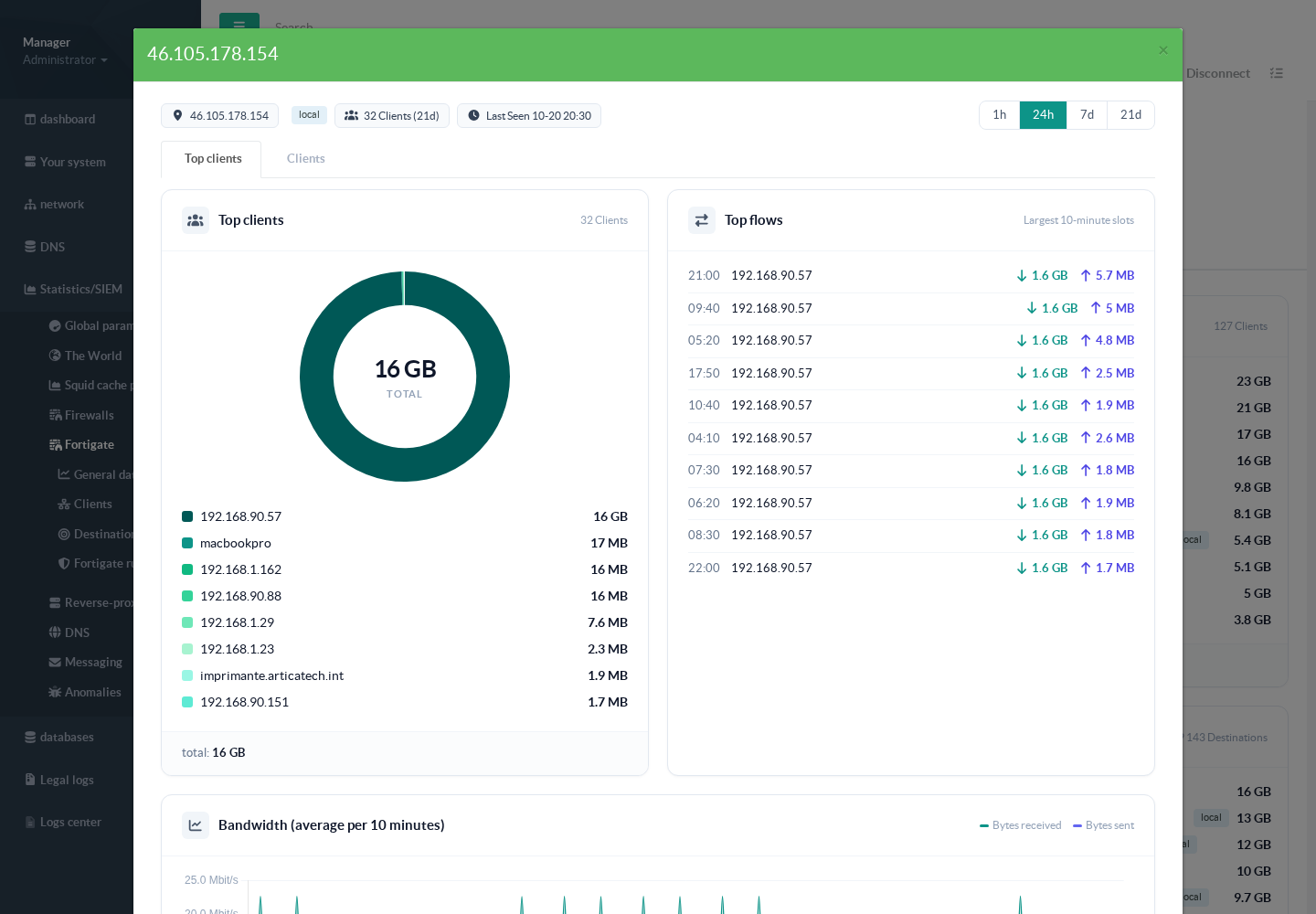
Click a client, a destination or a flow in a legend. Its details open in a window: top destinations or clients, the largest 10-minute transfers, a bandwidth curve, and the full list in a second tab. Names in that window are clickable too, and each new window opens on top of the previous one.