Response Pages are what a refused visitor actually sees. For most of them the block is a mistake — a customer on a hotel network, a rule slightly too strict — so this page decides whether they see a wall or a way to reach you.
¶ Branding, or a template
Two levels of effort, and the first is usually enough:
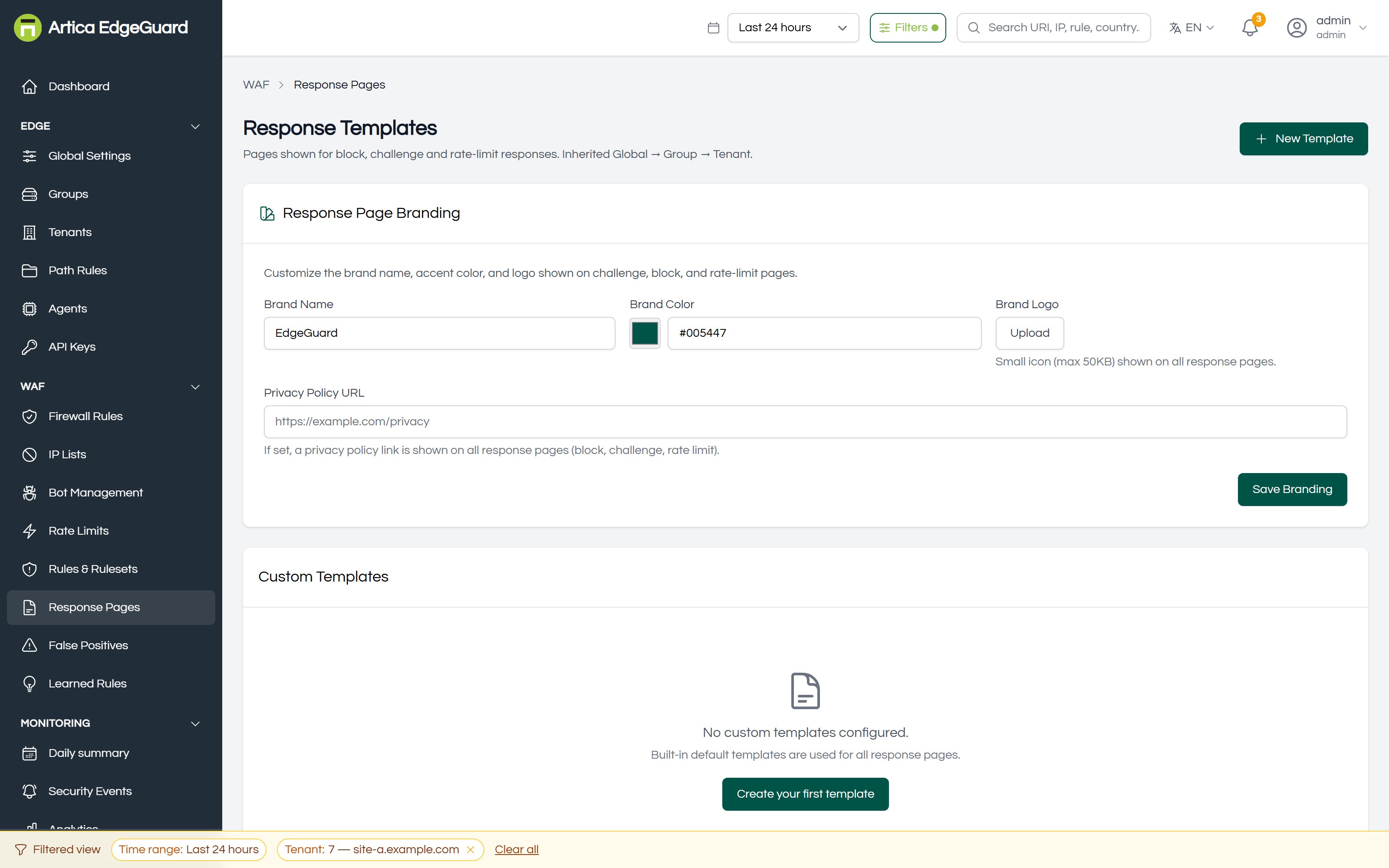
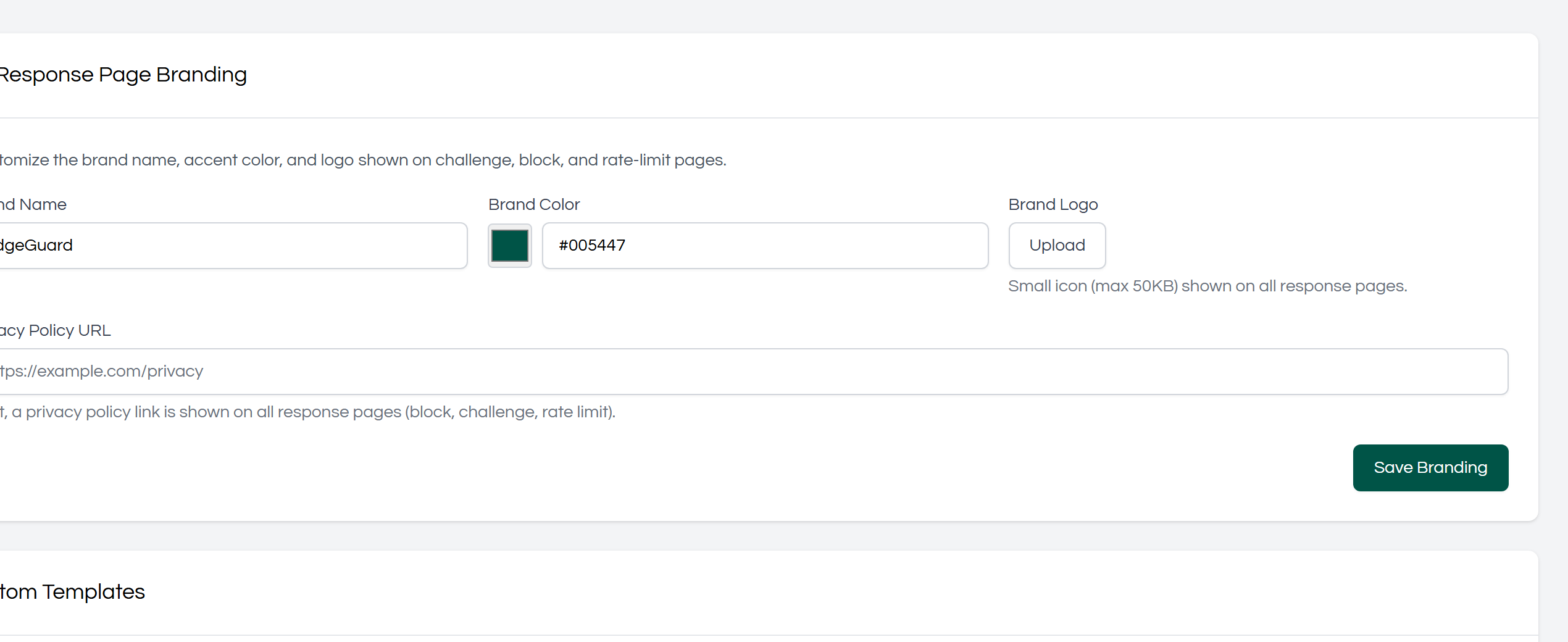
Branding applies to the pages EdgeGuard already has — you change how they look without writing any HTML:
- Brand Name — what the page calls you.
- Colour — the accent colour.
- Logo — uploaded and shown at the top.
- Privacy Policy URL — linked in the footer, which several data-protection regimes expect on a page that records an address.
Press Save Branding and every built-in page follows.
Templates replace a page entirely with your own HTML, for when the branding is not the point — a different language, a support form, a corporate shell.
¶ Creating a template
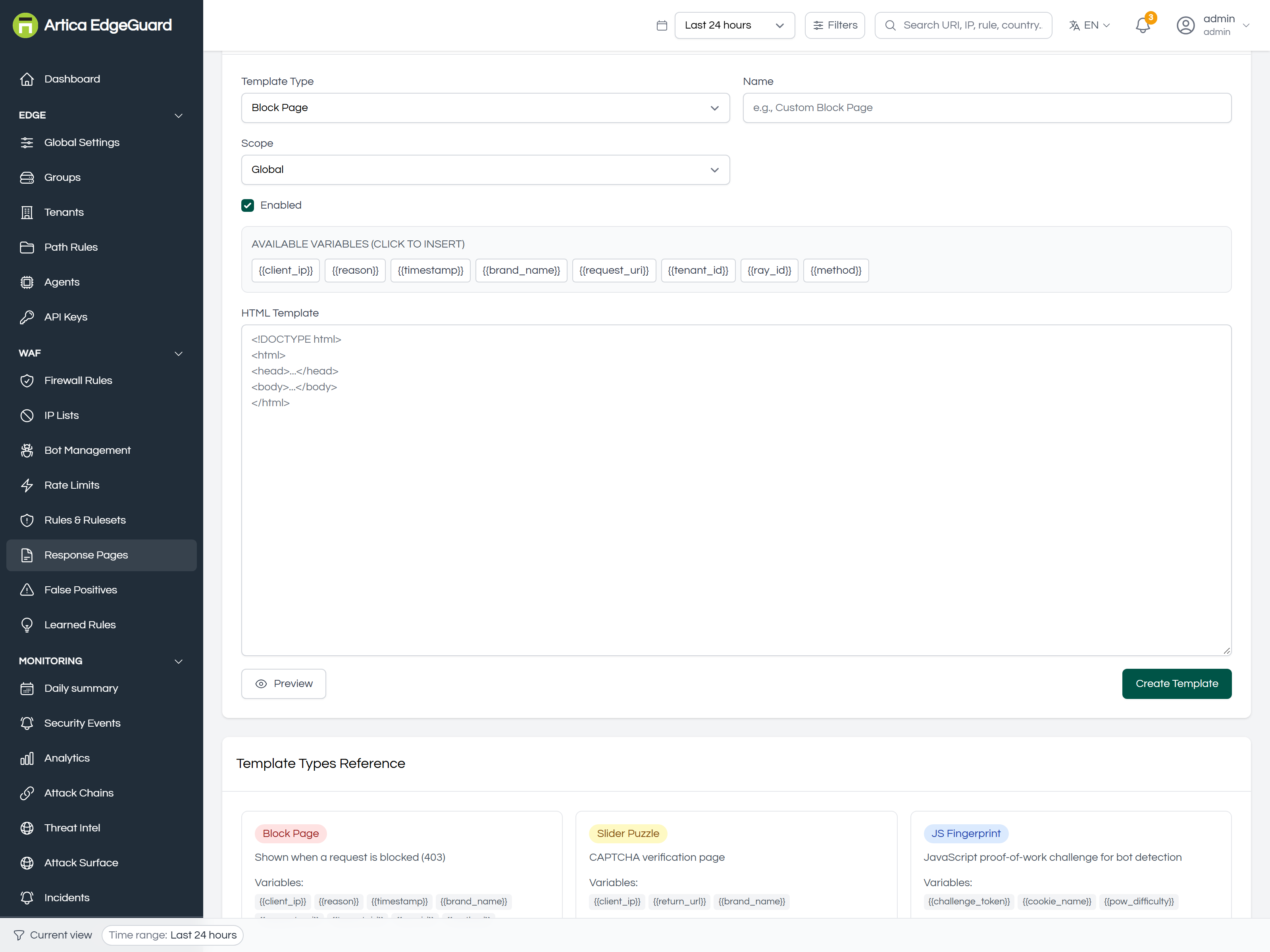
Click New Template.
- Template Type — which page you are replacing:
- Block Page — a refused request.
- Rate Limit Page — an allowance spent.
- Smart Challenge, JS Fingerprint, Slider Puzzle — the three challenge pages.
- Name — for you, not the visitor.
- Scope — Global, Group or Tenant.
- Enabled.
- HTML Template — your page, or Upload a file.
- Save.
¶ Which template a visitor gets
The engine looks for a template in this order and stops at the first it finds:
Tenant → Group → Global → the built-in default
So a site with its own block page keeps it; a site without one falls back to its group's, then to the global one, then to EdgeGuard's own. There is always a page: a site that has configured nothing still gets a sensible one.
¶ What you can put in a template
These placeholders are filled in when the page is served:
| Placeholder | What it becomes |
|---|---|
{{brand_name}} |
the brand name from Branding |
{{brand_logo}} |
the uploaded logo |
{{brand_color}} |
the accent colour |
{{reason}} |
why the request was refused |
{{timestamp}} |
when, in UTC |
{{ray_id}} |
the EdgeGuard ID of that request |
{{client_ip}} |
the visitor's address |
{{privacy_url}} |
the privacy policy link |
Always include
{{ray_id}}. It is the one thing that turns "your website blocked me" into a support conversation that can be resolved: pasted into the console's global search, it opens the exact request, the rule that refused it and what it matched on. A block page without it costs an hour of somebody's day.
A minimal template that keeps what matters:
<!DOCTYPE html>
<html lang="en">
<head><meta charset="utf-8"><title>Request blocked</title></head>
<body>
  <img src="{{brand_logo}}" alt="{{brand_name}}">
  <h1>We could not complete that request</h1>
  <p>{{reason}}</p>
  <p>If you believe this is a mistake, contact support and quote this reference:</p>
  <p><strong>{{ray_id}}</strong> — {{timestamp}}</p>
  <p><a href="{{privacy_url}}">Privacy policy</a></p>
</body>
</html>
¶ Advice worth following
- Say what to do next. A refused customer needs a way through: a phone number, an e-mail, a reference. "Access Denied" alone turns a false positive into a lost sale.
- Do not explain the rule. The page is served to attackers too; the reason should say that something was refused, not which pattern caught it and how to avoid it.
- Keep it self-contained. The page is served by the edge, at the moment a request was refused — external stylesheets, fonts and scripts may be on hosts the visitor cannot reach either.
- Remember the challenge pages. They are seen by people who are not being refused, only asked to prove they are human; make them short and reassuring, not accusatory.
¶ Verifying
Trigger each page you have customised and look at it as a visitor:
# A block page
curl -s "https://site.example.com/?id=%27%20OR%201%3D1--" | head -40

# A rate limit page: exceed a rule you own
for i in $(seq 1 50); do curl -s -o /dev/null "https://site.example.com/api/search?q=x"; done
curl -s "https://site.example.com/api/search?q=x" | head -40
Check that the reference shown matches an event: paste the EdgeGuard ID from the page into the console's global search. If it opens the request you just made, the loop your support desk depends on is working.