ClamAV signature exclusions (whitelist)
Ignore one ClamAV signature that wrongly blocks a safe file, without weakening the rest of the antivirus protection.
« Back to Antivirus and Artica
A ClamAV signature sometimes flags a file that is safe.
The signature exclusions list tells ClamAV to ignore that one signature.
Every other signature keeps working, on every file.
The page is inClam AntiVirus > Whitelist.
Its title is Signature Exclusions.
Benefits
- A false positive is fixed in under a minute.
Users do not wait for the signature vendor to correct its database. - Only the faulty signature is silenced.
If the same file or the same server later delivers real malware, ClamAV still catches it with its other signatures. - One exclusion covers every scan made by the ClamAV service of the appliance.
- The change applies as soon as you save.
ClamAV reloads its databases without a restart. - Each exclusion records who added it and when.
You can switch it off without deleting it.
How it works
ClamAV can ignore signatures listed in a file with the .ign2 extension.
Artica keeps the list in its database and writes the enabled entries to /var/lib/clamav/whitelist.ign2.
After each addition, change, switch or deletion, the file is rewritten and ClamAV reloads its databases.
When no exclusion is enabled, the file is removed.
ClamAV adds the .UNOFFICIAL suffix to every signature that does not come from its official databases.
The suffix is not part of the signature name, so an .ign2 entry written with it is ignored by ClamAV.
Artica removes the suffix when it writes the file.
You can therefore paste the name exactly as the antivirus reports it.
Exclude a signature or a site?
| Exclude a signature (this page) | Exclude a site | |
|---|---|---|
| What is skipped | One detection rule, everywhere. | Every scan of the traffic from that destination. |
| Other threats on the same file or site | Still detected. | Not detected. |
| When to use it | A false positive. | A fully trusted internal server. |
Site exclusions for the proxy antivirus are described in eCAP antivirus exclusions (whitelist).
Example: a false positive from an unofficial signature
Users cannot download the October newsletter of a supplier.
The proxy answers with the antivirus block page.
1. Find the signature name
Open Your Proxy > Antivirus Proxy, tab Events.
The detection shows the signature name, the date, the URL and the client address.
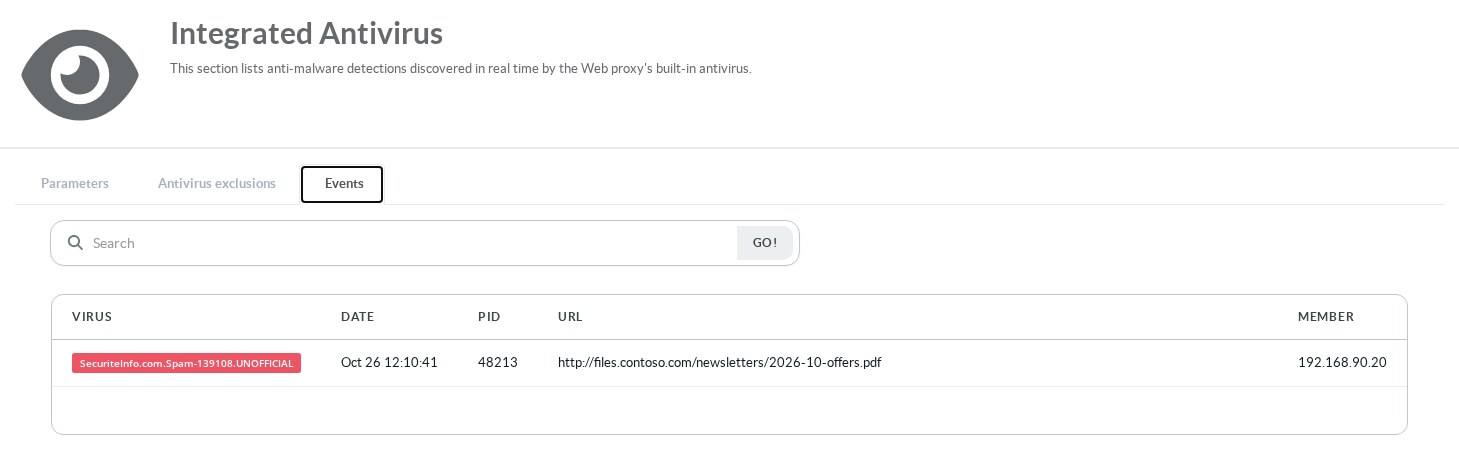
The signature is SecuriteInfo.com.Spam-139108.UNOFFICIAL.
This signature comes from the SecuriteInfo third-party database.
Third-party databases catch more spam and phishing.
They also raise more false positives.
Confirm that the file is safe before you exclude anything.
2. Open the signature exclusions
Open Clam AntiVirus > Whitelist.
The list is empty on a new appliance.
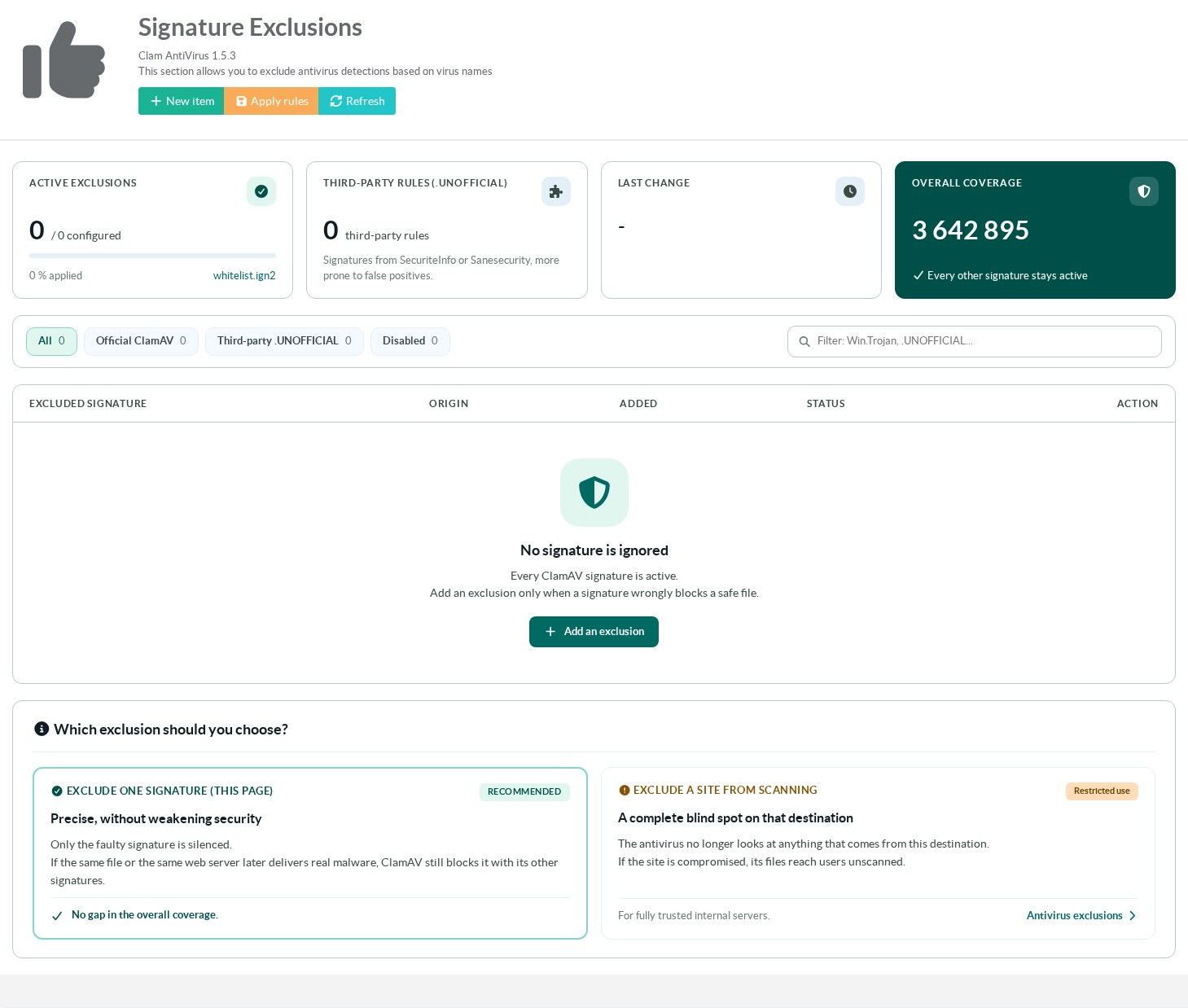
No signature is ignored yet.
3. Add the exclusion
Click New item.
Paste the signature name in Virus Name, suffix included.
Click Add.
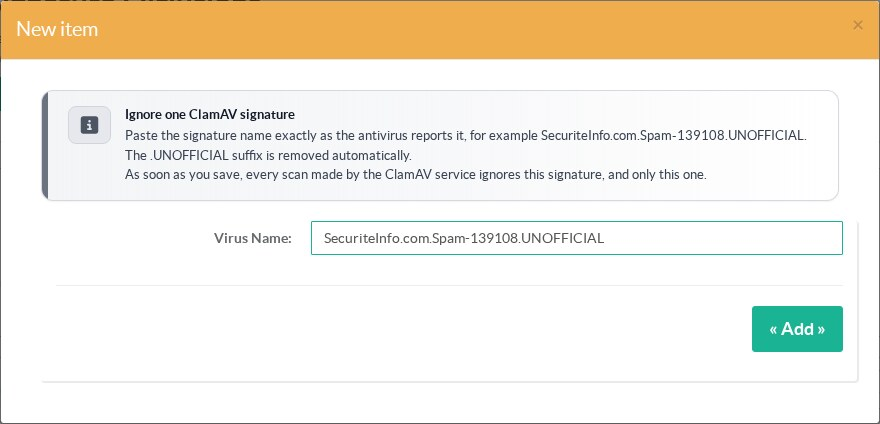
Paste the name as the antivirus reports it.
The exclusion appears in the list, active.
ClamAV has already reloaded its databases.
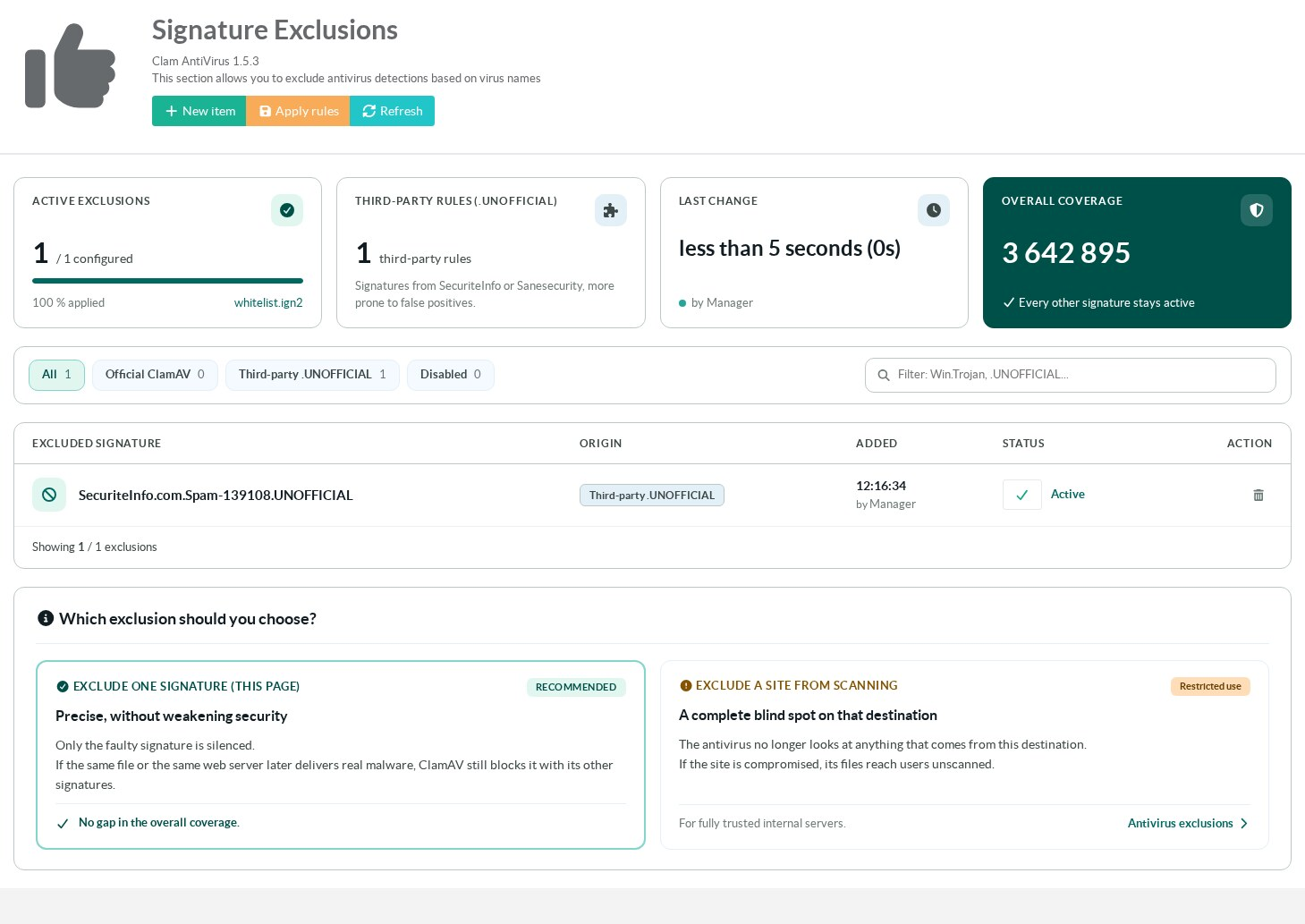
The exclusion is active.
Ask the user to download the newsletter again.
No new detection appears in the Events tab.
4. Check from the command line (optional)
On the appliance, the generated file holds the name without its suffix:
cat /var/lib/clamav/whitelist.ign2
SecuriteInfo.com.Spam-139108
To test a copy of the blocked file against the running service:
clamdscan --config-file=/etc/clamav/clamd.conf --fdpass /path/to/2026-10-offers.pdf
The answer is OK while the exclusion is active.
It is SecuriteInfo.com.Spam-139108.UNOFFICIAL FOUND again once you switch it off.
Read the page
The cards at the top summarize the list.

Active exclusions, third-party rules, last change and overall coverage.
- Active exclusions counts the enabled entries out of all configured entries.
- Third-party rules counts the entries whose name ends with
.UNOFFICIAL. - Last change shows how long ago the list changed and who changed it.
- Overall coverage is the number of signatures loaded by ClamAV.
All of them stay active, except the excluded ones.
The buttons above the table filter the list: all entries, official ClamAV signatures, third-party signatures or disabled entries.
The search field keeps the rows that contain the text you type.

Only the third-party signatures are shown.
Below the table, the page reminds you of the difference between excluding a signature and excluding a site.
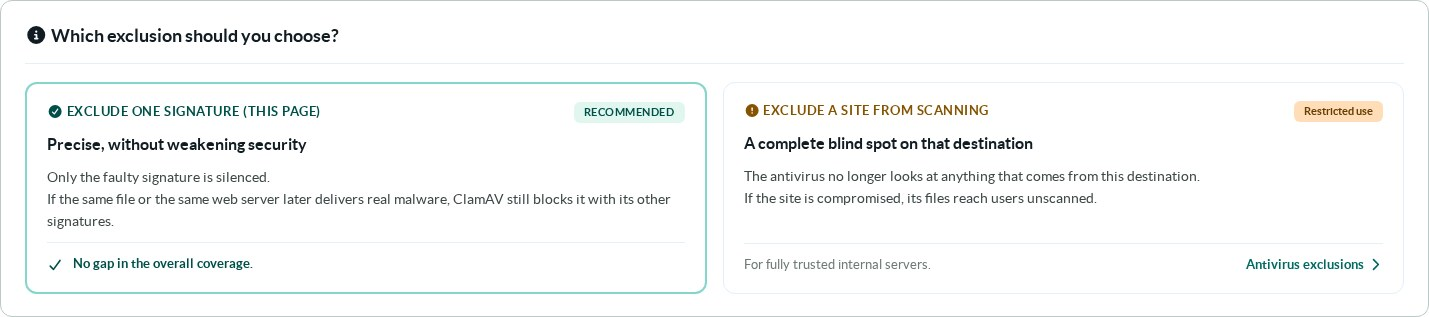
Prefer the signature exclusion.
Manage the exclusions
- Click a signature name to change it.
- The check in the Status column switches an exclusion off or on.
A disabled exclusion stays in the list, greyed out, and the signature is detected again. - The trash icon deletes an exclusion.
- Apply rules rebuilds the whole ClamAV configuration and reloads it.
You do not need it after a change in the list, which applies on its own. - Refresh reloads the page.

A disabled exclusion keeps its history.
Good practice
- Exclude a signature only after you have confirmed that the file is safe.
- Exclude the signature rather than the whole site.
- Report the false positive to the vendor of the signature.
For a SecuriteInfo signature, that is SecuriteInfo, not ClamAV. - Switch the exclusion off once the vendor has fixed its signature, then delete it.
Troubleshooting
| Symptom | What to check |
|---|---|
| The file is still blocked. | Compare the name in the list with the name in the Events tab, character by character. Check that the exclusion is active. |
| Another signature now blocks the same file. | Each signature needs its own exclusion. Add the new name. |
whitelist.ign2 does not exist. |
No exclusion is enabled. Enable one, and the file is written again. |