Install or upgrade the Docker package
By default, the docker service and its ecosystem are not present on the hard disk. To activate this feature, you must first tell Artica to retrieve the software.
Back to Artica for Docker Edition
Install the Docker package from Artica's Packages Center before enabling the Docker service.
Use the same procedure to upgrade an existing installation.
The package supplies the Docker software on disk.
Service activation is a separate step.
Updating this package also differs from updating the images used by your applications.
Before you begin
- Sign in with an account allowed to install system packages.
- Check that the appliance can reach Artica's package sources.
Verify DNS and outbound proxy settings if downloads fail. - Check free disk space for the download and installation.
- For a first installation, review the Docker prerequisites.
- For an upgrade, back up application data and record which containers and stacks should be running.
Use the backup method required by each application, especially databases.
Plan for an interruption during upgrades
A Docker Engine package upgrade can interrupt every application using that engine.
Schedule a maintenance window before updating a host that runs production containers.
In the current Artica update workflow, a running Docker Engine is stopped while its binaries are replaced.
Artica restarts it if the service is enabled.
An engine that was already stopped remains stopped.
On appliances using Artica's containerized reverse proxy PHP engines, the updater also coordinates their stop and restart.
Check these services after the update.
For other containers, recovery depends on their restart policy and application configuration.
Verify each required container or stack after the engine returns.
Package installation does not replace that application check.
Step 1: Find the Docker package
- Open Your System > Update > Packages Center.
- Enter docker in the search field.
- Find the Docker Service row.
- Click Install or Update.
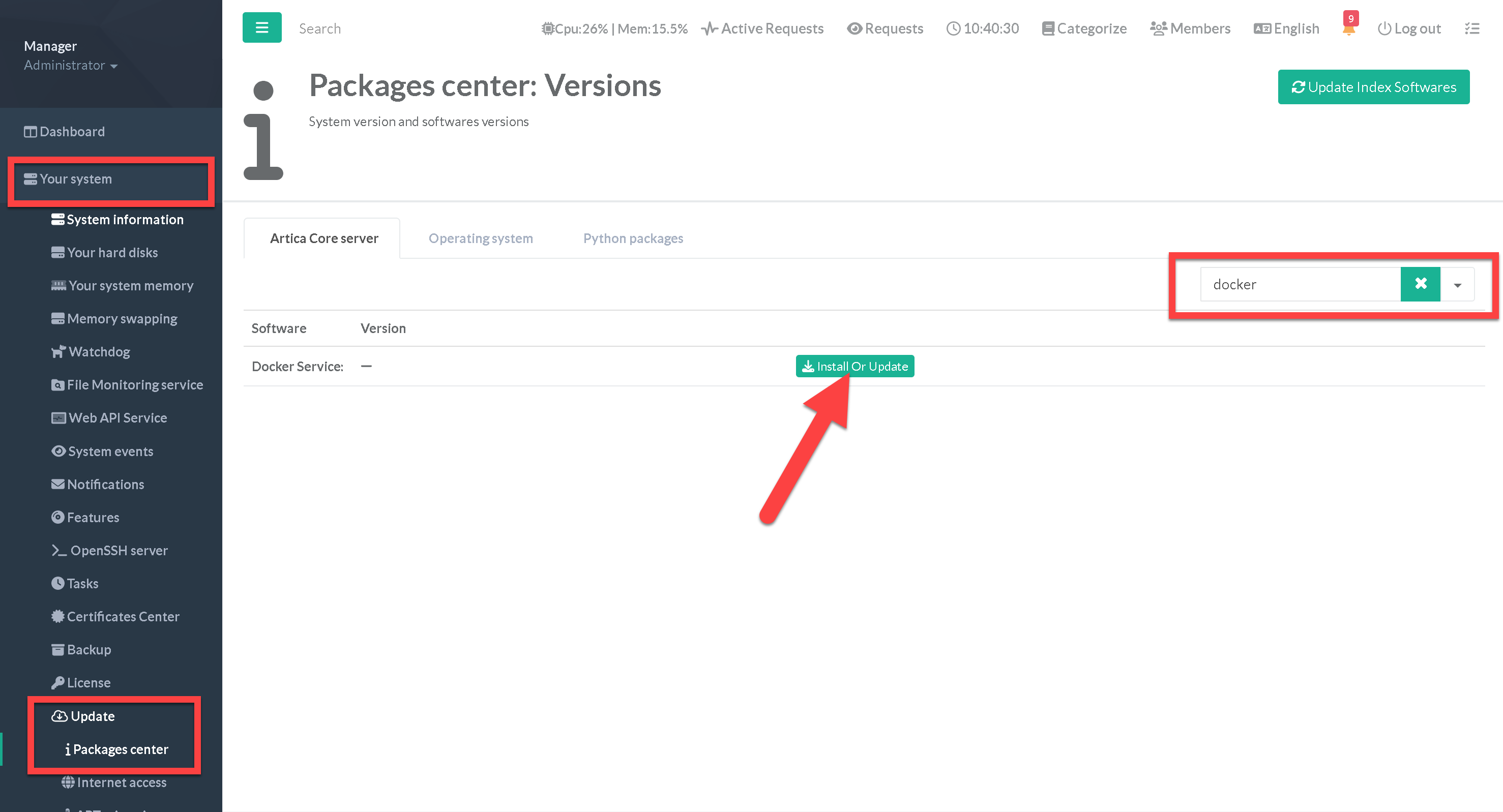
The Docker package in the older Packages Center interface.
The screenshots show the older Artica interface.
Labels and available versions may differ on your appliance.
Step 2: Install or upgrade
- Select the latest Docker package version offered for your appliance.
- Click Install Or Upgrade.
- Wait for the download and installation to finish.
Review the final result and any error messages before continuing.
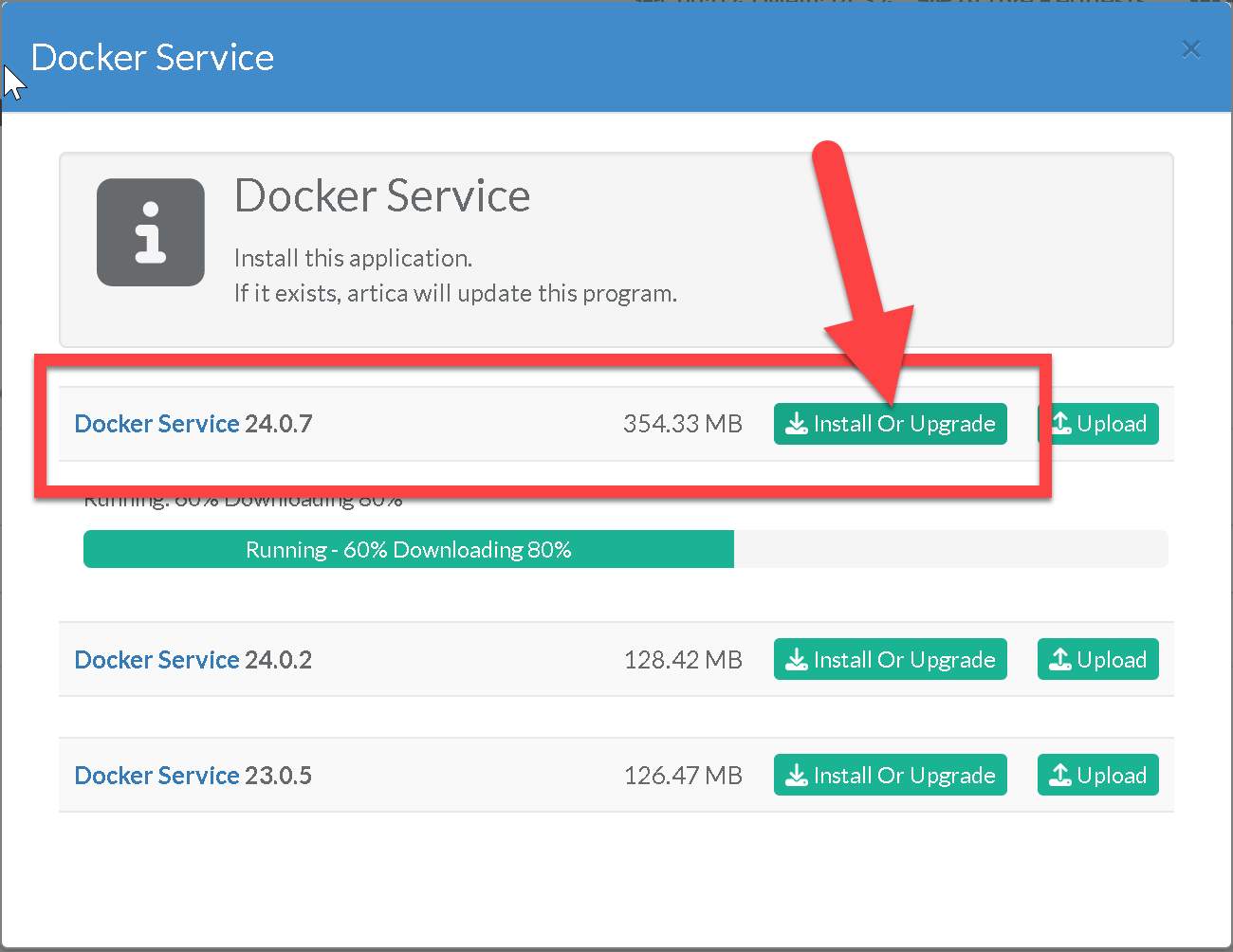
Select an available version and start the installation.
Step 3: Enable or verify the service
For a first installation, continue with Enable the Docker service.
Installing the package alone does not complete service setup.
For an upgrade, open the Docker section of the console.
On current releases, check Docker > Status and the Engine page.
Confirm that Docker responds and displays the expected engine version.
Docker Manager is the administration service used by the console.
It has its own version and service status.
Check both the manager and the engine if the console cannot load container information.
Step 4: Check your applications
- Compare the container and stack states with the list recorded before the upgrade.
- Start any required application that has not recovered, using its normal container or stack controls.
- Check application logs and health status where available.
- Test access through the usual application URL or client.
- If the appliance runs containerized reverse proxy PHP engines, test the websites that depend on them.
A successful package update confirms that the software was installed.
Confirm application availability before ending the maintenance window.
Troubleshooting
| Problem | What to check |
|---|---|
| The package is missing or no version is offered | Confirm that you are searching in Packages Center. Check access to the package sources and the appliance's update status. |
| The download or installation fails | Read the installation output. Check DNS, outbound access, proxy settings and free disk space. Resolve the reported problem before retrying. |
| Docker remains stopped after a first installation | Complete service activation. Package installation and feature activation are separate operations. |
| The engine does not return after an upgrade | Check whether the service is enabled. Review its status and the package installation result. An engine that was stopped before the upgrade is not automatically started by that update. |
| The engine runs but an application is unavailable | Check the container or stack state, restart policy and application logs. Verify mounts, network access and the application's own health checks. |
| The package was updated but an application still uses its previous version | Update the application's container image or stack service separately. The Docker Engine package update does not deploy new application images. |
Continue with Docker service setup, or return to the Docker Edition overview.