Affect administrators Privileges (RBAC)
How to set access privileges to the Web Console
Back to Secure the Artica Web console
Role-based access control (RBAC) is a policy-neutral access-control mechanism defined around roles and privileges.
The components of RBAC such as role-permissions, user-role and role-role relationships make it simple to perform user assignments.
Artica allows you to define privileges (RBAC) based on 3 methods:
- Active Directory groups if the server is connected to an Active Directory server.
- LDAP groups if you using the local LDAP service.
- SQLite database if you using the “administrators” section.
Artica privileges means what privileges are assigned to member after logging to the Artica Web console.
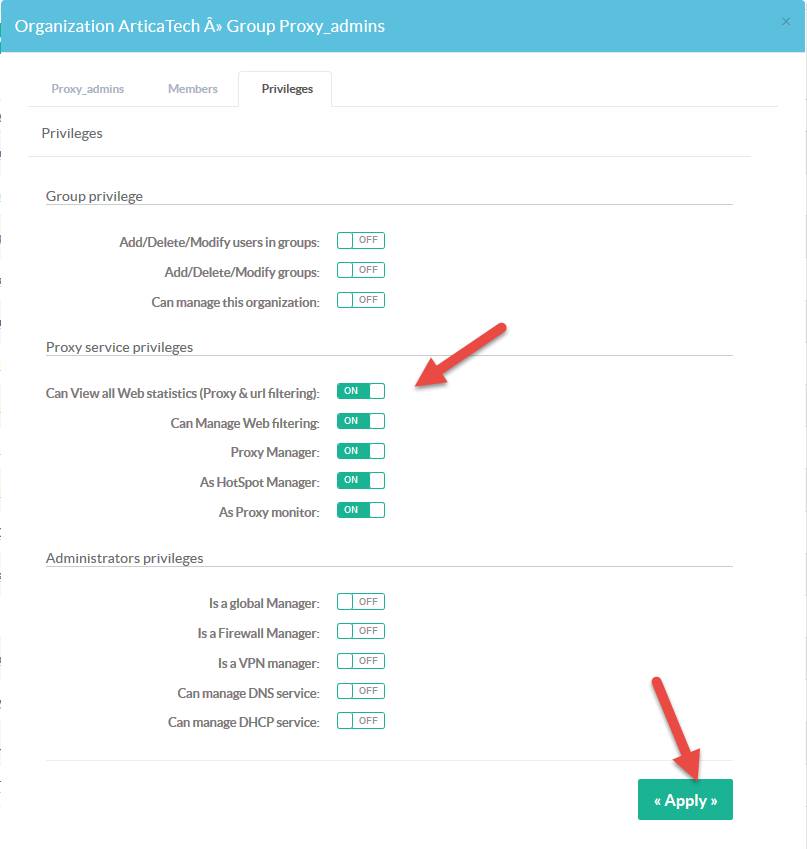
Group Privileges
- Add/Delete/Modify users in groups:
Can manage only users inside organization groups - Add/Delete/Modify groups:
Can manage only groups of organization - Can manage this organization:
Can manage the entire organization
Proxy Service Privileges
- Can View all Web statistics (Proxy & url filtering):
Can access to all statistics of proxy and web filter. - Can Manage Web filtering categories and categories repository:
Can manage categories of web filter and local repositories - Proxy manager:
It's like a global administrator for proxy and web filter section. - As HotSpot Manager:
Can admin the proxy hotspot section. - As Proxy monitor:
Can monitor the proxy and web filter sections
Administrators Privileges
- Is a global manager:
It's a global administrator and can manage all system features. - is a Firewall Manage:
Can admin the firewall section - Is a VPN manager:
Can admin the VPN service section (IPSEC and OpenVPN) - Can Manage DNS service:
Can admin the DNS service section. - Can Manage DHCP service:
Can admin the DHCP service section. - Is a Database administrator ( Added in SP887 or 4.40x)
Can manage databases engines such as PostgreSQL, MySQL, OpenLDAP, Clamav databases - Is a WebMaster:
Can manage reverse-proxy section
LDAP or AD (Active Directory)
Basically, using LDAP database or Active Directory, the procedure is the same:
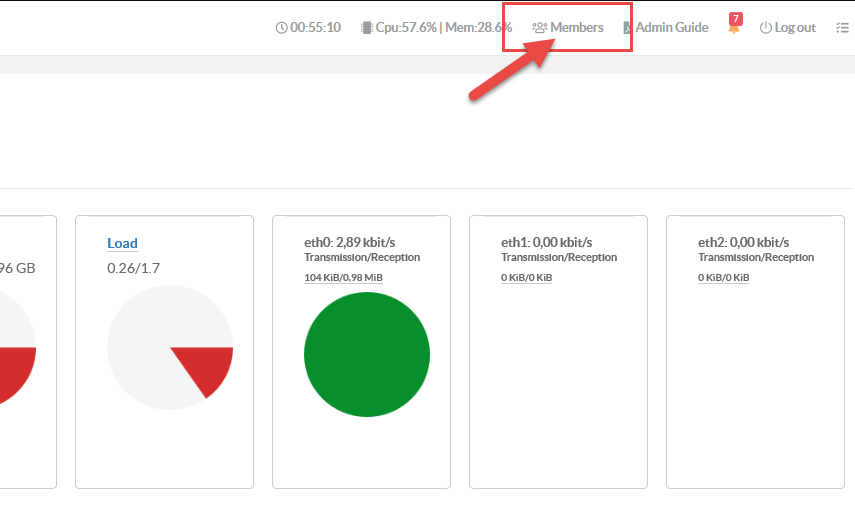
- Open the Members section on the top menu
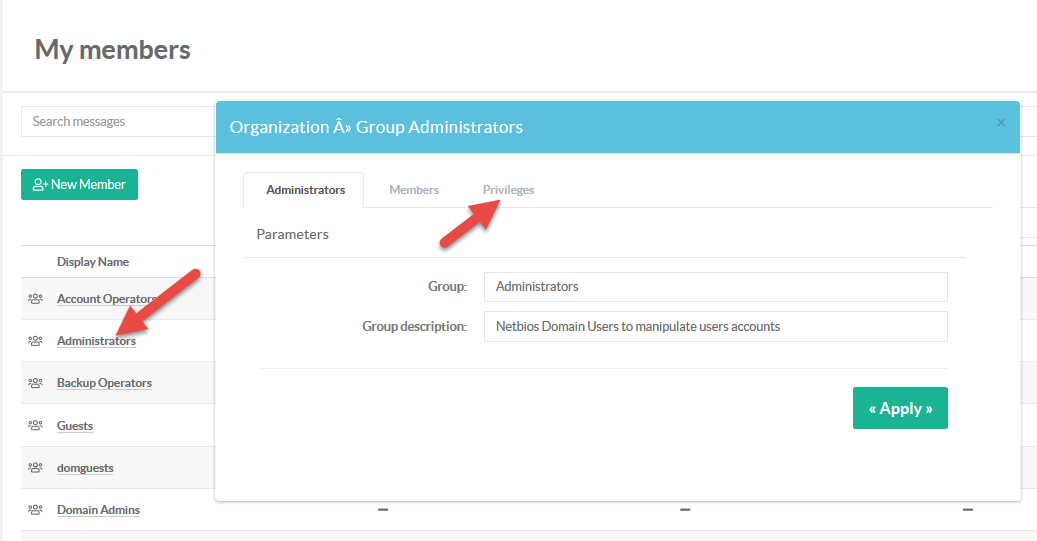
- On the “My Members” section, choose the group you want to assign privileges.
Choose the tab “Privileges”
- Assign the desired privileges
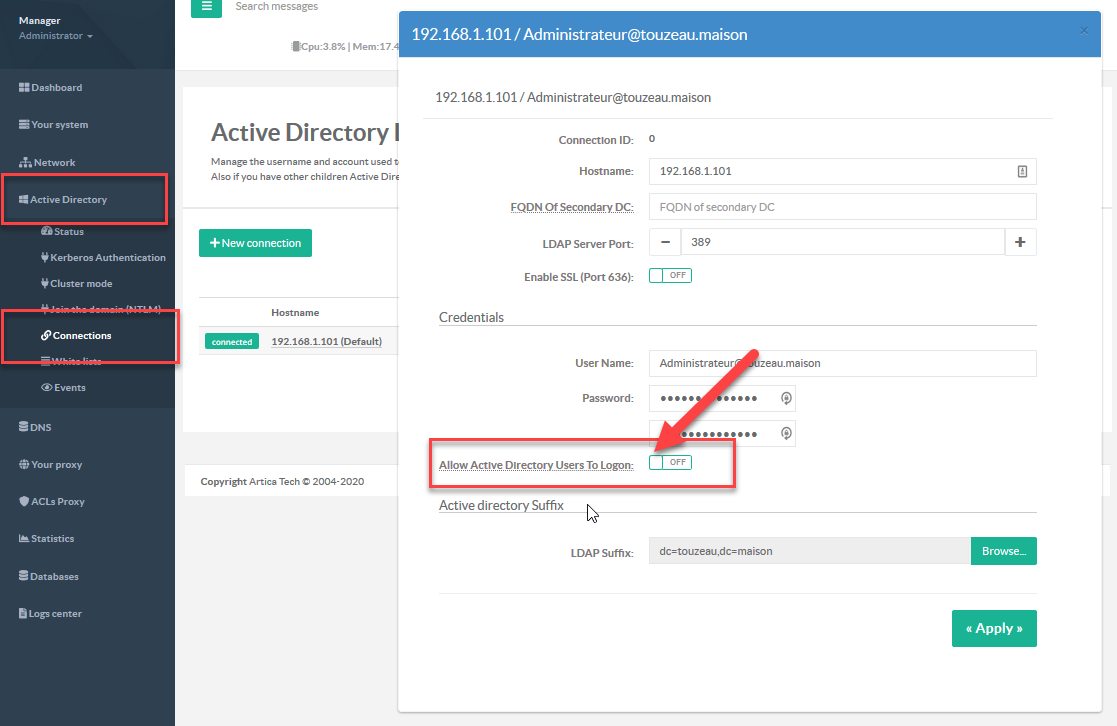
Allow AD Users to Logon on Web Console.
By default, Active Directory members are not allowed to be connected to the Web console.
You need first to allow it inside the Active Directory connection.
- On The Active Directory left menu, select “Connections”
- Turn on the “Allow Active Directory Users to logon” checkbox.