A stolen mailbox password is worth something to an attacker only if they can use it.
This page lets you decide which client addresses are allowed to authenticate against your SMTP server.
Once you list your offices, your VPN exit and your datacentre, a password captured by phishing or malware is useless from anywhere else in the world.
The page is Addresses allowed to authenticate, reachable from the SMTP service menu. It governs one Postfix instance at a time.
¶ Why you would use it
- A stolen password stops being enough.
Credential theft is the ordinary way a mail server becomes a spam relay:
The attacker does not break anything, they log in.
Confining authentication to addresses you own removes that path without touching the password itself.
- Nothing to reconfigure on the client side.
Your users keep their settings.
Nobody installs anything, nobody re-enters a password.
- It is inert until you populate it.
With no address enabled, the server behaves exactly as before
There is no on/off switch to forget, the list itself is the switch.
- It lifts in one action.
Disabling the last address removes the restriction immediately, with no service restart.
That matters at 2 a.m.
- A refusal reveals nothing.
An attempt from an unlisted address is refused identically whether the password was right or wrong, so an attacker testing a stolen credential learns nothing from the answer.
- Incoming mail is never affected.
The restriction applies to authentication only. Mail from the internet keeps arriving normally.
¶ Typical use cases
- Offices with fixed public addresses.
The common case: three sites, three addresses, done.
- Remote users behind a VPN.
List the VPN exit address rather than every home connection; travelling users connect to the VPN first, as they already do for everything else.
- Applications and servers that send mail.
A CRM, an ERP, a billing system: they authenticate from a known machine and never move.
- After a compromise.
When a mailbox has been abused, this contains the damage immediately while you reset passwords, instead of waiting for the reset to propagate.
- Not for devices that cannot authenticate at all.
A copier or a probe with no SASL support belongs on the companion page, SMTP authentication whitelist, which excuses a sender from authenticating rather than deciding who may.
¶ How the restriction is enforced
Two different mechanisms, because the two listeners answer to different needs:
| Listener | What happens to an unlisted client | Why |
|---|---|---|
| Port 25 (public SMTP) | Authentication is simply not offered. A client that tries anyway is told authentication is not enabled. |
Port 25 must stay open to the whole internet to receive mail, so the connection itself can never be refused on the basis of an address list. |
| Submission (587 / 465) | The connection is refused before authentication is even attempted. | Submission exists only for your own users, so a stricter rule is safe there. |
Inbound mail is never filtered by this feature.
A message from a correspondent whose server is not on your list arrives exactly as before.
¶ Before you start
This is the one setting on the appliance that can lock you out of sending mail.
Read the two safeguards below before enabling anything; both are built into the page.
- The page shows the address you are currently connected from.
If it cannot determine it — because the console is behind a reverse proxy that does not forward the original address — it says so rather than showing a value you should not trust. If you see that message, fix the proxy configuration before relying on the restriction.
- If the restriction is enforced and your own address is not in the enabled list, the page warns you in red.
Your access to the administration console is never affected: only sending mail is.
¶ Step by step
¶ 1. The starting point: nothing is restricted
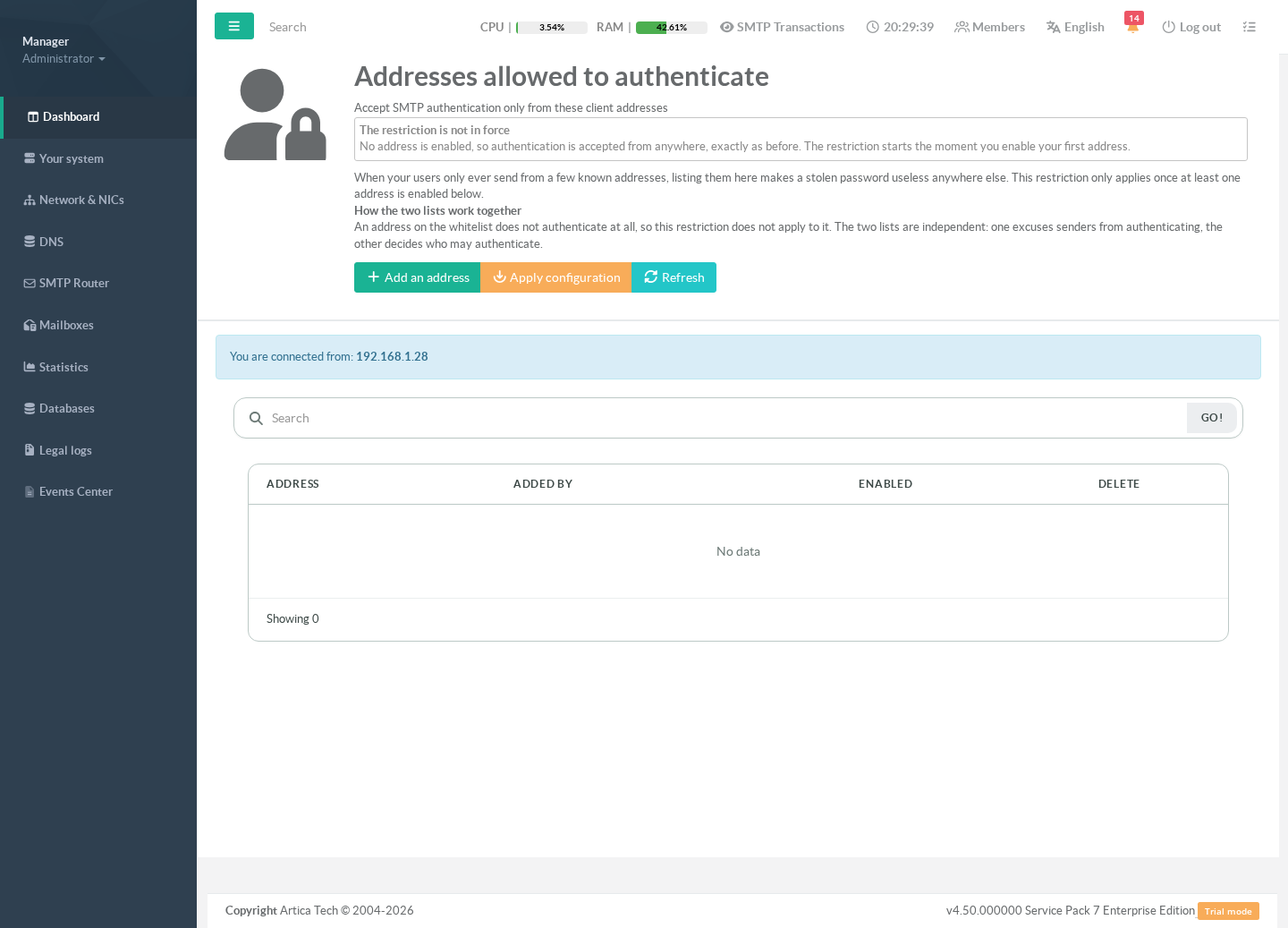
With no address enabled, the banner states plainly that the restriction is not in force. Your server behaves exactly as it did before you opened this page.
¶ 2. Add the addresses your users send from
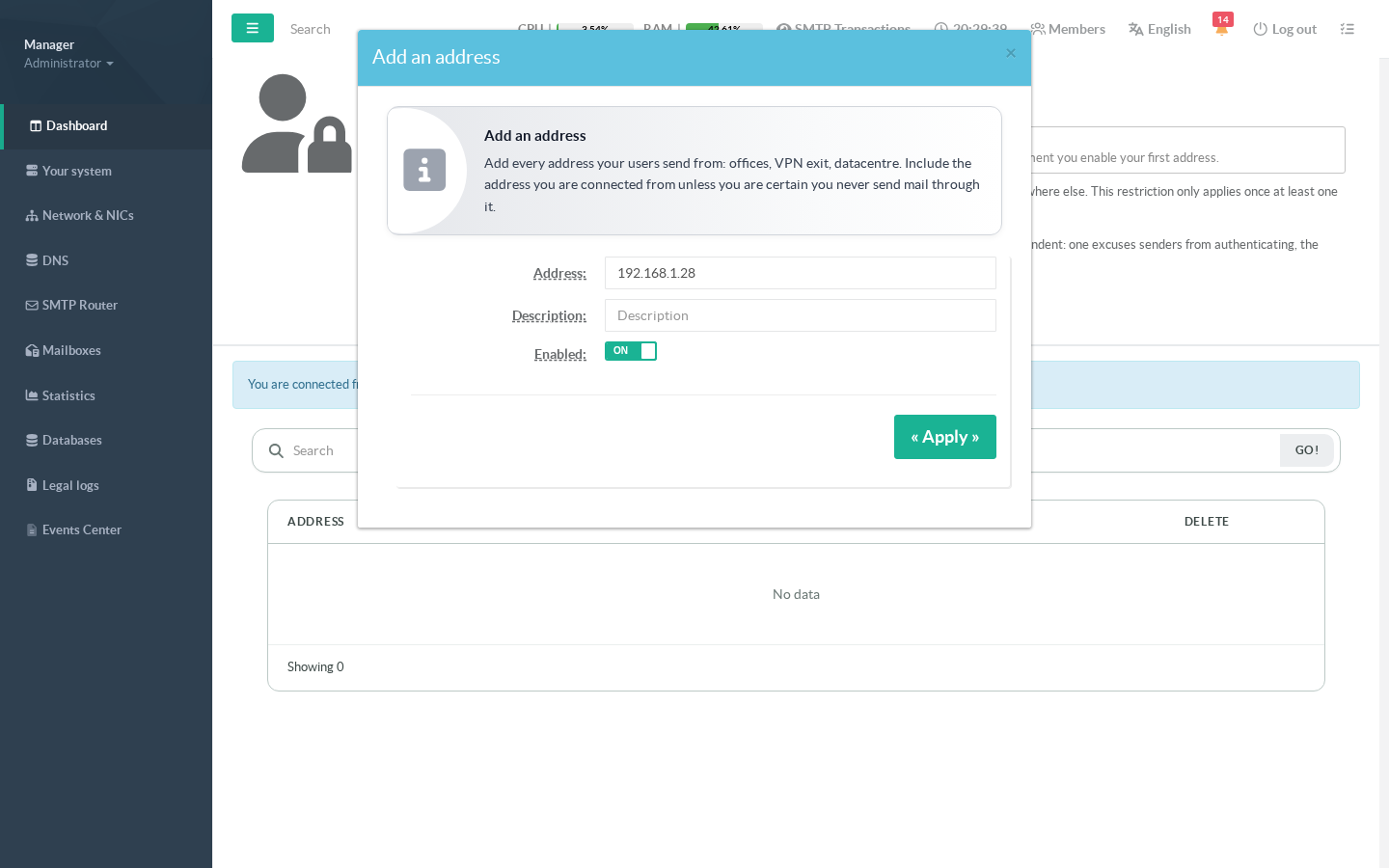
Add an address opens the form, pre-filled with the address you are connected from — the one you are most likely to need, and the one whose absence would lock you out.
Enter a single address (203.0.113.10) or a range in CIDR notation (198.51.100.0/26). A description is required: an entry nobody can explain in six months is the one that stays forever. Host names are deliberately refused — a name could change what is permitted without anyone editing anything.
¶ 3. Saved is not applied
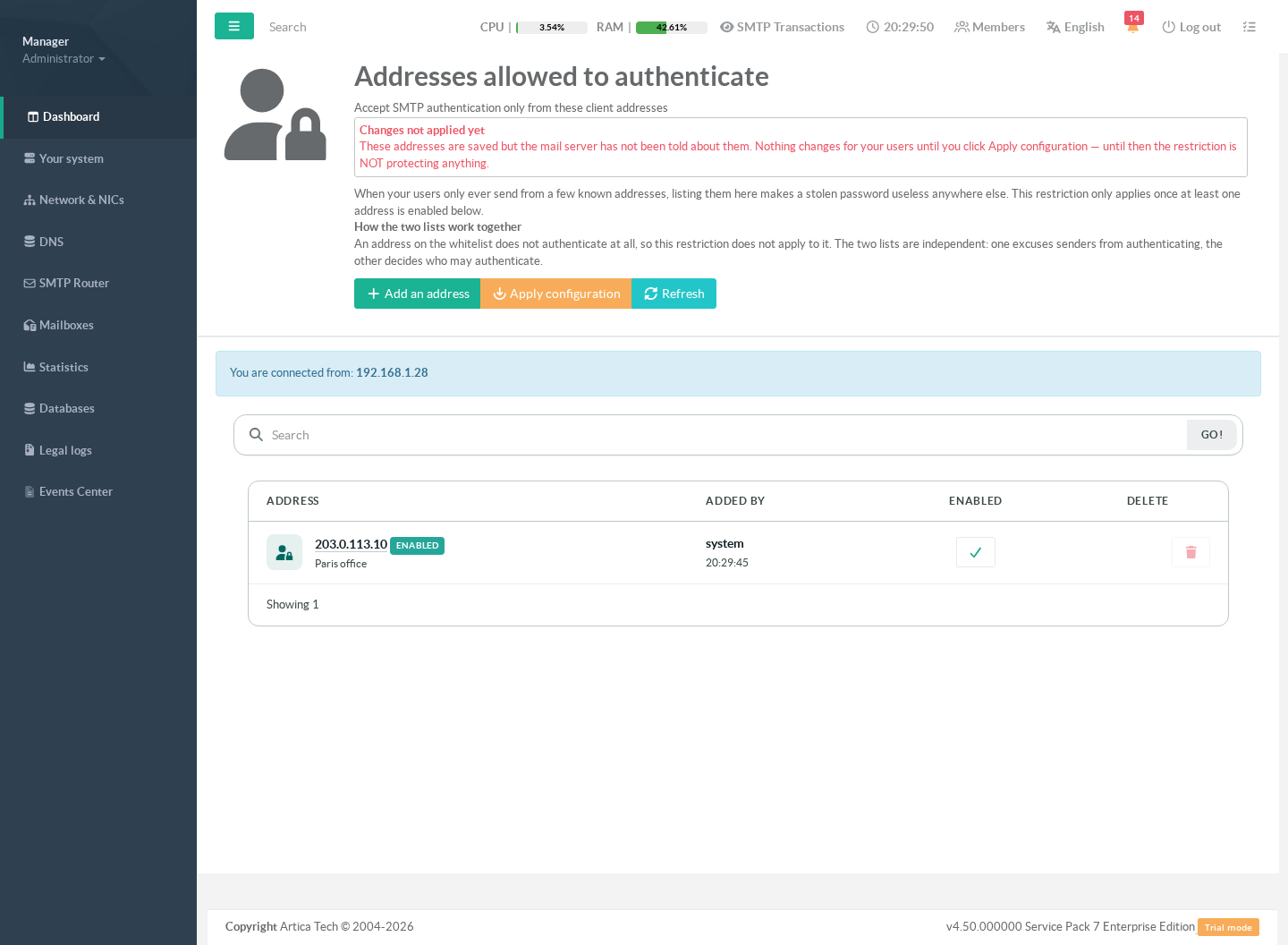
Adding an address stores it; it does not yet change your mail server. The page says so in red, and the restriction is not protecting anything at this point. This is deliberate: you can compose the whole list — several offices, the VPN, the datacentre — and put it into force in one go, instead of locking people out halfway through your typing.
¶ 4. Apply, and check the warning
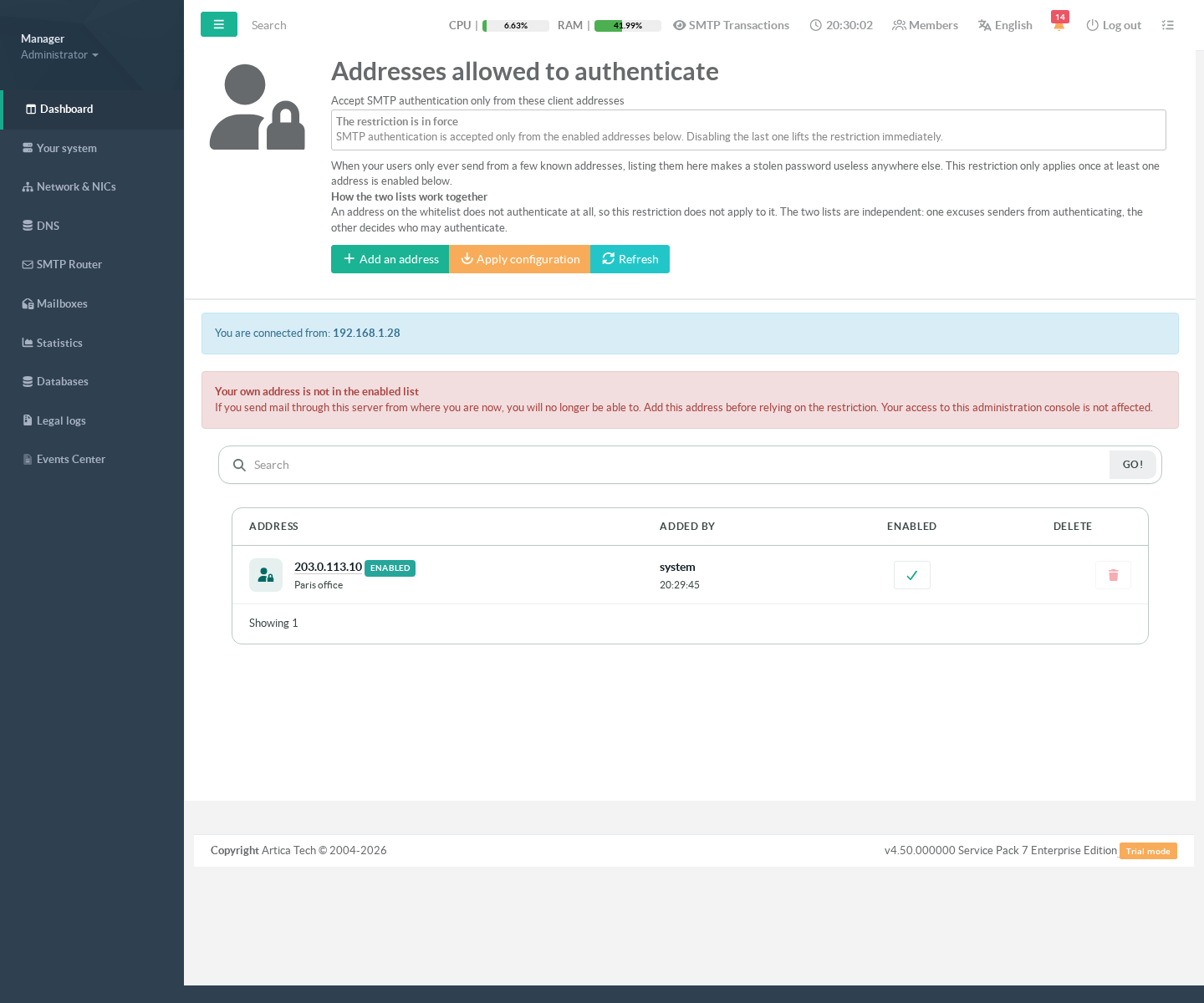
Apply configuration hands the list to Postfix and reloads it. Mail in flight is not interrupted.
The banner now confirms the restriction is in force.
In the screenshot below the page also warns that the administrator's own address is not in the list — exactly the situation to resolve before walking away.
¶ Everyday operations
¶ Taking one address out of service
Use the Enabled switch rather than deleting the entry. A disabled entry keeps its description, its author and its date, and re-enabling it is one click. Deleting is for addresses that are gone for good.
Remember to Apply configuration afterwards: as with adding, the change is stored first and enforced when you apply.
¶ Lifting the restriction entirely
Disable the last enabled address and apply. Authentication is accepted from everywhere again, immediately, with no restart. This is the escape hatch — it is worth trying once, on a quiet afternoon, so you know where it is when you need it.
¶ Adding a range instead of an address
Ranges are accepted in CIDR notation. A very broad public range is flagged with a warning that stays visible on the list: it is legitimate for an organisation that owns the range, and a mistake otherwise, so the page keeps reminding you rather than deciding for you.
¶ How this works with the authentication whitelist
The appliance has a second, complementary list: the SMTP authentication whitelist, which lets named devices send without authenticating at all.
The two never overlap in effect. An address on the whitelist does not authenticate, so this restriction has nothing to apply to it. In practice:
- A user with a mailbox and a password → governed by this page.
- A copier that cannot authenticate → governed by the whitelist.
- A site that has both → list the site here for its users, and the copier's address on the whitelist. They do not interfere.
¶ What this feature does not do
- It does not replace strong passwords or multi-factor authentication; it reduces where a credential can be used, not how hard it is to steal.
- It does not restrict the webmail or the administration console, which have their own access paths.
- It does not filter incoming mail, and it does not decide who may relay: an address listed here still has to authenticate successfully.
¶ Troubleshooting
| Symptom | Most likely cause |
|---|---|
| A user can no longer send, and gets an authentication error | They are sending from an address that is not on the list A new site, a changed ISP address, a user off the VPN. Add the address, or have them reconnect to the VPN. |
| The list looks right but nothing has changed | The changes were saved and never applied. Look for the red Changes not applied yet banner and click Apply configuration. |
| The page cannot show your current address | The console is behind a reverse proxy that does not forward the original client address. Fix that before enabling the restriction Adding the proxy's address instead of yours is how an administrator locks everyone out. |
| Everybody is locked out | Disable the entries from this page the administration console is reachable over HTTPS and is never affected by a mail restriction then apply. Sending resumes immediately. |
| Incoming mail seems to have stopped | Not this feature: it never filters inbound connections. Look at the mail log and at the antispam and blocklist settings instead. |
¶ Notes
- The list belongs to the Postfix instance you are editing. On a multi-instance appliance, each instance has its own list and one never affects another.
- Every change records who made it and when.
- IPv4 and IPv6 addresses and ranges are both supported.