Client address from X-Forwarded-For is a HotLogs option for reverse proxies that sit behind another proxy:
a load balancer, a CDN, a cloud WAF, or a front Nginx that terminates IPv6.
In that layout every request reaches the Artica reverse proxy from the same address — the front proxy's.
Without the option, HotLogs shows that single address on every line, and the Source IP filter and the Top source IPs chart become useless.
With the option enabled, HotLogs shows the real client address that the front proxy recorded in theX-Forwarded-Forheader.
¶ The problem it solves
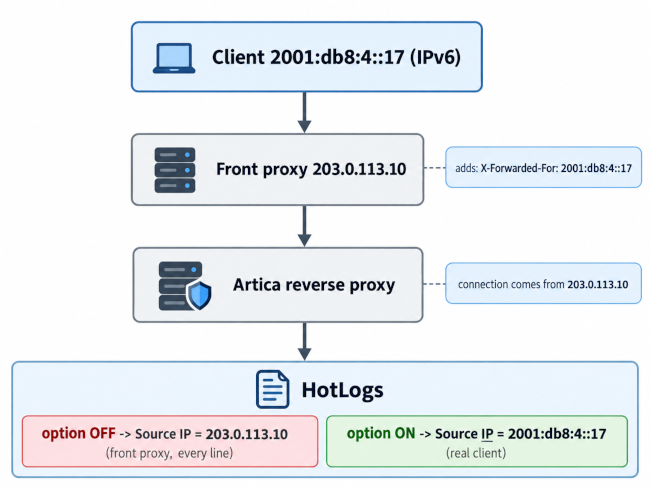
X-Forwarded-For header into account, so they display the client addresses. - HotLogs did not:
A search showed the front proxy's IPv4 address even when the real-time view showed the client's IPv6 address.
This option aligns HotLogs with what you see in real time.
¶ Benefits
- Real client addresses in every search.
The Source IP column of the results and of the CSV export shows who actually sent each request.
- The Source IP filter works again.
Filtering on a client address, a CIDR range or a wildcard matches that client's requests instead of matching nothing.
- Meaningful charts.
Top source IPs and statuses by source IP rank the real clients, instead of a single bar for the front proxy.
- IPv6 visibility when IPv6 is terminated upstream.
If the front proxy accepts IPv6 and talks to Artica over IPv4, the IPv6 client addresses become searchable in HotLogs.
- Covers the logs you already have.
The raw log lines already contain the header. The option is applied when a search runs, so re-running an existing search over the last days shows the client addresses too. Nothing has to be re-collected.
- No impact on traffic.
Nothing changes in the Nginx configuration and no service is restarted. Only the way HotLogs reads the stored lines changes.
¶ Use cases
- IPv6 handled by a reverse-proxy front.
IPv6 is published by an upstream Nginx while the Artica reverse proxy only receives IPv4.
Enable the option to search and chart the IPv6 clients.
- Behind a load balancer or a cloud WAF.
An HAProxy, F5, AWS/Azure load balancer or cloud WAF forwards the traffic.
Enable the option so that each client keeps its own address in HotLogs.
- Behind a CDN.
The CDN edge servers connect to the reverse proxy.
Enable the option to see the visitors instead of the CDN edge addresses.
- Abuse and incident investigation.
An abuse report or a customer complaint names a client address. With the option, a search on that address returns that client's requests.
- Brute-force and scan detection.
Searching/wp-login.phpor a4xxburst ranks the attacking addresses in Top source IPs, instead of showing the front proxy as the only “attacker”.
¶ When NOT to enable it
Any client can send an X-Forwarded-For header with any value.
The header can only be trusted when it was written by your own front proxy.
- Leave the option disabled if clients can reach the Artica reverse proxy directly, even partially (for example a public IP address or port that bypasses the front proxy).
Those clients could make HotLogs display an address of their choice. - Enable it only when a firewall rule or the network design guarantees that the reverse proxy receives traffic only through the trusted front proxy.
¶ How HotLogs picks the client address
A proxy appends the address it received the connection from to the X-Forwarded-For header. Everything written before that last entry comes from the client itself and may be forged. HotLogs therefore uses the last entry of the header:
| X-Forwarded-For received by Artica | Source IP shown by HotLogs (option ON) | Why |
|---|---|---|
2001:db8:4::17 |
2001:db8:4::17 |
The single entry written by the front proxy. |
198.51.100.66, 2001:db8:4::17 |
2001:db8:4::17 |
The first entry was sent by the client and is ignored; the last one was added by the front proxy. |
2001:db8:4::17, unknown |
Front proxy address | The last entry is not an IP address. HotLogs never falls back to an entry the client could have forged. |
| (no header) | Front proxy address | Nothing to use: the connection address is kept. |
The option applies to the Source IP column, the CSV export, the Source IP filter and the charts of the report.
A search whose Source IP filter is the front proxy's address still matches its lines.
Only one front proxy is supported. If the traffic crosses several proxies, the last entry is the address seen by the last one, which may be the previous proxy rather than the client.
¶ Enabling the option
- Open
Web Services > Monitoring > HotLogsand click Parameters in the page header.

- The Parameters dialog shows the option Client address from X-Forwarded-For, disabled by default (Inactive).
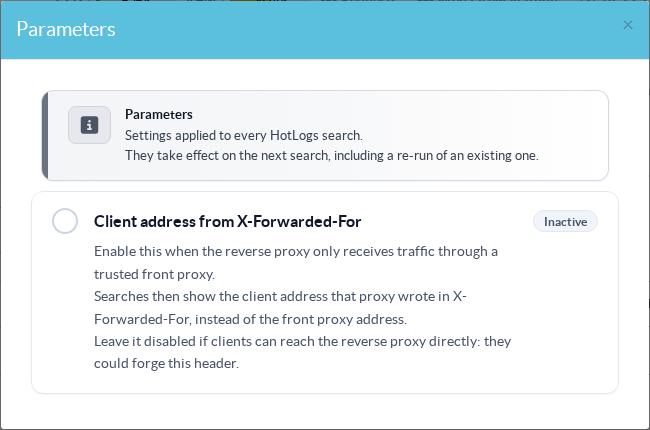
- Click the switch.
The option turns Active and is saved immediately:
there is no Apply button, and the dialog closes by itself.
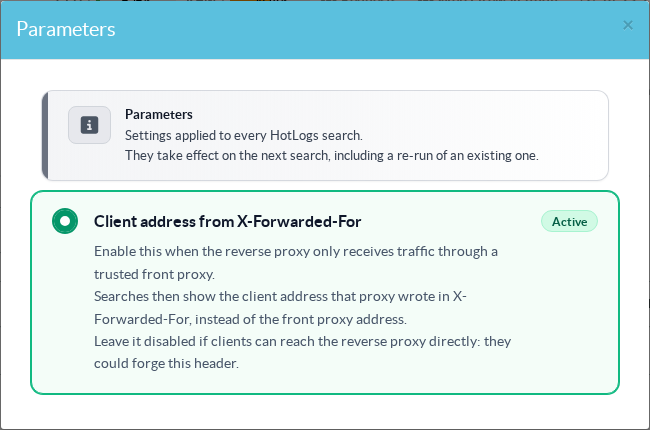
- Run a new search, or re-run an existing one.
The Source IP column now shows the client addresses.
No restart is needed: the option is read each time a search starts.
To go back to the connection addresses, open Parameters again and click the switch to turn the option off.
If the Parameters button is missing from the HotLogs page, update Artica first: the option needs both the WebConsole page and the reverse-proxy daemon that ship it.
¶ Checking the result
- Create a search on a short time range with no filter, open its report, and check the Top source IPs chart:
it should list many addresses instead of the front proxy alone. - Filter on the address of a client you know (for example your own public IPv6 address) and check that its requests are returned.
¶ Scope
- The option only changes HotLogs.
It does not change the reverse-proxy configuration, the access logs, the WAF, the automatic bans or the other statistics of the reverse proxy. - The stored log lines are never modified:
disabling the option shows the connection addresses again, including for past searches that you re-run.