Let's Encrypt certificate with PulseReverse
PulseReverse integrates a built-in ACME client to automatically request, install, and renew X.509 certificates from Let’s Encrypt. This ensures secure TLS endpoints without manual key management.
PulseReverse integrates a built-in ACME client to automatically request, install, and renew X.509 certificates from Let’s Encrypt.
This ensures secure TLS endpoints without manual key management.Key features:
- Automated certificate issuance via the ACME v2 protocol
- Automated renewal
-
The certificate is generated through the Certificate Center; you only need to ensure that you have HTTP (80) and HTTPS (443) frontends enabled to receive the ticket request from Let’s Encrypt.
-
Make sure that the domain you wish to sign with Let’s Encrypt resolves to the public IP address of your PulseReverse server.
-
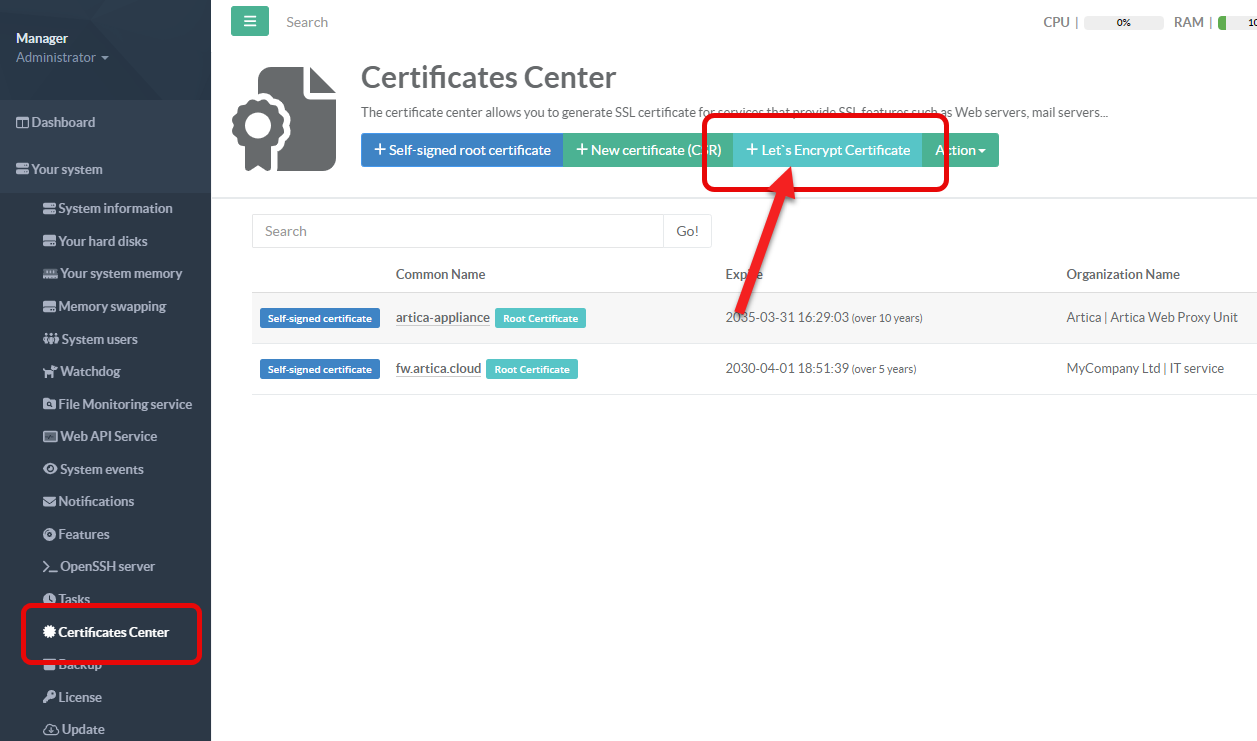
On the left menu, select
Your System > Certificates Center -
Click on the button Let's Encrypt Certificate
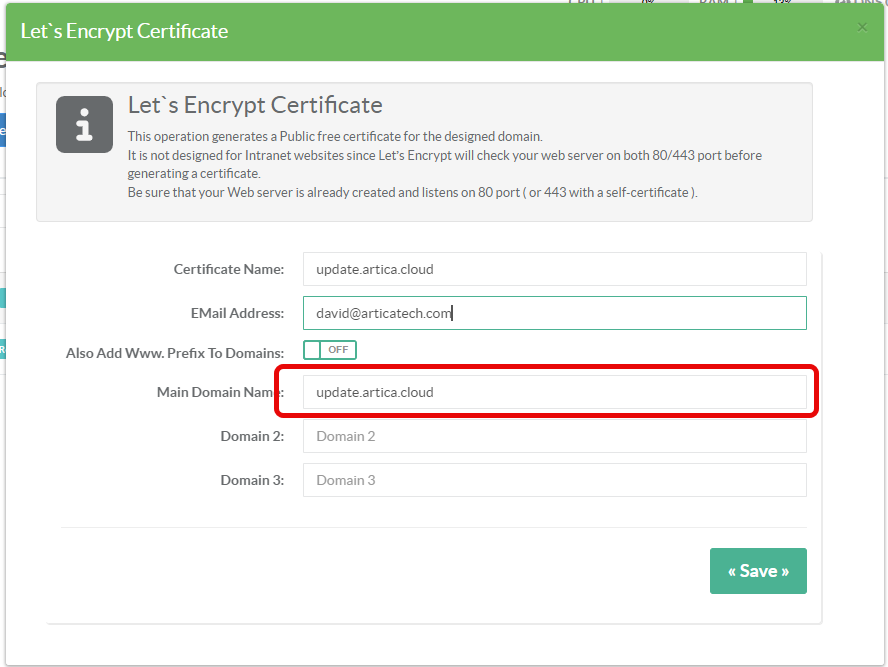
- Set the name of the certificate in order to retreive it inside the list.
- Set your eMail address in order to receive notifications of expired certificate from Let's Encrypt.
- set your domain in the Main domain name field
- Click on Save button
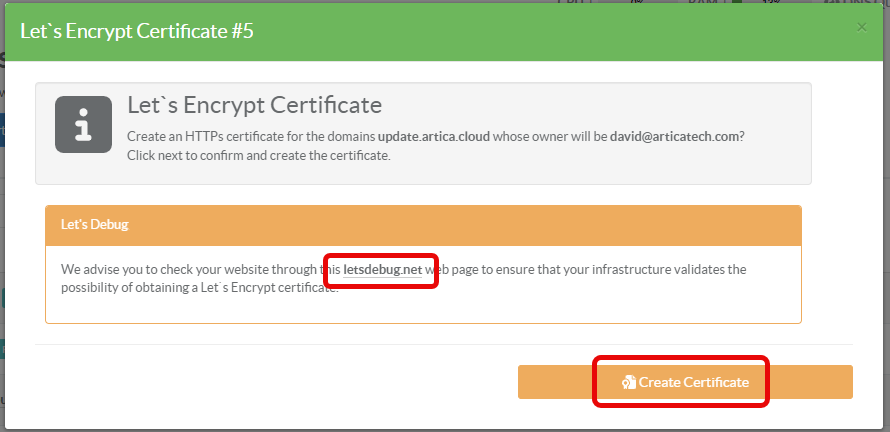
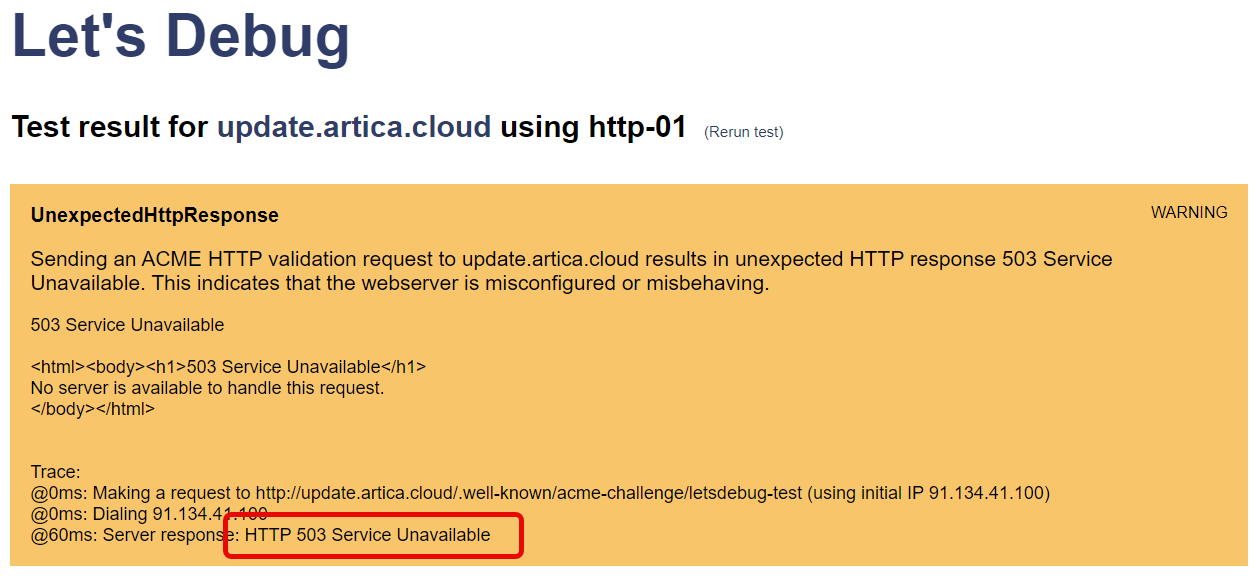
- A warning message prompts you to verify that your domain is eligible for Let’s Encrypt by using the letsdebug site.
- If you test this site with PulseReverse and encounter a 503 error, it means the service is actually available.
Indeed, Artica only allows the port to be opened if—and only if—it is initiating the certificate request (whether through the interface or programmatically for renewal).
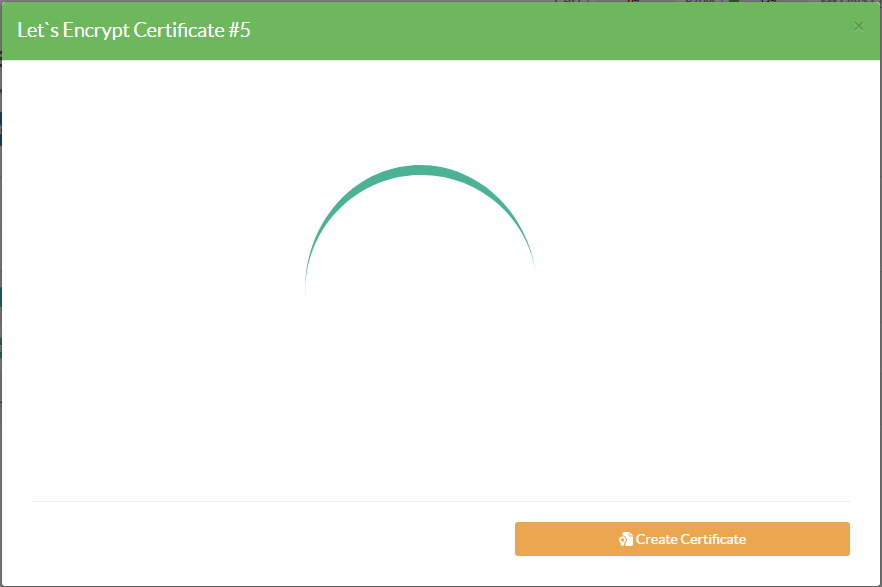
- Click on Create certificate and wait during the process.
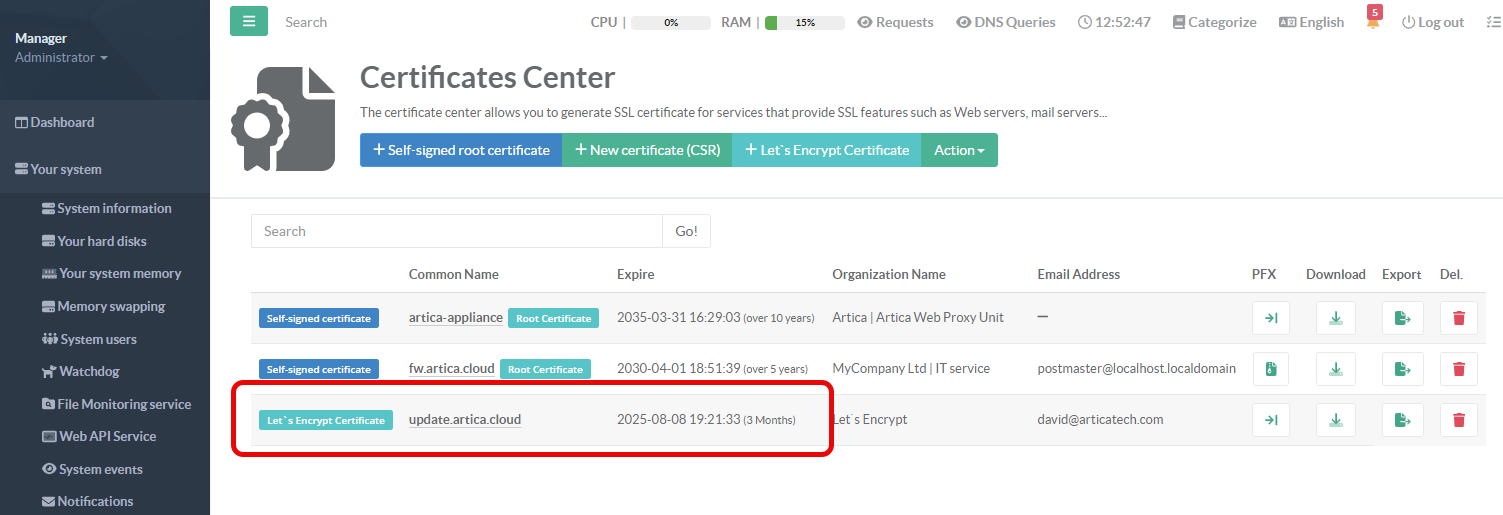
- The certificate will be added into the main table with the Let's Encrypt label