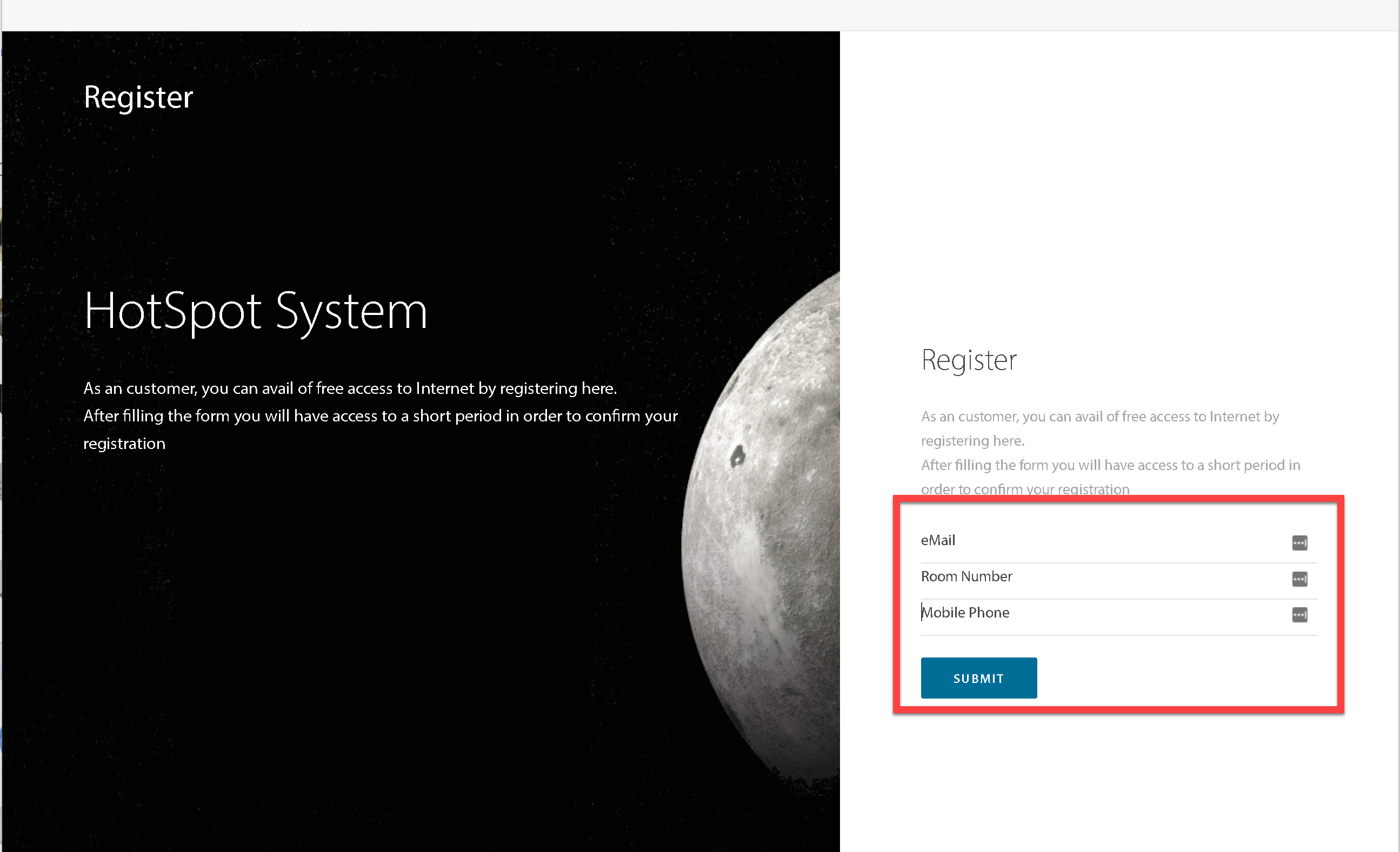
Custom form in Auto-registration
By default, only the email address is requested in the registration form. You can instruct the HotSpot service to add new fields forcing users to fill in additional information.
Let's take a concrete example:
Our hotspot is located in a hotel, and we want users to add their room number and telephone number when they check in.
Activate the use of a Custom form
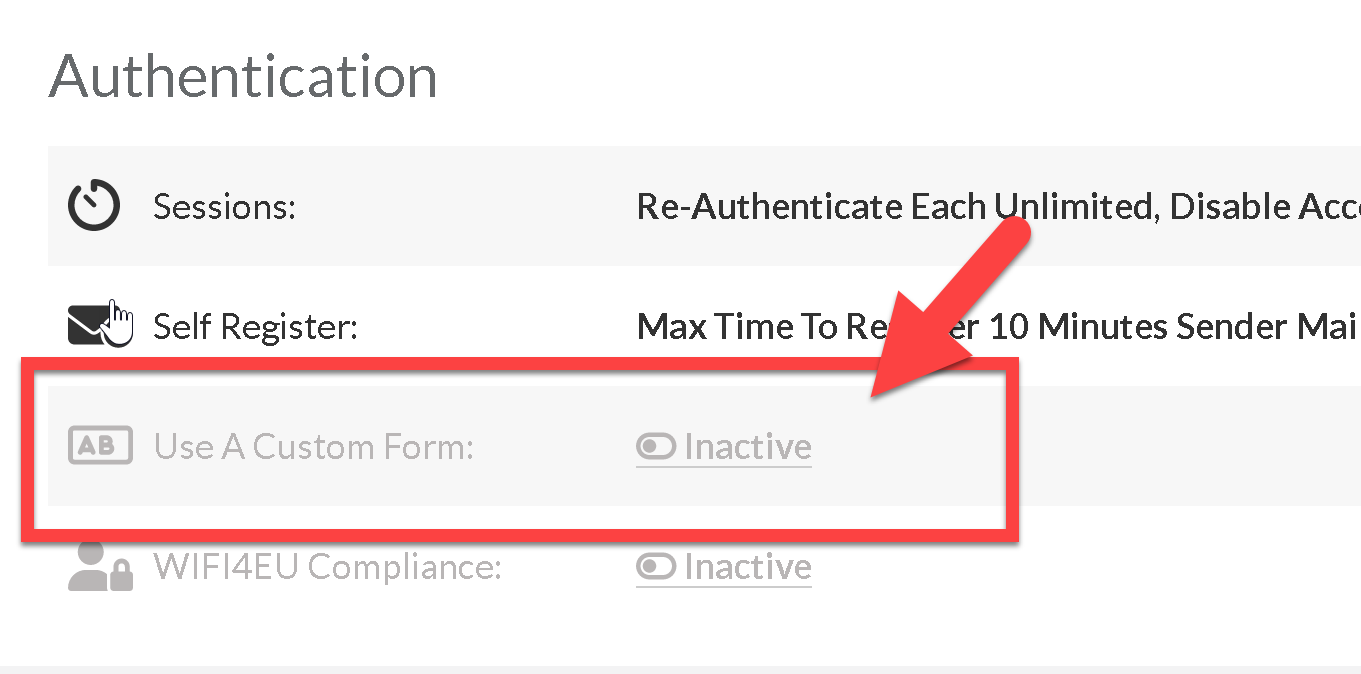
- In the left, menu, go to
HotSpot > Parameters - Down the Authentication section and click on “Use A Custom Form” link
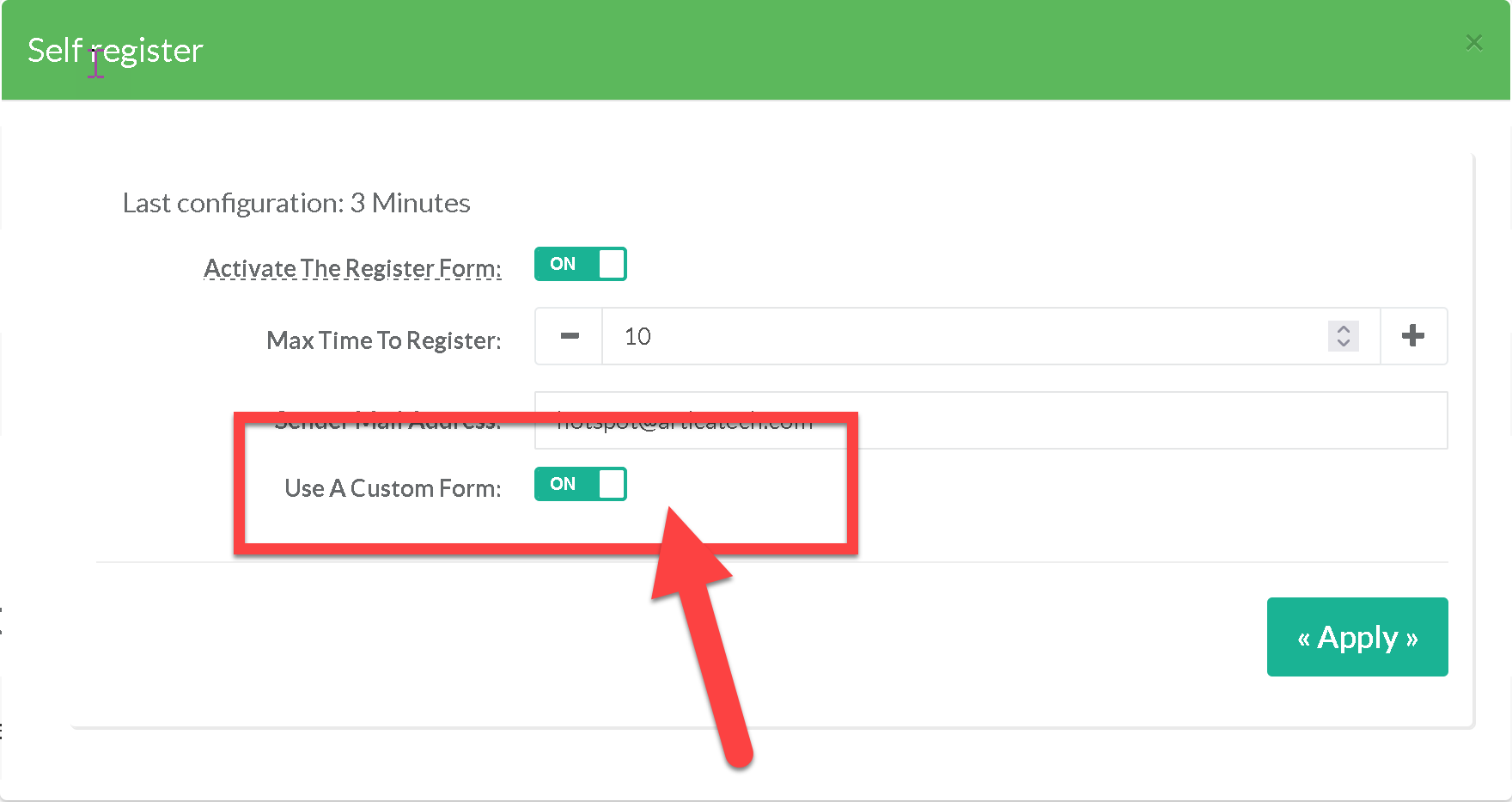
- Turn on the “Use a Custom Form” checkbox and click on Apply
Create your custom Form
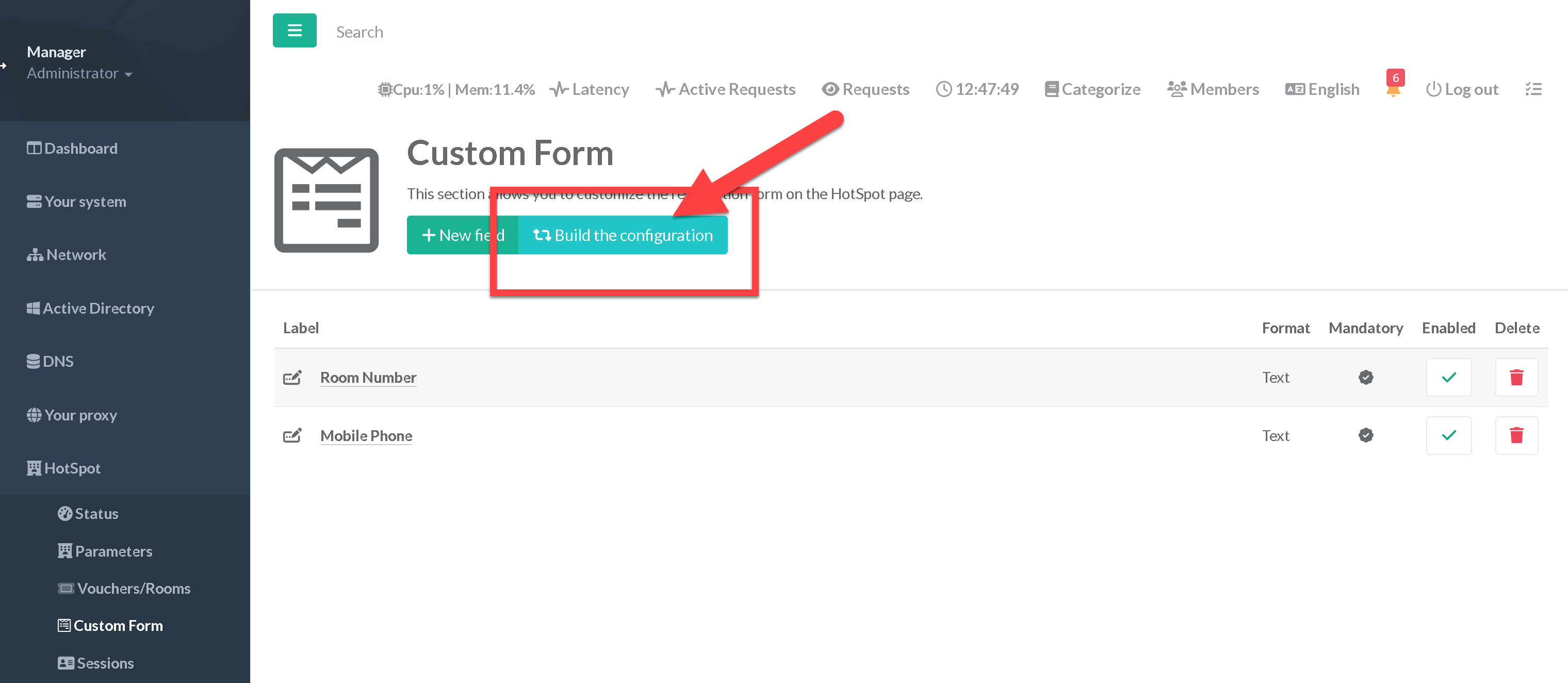
- In the left, menu, go to
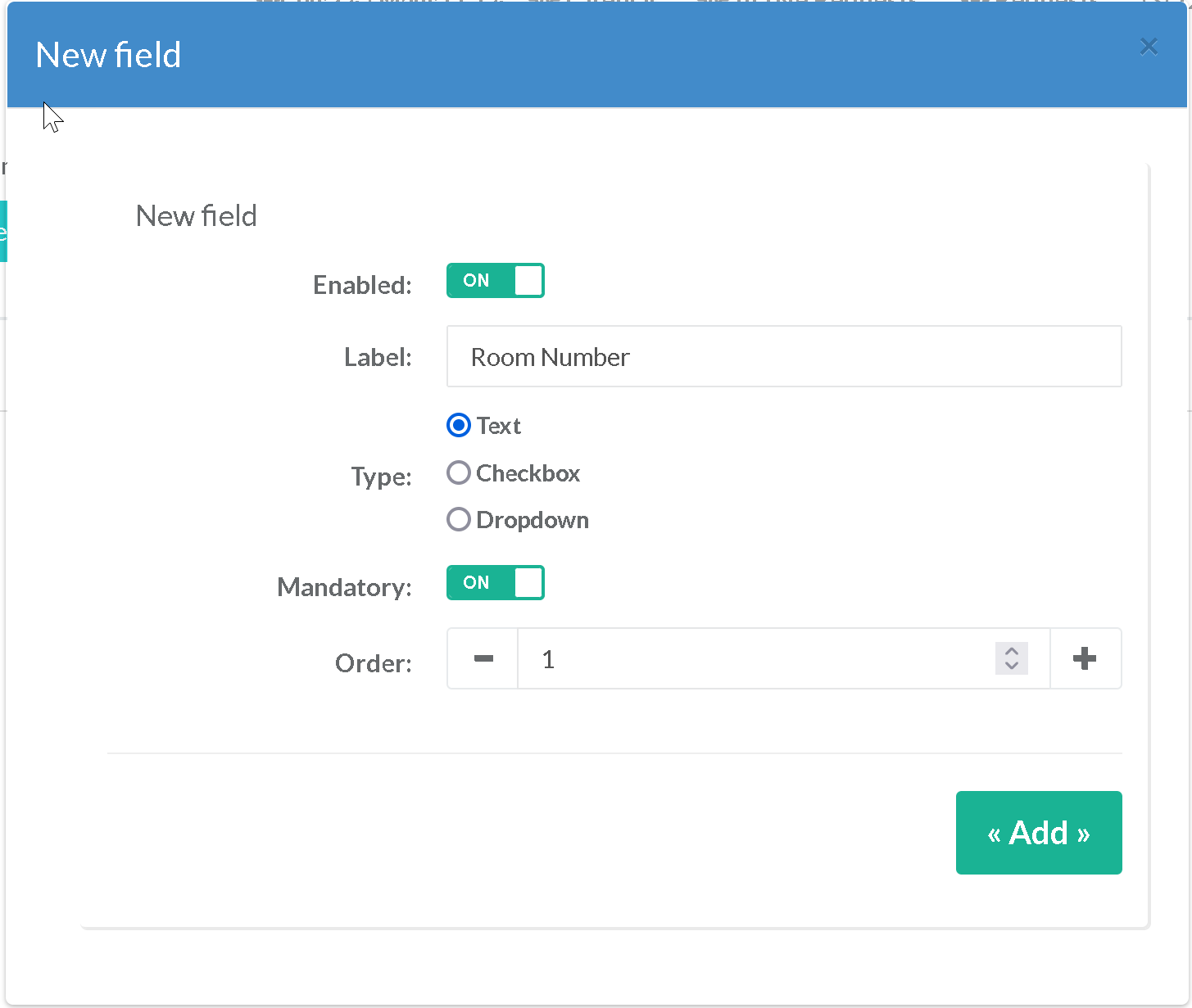
HotSpot > Custom Form - Click on the “New Field” button
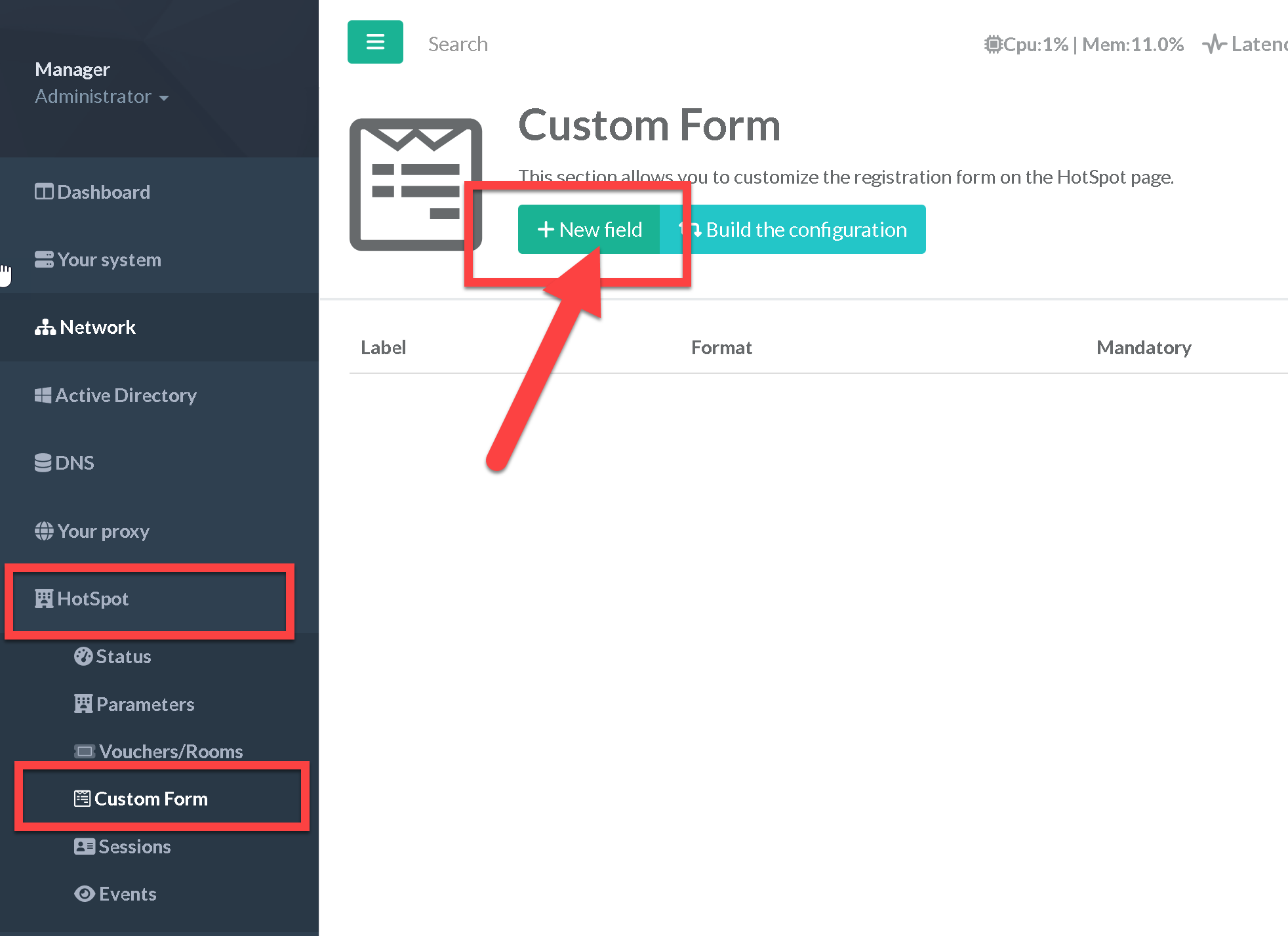
- To get the room name, we'll add a text field with the label "Room Number", and this field will be mandatory.
- And a second field for the Mobile Phone
- When we've finished adding all the fields, we click on the Build the configuration button to set up the form.
- On the register HotSpot page, we can see the 2 fields added.