An Artica snapshot is a container that stores every setting of the appliance:
parameters, SQLite databases, PostgreSQL tables, LDAP directory, certificates.
With Azure Blob storage as remote target, each snapshot leaves the appliance encrypted, lands in an Azure storage container you own, and can be restored from that container on the same appliance or on a brand-new one.
This is the building block of a disaster recovery plan in Azure:
if an Artica server is permanently lost, install a fresh Artica, paste the same SAS URL and the same snapshot password, pick the lost server in the list and restore.
¶ Concept
Artica supports one remote storage for its snapshots: none (local disk only), a N.A.S (SMB share) or Azure Blob.
When Azure Blob is selected, each snapshot follows this path:
- Creation
The snapshot is built on the local disk, exactly as before.
- Sealing
It is encrypted with AES-256-GCM, using a key derived from the snapshot password (scrypt).
The result is a.tar.gz.sealedfile.
Each 1 MiB segment is authenticated: a file altered in the cloud is refused when it is restored, instead of being restored as wrong data.
- Upload
The sealed file is sent with the Azure Block Blob REST API into<container>/<hostname>/.
Each appliance has its own folder in the container, so one container can hold the snapshots of a whole fleet.
- Verification
Artica reads the blob back (size and MD5) before deleting anything locally. - Local clean-up and retention
The newest snapshot stays on the local disk for an instant restore; older local copies that are verified on Azure are removed.
The Max containers setting is then applied to this appliance's folder in Azure.
Authentication uses a container SAS URL (Shared Access Signature limited to one container).
No storage account key, no Microsoft Entra application and no extra software are needed on the appliance.
The SAS is the only credential; it is never displayed again by the console and never written in logs.
Encryption is mandatory for Azure.
Azure Blob cannot be enabled until a snapshot password of at least 12 characters is set.
Without this password, the snapshots stored in Azure cannot be restored:
keep it in your password vault, next to the SAS URL.
¶ Benefits and performance
- Fast, parallel uploads
The snapshot is cut into 8 MiB blocks sent four at a time, then committed in one operation.
Memory use stays bounded (about 32 MiB) whatever the size of the snapshot.
- Resilient to a poor network
Every request is retried (5 attempts, exponential back-off) on timeouts and on Azure throttling answers (408, 429, 5xx).
A download that breaks in the middle resumes where it stopped (HTTP range) instead of starting again.
- No mount, no external tool
Unlike a NAS share, nothing is mounted:
there is no stale mount point when the network drops.
Artica talks to Azure directly over HTTPS and does not depend onazcopy, BlobFuse or an SDK.
- Instant local restore
The latest snapshot is kept on the local disk, so the most common restore (yesterday's settings on the same server) needs no download at all.
- Lower local disk usage
Only one snapshot stays locally
The history lives in Azure.
- Verified copies
A snapshot is considered saved only after its blob was read back and matched.
If the upload fails, the local snapshots are kept and the local retention still applies, so the local disk never fills up.
- Goes through your outbound proxy
The Azure client uses the proxy configured for Artica's Internet access, with TLS certificate verification always enabled.
¶ Use cases
- Disaster recovery plan
Keep the configuration of your proxies, gateways and reverse-proxies outside your data center, in an Azure region of your choice, and rebuild a lost appliance in minutes.
- Fleet of appliances
Several Artica servers share one container; each one writes to its own folder, and any of them can restore the configuration of another through Other appliances.
- Hardware or hypervisor replacement
Install Artica on the new machine, connect it to the container and restore the snapshot of the old server.
- Off-site backup policy / compliance
Encrypted snapshots on a different infrastructure from the appliance, with the retention you choose.
- Cloning a configuration for a lab
Restore the production snapshot on a test appliance to reproduce an issue.
¶ Prerequisites
- An Azure storage account and a container dedicated to Artica snapshots (for example
artica-dr). - A container SAS URL with at least the Read, Write, List and Delete permissions, and an expiry date far enough away (for example one year). Account SAS URLs and blob SAS URLs are refused: the SAS must be scoped to the container.
- Outbound HTTPS (TCP 443) from the appliance, directly or through the configured proxy, to
<account>.blob.core.windows.net. If the storage account firewall is enabled, allow the public IP address of the appliance. - A snapshot password of at least 12 characters.
- Snapshots must use the standard engine (Azure does not apply when snapshots are stored by Plakar).
¶ Generate the container SAS URL
From the Azure portal: open the storage account, go to Data storage / Containers, open the menu of your container (…) and choose Generate SAS.
- Signing method: Account key (or a stored access policy).
- Permissions: Read, Add, Create, Write, Delete, List.
- Expiry: the date until which Artica may write to the container.
- Allowed protocols: HTTPS only.
- Click Generate SAS token and URL and copy the Blob SAS URL. It looks like
https://contoso-backup.blob.core.windows.net/artica-dr?sp=racwdl&st=…&se=…&spr=https&sv=…&sr=c&sig=…
With the Azure CLI:
az storage container generate-sas \
  --account-name contoso-backup --name artica-dr \
  --permissions racwdl --expiry 2027-10-31T00:00Z --https-only \
--auth-mode key --output tsvThe command prints the token only:
build the URL as https://contoso-backup.blob.core.windows.net/artica-dr? followed by the token.
Tip: enable blob soft delete on the storage account.
Artica deletes the snapshots that exceed Max containers;
soft delete keeps them recoverable for the number of days you choose.
Do not use an immutability (WORM) policy on this container: the retention could not delete old snapshots.
¶ Configure Azure Blob
On the left menu, go to Your system / Backup, tab Backup Artica.
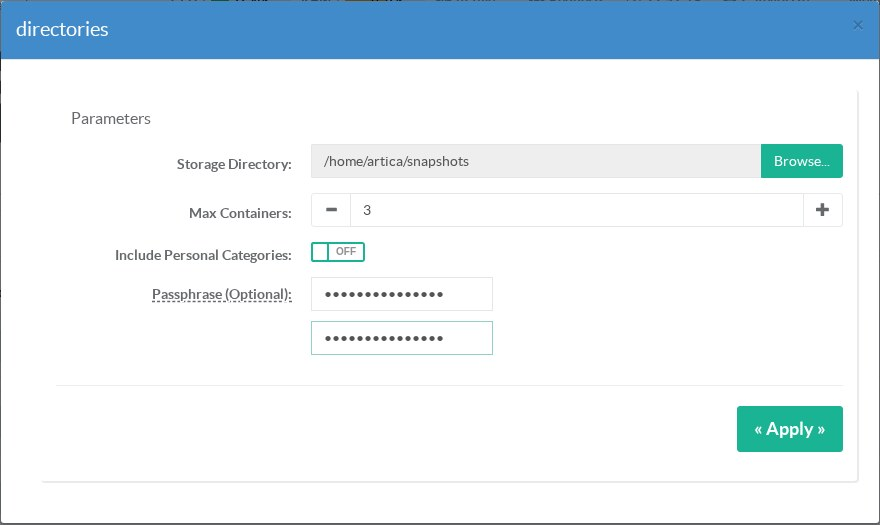
¶ 1. Set the snapshot password
Click on the edit button of the Encryption row and type a passphrase of at least 12 characters in both fields, then click Apply.
¶ 2. Select Azure Blob as remote storage
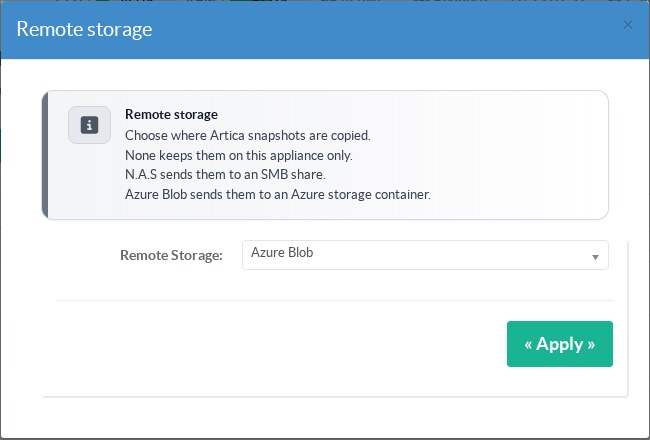
Click on the edit button of the Remote storage row, select Azure Blob and click Apply.
¶ 3. Paste the SAS URL
The Azure Blob form opens. Paste the container SAS URL in both Container SAS URL fields and click Apply. Leave Custom Endpoint off: it exists only for Azure-compatible emulators (Azurite) used in test labs, and it lifts the HTTPS and blob.core.windows.net checks.
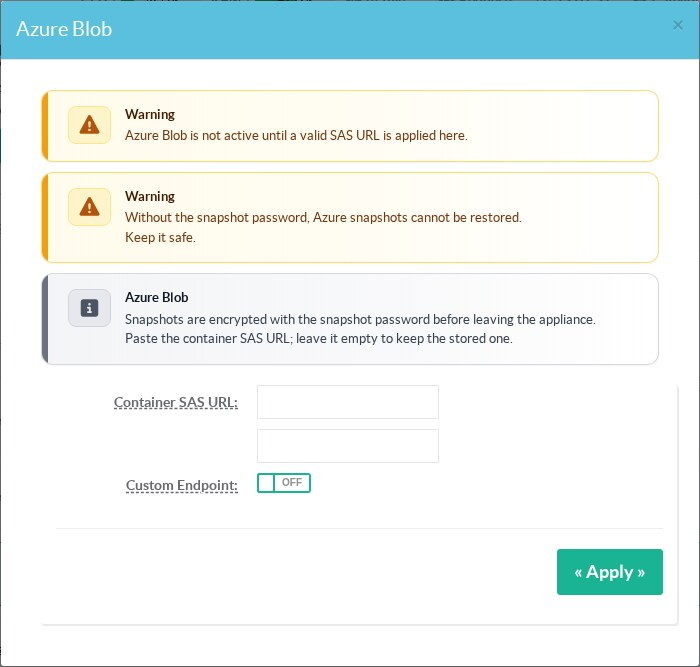
Artica checks the URL before activating Azure: HTTPS, a container (not an account or a blob), the four required permissions, a readable expiry date and the 12-character password.
An invalid SAS is refused with the reason, and the previous configuration stays in place.
The stored SAS is never sent back to the browser: the fields are always empty.
To replace the SAS, paste the new one; leaving the fields empty keeps the stored SAS.
¶ 4. Check the configuration
The Remote storage row now shows the container and the number of days before the SAS expires.
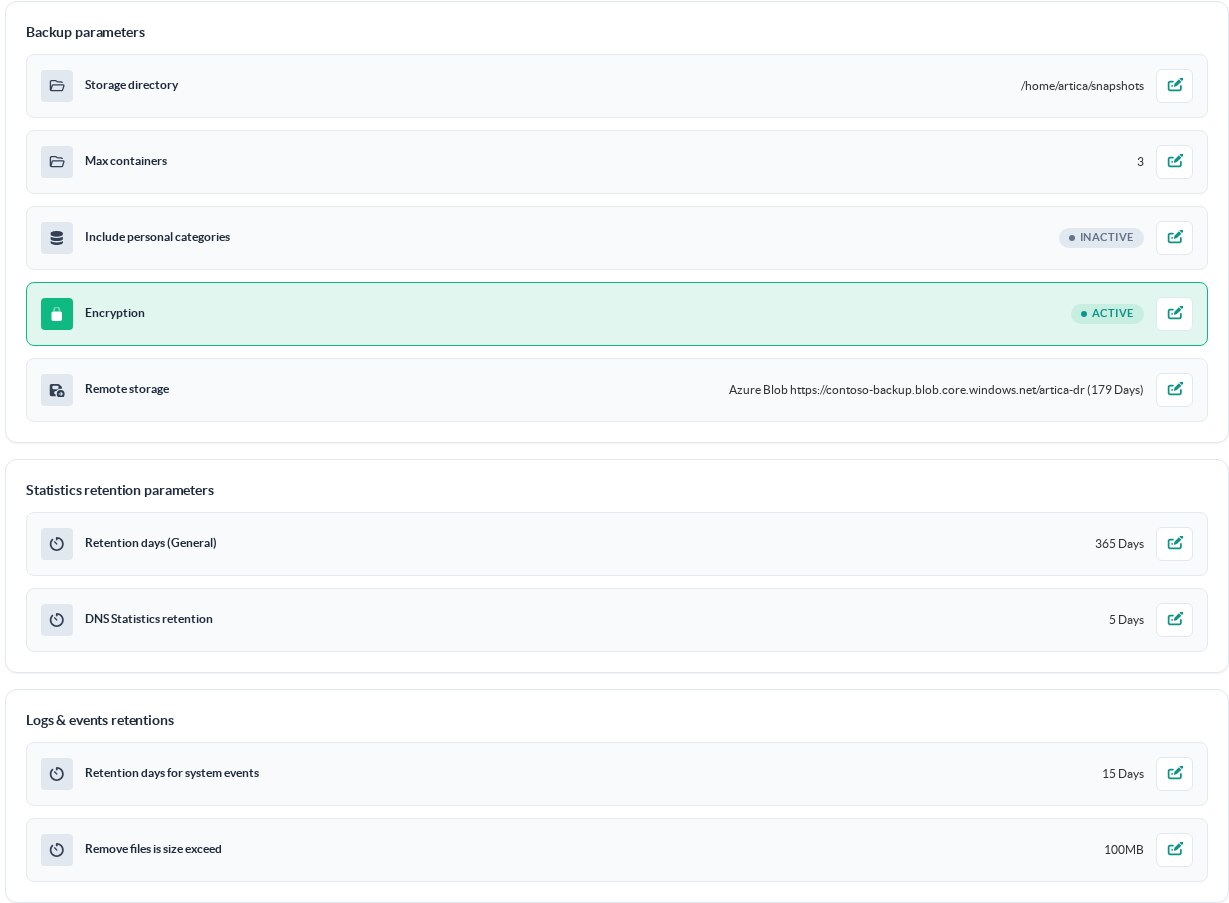
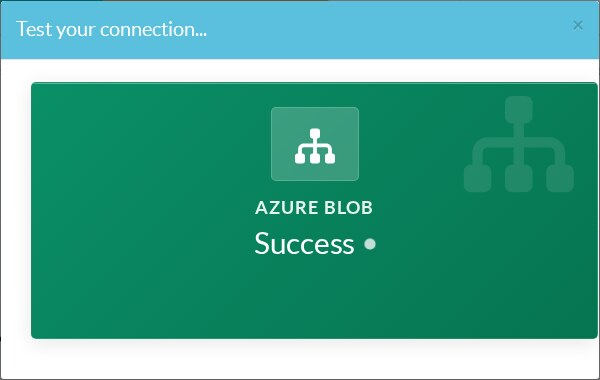
Click on Azure: Test connection in the top buttons. Artica writes a small test object in the folder of this appliance, lists it and deletes it:
¶ Create and schedule snapshots
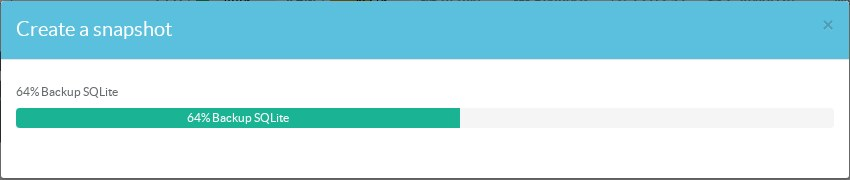
Click on Create a snapshot. The progress shows the backup of each component, then the sealing and the upload to Azure.
To make it automatic, use the Schedule button as described in Artica Snapshots:
Every scheduled snapshot is sent to Azure the same way.
The Snapshots tab lists the snapshots of this appliance, newest first.
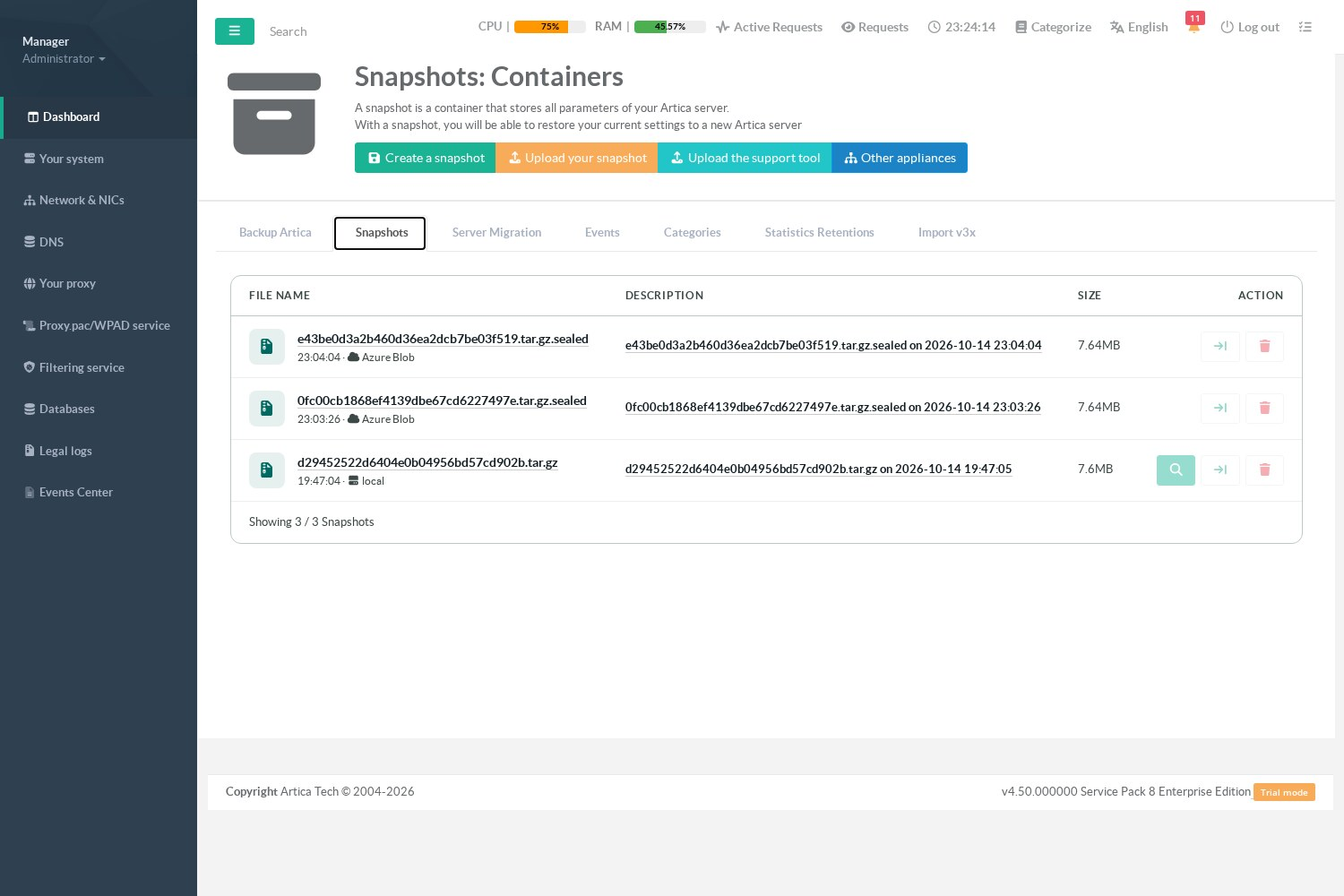
From this table you can restore, download or delete a snapshot.
Deleting a snapshot stored in Azure deletes the blob.
¶ Restore a snapshot from Azure
¶ On the same appliance
In the Snapshots tab, click on the restore icon of the snapshot.
If the local copy exists it is used;
otherwise the snapshot is downloaded from Azure first (Artica checks the free disk space before downloading).
¶ On another appliance (disaster recovery)
- Install Artica on the new server.
- Set the same snapshot password (at least 12 characters), then configure Azure Blob with a SAS URL of the same container.
- In the Snapshots tab, click on Other appliances, then choose the lost server in the Appliance list.
The list shows every appliance that has a folder in the container.
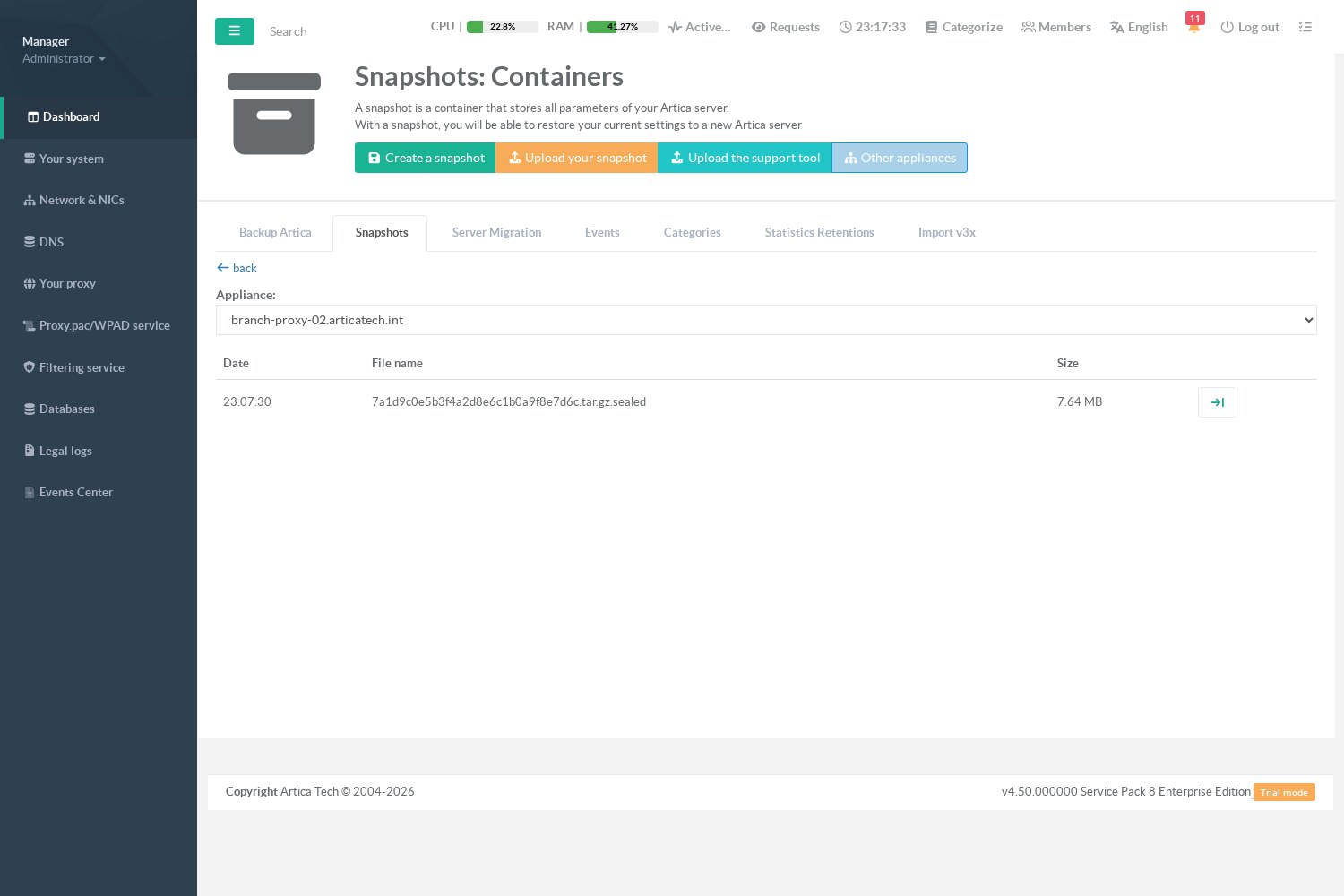
- Click on the restore icon of the snapshot.
Type the passphrase of the source appliance;
leave it empty if it is the same as the password of this appliance. Click Restore.
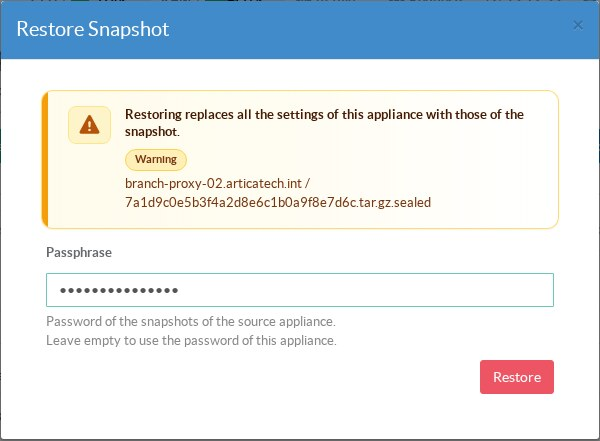
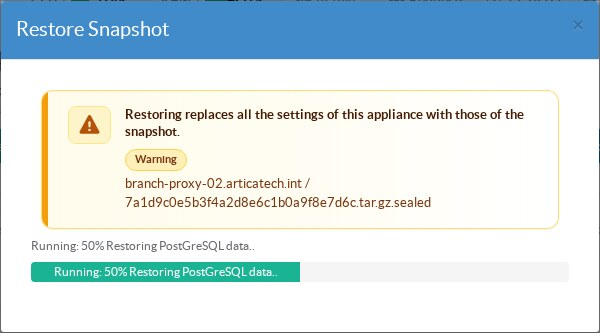
- Restoring replaces all the settings of the appliance with those of the snapshot, including the snapshot password and the Azure configuration of the source appliance.
- Only one restore runs at a time; a second request is refused while the first one is running.
- A wrong password, or a snapshot altered in the container, is refused before anything is restored.
¶ SAS expiry
A SAS URL has an expiry date: after it, snapshots no longer reach Azure. Artica watches it for you:
- The Remote storage row shows the remaining days and turns red when fewer than 4 days remain, or when the SAS can no longer be read.
- A notification is raised once 14 days before the expiry, again 3 days before, and when the SAS has expired.
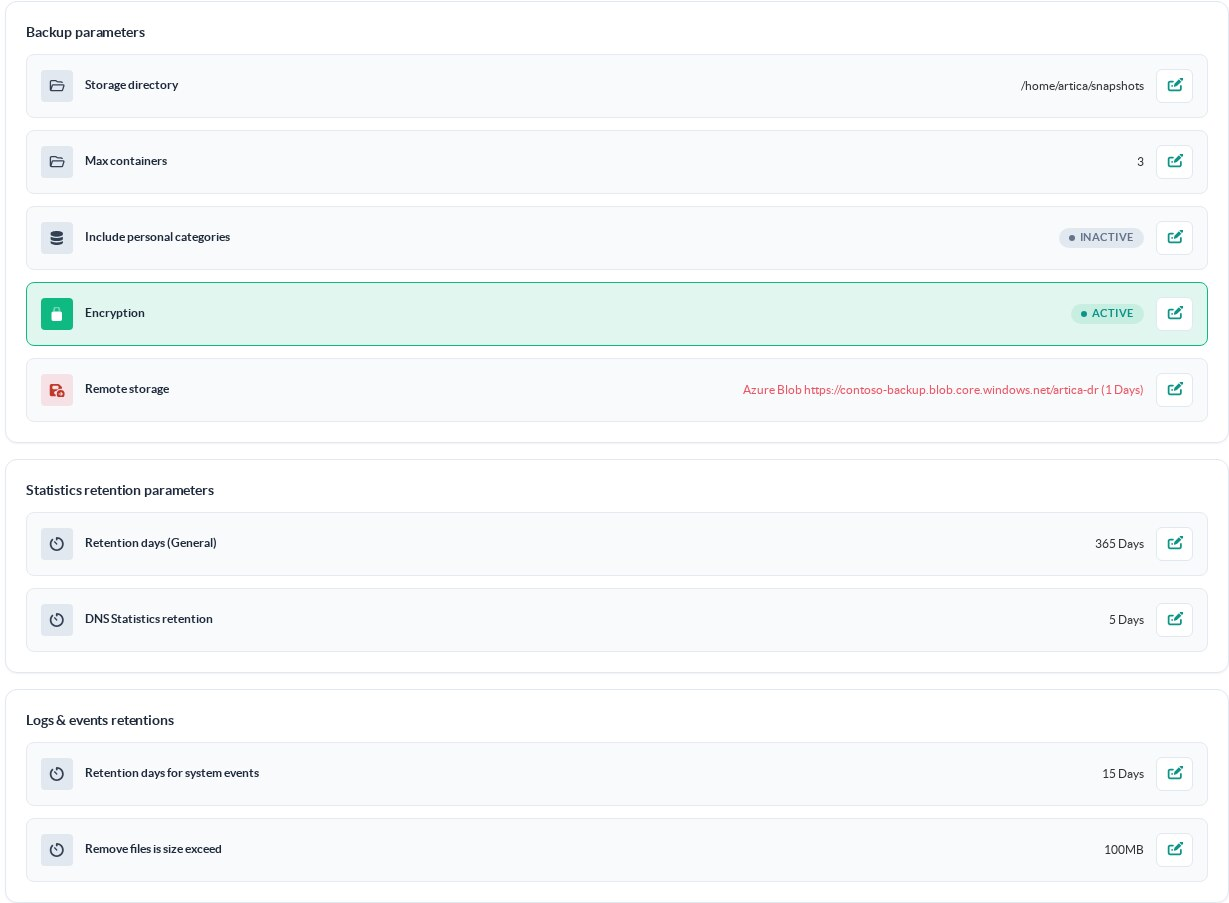
the snapshots already stored stay where they are.
¶ Retention
- Max containers (default 3) applies to the folder of this appliance in Azure, after each successful upload.
The snapshots of other appliances in the same container are never touched. - The local disk keeps the newest snapshot, plus any snapshot that was never uploaded.
- On appliances upgraded from an older version, the first retention pass also counts the old encrypted snapshots (
.aes) that used to accumulate on the local disk, and removes those above Max containers.
¶ REST API
The Azure target can be driven through the Artica Web API:
| Method and path | Purpose |
|---|---|
GET /system/snapshots/target |
Current remote storage: kind, container, days left before the SAS expires, whether the password is long enough. The SAS itself is never returned. |
POST /system/snapshots/target |
Select the remote storage. JSON body {"kind":"azure","sas_url":"https://…"}; {"kind":""} keeps snapshots local only. |
GET /system/snapshots/target/test |
Connection test (write, list and delete a test object). |
GET /system/snapshots/hosts |
Appliances that have snapshots in the container. |
GET /system/snapshots/remote-list?host=<hostname> |
Snapshots of one appliance in the container. |
POST /system/snapshots/restore-remote/prepare |
Prepare the restore of a snapshot of any appliance: body {"host":"…","name":"…","password":"…"}; returns a single-use job valid 10 minutes. The password travels in the body only, never in a URL. |
GET /system/snapshots/restore-remote/run/<job> |
Run the prepared restore. |
¶ Troubleshooting
| Message | What to do |
|---|---|
| set a snapshot password of at least 12 characters first | Set the passphrase in the Encryption row before selecting Azure Blob. |
| The Azure SAS does not grant the … permission | Generate a new SAS with Read, Write, List and Delete. |
| The Azure SAS URL is invalid, expired or revoked | Check that you copied the whole Blob SAS URL of the container (not of the account), and its expiry date. |
| Azure refused access: check the storage account firewall… | The storage account network rules, or an IP restriction in the SAS (sip), block the appliance: allow its public IP address. |
| The Azure container does not exist | Create the container, or fix its name in the URL. |
| Network error while reaching the storage | Check DNS resolution of <account>.blob.core.windows.net, outbound HTTPS and the proxy settings of Artica. |
| Wrong snapshot password, or the snapshot file is damaged or altered | Use the password of the appliance that created the snapshot (field Passphrase in the restore window). |
| Not enough free disk space | Free space on the appliance: The snapshot is downloaded to the local disk before it is restored. |
| A restore is already running | Wait for the running restore to finish. |