Moving the mailbox store to another disk
Move the Cyrus mailbox store to another disk from the console, without losing mail.
The Cyrus mail store holds every message on the appliance.
It starts on the system disk, which is sized for the operating system rather than for years of mail, so a busy server eventually fills its root filesystem — and a full root filesystem stops far more than mail.
This page describes how to move that store onto another disk from the console, without losing a single message and without hand-editing any configuration file.
When you need this
- The root filesystem is filling up.
The most common case.
Mail grows without bound while the system disk does not, and moving the store is the only durable answer — deleting mail is not one.
- You have added a disk to the appliance.
A new volume is useless until something is put on it; the mail store is usually the right tenant, because it is the part that keeps growing.
- You are migrating mail in from another server.
Import several accounts and the store can grow by tens of gigabytes in a few hours.
Move it before the import, not during it.
- You want mail on faster or redundant storage.
Moving it to a RAID volume or an SSD improves both durability and search performance.
- You are separating data from the system
So that a reinstall of the appliance does not put the mail at risk.
Before you start
- The destination disk must be partitioned, formatted and mounted.
The appliance does not partition disks for you; it only moves data onto a filesystem that already exists. - Allow for at least the current size plus ten percent on the destination.
The console refuses the move otherwise, before stopping anything. - Choose a quiet period.
Mail is not lost during the move, but it is delayed.
Moving the store
- Open the mail service status page
- Go to
Mailboxes > Service status.
The panel on the right shows the service state and, at the bottom - Mail Store Location:
The current path, how much it uses, and how much room is left on that filesystem. - Click the location, The row is a link.
- Clicking it opens the Move the mail store dialog, which shows the current location, the volume to move, and the filesystems the appliance has detected.
The destination is pre-filled with a suggestion; you can replace it with any absolute path.
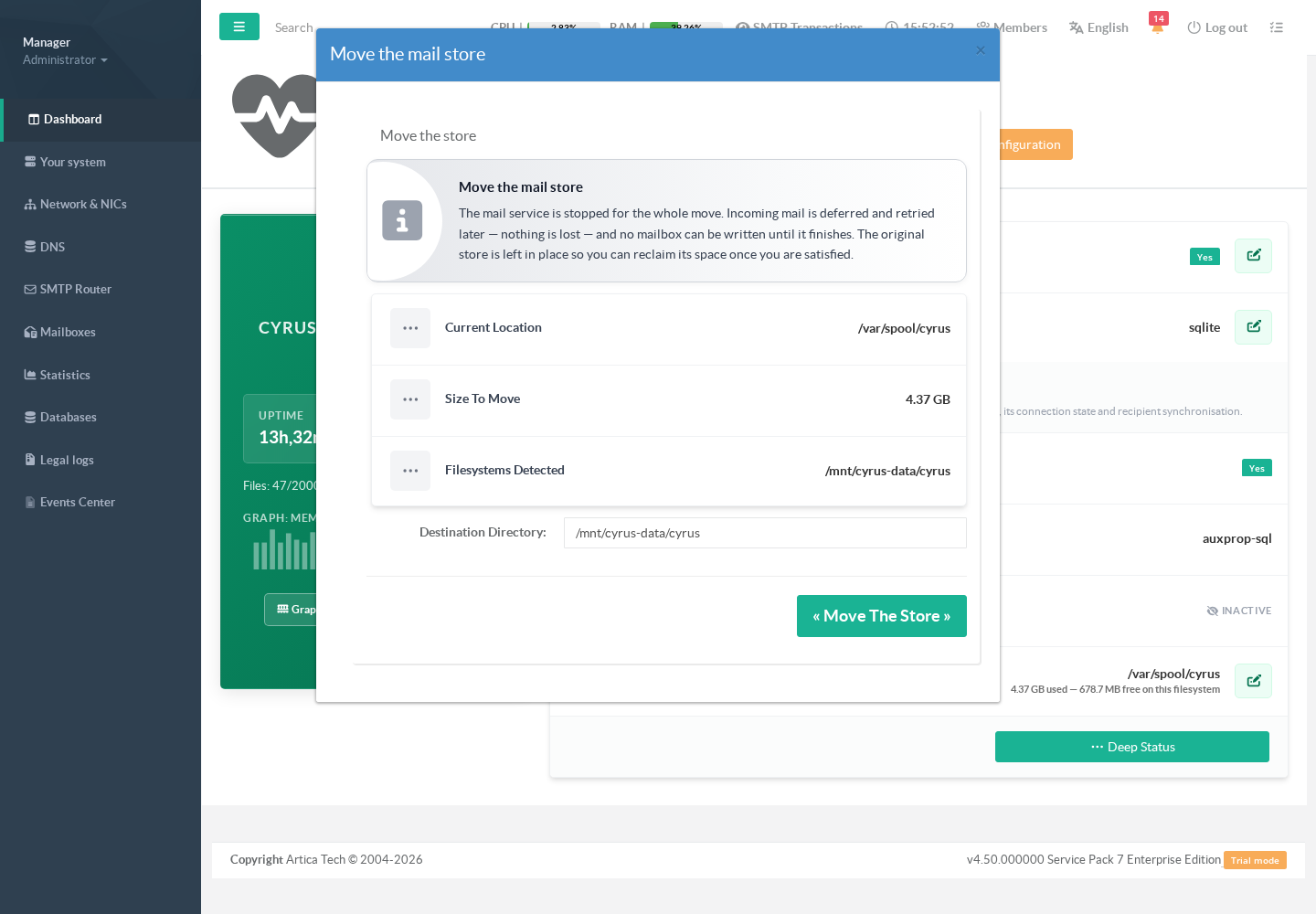
The destination directory does not have to exist yet — if its parent does, the appliance creates it with the right ownership.
What it will refuse is a path whose parent is missing, which is almost always a typo.
- Start the move
- Press Move the store.
A progress bar follows the operation through its stages:
checking the destination, stopping the mail service, copying, verifying, switching, and restarting.
What happens while the move runs
The mail service is stopped for the whole operation. That is deliberate, and it is what makes the move safe:
- Incoming mail is deferred, not rejected.
With the service down, the appliance's MTA answers a temporary failure and the sending server retries later.
Nothing is lost and nothing bounces — messages simply arrive a little late.
- No mailbox can be written.
No IMAP or POP session can be opened, so no message can be filed, flagged or deleted while its files are being copied.
Users with an open mail client will see it disconnect and reconnect.
Sent mail queued in their client will go out once the service is back.
How long it takes depends almost entirely on the destination disk.
As a rough guide, a store of a few gigabytes moves in minutes.
After the move
The status page shows the new location, and the appliance is already using it — new mail is delivered to the new disk immediately.
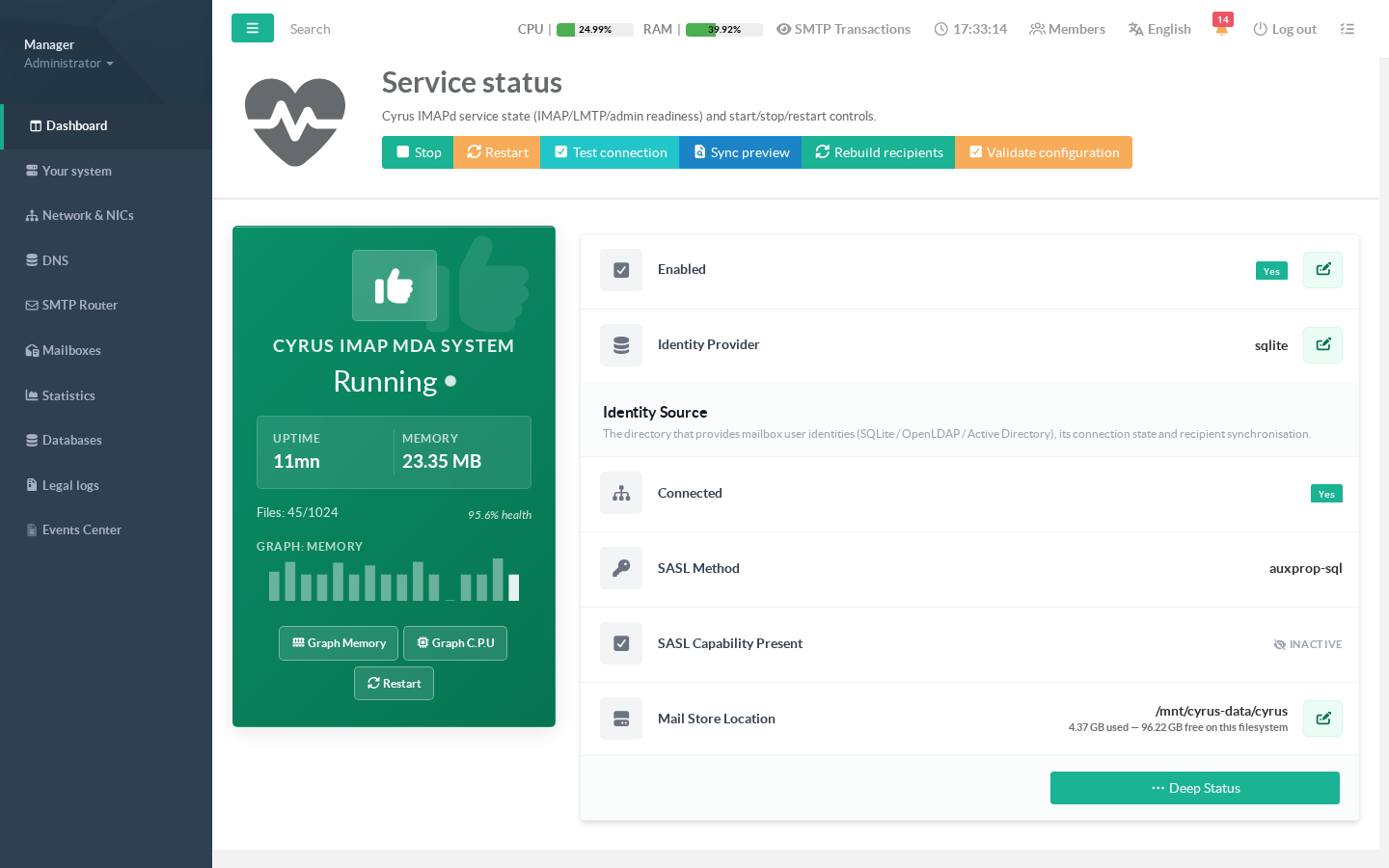
The old store is deliberately left in place. Nothing is deleted for you, so the operation stays reversible while you satisfy yourself that everything is intact: check that mail is arriving, that clients connect, and that folder contents look right. Once you are confident, an administrator can remove the old directory from the shell to reclaim the space. Until then, note that the root filesystem has not gained any room yet — the space is only freed when the old copy is removed.
If something goes wrong
Every failure leaves the appliance on the original store, with the mail service restarted. You lose time, never mail.
| The destination is not empty | Give an empty directory. Merging two stores would leave no way to tell afterwards which files belonged to which. |
| The destination directory does not exist | Its parent is missing too. Check the path, and check that the disk is actually mounted. |
| The destination is inside the current store | A directory cannot be copied into itself. Choose a path on the other filesystem. |
| Not enough free space | The destination needs the current size plus a margin. Check the figure shown in the dialog. |
| The copy is incomplete | The copy was interrupted or the destination filled up. The service was restarted on the original store; free some room and try again. |
| The data was moved but the mail service did not restart | The move itself succeeded and the configuration points at the new store. Investigate the service state on the status page — do not move the data back. |
Good to know
- Only one move can run at a time; a second request is refused while one is in progress.
- The move is recorded in the appliance's audit trail, with the source and destination paths.
- Hard links inside the store are preserved. The copy is made in a way that keeps the index files linked as Cyrus expects, rather than expanding them into separate copies.
- The move changes where mail is stored. It does not change mailbox names, quotas, ACLs or any other setting.