Sharing a mailbox: access rights (ACLs)
Grant and revoke access to a mailbox without sharing a password
Mail rarely stays private for long.
An assistant needs to read the director's inbox, a support team shares one address, someone goes on leave and a colleague has to keep an eye on their messages.
Access rights — ACLs — let you grant exactly that, per mailbox and per person, without ever sharing a password.
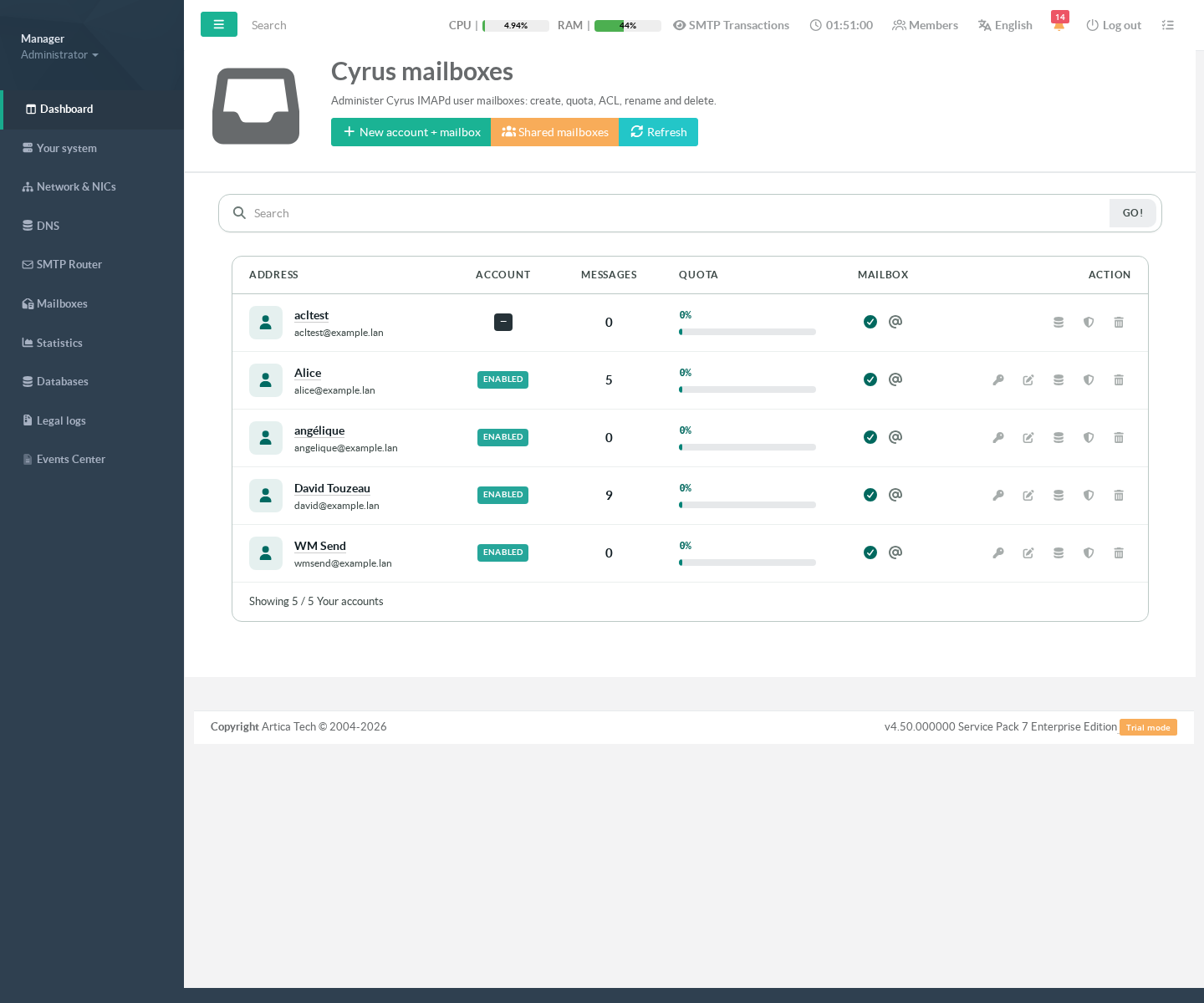
They are managed from Mailboxes:
The shield icon on each row opens the rights of that mailbox, and the Shared mailboxes button does the same for mailboxes that belong to no one in particular.
Why you would use it
- No password is ever shared.
The colleague opens the mailbox with their own account.
When they leave, you revoke one line — you do not change anyone's password.
- The grant is exactly as wide as you decide.
Read-only for an audit, read and file for an assistant, everything for a deputy: each right is separate.
- It is immediate and reversible.
Rights take effect on the next connection and are removed the same way.
No restart, nothing to reconfigure on the client.
- The mail stays in one place.
No forwarding rule, no copy of the mailbox, no second inbox to keep in sync — and nothing leaves your server.
- Every change is recorded with who made it and when.
- The owner cannot be locked out.
The one irreversible mistake — taking a mailbox away from the person it belongs to — is refused outright.
Typical use cases
- An assistant managing a manager's mail.
Grant Read and file messages: they can read, sort and archive, but not delete the mailbox or hand access to anyone else.
- A shared team address (support@, sales@, invoices@).
Create it as a shared mailbox and grant the team Full access; nobody owns it, everyone works in it.
- Cover during leave.
Grant Read only for the fortnight, revoke on return.
The mailbox is untouched and nothing has been copied anywhere.
- An employee has left.
Their successor gets read access to the old mailbox while the handover lasts, without anyone knowing the departed person's password.
- An audit or an investigation.
Read-only access, granted for the duration, visible in the audit trail, revoked afterwards.
- An archive everyone may consult
Nobody may alter: grant Read only to anyone.
Where to find them
On the mailbox list, the shield icon in the last column opens the rights of that mailbox.
The rights, one by one
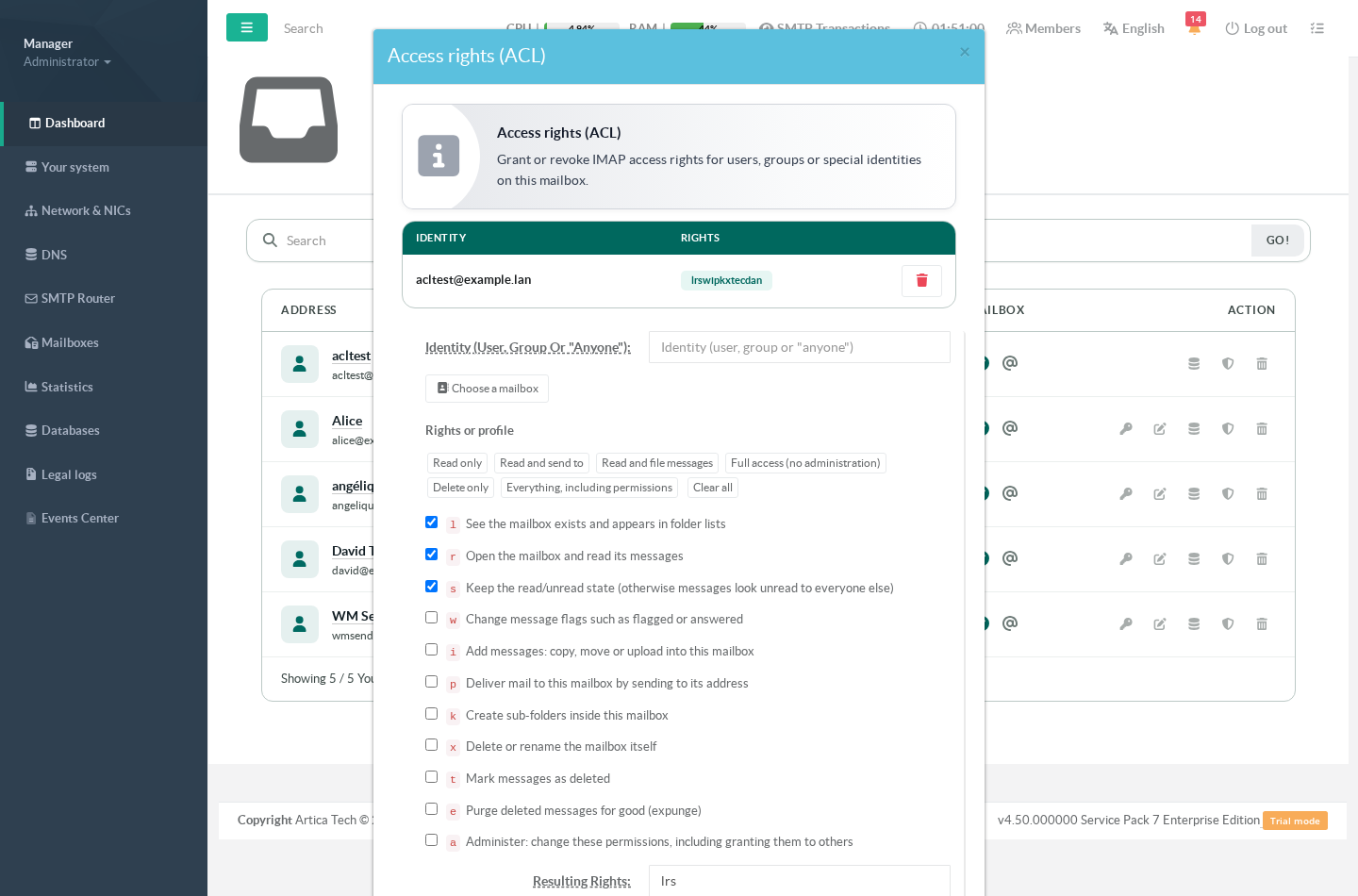
Cyrus expresses permissions as single letters. The dialog spells each one out, so you grant what you mean rather than remembering an alphabet.
| Right | What it allows |
|---|---|
l |
See the mailbox exists and have it appear in folder lists |
r |
Open the mailbox and read its messages |
s |
Keep the read/unread state without it, messages look unread to everyone else |
w |
Change message flags such as flagged or answered |
i |
Add messages: copy, move or upload into the mailbox |
p |
Deliver mail to the mailbox by sending to its address |
k |
Create sub-folders |
x |
Delete or rename the mailbox itself |
t |
Mark messages as deleted |
e |
Purge deleted messages for good (expunge) |
a |
Administer: change these permissions, including granting them to others |
Two of them deserve a second look:
sis not optional in practice.
Without it, each person's read/unread state is not stored, so a message one colleague has read still appears unread to the next.
It is included in every preset for that reason.
agives away control.
Whoever holds it can grant the mailbox to anyone else, including to themselves at a higher level.
Grant it only to someone you would trust to manage the mailbox in your place.
The presets
The buttons above the boxes set a whole profile at once. They are the combinations that actually come up:
| Preset | Rights | Use it for |
|---|---|---|
| Read only | lrs |
Cover during leave, an audit, a read-only archive |
| Read and send to | lrsp |
A mailbox others should also be able to write to by email |
| Read and file messages | lrsip |
An assistant who sorts and archives |
| Full access (no administration) | lrswipkxte |
A team working in a shared mailbox |
| Delete only | lrxte |
A clean-up or retention task |
| Everything, including permissions | lrswipkxtea |
A deputy who must also manage access |
Granting access, step by step
1. Choose who
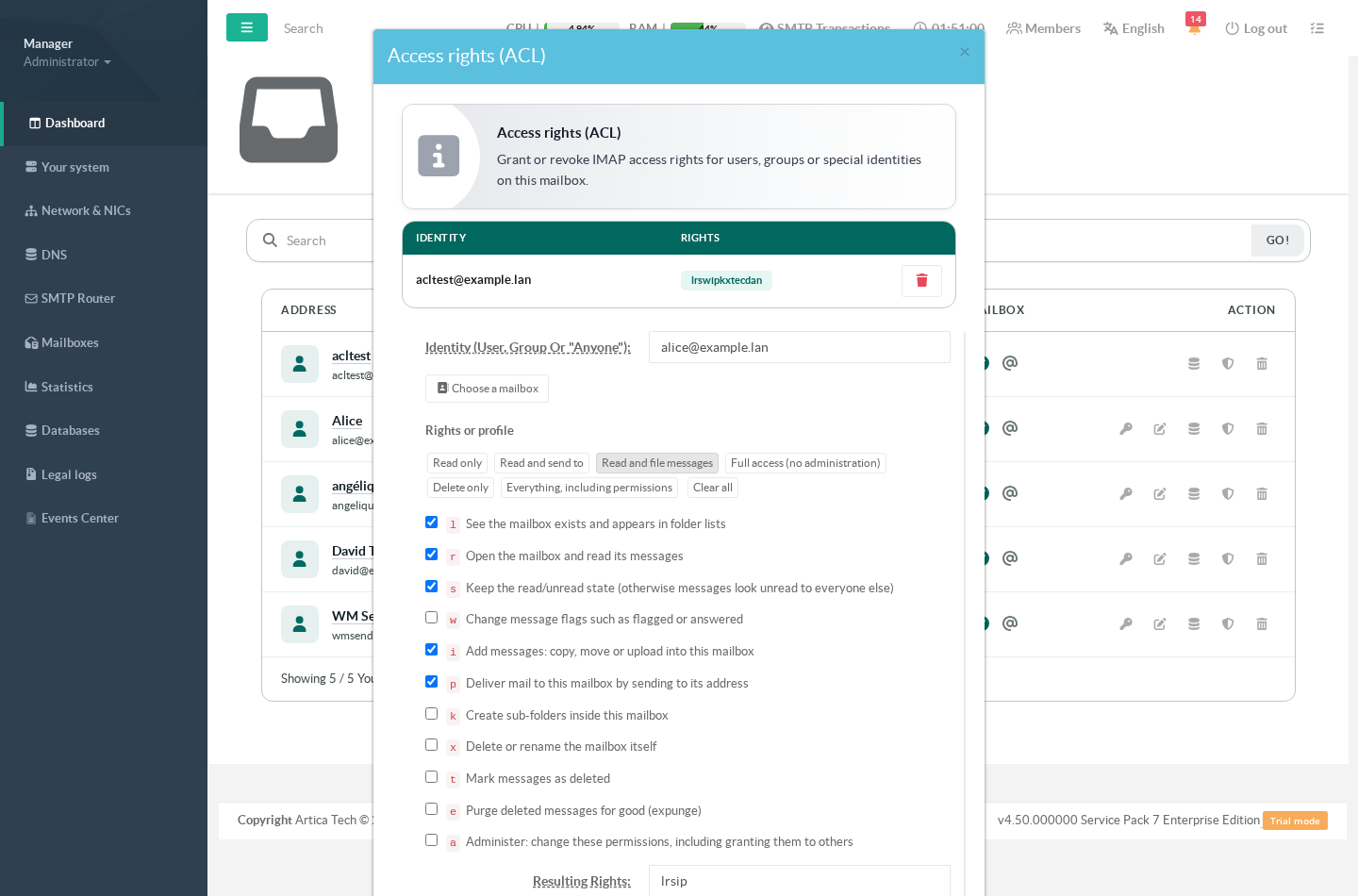
Rather than typing an address, use Choose a mailbox. The list shows the mailboxes that actually exist, the search box takes focus, and Enter takes the first match.
This is not only convenience. An address typed slightly wrong is accepted and stored: you see a line in the list, and the person still has no access. Picking from the list removes that failure entirely.
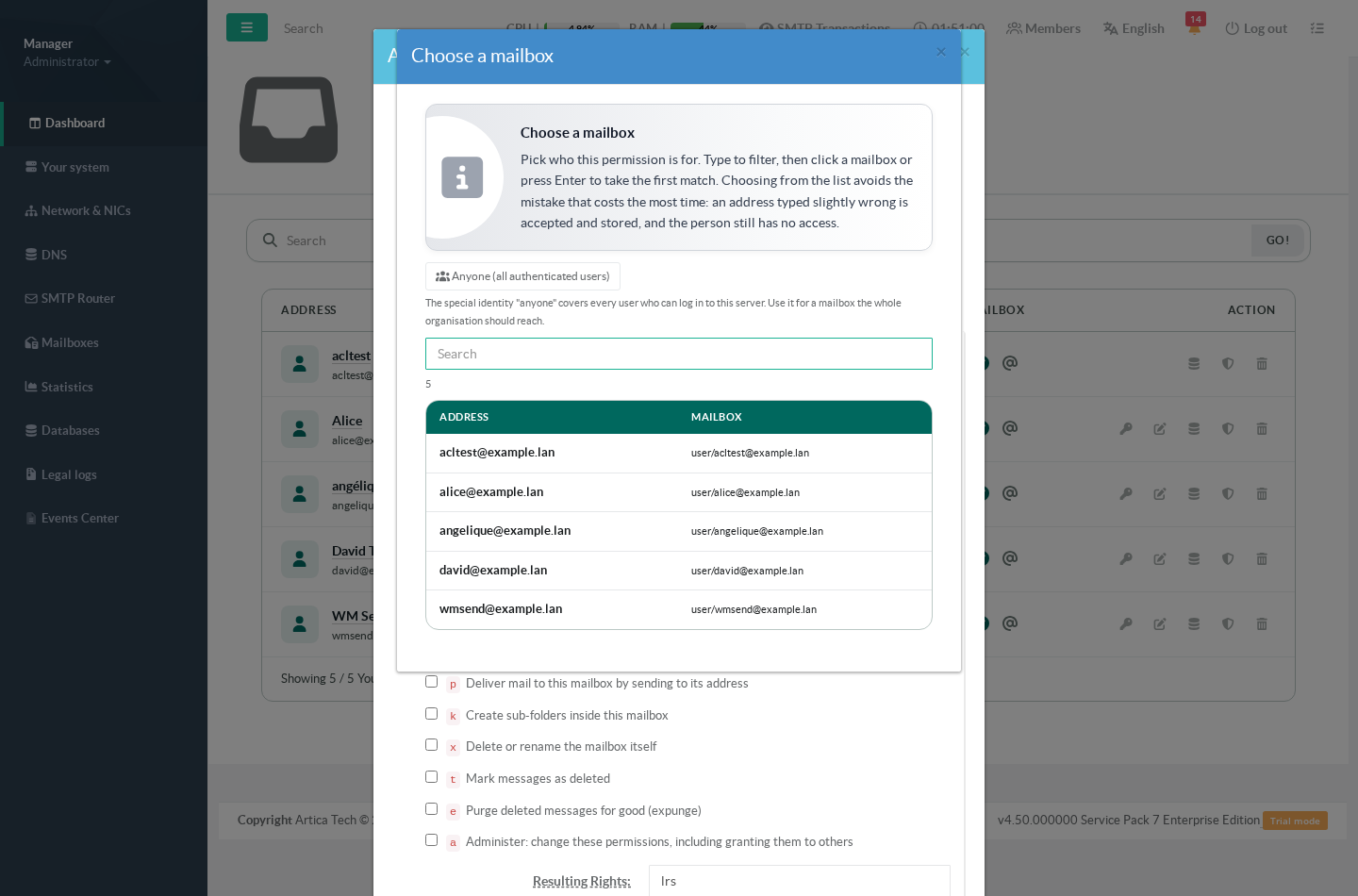
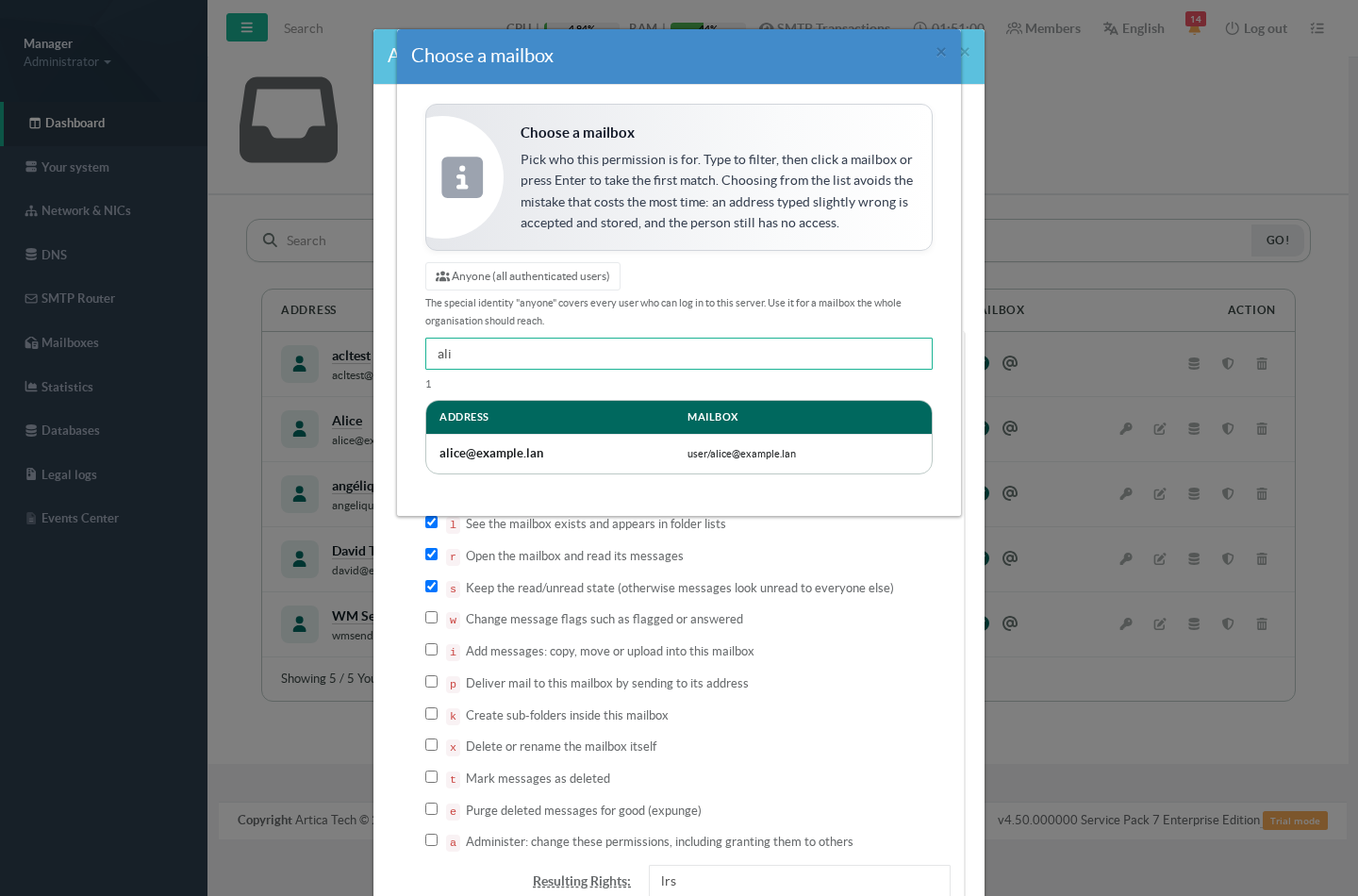
Type a few letters to narrow the list, then press Enter.
2. Choose what
Click a preset, or tick the individual rights. The resulting letters are shown as they are built — this is the string Cyrus stores, and you can type it directly if you prefer.
3. Apply
The rights take effect immediately. There is no configuration to apply and no service to restart: the change reaches the mail server as you confirm it, and the person sees the mailbox the next time their client connects (often within a minute, sometimes after they reconnect).
"anyone": the identity that means everyone
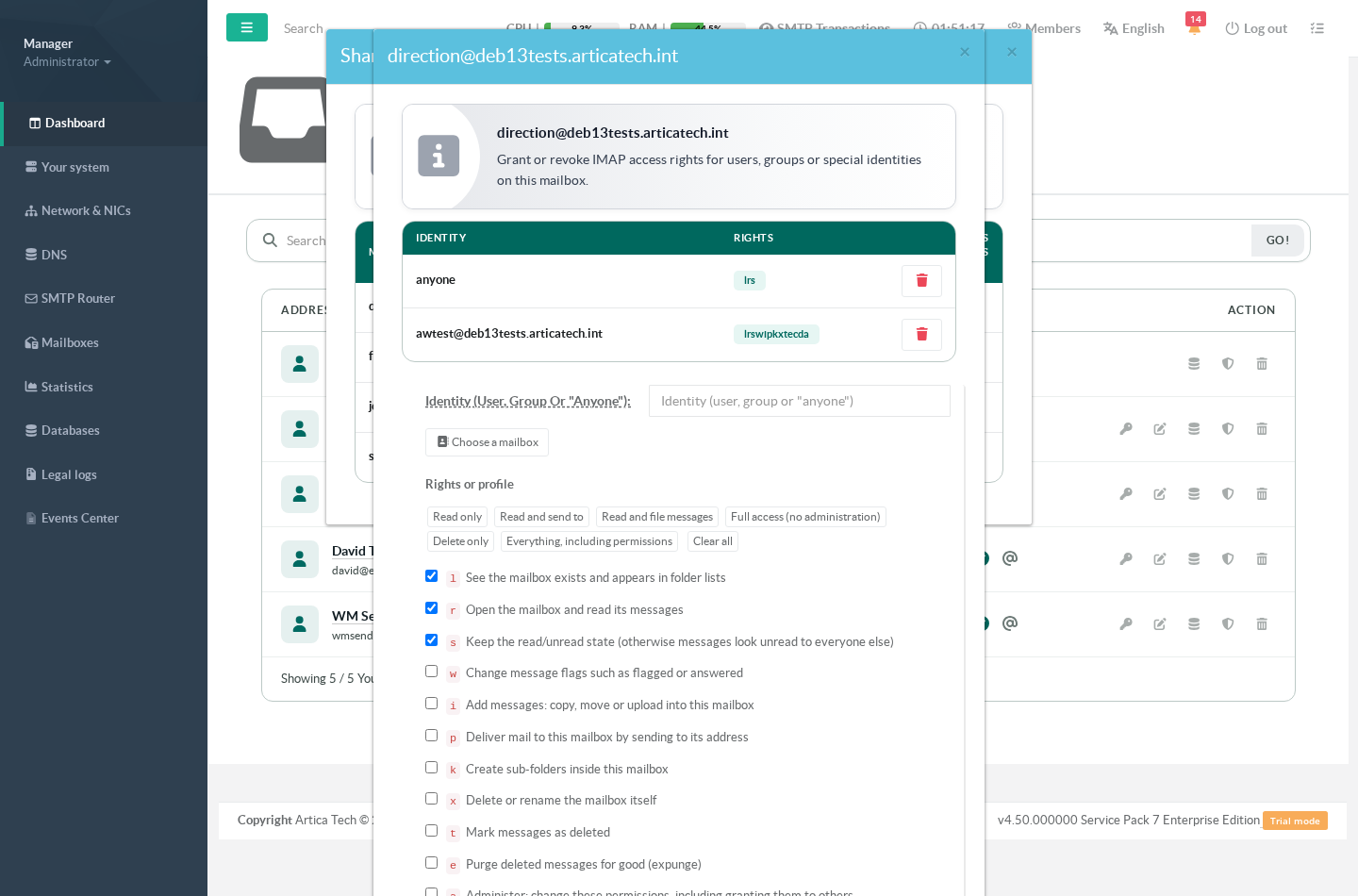
Besides real mailboxes, Cyrus has a special identity: anyone, which covers every user who can log in to this server. The picker offers it explicitly.
It is the right tool for a company-wide archive or a notice mailbox everybody may read. It is the wrong tool for anything confidential: anyone really does mean every account on the server, including ones created later.
Shared mailboxes
A shared mailbox belongs to no one in particular — support, invoices, marketing. It exists to be used by several people, so its rights matter more than any other mailbox's.
The Shared mailboxes button lists them and opens the same rights dialog on each.
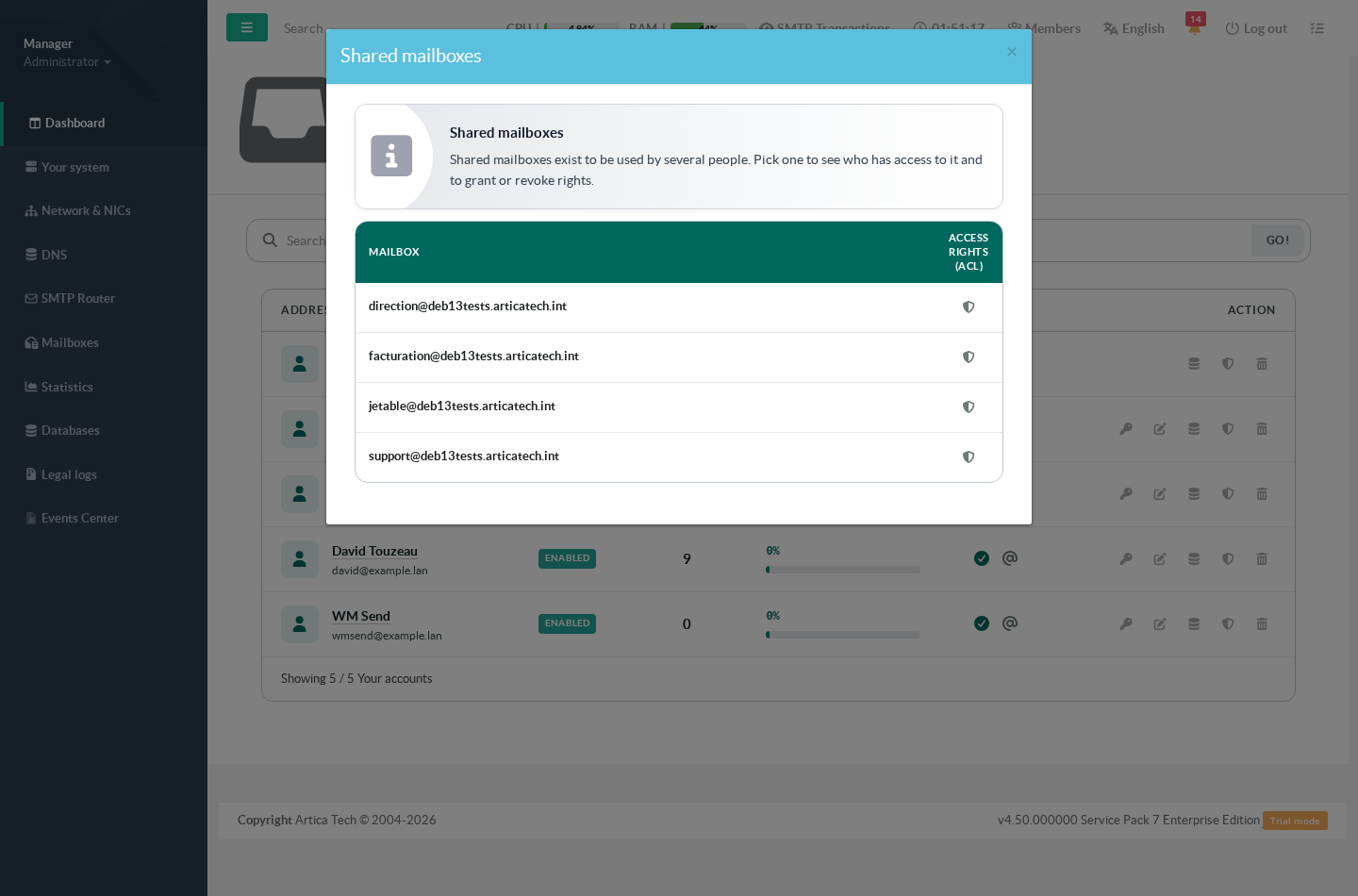
Grant the team Full access (no administration) and they can all read, file and delete in it, while nobody can hand access to a third party without you.
The owner is protected
In the list of rights, the owner of a mailbox appears like any other identity. Removing that line would strip them of reading, receiving and filing in their own mailbox — a mistake that looks like a routine tidy-up and takes a user's mail away.
That is refused: you cannot delete the owner's entry, and you cannot take their read right away. Everything else about their rights can still be adjusted, and every other identity can be removed normally.
Good practice
- Grant the narrowest preset that does the job. "Read and file" is almost always enough for an assistant; "Everything" almost never is.
- Be sparing with
a(administer). It lets its holder re-grant the mailbox to anyone. - Revoke when the reason ends. Cover during leave should end with the leave; access granted for a handover should end with the handover.
- Review shared mailboxes now and then. They accumulate people, and nobody notices until someone who left three years ago still has access.
- Prefer a shared mailbox to a shared password for a team address. It is the entire point of this feature.
Troubleshooting
| Symptom | Most likely cause |
|---|---|
| The rights are listed but the person does not see the mailbox | Most mail clients only discover newly shared folders when they reconnect, or when the user subscribes to the folder. Ask them to reconnect first. |
| They see the mailbox but cannot open it | l without r: the mailbox appears in the list but cannot be read. Use a preset rather than individual letters. |
| Messages they have read still appear unread to others | The s right is missing. Every preset includes it. |
| The line was added but nothing changed | Check the address on the line. An address typed by hand and slightly wrong is stored as-is — use Choose a mailbox to be certain. |
| The owner's entry cannot be removed | Intentional: it would leave them unable to read or receive their own mail. Remove the mailbox itself if that is what you mean to do. |
| Mail sent to a shared mailbox bounces | The p right controls delivery by email. "Read only" does not include it. |
Notes
- Rights apply to one mailbox. Sub-folders inherit what they were created with, so check a sub-folder if access there behaves differently.
- Identities can be a mailbox address, a group, or anyone.
- Changes are recorded in the audit trail with their author and date.