Trust store: trusted and rejected certificates
Manage the certificate authorities trusted by the SSL proxy: remove a Debian root, import a private CA, reject a compromised intermediate such as the eMudhra certificates of October 2026, and export the trust store.
The trust store is the list of certificate authorities (CA) that the appliance trusts.
The proxy uses it every time it opens a TLS connection itself.
This happens when it decrypts HTTPS traffic (SSL inspection) and when it checks the certificate of a remote server.
The Trusted certificates window lets you manage this list without a command line.
From this window you can:
- Remove a Debian root authority that you do not trust.
- Import the private authority of your company, so the proxy accepts your internal sites.
- Reject one precise certificate, even when its issuer is trusted.
Use this for a compromised intermediate certificate. - Export the trust store in force as a single PEM file.
Benefits
- You react to a certificate compromise in minutes.
You do not wait for a Debian package or an Artica update. - The rejection is precise.
It targets one certificate by its SHA-256 fingerprint.
The other certificates of the same authority keep working. - Your internal sites stop raising certificate errors behind SSL inspection.
Import your private CA once and the proxy trusts it. - Nothing is applied by accident.
Every change is saved first and stays pending until you click Apply. - A failed change cannot break the proxy.
Artica checks the result and restores the previous trust store if anything goes wrong. - In a cluster, the master sends its trust store to the nodes.
Each node reports back whether it applied it. - Every change is recorded in the audit log with the name of the administrator.
Open the trust store
- On the left menu, choose
Your system > Certificates Center. - Click on the Action button, then on
Trusted Certificates.
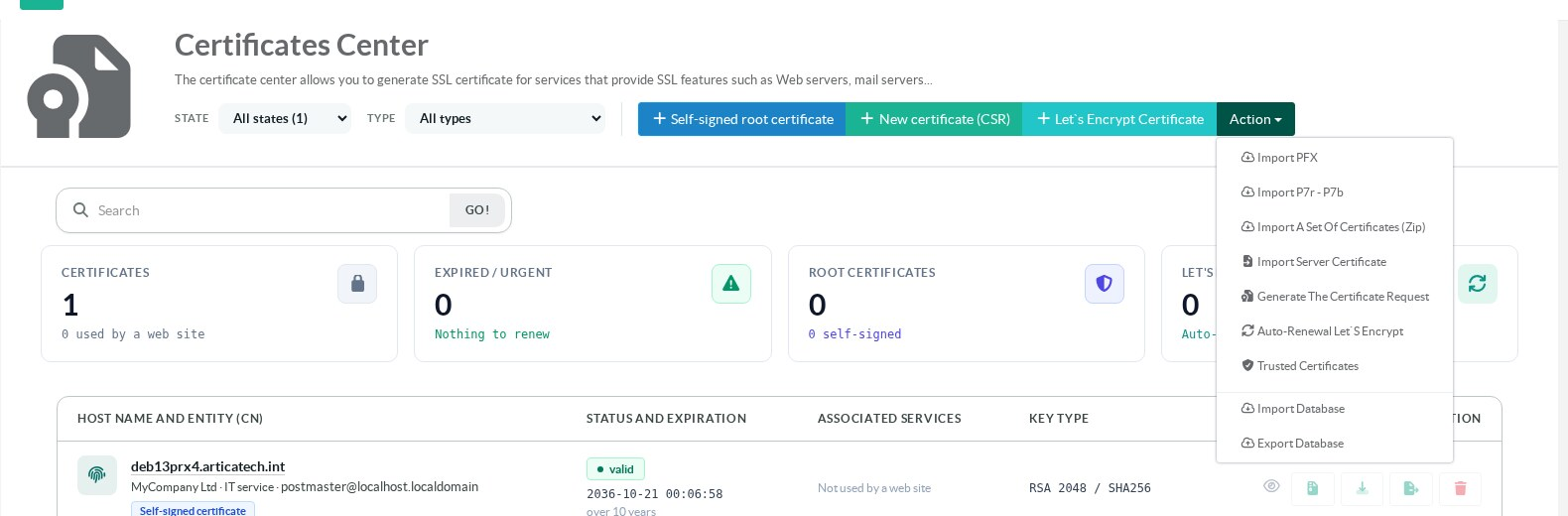
The window opens on the Trust store tab.
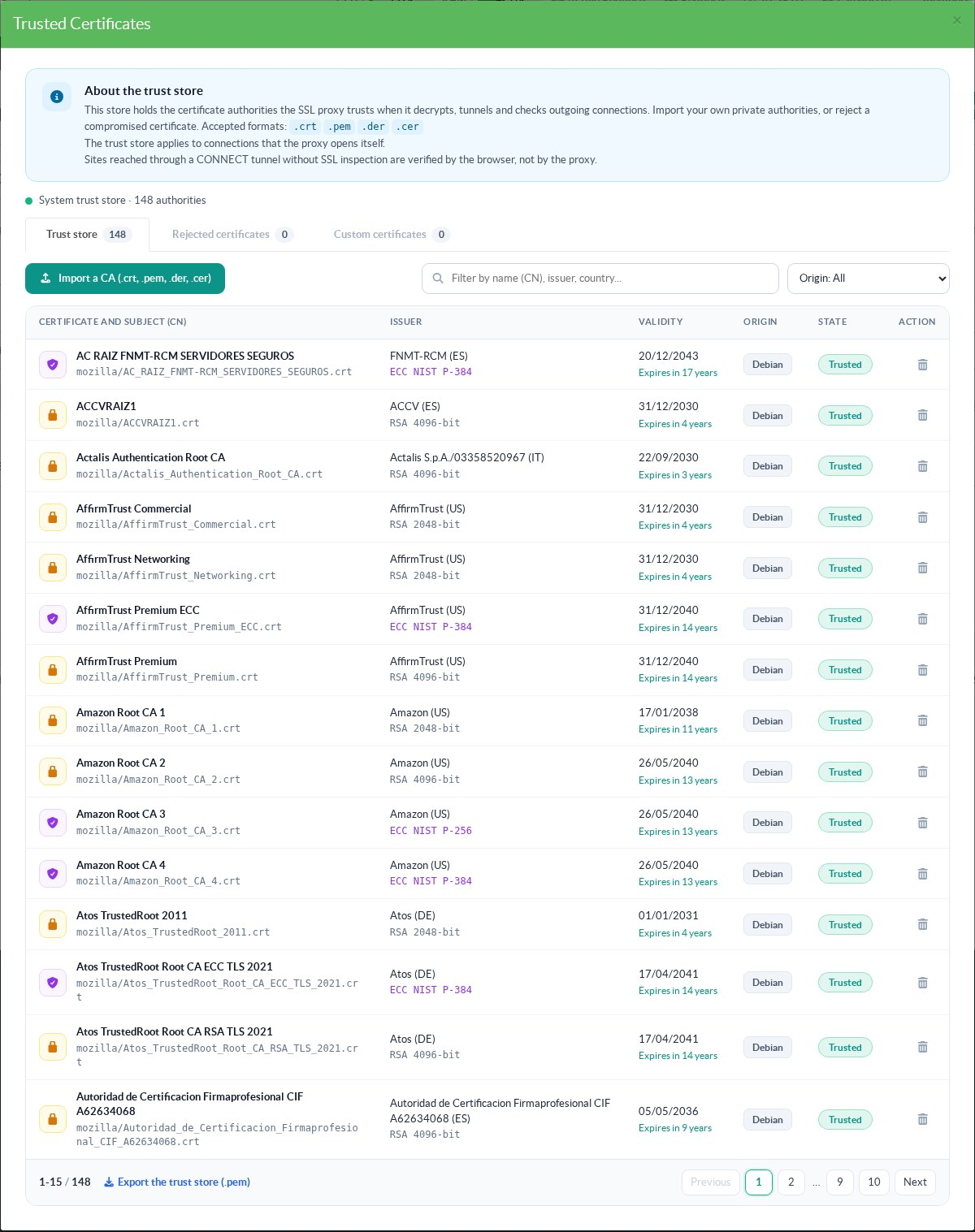
The line under the blue banner shows the state of the trust store.
- System trust store:
No change was made from Artica.
The appliance uses the Debian list as it is. - Applied to the system:
Your changes are in force.
The date of the last application follows. - Pending:
Changes are saved but not applied yet.
An Apply button appears on the right.
The window has three tabs.
Each tab shows a counter.
| Tab | Content |
|---|---|
| Trust store | Every authority the proxy trusts. The Debian roots come first, followed by your own authorities. |
| Rejected certificates | The certificates that the proxy refuses, with the reason given by the administrator. |
| Custom certificates | Only the authorities that are not part of Debian: the ones you imported, and the ones placed by hand in /usr/local/share/ca-certificates. |
Read the table
| Column | Meaning |
|---|---|
| Certificate and subject (CN) | The short name of the authority and its file. Hover the name to see the full subject. The icon shows the key: amber padlock for RSA, purple shield for elliptic curve (ECC), blue building for your own authorities. |
| Issuer | The authority that signed the certificate, with its country. The second line gives the key type, for example RSA 4096-bit or ECC NIST P-384. |
| Validity | The expiry date and the time left. The time left turns orange under 90 days and red once the certificate has expired. |
| Origin | Debian for the roots shipped with the system. Added for the authorities imported from this window. Local for files placed by hand. |
| State | Trusted or Removed. An orange label shows a change that is waiting for Apply. |
| Action | Remove or restore a Debian root, delete an imported authority, or cancel a pending change. |
The search field filters on the name, the issuer and the country.
The Origin list also filters on the removed authorities and on the pending changes.
The table shows 15 lines per page.
The compromised eMudhra intermediate certificates
On October 21, 2026, Cisco Talos published an advisory about eight compromised intermediate certificates of the eMudhra certificate authority.
A flaw in eMudhra's key generation produced weak P-384 keys for these eight intermediates.
Whoever obtains one of these private keys can issue a certificate for any website.
Six of them sign TLS certificates.
The two others sign code.
eMudhra revoked the certificates.
Chrome, Mozilla and Apple blocked the TLS ones, and Microsoft blocked the two code signing ones.
Talos also warns that other applications use their own trust stores.
It lists proxies and gateways among the products to check.
A proxy that decrypts HTTPS does its own certificate check, so the browser block does not protect it.
Talos lists six TLS intermediates:
| Certificate | Issuer | SHA-256 fingerprint |
|---|---|---|
| EM EV TLS CA - G3B (eMudhra BV) | emSign Root TLS CA - G3 | E7568FE6E12331F4FD7DE61DA4C7559D0F8EB192A218D4741A3BA75184333838 |
| EM OV TLS CA - G3B (eMudhra BV) | emSign Root TLS CA - G3 | 98B896625C0C230ADEEC3EB2CF6AAD5001ECF9156A68644E82374CE5833BC25B |
| EM DV TLS CA - G3B (eMudhra BV) | emSign Root TLS CA - G3 | 42C4ACCD12C4F59597925E1A08A7A90102608543809308D50EC427E118BA1493 |
| EM EV TLS CA - G3C (eMudhra Inc) | emSign Root TLS CA - G3 | 432EC25F0D28DE9006D97BF752F17BBB2CD41F669933FCB072D9A1148D0261F3 |
| EM OV TLS CA - G3C (eMudhra Inc) | emSign Root TLS CA - G3 | CB6E15165AC802E9B3F993F16C25D41F4E81C21EBDE71AE1B012AC00BF9C7C3F |
| EM DV TLS CA - G3C (eMudhra Inc) | emSign Root TLS CA - G3 | 0164D7CEAE5BB909C272AF151FF44B1177AE9B47D9424B94F1D9558C30934D19 |
The two code signing intermediates (EM OV CS CA - G3B and EM OV CS CA - G3C) do not concern the proxy.
Step 1: check whether your trust store can reach these intermediates
- Type
emSignin the search field of the Trust store tab.
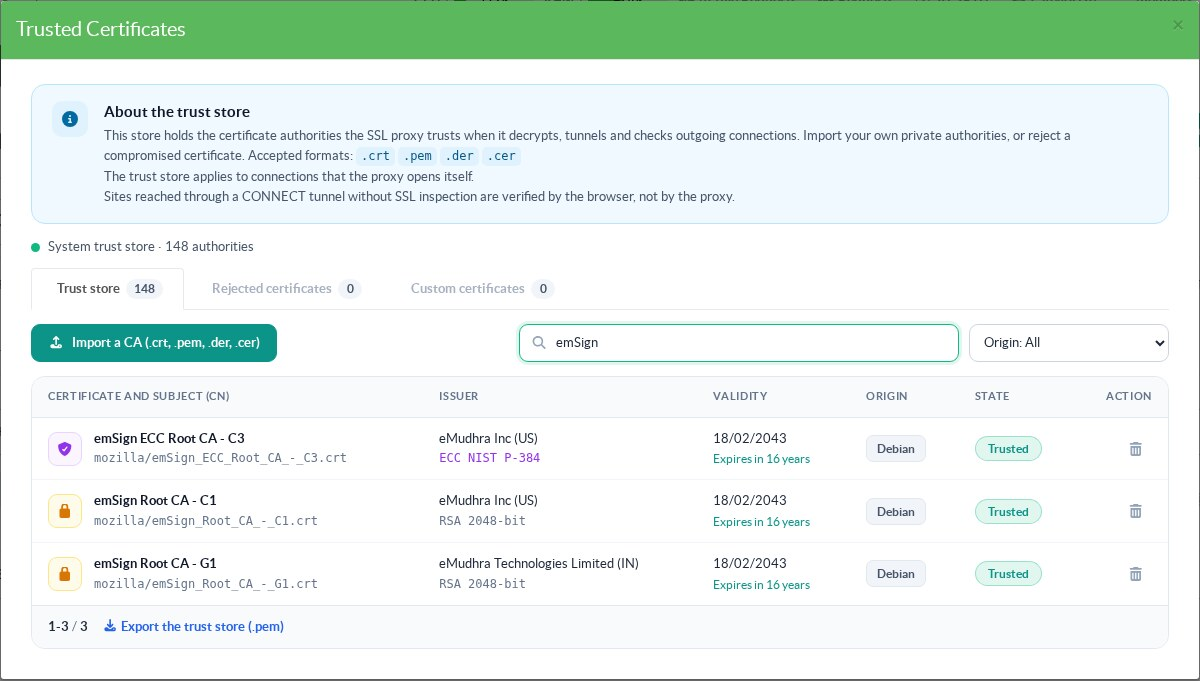
- On our Debian 13 test appliance, the store holds three eMudhra roots: emSign Root CA - C1, emSign Root CA - G1 and emSign ECC Root CA - C3.
The issuer of the compromised intermediates, emSign Root TLS CA - G3, is not in the list.
Talos also names a cross-signing root, Comodo AAA Certificate Services. - Type
AAAin the search field to check whether your store contains it. - Reject the intermediates even when neither root is present.
- An older appliance, a root imported later or a cluster node with a different store can bring them back.
- The rejection blocks the certificate whatever path leads to it.
Step 2: download the certificate
The rejection needs the certificate itself, not only its fingerprint.
- Search the fingerprint on crt.sh, for example:
https://crt.sh/?sha256=42C4ACCD12C4F59597925E1A08A7A90102608543809308D50EC427E118BA1493
- Click on Download Certificate: PEM.
- Check the file before you use it:
openssl x509 -in em_dv_g3b.crt -noout -subject -issuer -fingerprint -sha256
subject=C=NL, O=eMudhra BV, CN=EM DV TLS CA - G3B
issuer=C=IN, O=eMudhra Technologies Limited, CN=emSign Root TLS CA - G3
sha256 Fingerprint=42:C4:AC:CD:12:C4:F5:95:97:92:5E:1A:08:A7:A9:01:02:60:85:43:80:93:08:D5:0E:C4:27:E1:18:BA:14:93
- The fingerprint must be the one published by Talos.
Step 3: reject the certificate
- Open the Rejected certificates tab.
- Click on Reject a certificate.
- Give a reason.
Other administrators will read it in the list. - Click on Choose the certificate and select the file.
The file must hold exactly one certificate, in PEM or DER format. - Click on Reject a certificate.
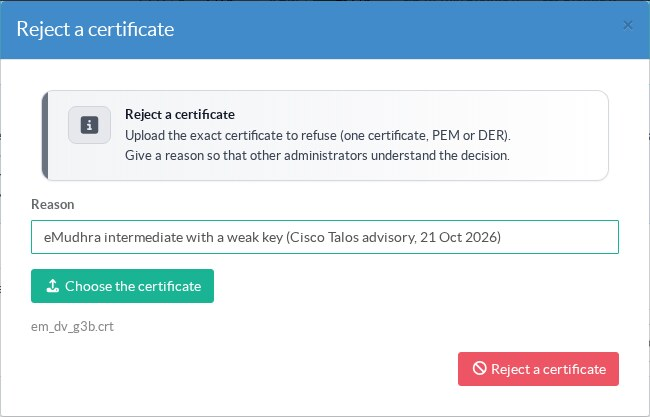
- Repeat the operation for each intermediate.
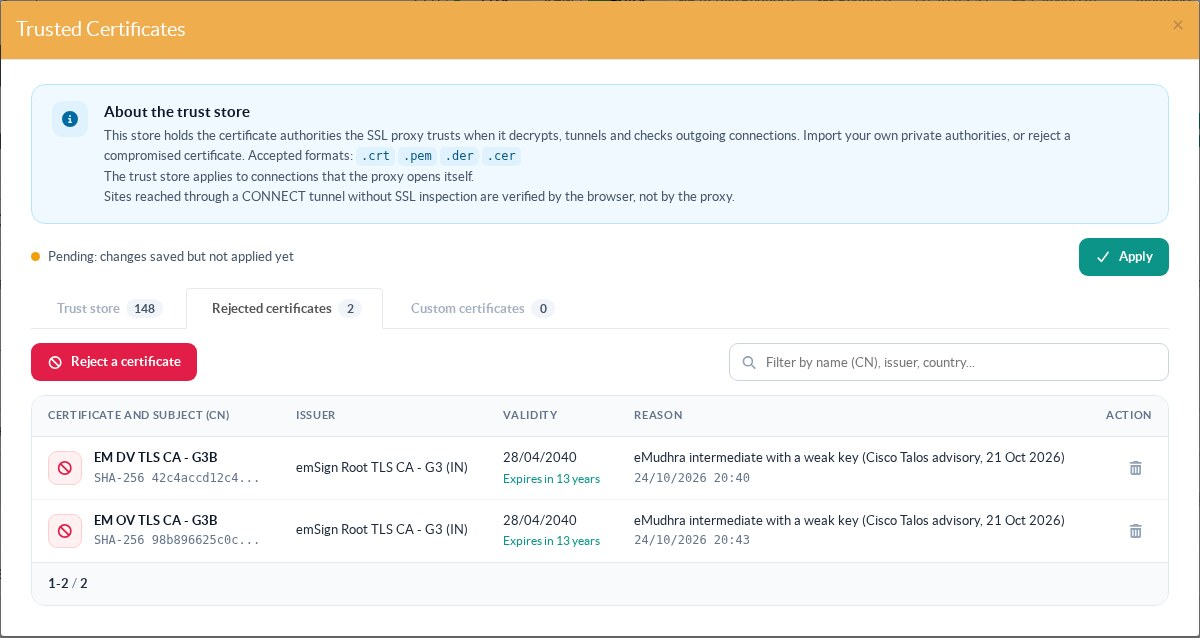
The list shows each rejected certificate with its issuer, its expiry date, the reason and the date of the rejection.
The state line turns to Pending: nothing has changed on the system yet.
Step 4: apply
- Click on Apply.
The application takes a few seconds, because the proxy is reloaded at the end.
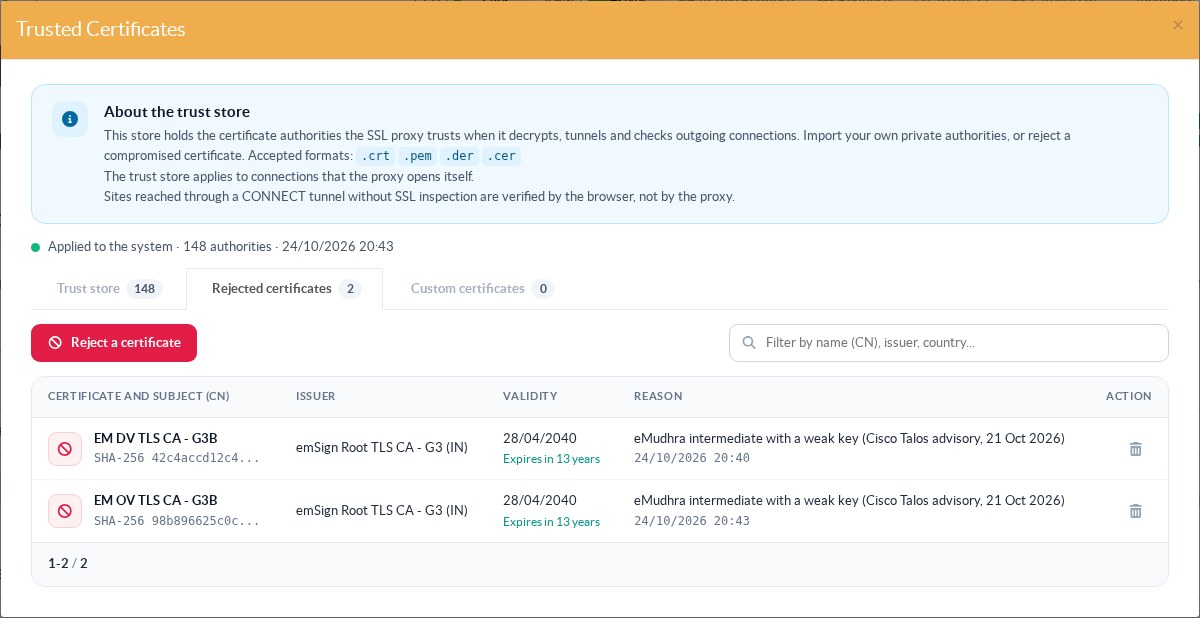
The state line then shows Applied to the system with the date.
Step 5: check from the command line
- Each rejected certificate is stored as an OpenSSL "trusted certificate" that is refused for TLS server authentication:
openssl x509 -in /usr/local/share/ca-certificates/artica-rejected/42c4accd12c4f59597925e1a08a7a90102608543809308d50ec427e118ba1493.crt -noout -text | grep -A1 "Rejected Uses"
Rejected Uses:
  TLS Web Server Authentication
- The same entry is added to the system bundle that the proxy reads:
grep -c "BEGIN TRUSTED CERTIFICATE" /etc/ssl/certs/ca-certificates.crt
The count must be equal to the number of rejected certificates.
Other operations
- Remove or restore a Debian root
In the Trust store tab, click on the trash icon of the root.
The line shows Removal pending until you click Apply.
A removed root stays in the list with the Removed state.
Click on the restore icon to trust it again.
The cross icon cancels a change that is not applied yet. - Import a private authority
Click on Import a CA in the Trust store or Custom certificates tab, then select the file.
Accepted extensions are.crt,.pem,.derand.cer.
The file must be a certificate authority.
A server certificate is refused.
The authority appears with the Added origin and the Addition pending label.
Click on Apply. - Export the trust store
Click on Export the trust store (.pem) under the table.
The file is the bundle that the system uses right now,/etc/ssl/certs/ca-certificates.crt.
It contains the rejected certificates too, with their "rejected" marking.
Use it to audit the appliance or to compare two appliances.
What happens when you click Apply
- Artica checks the saved policy.
Each fingerprint must match its certificate.
A certificate cannot be imported and rejected at the same time. - It saves the current trust store.
- It writes the Debian selection to
/etc/ca-certificates.conf.
Imported authorities go to/usr/local/share/ca-certificates/artica-added.
Rejected certificates go to/usr/local/share/ca-certificates/artica-rejected. - It runs
update-ca-certificates. - Before it writes any rejection, it checks that the OpenSSL version of the appliance really refuses a rejected certificate.
If it does not, the rejections are skipped and the state shows Rejection not applied. - It checks the new bundle.
If a removed root is still present or a rejection is missing, it restores the saved trust store. - It reloads the proxy.
If the reload fails, the trust store stays applied and the state shows Store applied but Squid was not reloaded. - On a cluster master, the new trust store is sent to the nodes with the next configuration package.
Limits
- The trust store applies to the connections that the proxy opens itself.
A site reached through a CONNECT tunnel without SSL inspection is checked by the browser, not by the proxy. - Some ports or rules can disable the check of server certificates (
DONT_VERIFY_PEER, or rules that ignore certificate errors).
A rejection is not enforced on these connections.
The window shows an orange warning when such a setting exists. - A node of a cluster follows its master.
The window is read only on the node and every change must be made on the master.
REST API
The same operations are available on the local API, under /certificates/api/truststore.
| Method and path | Role |
|---|---|
GET store?search= |
List the trust store, with pending changes |
GET rejected |
List the rejected certificates |
GET status |
State of the last application, warnings, cluster nodes |
POST roots/remove and POST roots/restore |
Remove or restore a Debian root ({"name":"mozilla/....crt"}) |
POST added and DELETE added/{sha256} |
Import or delete an authority |
POST rejected and DELETE rejected/{sha256} |
Reject a certificate or cancel the rejection ({"pem":"...","reason":"..."}) |
POST apply |
Apply the saved policy |
GET export |
Download the bundle in force (PEM) |