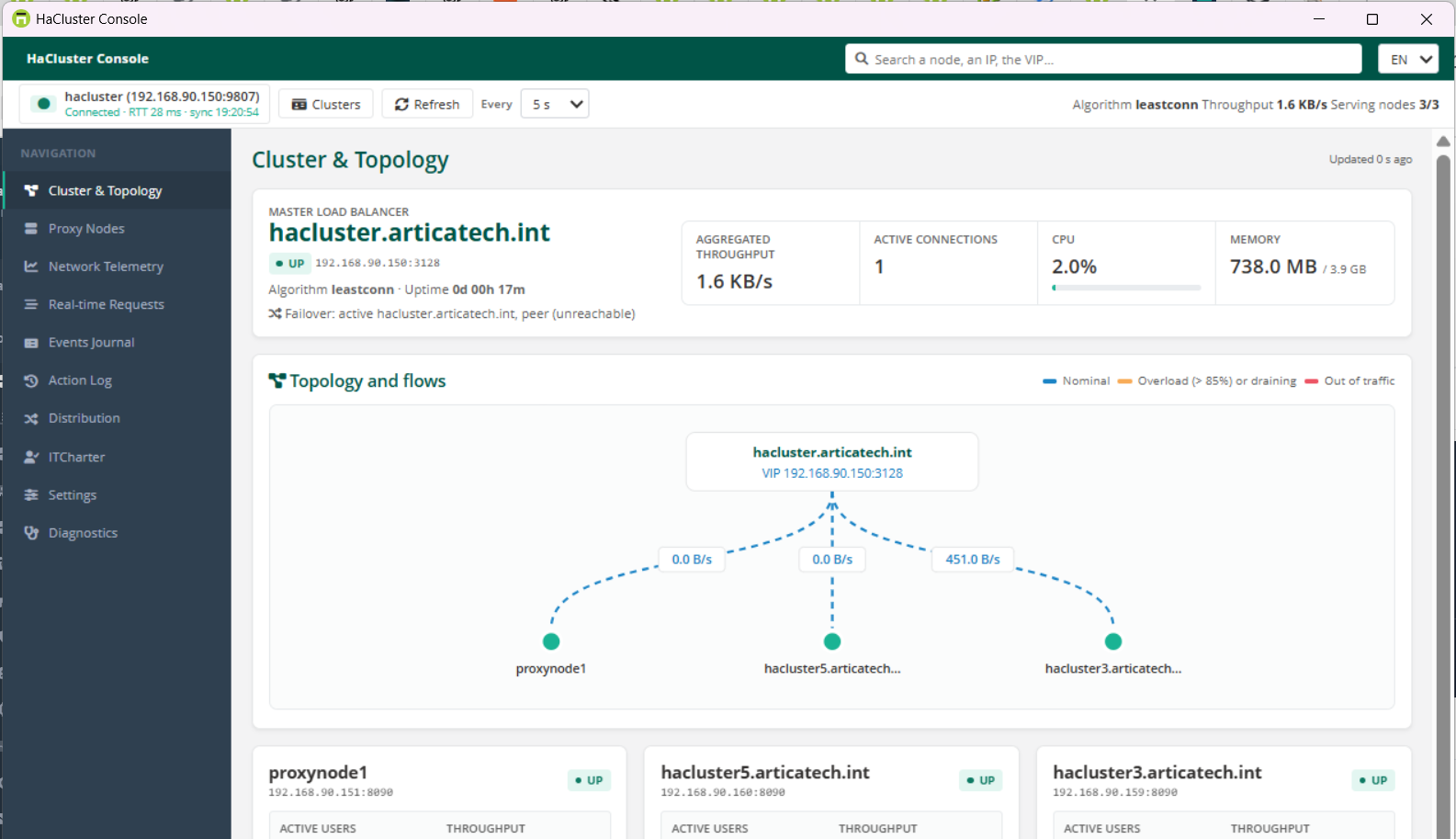
The HaCluster Windows console is a dedicated Windows program that supervises an Artica HaCluster in real time.
It shows the load balancer, every proxy node, the traffic and the requests on one screen.
It also lets an operator take a node out of traffic, bring it back, and manage the source-IP distribution rules.
It talks only to the load balancer, through an encrypted channel opened by a personal certificate.
This page explains the concept, the benefits and the use cases.
It then walks through the installation and every screen of the console.
For the cluster itself, see the main HaCluster page.
¶ Concept of the feature
A HaCluster is made of one load balancer (HAProxy) and several proxy nodes.
The load balancer already knows the state of every node, its users and its traffic.
The Windows console reads this knowledge directly from the load balancer.
Nothing is installed on the nodes for the console.
The console connects to the Windows consoles listener of the load balancer (TCP port 9807 by default).
This listener accepts only mutual TLS: the console must present a client certificate issued by the cluster.
The administrator issues this certificate from the web console, in HaCluster › Windows console.
Each certificate carries one right, named HA.
This right opens only the HaCluster console routes of the appliance.
It cannot reach any other page or API of Artica.
The certificate file also contains the cluster authority, the address and the port of the load balancer.
The operator imports one file and types one password. There is nothing else to configure.
| Component | Role |
|---|---|
| HaCluster load balancer | Holds the cluster state and serves the console API through the Windows consoles listener. |
| Windows consoles listener | Mutual TLS port (9807 by default) shared by the Artica Windows consoles. Each certificate only reaches the routes of its right. |
| HA certificate | Personal .p12 file issued per operator. It can be revoked at any time from the web console. |
| HaClusterConsole.exe | A single Windows program. It needs no installation and no administrator rights. |
The console never trusts what it cannot verify.
The load balancer certificate is checked against the cluster authority delivered in the .p12.
Every value on screen carries the time it was received.
Old data is greyed out, and a failed refresh turns it to unknown.
A node is never shown green on old data.
¶ Functional benefits
- One screen for the whole cluster.
The load balancer, every node, the traffic and the users are visible at once, refreshed every 5 seconds. - Safe maintenance.
Drain, disable, take out of service or re-enable a node.
Each action is confirmed, then checked against the state actually observed on the load balancer. - Delegation without exposure.
A NOC operator or a help desk gets the console without an account on the web console.
The HA right reaches nothing else on the appliance. - Real-time requests.
The live stream of requests through the cluster, with filters by node, user, site or status. - Traffic distribution.
Write the source-IP distribution rules (which clients go to which nodes) and apply them,
with a confirmation before HAProxy reloads. - Active Directory incidents.
See which node is in Active Directory emergency mode and bring authentication back from the console. - IT charter follow-up.
When the cluster IT charter is on, see who accepted which charter, and when. - Traceability.
Every node action is recorded in the console's action log.
When administrator tracking is on, node actions and distribution changes are also recorded on the appliance, under the operator's name. - Eight languages.
The interface follows the languages of the Artica web console:
English, French, German, Spanish, Italian, Portuguese, Brazilian Portuguese and Polish.
¶ Use cases
| Situation | What the console does |
|---|---|
| The NOC watches the proxy farm on a wall screen. | Cluster & Topology shows every node with its state, users and throughput. A node that stops answering turns red within seconds. |
| A node needs a patch or a reboot during business hours. | Drain the node: it receives no new connection while current ones finish. Take it out of service, patch it, then re-enable it. |
| One node is overloaded. | Proxy Nodes sorts the nodes by load, users or throughput. Network Telemetry shows when the load started. |
| A user says a site does not load. | Real-time Requests filters on the user or the site. The line shows the node, the status code and the duration. |
| A branch office must always use two given nodes. | Distribution sends its source network to those nodes. Apply reloads HAProxy without cutting current connections. |
| Active Directory was unreachable and a node went into emergency mode. | The node card shows the emergency badge. Once Active Directory is back, Leave Active Directory emergency restores authentication. |
| The legal team asks whether a user accepted the IT charter. | ITCharter lists the acceptances with a filter by user or charter. |
| An operator leaves the company. | Revoke the operator's certificate in the web console. The console is refused at the next connection. |
¶ Prerequisites
| Side | Requirement |
|---|---|
| Workstation | Windows 10, Windows Server 2019 or later, 64-bit. Microsoft Edge WebView2 Runtime (present on every up-to-date Windows 10 and 11). |
| Network | The workstation reaches the load balancer on TCP port 9807 (or the port chosen for the Windows consoles listener). |
| Load balancer | An Artica version that provides the HaCluster Windows console, with the Windows consoles listener enabled. |
| Web console account | An administrator allowed to manage the proxy, to issue the certificates. |
The Windows consoles listener is shared with the proxy, LDAP and categories Windows consoles.
When it is off, the certificate page shows a warning.
Enable it from the LDAP Windows console page, or ask an administrator who can.
¶ Step 1 – Issue a certificate for the operator
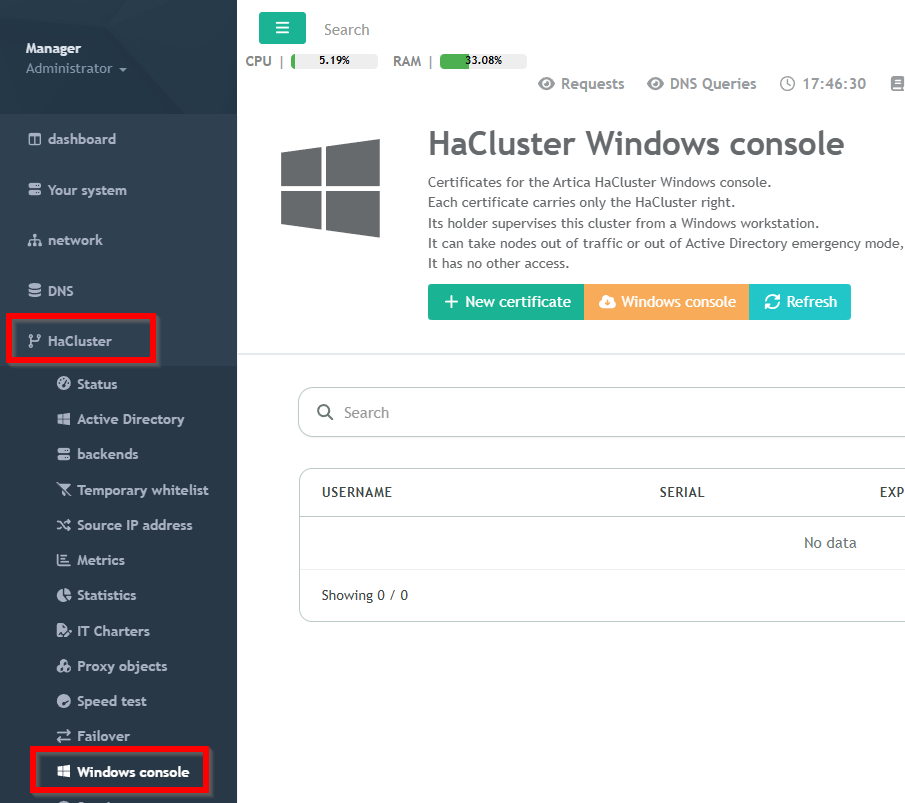
open HaCluster › Windows console.
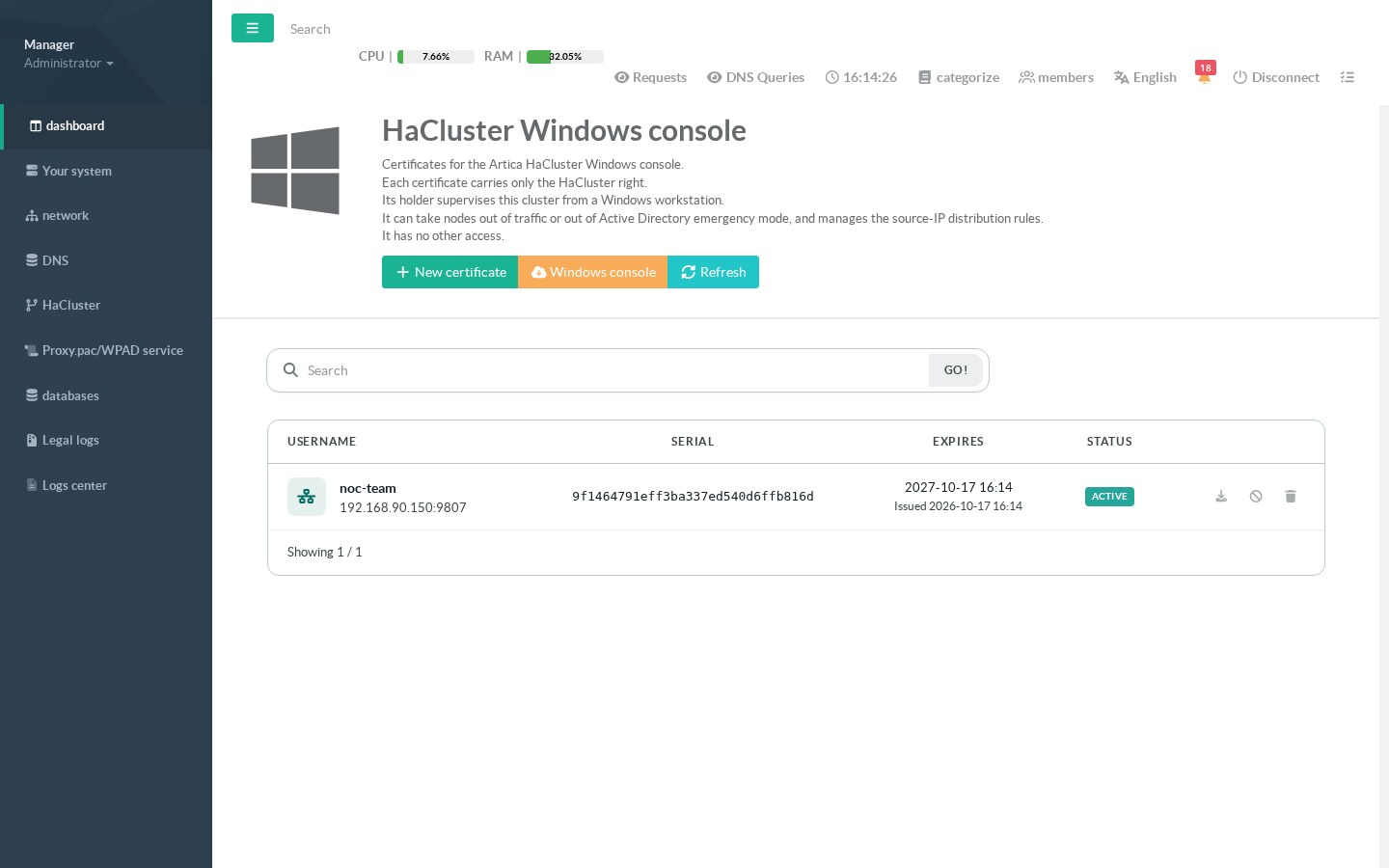
The page lists the certificates already issued for the HaCluster console.
Only certificates with the HA right appear here.
The certificates of the other Windows consoles are managed on their own pages.
Click New certificate.
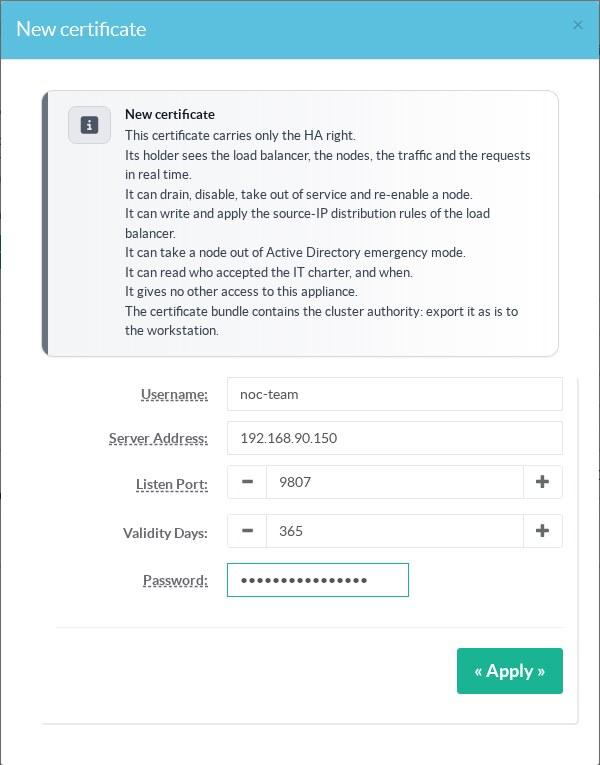
| Field | Meaning |
|---|---|
| Username | The operator's name. It appears in the console and in the administrator tracking of every action. |
| Server Address | The address the workstation uses to reach the load balancer. It is written into the certificate. Use the load balancer address, not a node address. |
| Listen Port | The port of the Windows consoles listener (9807 by default). |
| Validity Days | How long the certificate stays valid (365 days by default). The console warns before it expires. |
| Password | Protects the .p12 file. Give it to the operator by another channel than the file. |
Click Apply.
The certificate appears in the list with the Active status.
Download it with the arrow icon of its line, and hand the file to the operator.
The certificate file contains the operator's private key and the cluster authority.
Treat it like a password.
One certificate per operator makes revocation simple.
¶ Step 2 – Get the console on the workstation
The Windows console button of the certificate page downloads HaClusterConsole.exe.
It is a single program: copy it anywhere, for example on the desktop, and run it.
No installation and no administrator rights are needed.
Its settings live in %APPDATA%\HaClusterConsole\, for the current Windows user only.
| File | Content |
|---|---|
profiles.vault |
The imported certificates and their passwords, sealed with Windows DPAPI for the current user. Another user or another computer cannot open them. |
settings.json |
Language, refresh interval and history range. |
actions.jsonl |
The action log: one line per node action, with its observed result. |
logs\console.log |
Technical log, five files of 5 MB in rotation. |
¶ Step 3 – Import the certificate
At first start, the console is locked on the import screen.
Choose the .p12 or .pfx file (or a .crt and its .key) and type its password.
The address, the port and the account are read from the certificate.
Test checks the connection without saving.
Import and connect saves the certificate and opens the cluster.
The console refuses a certificate it cannot use, and says why.
| Status | Meaning |
|---|---|
| Valid | The certificate can connect. |
| Expiring soon | It still works. Issue a new one before the date shown. |
| Expired | It is past its validity date. Issue a new one. |
| Issued for another Artica console | This is a proxy, LDAP or categories console certificate. Issue one from HaCluster › Windows console. |
| Cluster authority missing | The file does not contain the cluster authority. Download it again from the web console, without converting it. |
| Refused by the cluster | The load balancer refused it: it was revoked, removed or replaced. |
Several clusters can be imported.
The Clusters entry lists them and switches from one to the other.
¶ Tour of the console
The left menu gives the views.
The status bar shows the cluster, the round trip time and the time of the last refresh.
¶ Cluster & Topology
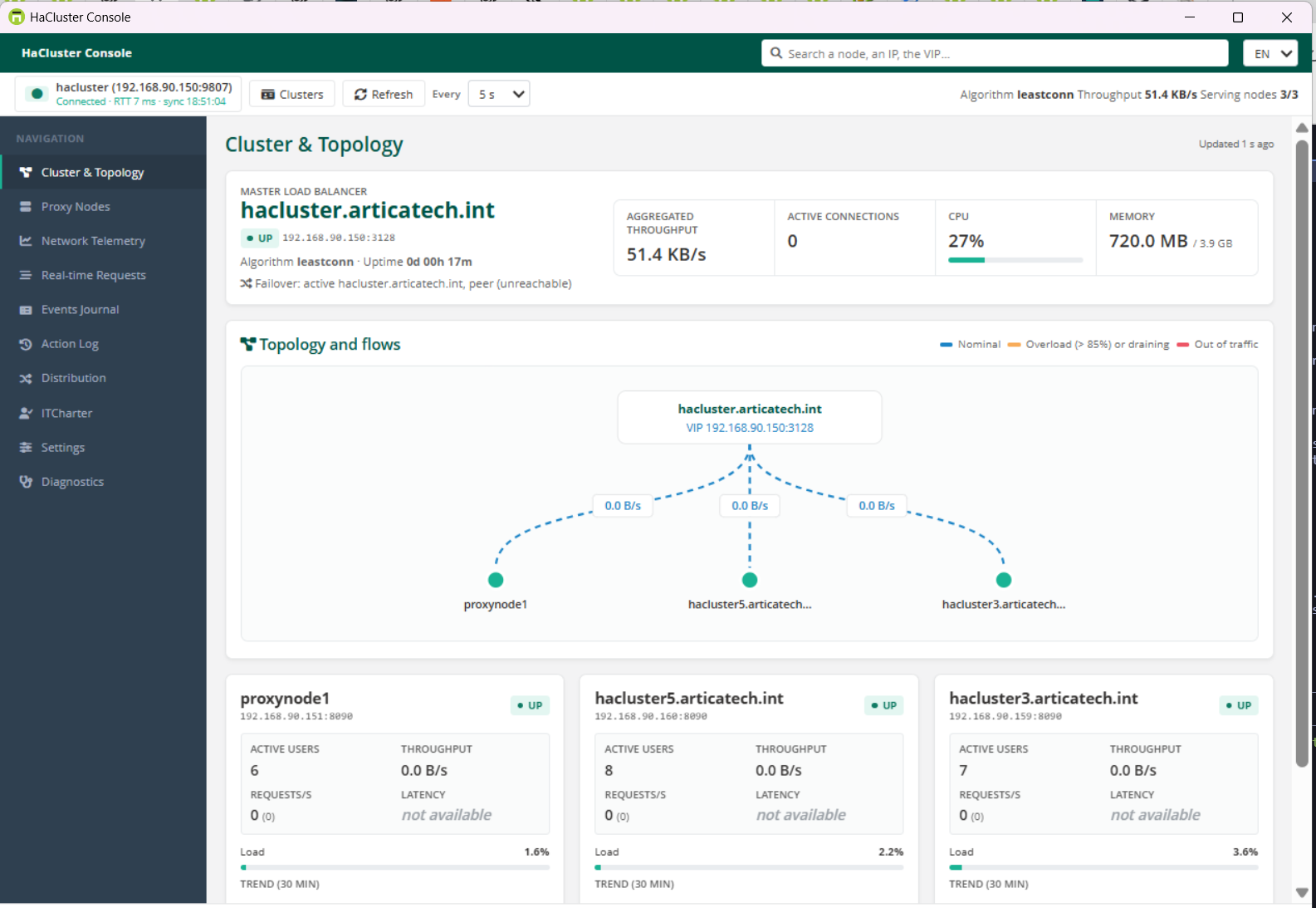
The home view.
The load balancer panel shows the active connections, the aggregated throughput, the CPU, the memory and the uptime.
The topology draws one link per node with its throughput.
One card per node shows its state, its users, its requests per second and its trend over 30 minutes.
Click a node card to open its details: CPU, memory, load average, proxy and system metrics, with charts.
¶ Proxy Nodes
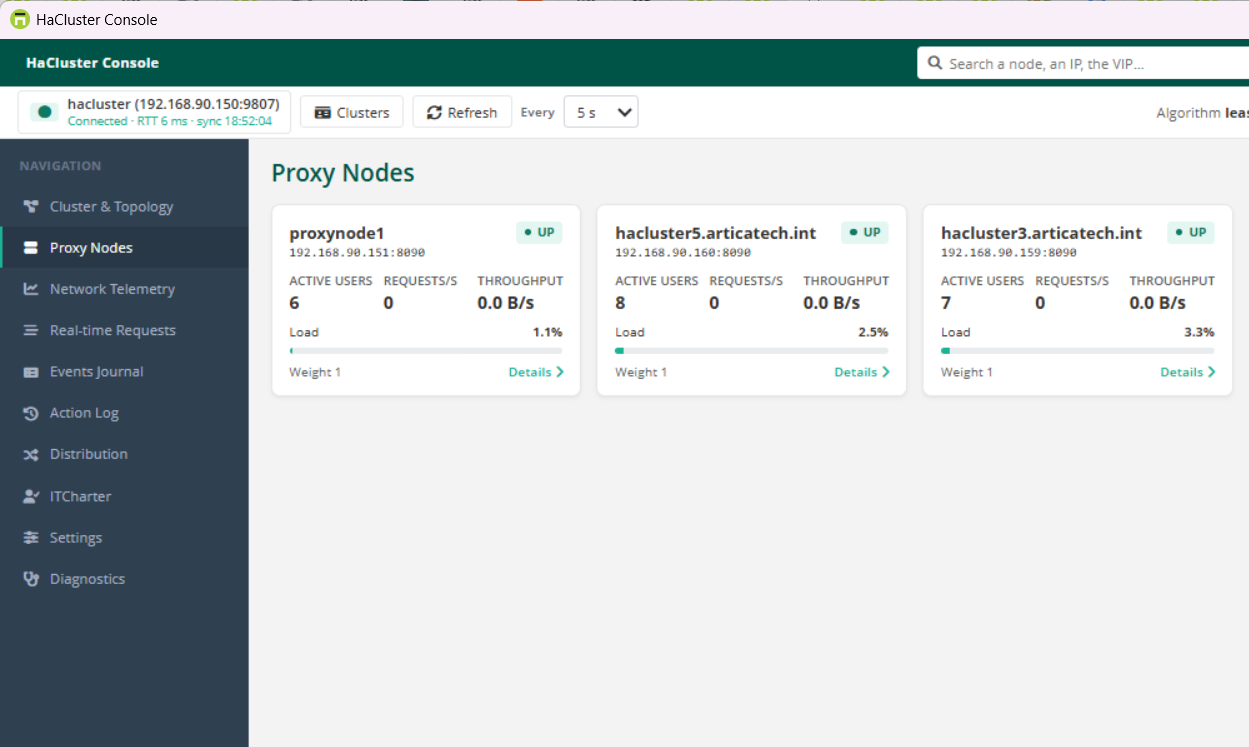
The same nodes in a table.
Click a column title to sort by state, load, users, throughput, latency or weight.
Each line carries the node actions.
¶ Network Telemetry
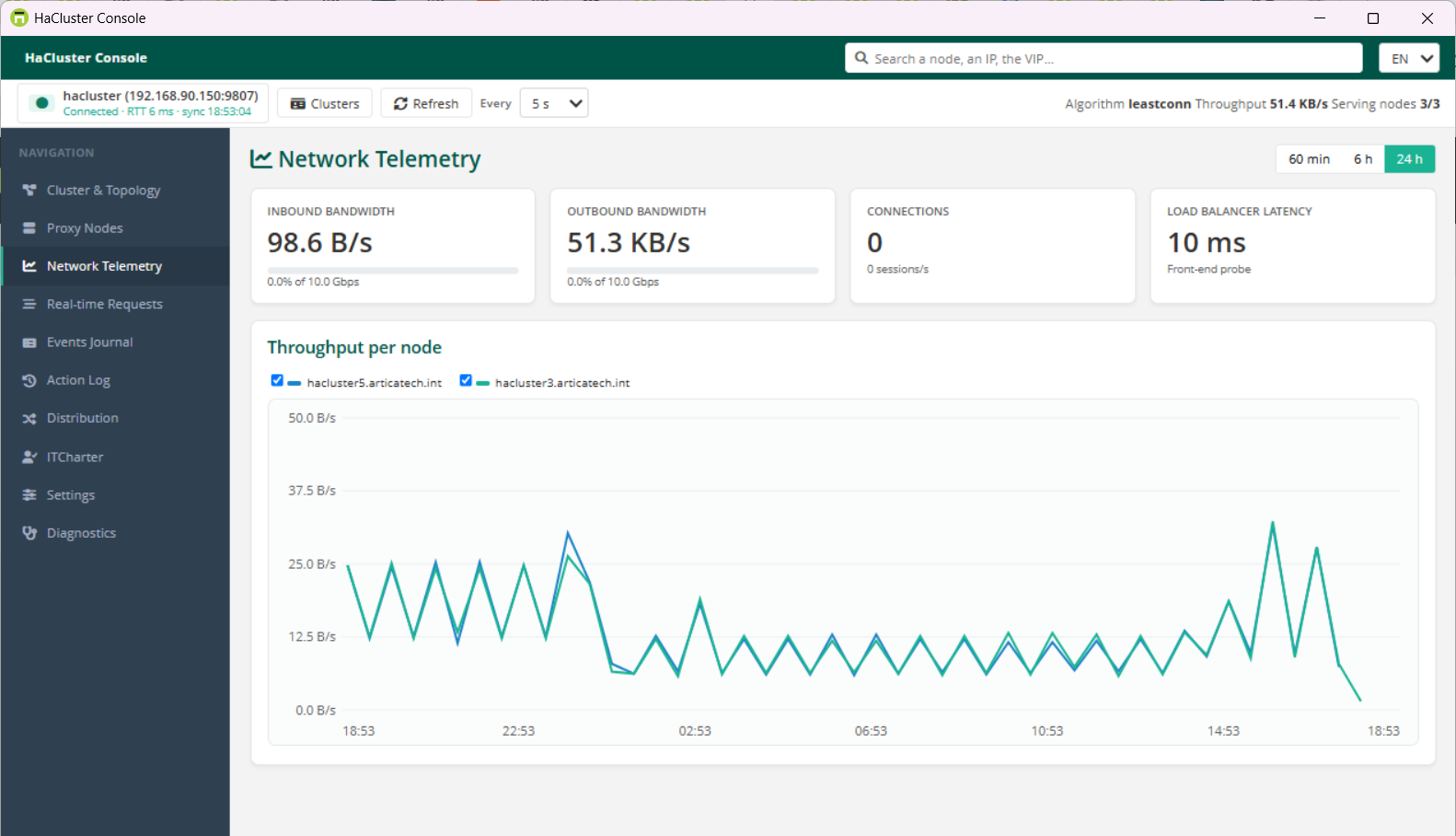
Inbound and outbound bandwidth of the cluster, and the throughput of each node.
Choose the range: 60 minutes, 6 hours or 24 hours.
¶ Real-time Requests
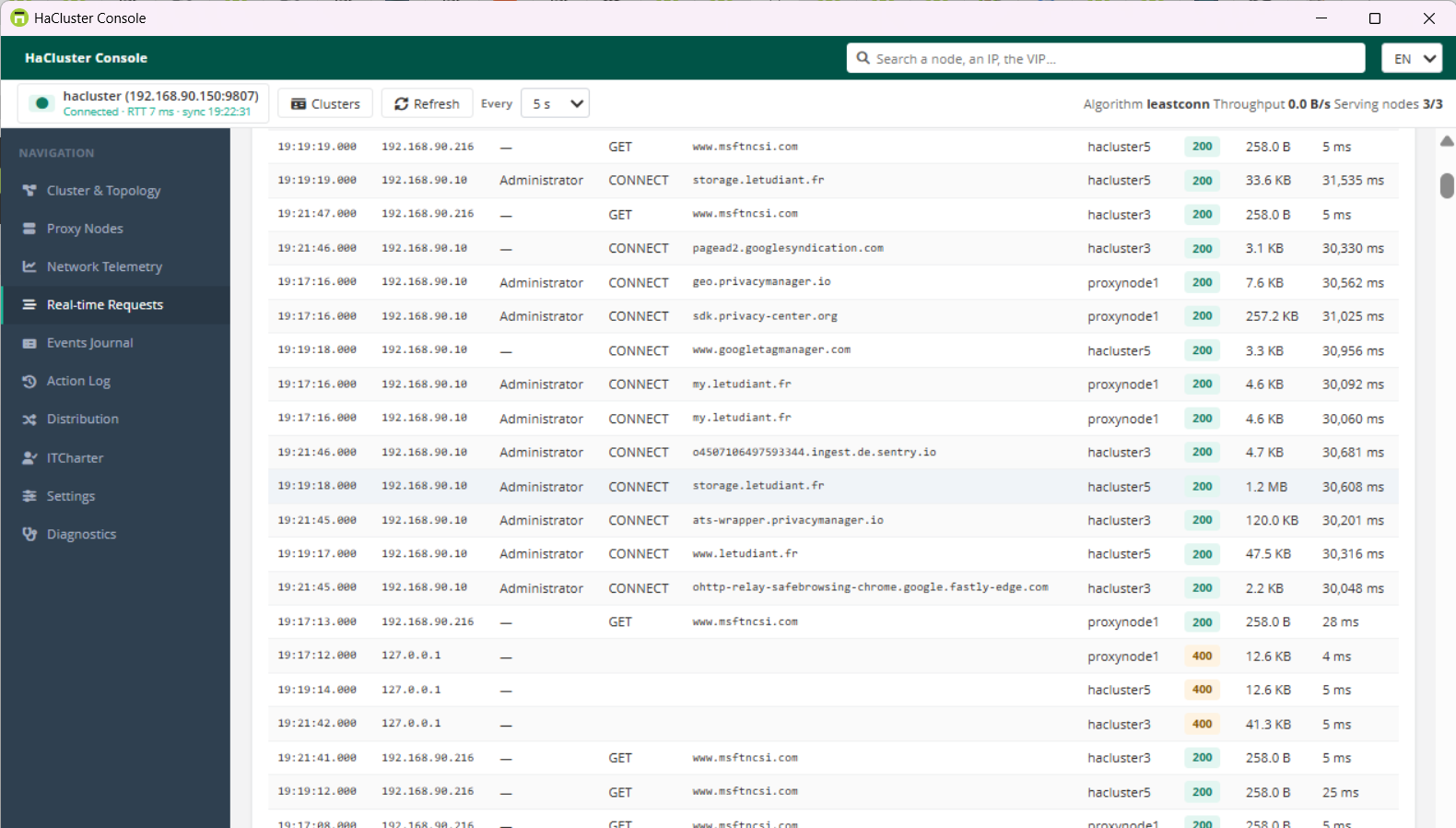
The live stream of the requests through the cluster: time, node, client, user, method, site, status, size and duration.
Filter by node, user, site or status code (for example 404 or 5xx).
Pause freezes the view while you read it.
Under heavy traffic the stream is sampled, and the view says so.
¶ Events Journal and Action Log
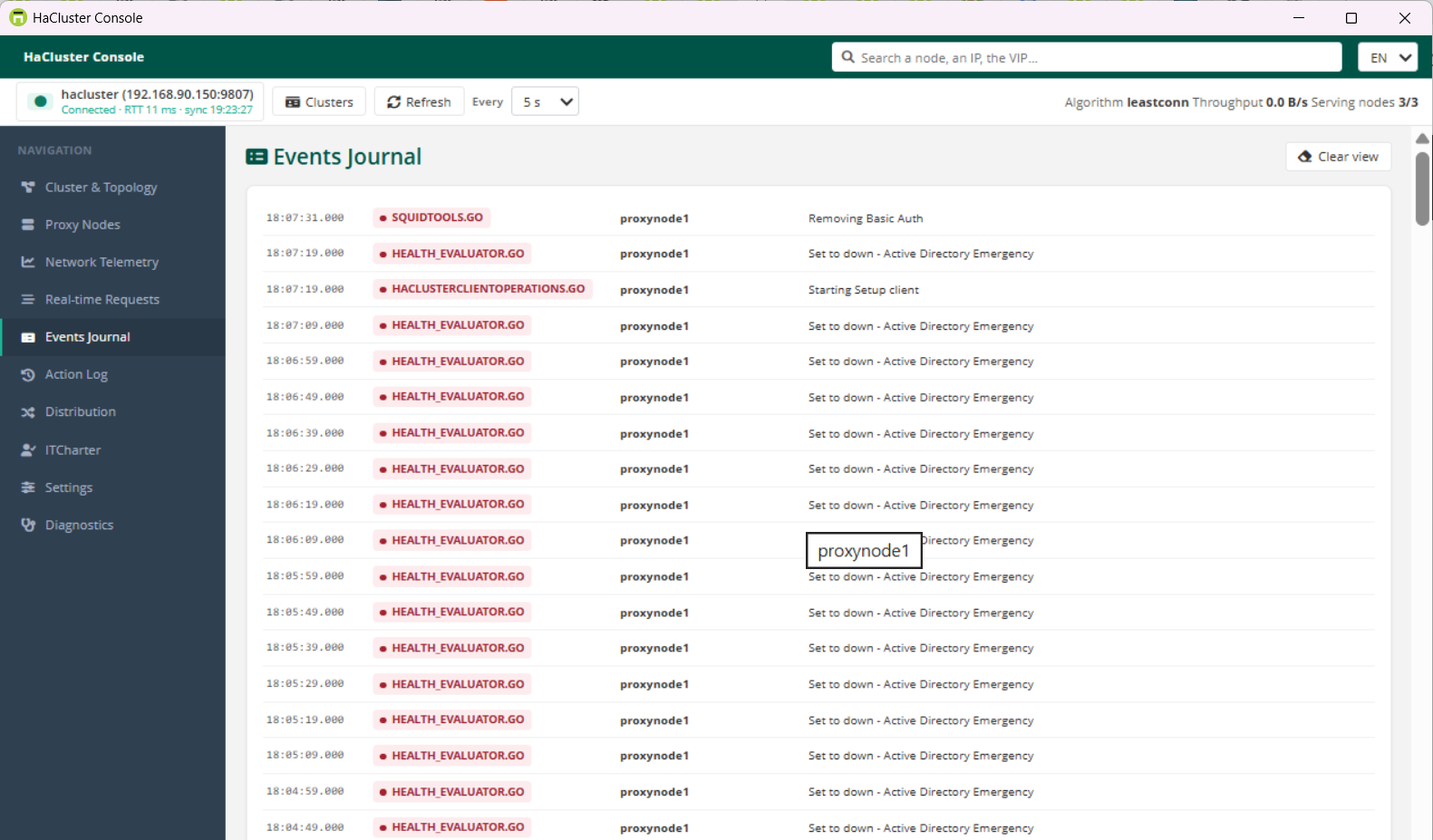
The Events Journal shows the cluster events reported by the load balancer, in readable form.
The Action Log lists every node action made from this console: who, when, which cluster, which node, which action, and the result observed.
¶ Diagnostics
The versions of the console, of Artica and of HAProxy.
The certificate and its expiry date, the round trip time and the server features.
The time of the last answer for each kind of data.
Open the log folder gives the technical log to attach to a support request.
¶ Settings
A read-only summary of the load balancer parameters: service, timeouts, health checks, settings shared with the nodes, access logs and retention.
It matches the Parameters tab of the HaCluster status page in the web console.
Changes are made in the web console only.
¶ Node actions
Each node card and each line of Proxy Nodes offers the actions that fit its current state.
| Action | Effect | After a load balancer restart |
|---|---|---|
| Drain | The node receives no new connection. Current connections finish normally. |
The node is back in traffic. |
| Disable | The node receives no traffic at all (maintenance). | The node is back in traffic. |
| Take out of service | The node receives no traffic. | The node stays out of traffic until it is re-enabled. |
| Re-enable | The node receives traffic again. | – |
Every action opens a confirmation.
It shows the node, its address, its current state, its active users, and the effect of the action.
Cancel changes nothing.
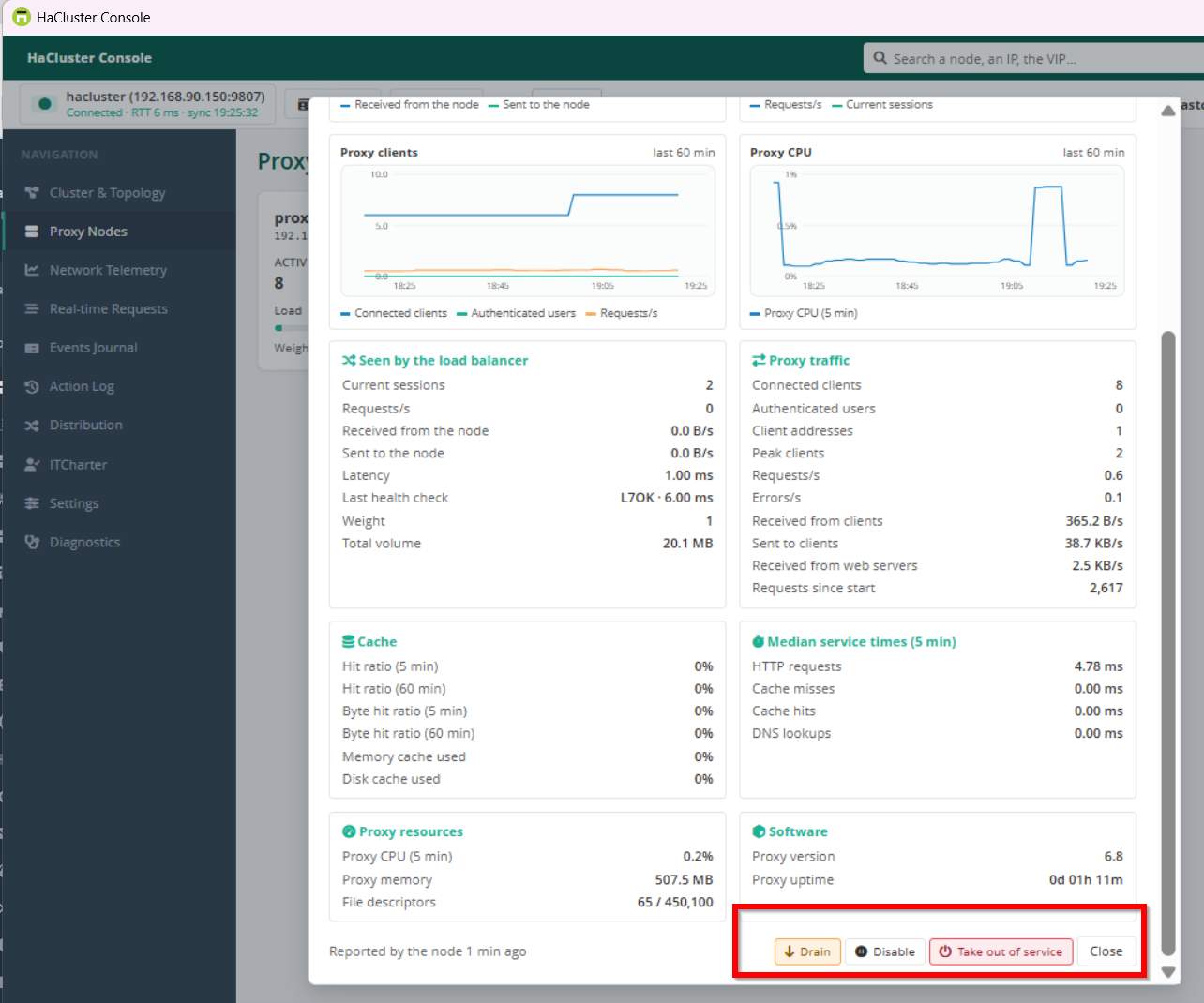
When the action would leave no node able to receive traffic, the confirmation says that the whole cluster will stop serving.
A second, separate confirmation is then required.
After confirmation, the console does not assume success.
It reads the node state again on the load balancer for up to 15 seconds.
The new state is shown only once the cluster reports it.
If the cluster refuses the action or does not reflect it in time, the console reports the cause and the state actually observed.
When administrator tracking is enabled on the appliance (Corporate license), each action is also written there, under the operator's certificate name.
¶ Active Directory emergency mode
When a node cannot reach Active Directory, it can be put into emergency mode in the web console.
Its proxy then lets everyone through without authentication.
The console shows an Active Directory Emergency badge on the card of such a node.
Once Active Directory answers again, choose Leave Active Directory emergency on the node.
The confirmation explains that users will have to authenticate again.
The load balancer relays the order to the node, which rebuilds its proxy.
The badge disappears a few seconds later, once the node has reported to the load balancer.
The console also flags a node whose Kerberos single sign-on cannot work, with the steps to fix it.
See Active Directory support and Kerberos.
¶ Distribution rules
The Distribution view decides which clients go to which nodes, based on their source address.
- Each rule has a name, its source addresses and its target nodes.
- A source is an address (
10.1.2.3), a network (10.1.0.0/16) or a range (10.1.2.1-10.1.2.50), one per line. - The first matching rule wins, in the order of the list.
- Clients that match no rule use every node.
- A node out of service is skipped.
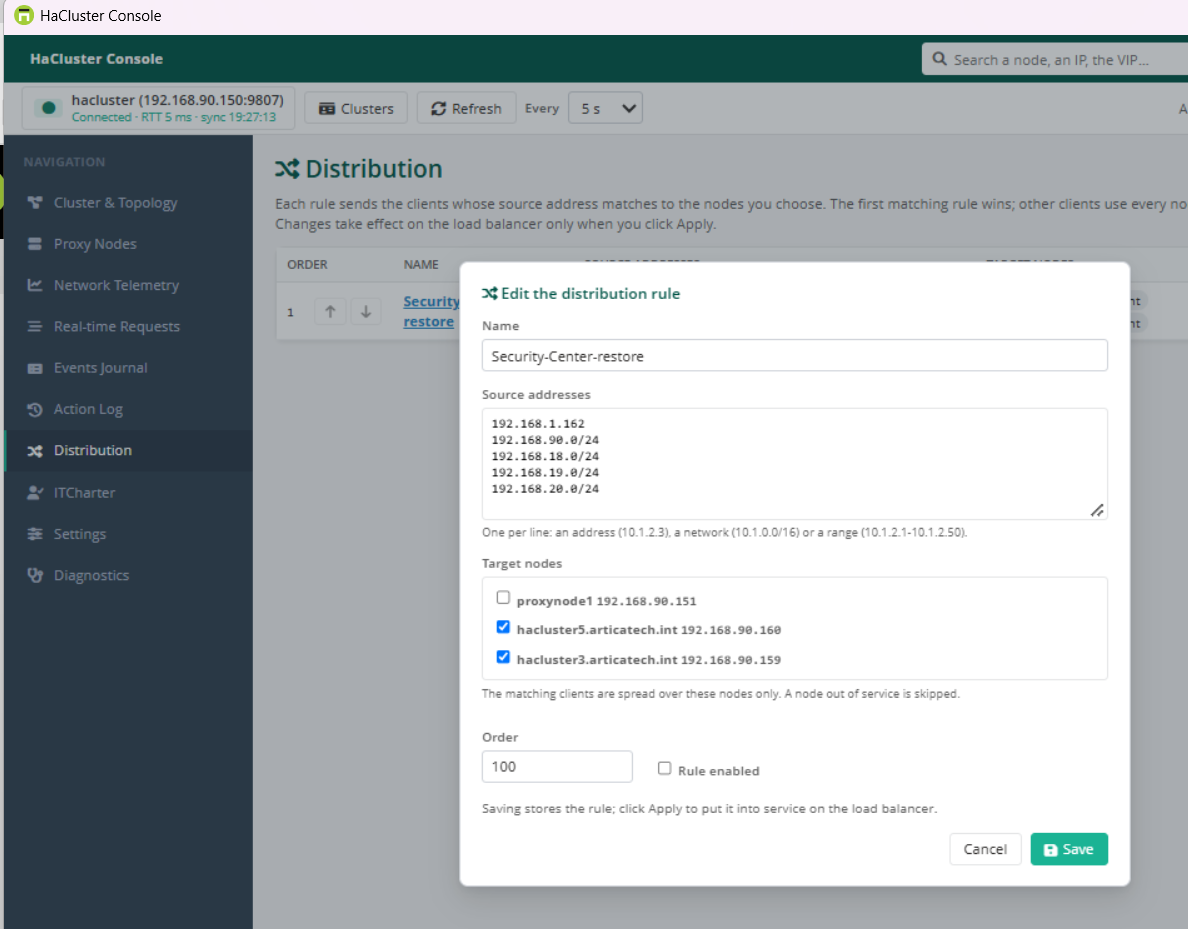
Saving, moving, disabling or deleting a rule does not touch the load balancer.
The rule shows To apply until you click Apply.
Apply shows the rules that will be loaded, in order, and asks for confirmation.
The load balancer configuration is then rebuilt and checked, and HAProxy reloads without cutting the current connections.
A configuration that HAProxy refuses is not applied.
These are the same rules as HaCluster › Source IP address in the web console.
Both places show the same list.
¶ ITCharter
The ITCharter entry appears only while the IT charter is enabled on the cluster.
It appears or disappears by itself when the charter is switched on or off. The console does not need a restart.
The view lists the users who accepted an IT charter before browsing, with the date of their acceptance.
One card per charter shows how many users accepted it.
The filter finds a user or a charter.
Acceptances are stored on the load balancer and shared by every node.
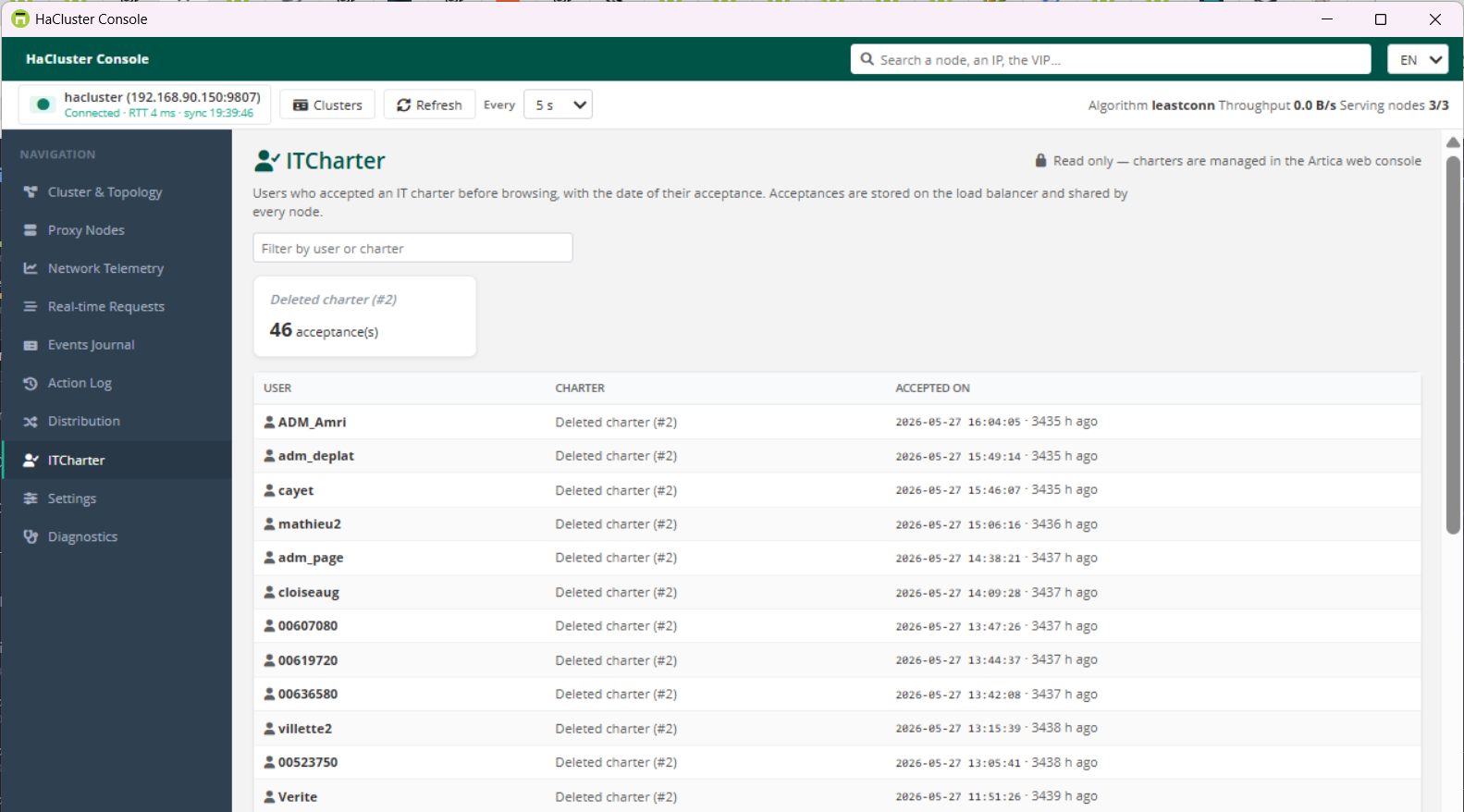
The view is read only.
Charters are written, and acceptances reset, in the web console.
An acceptance that points to a charter deleted since is shown as Deleted charter (#id).
¶ Reading the freshness of the data
| Display | Meaning |
|---|---|
| Normal colours, Updated 3 s ago | The value comes from the last refresh. |
| Greyed, Old data | The value is older than twice the refresh interval. The cluster stopped answering for a while. |
| State unknown | The last refresh failed. The console does not guess. |
The refresh interval is 5 seconds by default.
Real-time Requests refresh every second, the distribution rules and the IT charter every 30 seconds, while their view is open.
¶ Revoke or remove a certificate
In HaCluster › Windows console, each certificate line has three icons: download, revoke and remove.
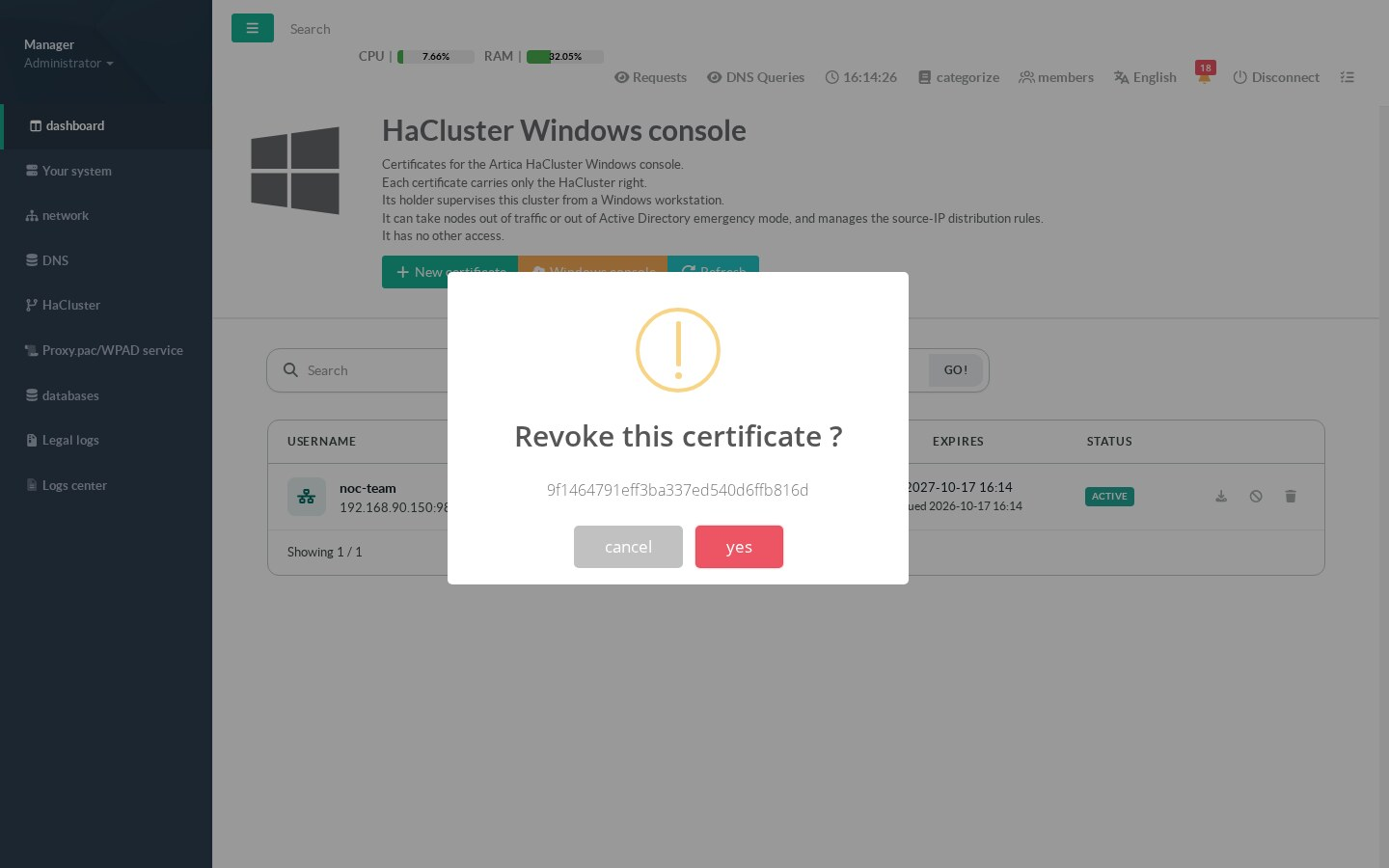
- Revoke blocks the certificate at the next connection. A revoked certificate can be restored.
- Remove deletes it for good.
On the workstation, the console then shows the cluster refused this certificate.
Issue a new certificate and import it.
¶ Security
- Mutual TLS only. The load balancer certificate is checked against the cluster authority. The console never skips this check.
- The HA right reaches only the HaCluster console routes. A HA certificate cannot read or change anything else on the appliance.
- The certificates and their passwords are sealed with Windows DPAPI for the current user.
- The console page loads nothing from the network. It shows only data received from the load balancer.
- Every action that changes the traffic is confirmed, then verified, then logged.
¶ Troubleshooting
| Message | Cause and fix |
|---|---|
| The cluster refused this certificate (revoked, expired, or replaced) | The TLS handshake was refused. Import a new certificate. |
| The server certificate is not issued by this cluster's authority | The address in the certificate is not the load balancer, or the listener certificate was regenerated. Issue a new certificate with the right Server Address. |
| This certificate is not entitled to the HaCluster console | The certificate has another right (proxy, LDAP or categories). Issue one from HaCluster › Windows console. |
| This cluster does not provide the HaCluster console API | The Artica version of the load balancer is too old. Update it. |
| A view says it is not available on this cluster version | The load balancer does not provide this feature yet. Update Artica. |
| Old data, the cluster stopped answering | The workstation no longer reaches port 9807 of the load balancer. Check the network path and the firewall. |
| The console does not start | Install the Microsoft Edge WebView2 Runtime. |
¶ Related pages
- HaCluster – the cluster, its installation and its settings.
- HaCluster and Active Directory.
- Load-balancing methods.
- Health checks.
- Monitoring the cluster.