In the next five minutes you are going to turn your Artica appliance into a real file server:
its own name on the network, its own IP address, its own shared folder, reachable from any Windows workstation.
One dialog, five fields, one click. The Quick wizard does the rest — it creates the instance, isolates it in its own network namespace, generates its configuration, creates the shared folder, and starts it.
¶ Before you start
| You need | Details |
|---|---|
| The feature installed | See Install the File Sharing feature. A Files Sharing entry must be visible in the left menu. |
| A free IP address | On the same LAN as the appliance, and not the appliance's own address. The instance listens on this address alone. Check it is unused before you start ( ping it — silence is what you want). |
| The network interface name | The physical NIC the instance attaches to, e.g. enp2s0 or eth0. Take it from Network & NICs. |
| A folder to share | An absolute path on the appliance, e.g. /home/samba/public. It is created for you if it does not exist. |
¶ Step 1 — Open the instances page
In the left menu, choose Files Sharing. On a fresh appliance the list is empty:
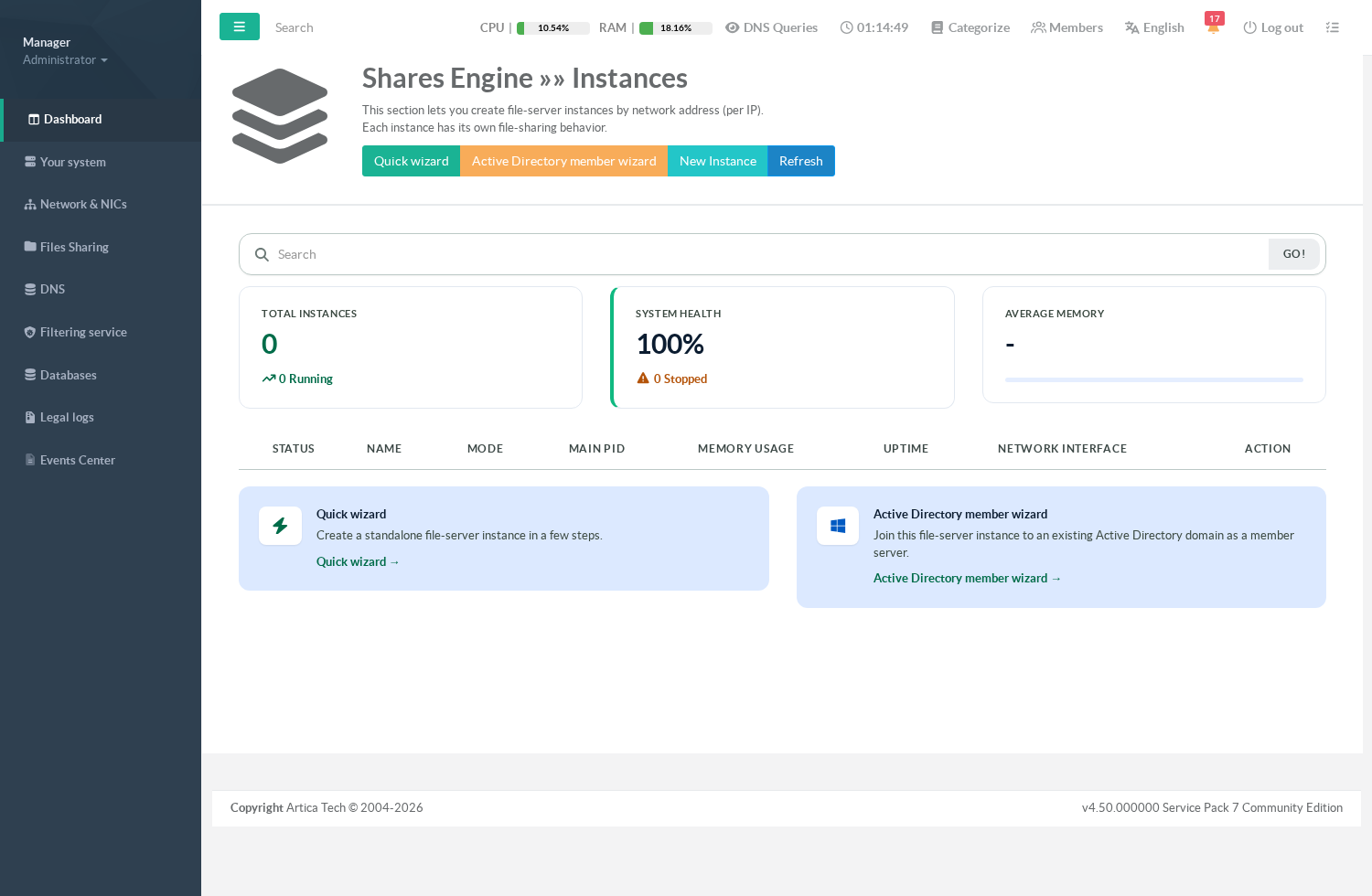
Three buttons matter here:
- Quick wizard — a standalone file server with one shared folder. This is the one we use.
- Active Directory member wizard — same thing, but joined to an existing AD domain.
- New Instance — the complete form, when you want to choose every option yourself.
¶ Step 2 — Open the Quick wizard
- Click Quick wizard.
- Five fields, two of them already filled in:
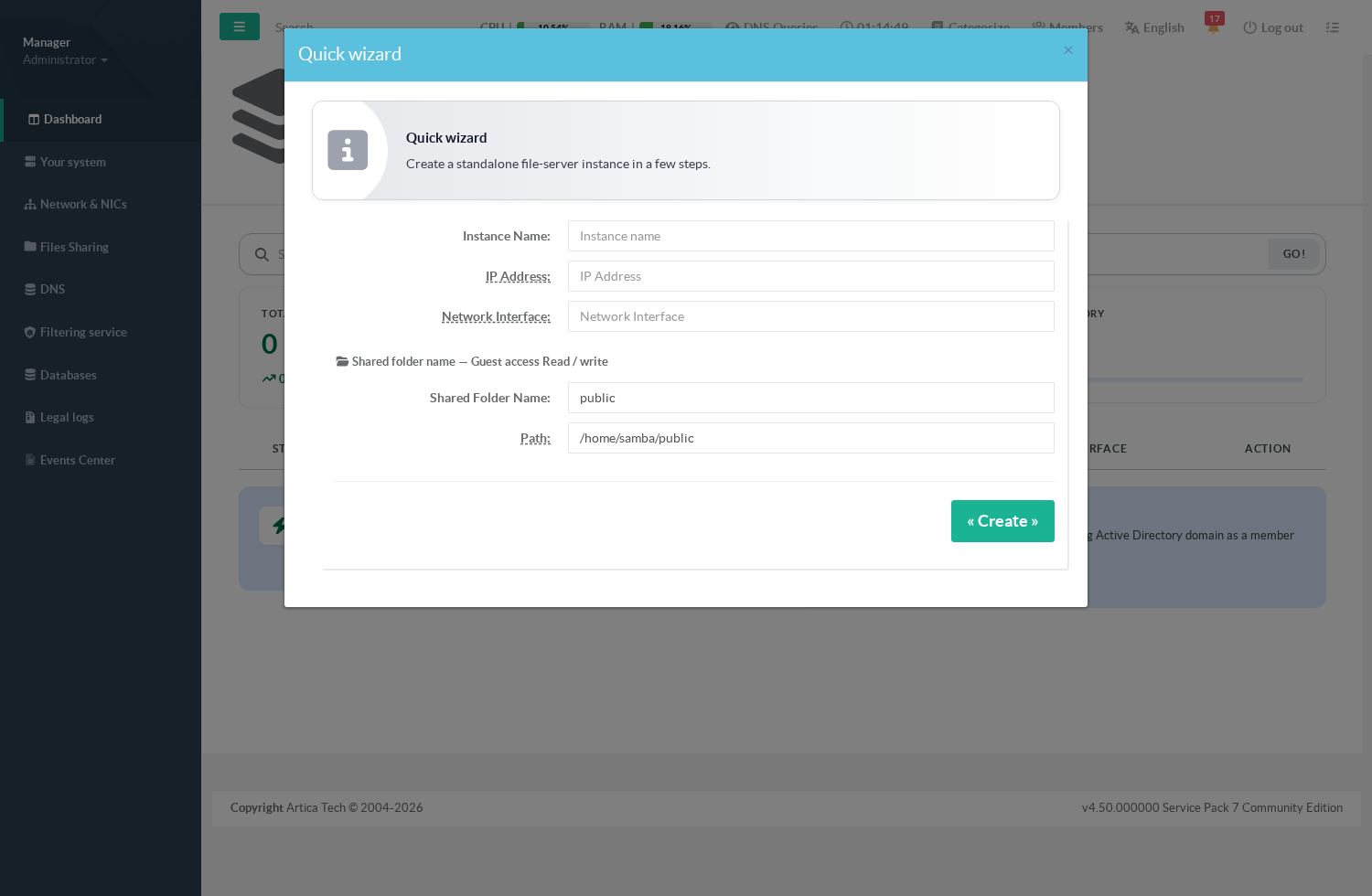
| Field | What to put in it |
|---|---|
| Instance Name | The server name Windows workstations will see, e.g. FILESRV01. Keep it short (15 characters max), letters and digits — it becomes the NetBIOS name. |
| IP Address | The address this instance listens on, in CIDR form: 192.168.1.60/24. It belongs to the instance alone, not to the appliance. |
| Network Interface | The appliance NIC to attach to, e.g. enp2s0. The instance gets an ipvlan link on it: it shares the MAC address of that interface and uses its own IP — which is what makes it work on a VMware or Hyper-V virtual switch, where a second MAC address would simply be dropped. |
| Shared Folder Name | The share name as seen from Windows: public gives \\FILESRV01\public. |
| Path | Where the data actually lives on the appliance, e.g. /home/samba/public. |
The wizard creates the folder with guest access, read and write — the fastest way to prove the server works.
Step 7 shows how to replace that with real accounts, which is what you want in production.
¶ Step 3 — Fill it in and create
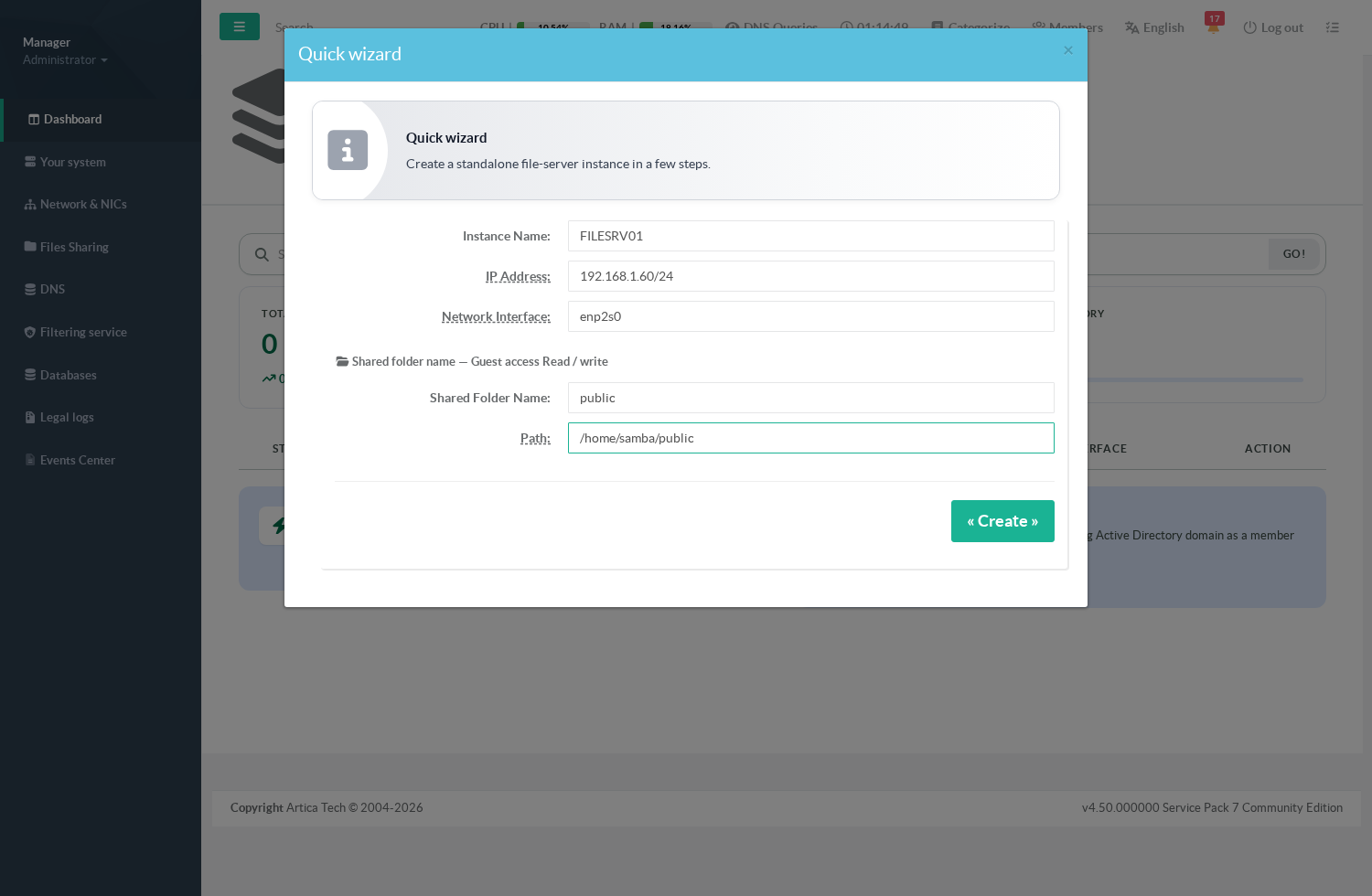
Click « Create ». In a few seconds the appliance has:
- created an isolated network namespace for the instance;
- attached an ipvlan interface to your NIC and given it the IP address;
- generated a dedicated configuration, with its own private, state and log directories;
- created the shared folder;
- started the instance and set it to start automatically at boot.
¶ Step 4 — Check that it is running
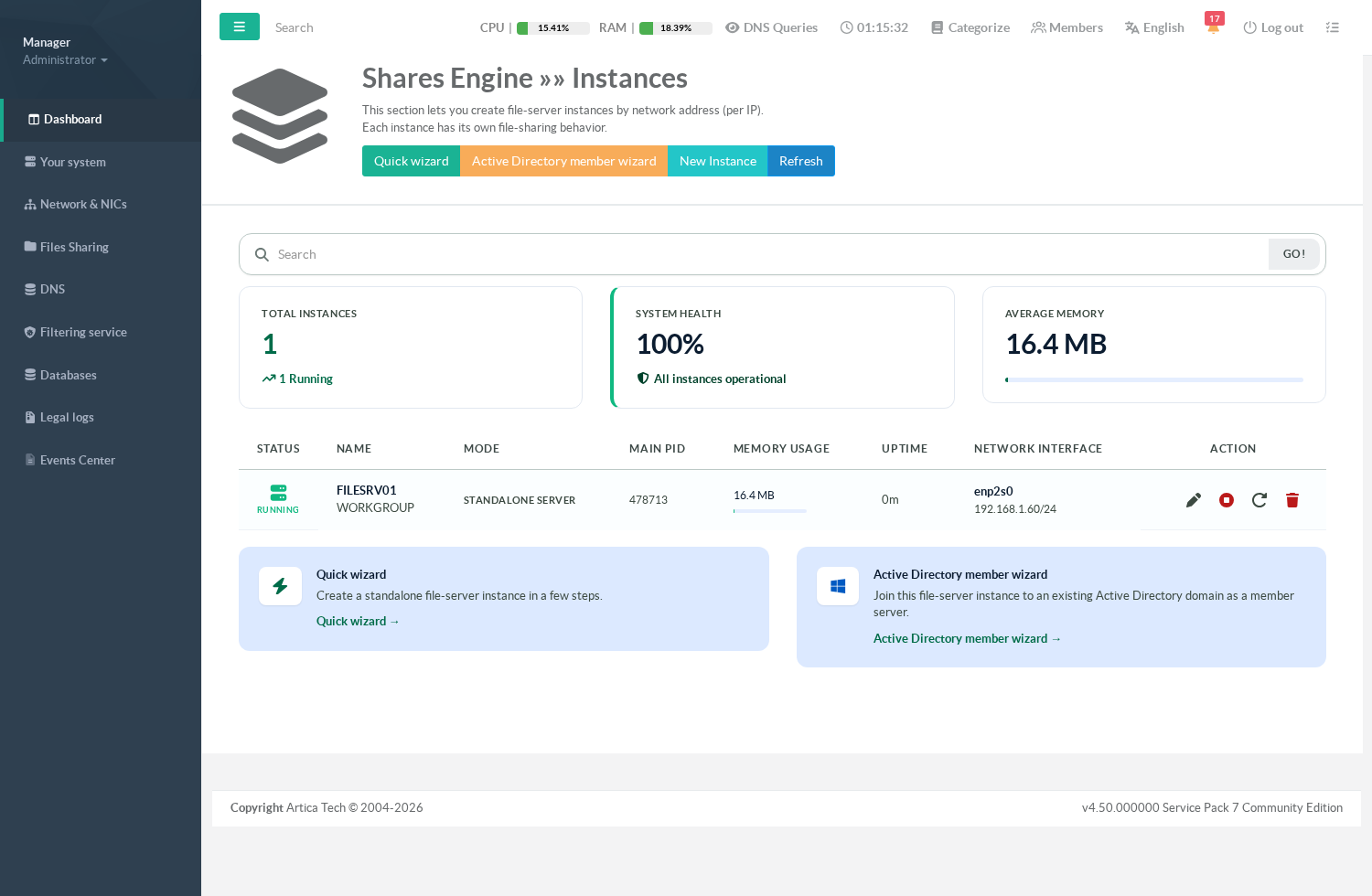
The instance shows as RUNNING, with its process ID, memory usage, uptime and network interface.
System health reads 100%.
The icons on the right let you edit, stop, restart and delete the instance.
A stopped instance stays stopped — the watchdog only relaunches what died, never what you deliberately stopped.
¶ Step 5 — Look at the share
Left menu, Files Sharing > your instance > Shares Center:
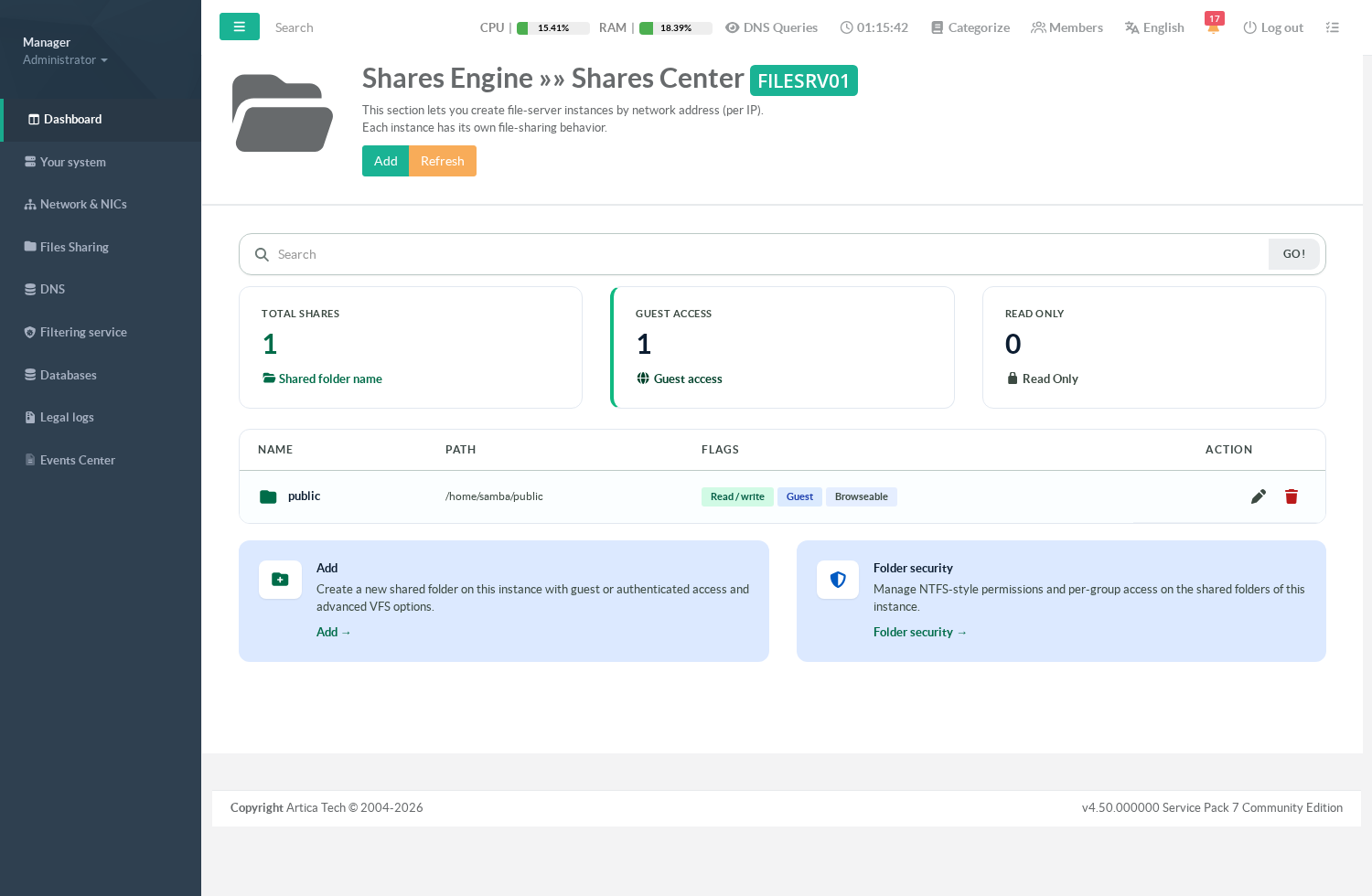
The public folder is there, flagged Read / write, Guest and Browseable. From this page you add more shares, and Folder security lets you review who really has access to a directory tree.
¶ Step 6 — Connect from a workstation
On any Windows machine on the same LAN, open Explorer and type: \\192.168.1.60\public
or, once the name is known on the network, \\FILESRV01\public.
You can create files immediately — the share is read/write.
Test from another machine, never from the appliance itself.
The instance IP is an ipvlan child of the appliance NIC, and a parent interface cannot talk to its own children: from the appliance,\\192.168.1.60answers host unreachable even though the instance is running perfectly.
This is normal, and it surprises everyone once.
If the server does not appear on its own in the Windows "Network" view, that view relies on WS-Discovery, provided by the
wsddpackage.
Without it the file server works exactly the same — you simply reach it by typing\\<address>instead of browsing to it.
¶ Step 7 — Replace guest access with real accounts
Guest access is perfect for a first test and wrong for production — and modern Windows agrees:
Windows 10 and 11 refuse insecure guest logons by default, so a workstation may well decline to open a guest share at all.
Left menu, your instance > Users:
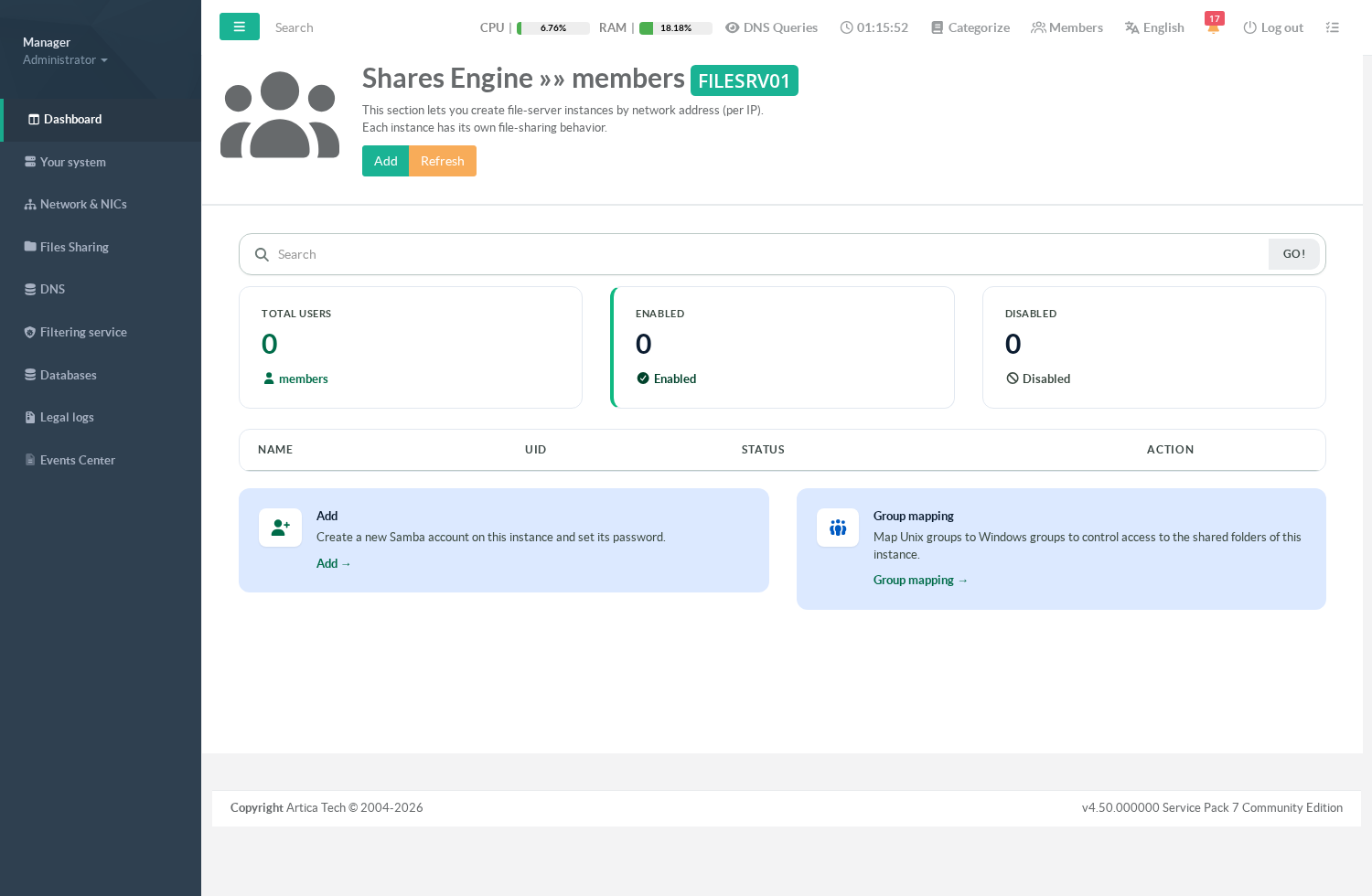
Click Add, create an account with its password, then go back to Shares Center, edit the public share and turn Guest access off.
Windows will now ask for a user name and password, and you get what you actually want: a name on every file, and an audit trail that means something.
Group mapping, on the same page, maps your Windows groups onto system groups so you can grant access by group instead of user by user.
¶ Troubleshooting
| Symptom | What to check |
|---|---|
| The instance shows Operation failed instead of Running | The IP address is already used by another host, or the network interface name does not exist. Edit the instance, correct it, and start it again. |
| Host unreachable when testing from the appliance | Expected: a NIC cannot reach its own ipvlan children. Test from another machine on the LAN. |
| Windows asks for credentials on a guest share, or refuses to open it | Windows 10/11 block insecure guest logons by default. Create a real account (step 7) — that is the right answer, rather than re-enabling guest logons on every workstation. |
| The server does not show up in the Windows Network view | WS-Discovery (wsdd) is not running. Reach the share by address: \\192.168.1.60\public. |
Browsing \\server shows no shares at all |
Make sure the appliance runs the latest Samba package and the current File Sharing engine: share enumeration is served by Samba's RPC helpers. An appliance whose helpers are not runnable answers with an empty list while direct access to \\server\share still works. |
¶ What next
- Add more shares, with recycle bin, previous versions and audit trail, from the Shares Center.
- Watch who is connected in real time, and disconnect a client or close a share, from Live sessions.
- Create a second instance: a different name, a different IP, a different user base — completely isolated from this one.
- Join an Active Directory domain with the Active Directory member wizard, instead of managing local accounts.
- Back to the File Sharing main section