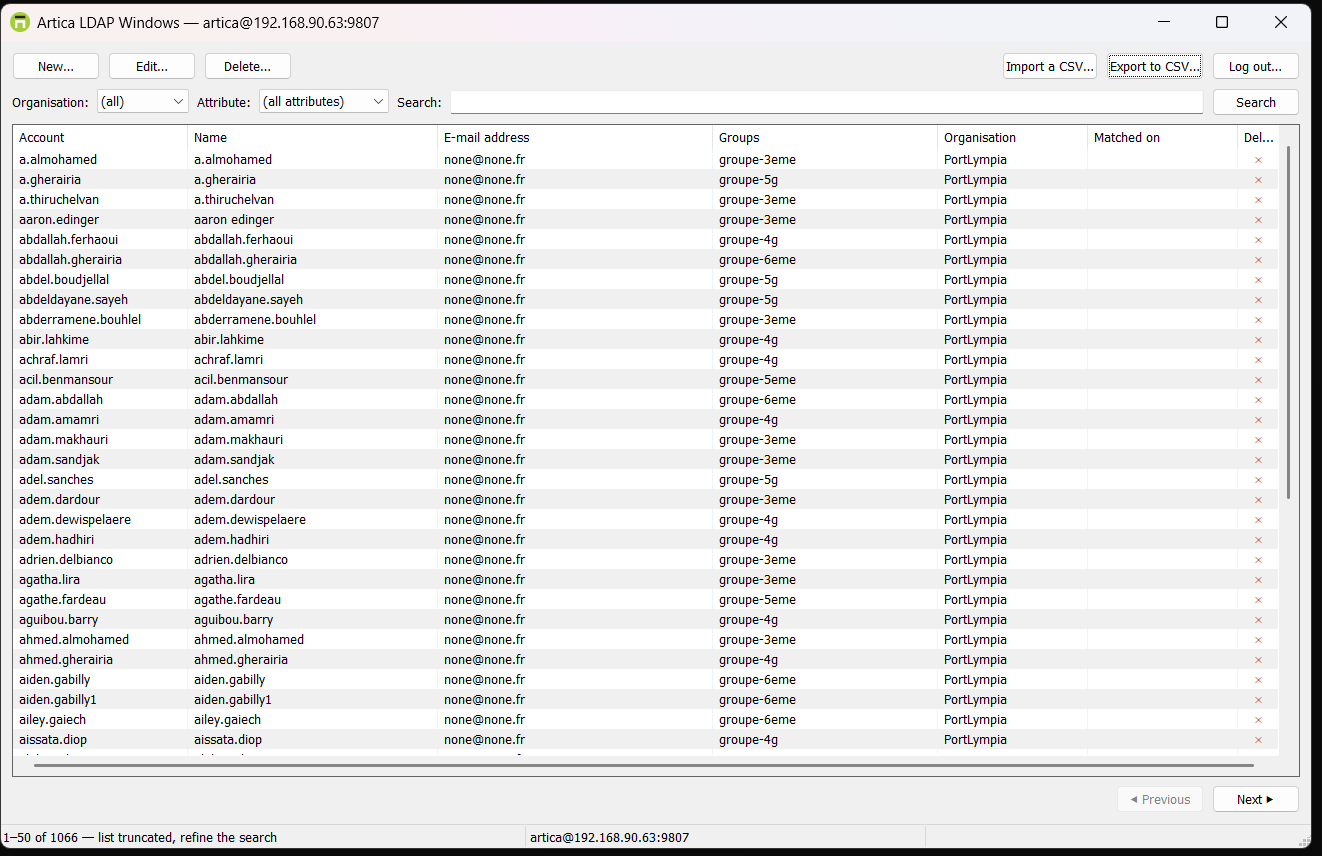
The Artica LDAP Windows console is a small Windows program that manages the users and groups of the OpenLDAP directory of an Artica appliance.
It runs from a single executable, without installation and without administrator rights.
It connects to the appliance with a client certificate that you issue from the Web console.Help-desk staff can create accounts, reset passwords, change groups and exchange CSV files with Excel.
They never need an account on the Artica Web console.
¶ Functional benefits
- Delegation without exposure.
The help-desk receives a certificate that opens the directory and nothing else.
It gives no access to the Web console, to the proxy or to the system settings. - Nothing to configure on the workstation.
The certificate carries the appliance address, the port and the account name.
The operator only chooses the file and types its password once. - Search on every attribute.
One search box finds an account by login, name, e-mail, telephone, mobile, title or any other searchable attribute.
The list tells which attribute matched. - Bulk changes with Excel.
Export the directory to a CSV file, edit it in Excel, and import it back.
The console always shows a line-by-line preview before writing anything. - Safe by design.
The console refuses to write on a replication consumer, where a change would be silently overwritten by the master.
No export ever contains a password. - Audited.
Every change made from the console is written in the administrators audit log of the appliance.
Each line names the certificate holder and the workstation address. - Revocable at any time.
One click in the Web console revokes a certificate.
The workstation loses its access immediately. - English or French.
The console follows the language of Windows.
A command-line switch forces a language.
¶ Concepts
- A dedicated console
The LDAP Windows console is not the Artica Proxy Windows console.
Each one has its own certificate.
A certificate opens one console or the other, never both.
- The certificate carries everything
The appliance issues a PKCS#12 bundle (.p12) protected by a password.
The bundle holds the client certificate, its private key and the authority of the appliance.
An extension of the certificate stores the appliance address, the port, the account name and the rights.
A certificate issued from the OpenLDAP section always carries the LDAP right, and only this right.
With this right, the appliance accepts the directory requests and refuses everything else.
The Windows console refuses at import any certificate that carries a proxy right.
- Mutual TLS
The console talks to the appliance over the mutual TLS listener of the REST service, on port 9807 by default.
Both sides present a certificate.
The console checks that the appliance certificate was signed by the authority stored in the bundle.
The appliance checks the client certificate, its validity and its revocation status on every connection.
- The certificate stays on the workstation
The imported bundle is sealed with Windows DPAPI, for the current Windows user only.
It is stored in%APPDATA%\ArticaLDAPWindows\identity.bin.
Another Windows account on the same computer cannot read it.
A copy of the file on another computer is useless.
¶ Use cases
| Situation | How the console helps |
|---|---|
| The help-desk resets passwords and creates accounts every day. | Give each technician a certificate. They manage the directory from their own PC, without a Web console account. |
| A school or a company imports its new users every year. | Fill a CSV file in Excel and import it. The preview lists every creation, change and rejected line before anything is written. |
| An audit asks for the list of accounts. | Export the directory to CSV. Choose whether to include the group memberships. |
| A user calls with only a mobile number. | Type the number in the search box. The Matched on column shows mobile. |
| A department moves to a new group. | Export, change the groups column, import. Only the listed accounts change. |
| A laptop of the help-desk is lost. | Revoke its certificate from the Web console. The next connection is refused. |
| The appliance runs only as a directory, without the proxy. | The page lives in the OpenLDAP menu and can start the mutual TLS listener itself. |
¶ Requirements
- The OpenLDAP database feature is installed and running.
- The administrator who issues certificates has the privilege to add users (or is an Artica administrator).
- The Windows workstation reaches the appliance on TCP port 9807.
- A 64-bit Windows workstation.
¶ Step 1: Open the page
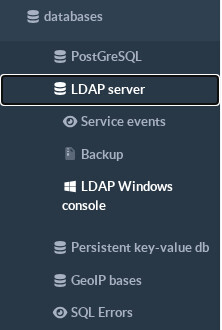
On the left menu, choose Databases, LDAP server, then LDAP Windows console.
¶ Step 2: Enable the mutual TLS listener
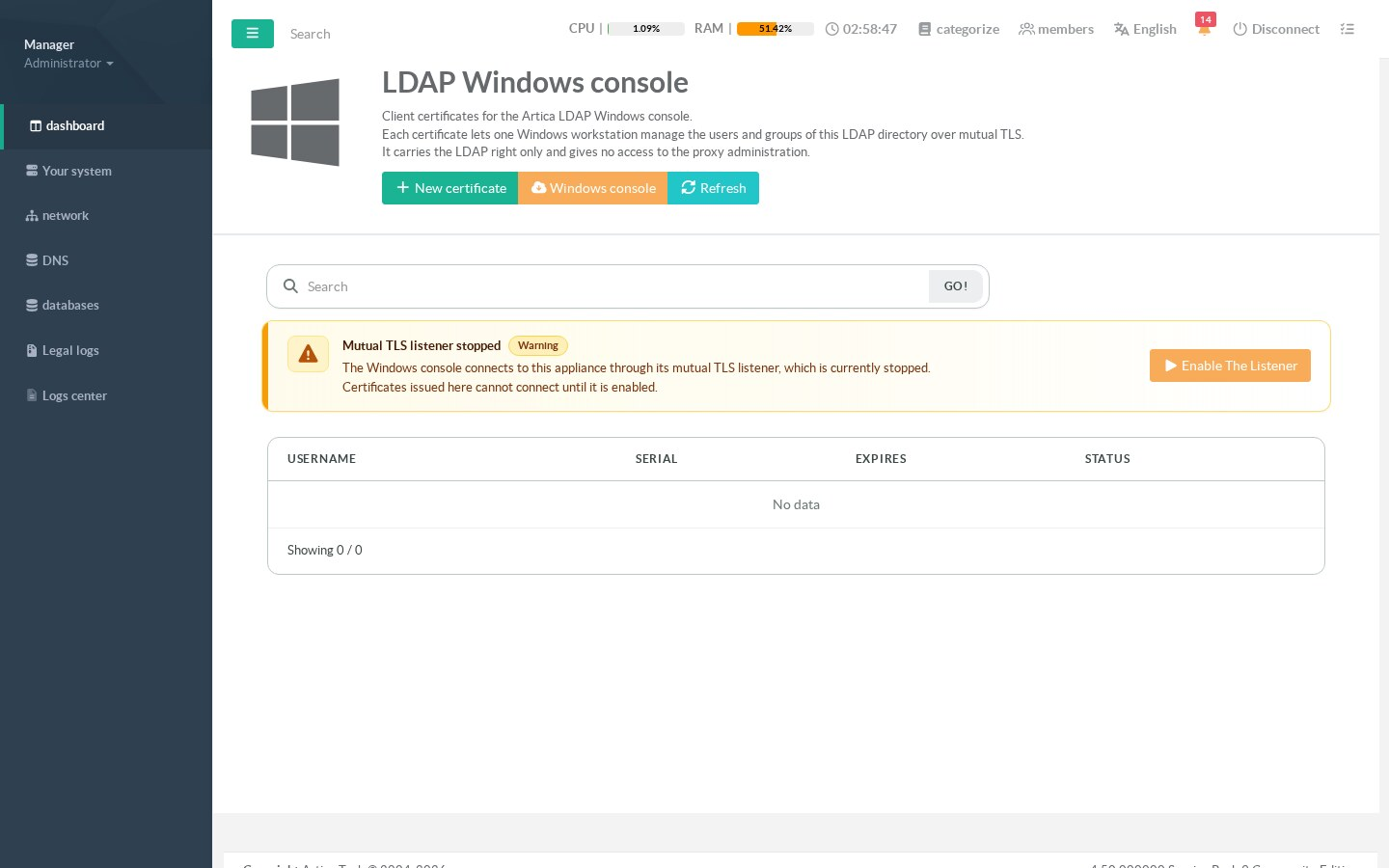
The console needs the mutual TLS listener of the appliance.
On an appliance without the proxy, it is usually stopped.
In this case, the page shows a warning.
Click on Enable The Listener.
The appliance starts the listener on port 9807 and the warning disappears.
and its right limits what it can do.
¶ Step 3: Issue a certificate
Click on New certificate.
| Field | Meaning |
|---|---|
| Username | A name that identifies the holder, for example the technician or the workstation. It is written in the certificate and shown in the list. |
| Server Address | The address the workstation uses to reach the appliance. It is filled with the address of your browser session. Change it if the workstations use another name or IP address. |
| Listen Port | The port of the mutual TLS listener (9807 by default). |
| Validity Days | How long the certificate stays valid (365 days by default). |
| Password | The password that protects the .p12 file. The operator types it once, at import. Send it through another channel than the file. |
There is no right to choose.
The page always issues a .p12 with the LDAP right only.
This is enforced on the server side, whatever the form sends.
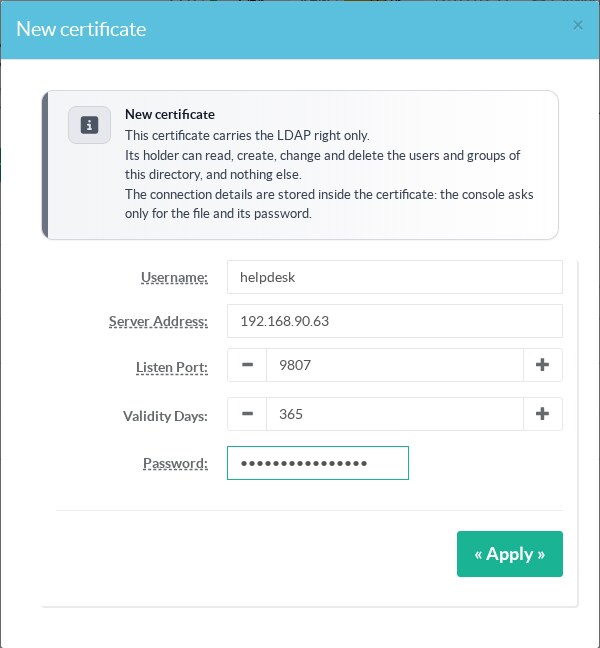
Click on Apply.
The certificate appears in the list.
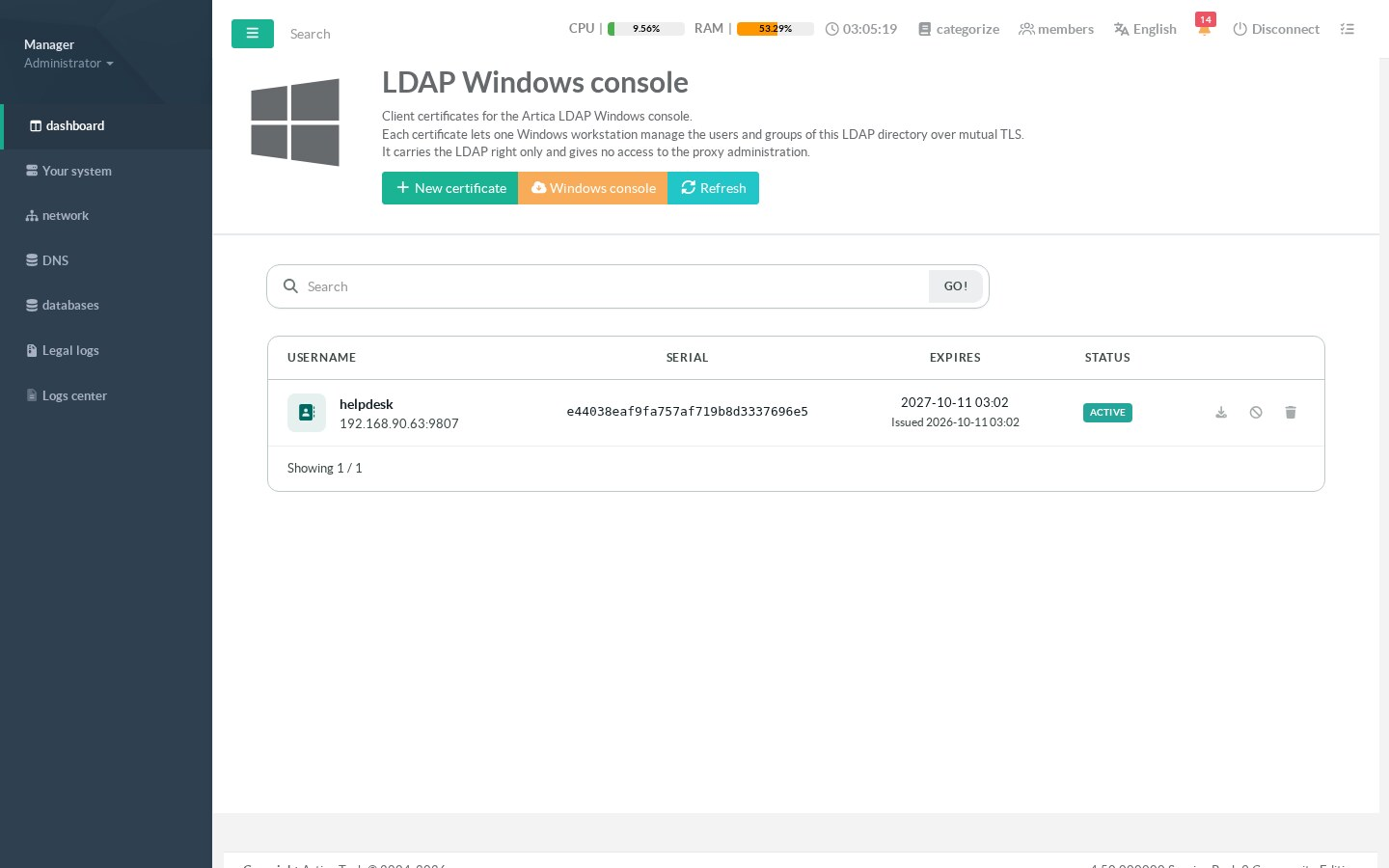
Each line gives the holder, the address written in the certificate, the serial number, the expiry date, the issue date and the status.
The icons on the right download the .p12, revoke the certificate and remove it.
¶ Step 4: Download the console and the certificate
- The Windows console button downloads the program: https://artica-iso.b-cdn.net/artica-ldap-windows.exe.
- The download icon of a line downloads its
.p12file.
Give both files to the operator.
Give the password separately.
¶ Step 5: First launch on Windows
Run artica-ldap-windows.exe.
No installation is needed.
On the first launch, the Certificate dialog opens.
- Click on Choose a .p12 file… and select the bundle.
- Type the .p12 password.
- Click on Open the console.
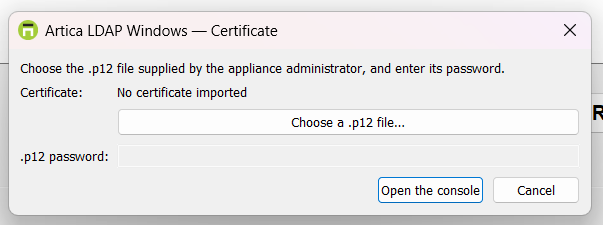
The dialog shows what the certificate contains before you open it: server, account, right and validity.
There is no address or port to type.
On the next launches, the console opens directly.
To use another certificate, choose Replace the certificate….
The console refuses a certificate that cannot work, with a clear message:
- A certificate of the Proxy Windows console is refused, and the message names the LDAP right to ask for.
- An expired certificate is refused, with its date.
- If the workstation clock is wrong, the message says so.
¶ Step 6: Search the directory
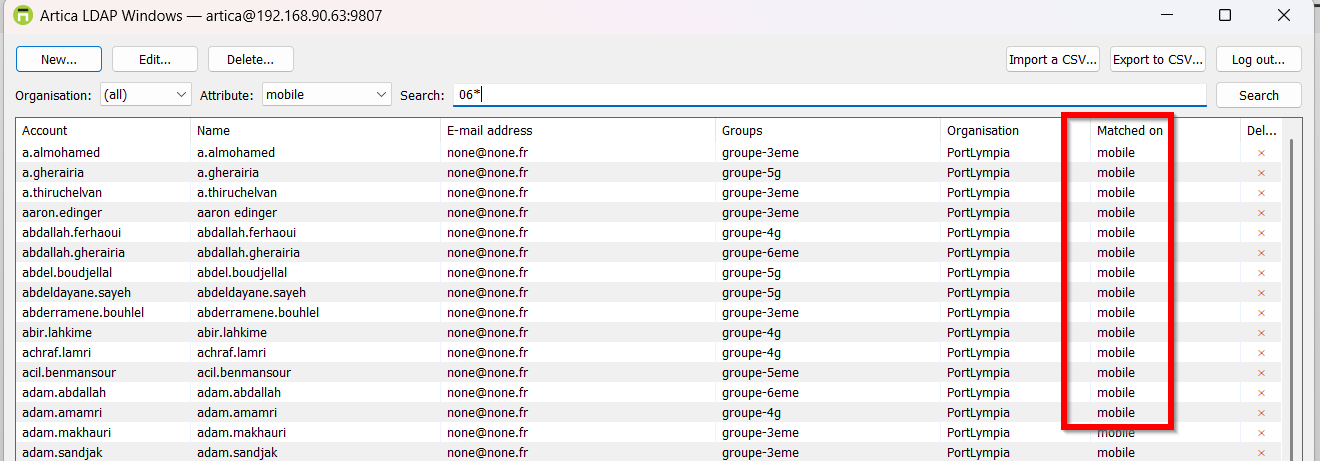
The main window lists the accounts.
The title bar shows the account and the appliance in use.
- Organisation limits the list to one organisation, or (all).
- Attribute limits the search to one attribute, or (all attributes).
- Search: type a text and press Enter.
The Matched on column tells which attribute matched.
Results come 50 by 50, with Previous and Next.
The status bar gives the position, for example 51–100 of 240.
When a search is too wide, the status bar asks you to refine it.
¶ Step 7: Create, edit and delete accounts
¶ Create
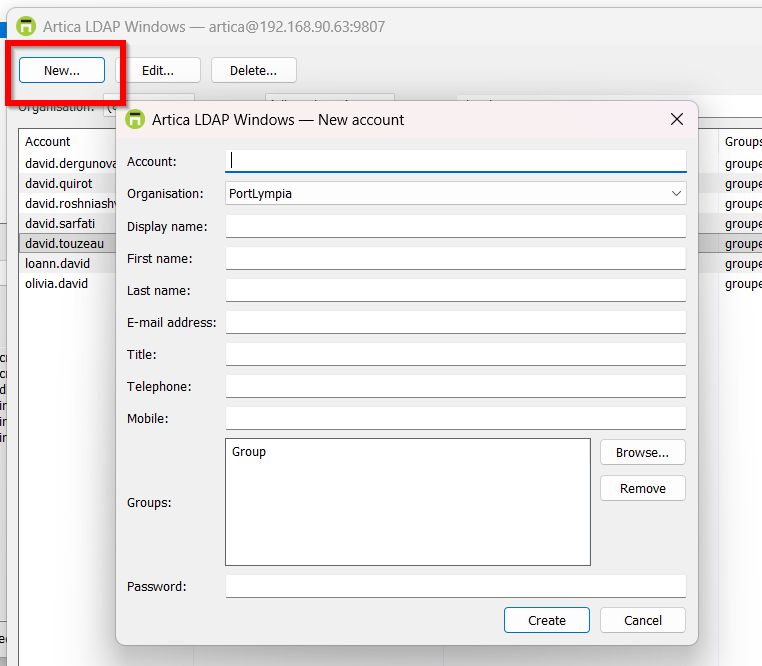
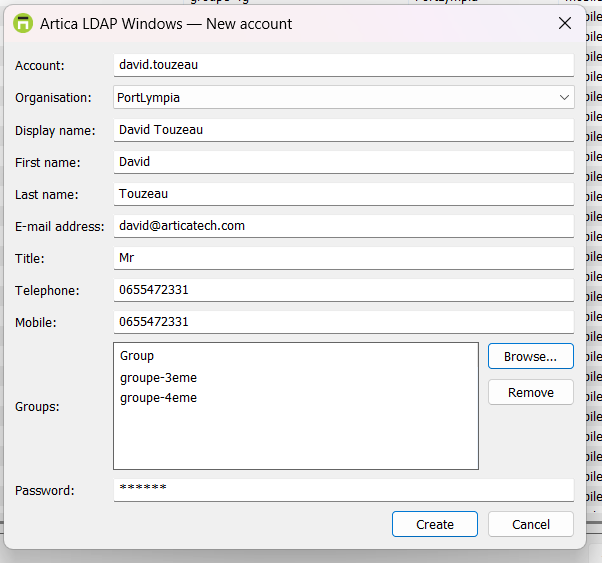
Click on New….
Fill the account, the organisation, the names, the e-mail address and the password.
The console checks the login rules of the appliance before sending anything.
¶ Groups
The Groups table of the account form lists its groups.
- Browse… reads the groups of the organisation and shows them with a check box. The current groups are already ticked.
- Type in Search to filter the list.
- Tick or untick groups, then click on OK.
- To add a group that does not exist yet, type its name in Search and click on New group. The group is created when the account is saved.
- Remove takes the selected lines out of the table.
The groups are read once per form.
Opening Browse… again does not query the appliance again.
- Edit
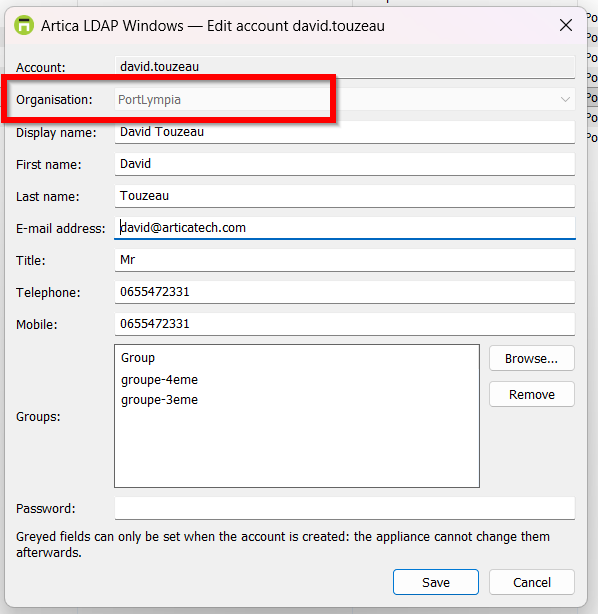
Double-click on a line, or select it and click on Edit….
After creation, the appliance accepts changes on the display name, first name, last name, e-mail address, title, telephone, mobile, groups and password.
The other fields are greyed, and the dialog says why.
The display name cannot be left empty.
Renaming changes the name shown everywhere, but not the internal identifier (DN) of the entry.
An appliance that is not up to date ignores the new display name.
The console reads the account again after saving, and warns you when the name did not change.
- Delete
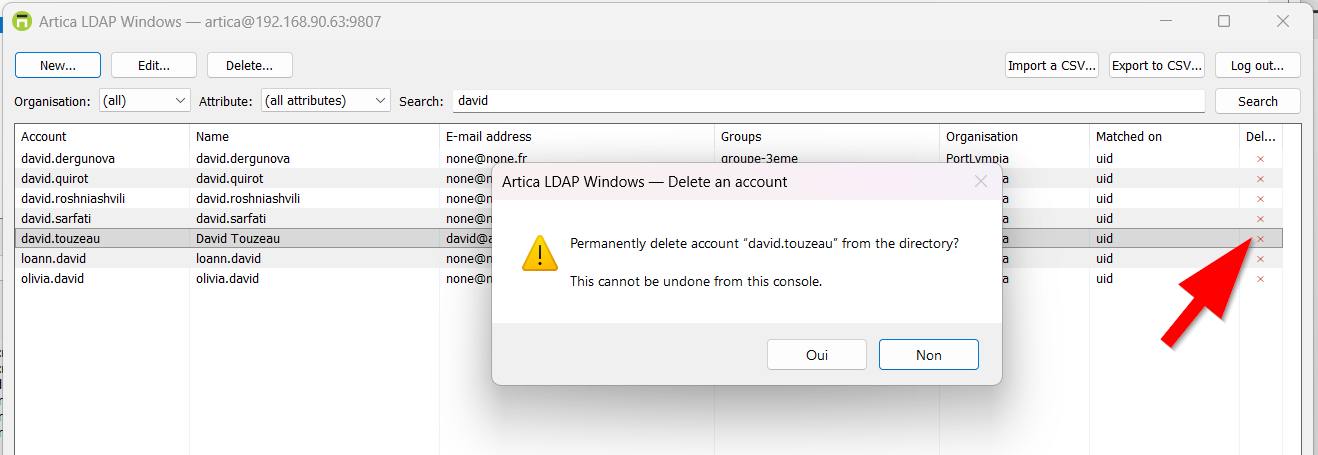
Click on the red cross ✕ at the end of a line, or select the line and click on Delete….
The confirmation names the account.
The default button is No.
On a read-only appliance, the cross is grey.
¶ Step 8: Export to CSV
Click on Export to CSV… and choose the file.
The file opens directly in Excel: semicolon separator, UTF-8 with accents, Windows line endings.
The appliance can only read group memberships account by account.
On a directory of more than 200 accounts, the console asks whether to include them, because it takes one request per account.
- With memberships: the
groupscolumn is filled. The file can be imported back without loss. - Without memberships: the
groupscolumn is left out of the file. Importing it back does not touch any group.
The final message always says which form was produced.
Passwords are never exported.
¶ Step 9: Import a CSV file
Click on Import a CSV… and choose the file.
The console analyses it first and writes nothing during this step.
The Import preview lists, line by line, what will be created, changed, left unchanged or rejected, with the line number in the file.
Click on Apply to write.
A line that fails does not stop the others.
Cancel stops the import, and what is already applied stays applied.
The Import report can be selected and copied into a ticket.
- Columns
The header names the columns.
The order does not matter and the case is ignored.
A column the console does not know makes it refuse the whole file, and the message names it.
| Column | Also accepted | Notes |
|---|---|---|
uid |
username, login | Required. Identifies the account. |
ou |
organisation, organization | Required to create. Set at creation only. |
displayName |
name | Can be changed. |
givenName |
firstname | Can be changed. |
sn |
surname, lastname | Can be changed. |
mail |
email, emailaddress | Can be changed. |
title |
Can be changed. | |
telephoneNumber |
telephone, tel | Can be changed. |
mobile |
Can be changed. | |
groups |
group | Groups separated by |. Missing groups are created in the organisation. |
password |
Required to create. Import only, never exported. | |
postalAddress, l, postalCode |
streetaddress, city, zipcode | Set at creation only. |
An absent column is not an empty cell
This rule matters most.
A column that is absent from the file leaves the attribute untouched.
A cell that is present and empty clears the attribute.
An empty groups cell removes the account from all its groups.
The preview always says which of the two will happen.
A change the appliance cannot apply after creation is shown and marked NOT APPLIED.
¶ Language
The console speaks English and French.
By default, it follows the display languages of Windows.
Any other language gives English.
Add the -lang switch to a shortcut to force a language:
artica-ldap-windows.exe -lang en
artica-ldap-windows.exe -lang frCSV headers and attribute names are never translated.
A file exported in English imports in French, and the reverse.
¶ Log out and forget the certificate
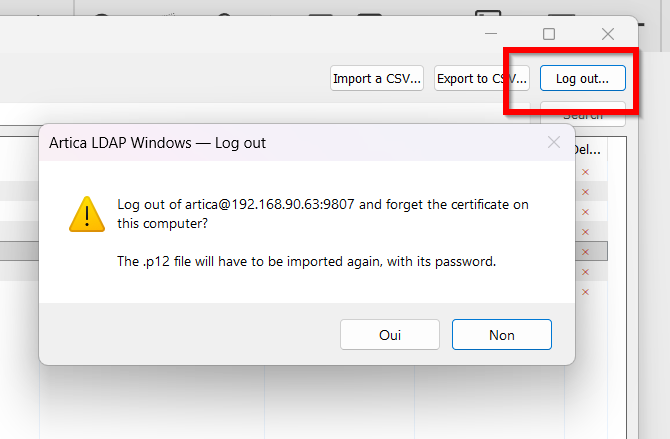
Click on Log out… at the top right of the main window.
The confirmation names the account and the appliance.
The default button is No.
On Yes, the console erases the certificate stored on this computer and closes the window.
The Certificate dialog opens again.
Import another .p12 to connect to another appliance or with another account, or cancel to quit.
Use it before handing the workstation to someone else.
If the certificate cannot be erased, the console says so and stays connected.
¶ Manage the certificates
Back on the Web console, the icons of each line act on the certificate.
- Revoke: the certificate is refused at the next connection. A confirmation is asked first.
- Restore: a revoked certificate becomes valid again.
- Remove: the certificate and its bundle are deleted from the appliance.
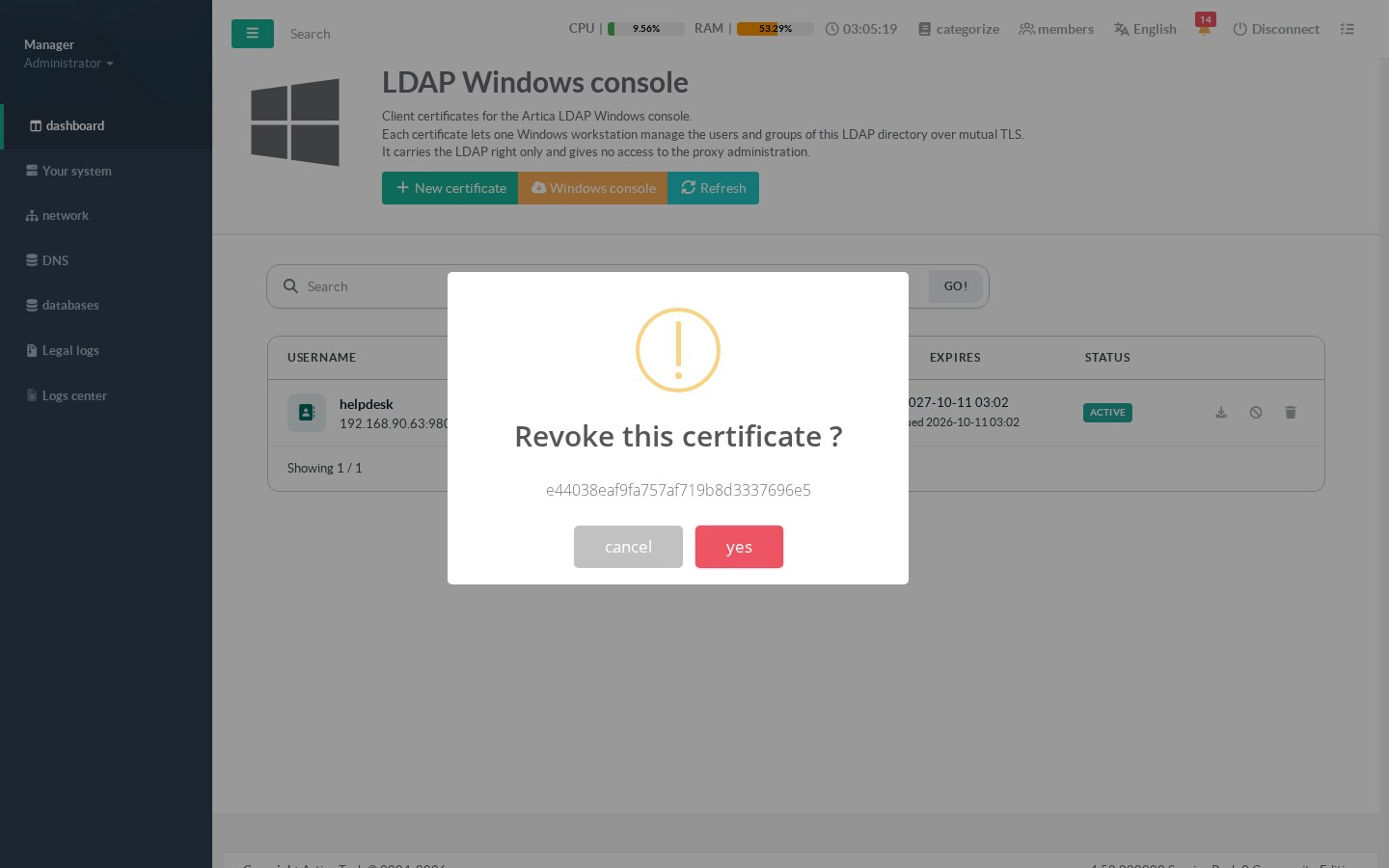
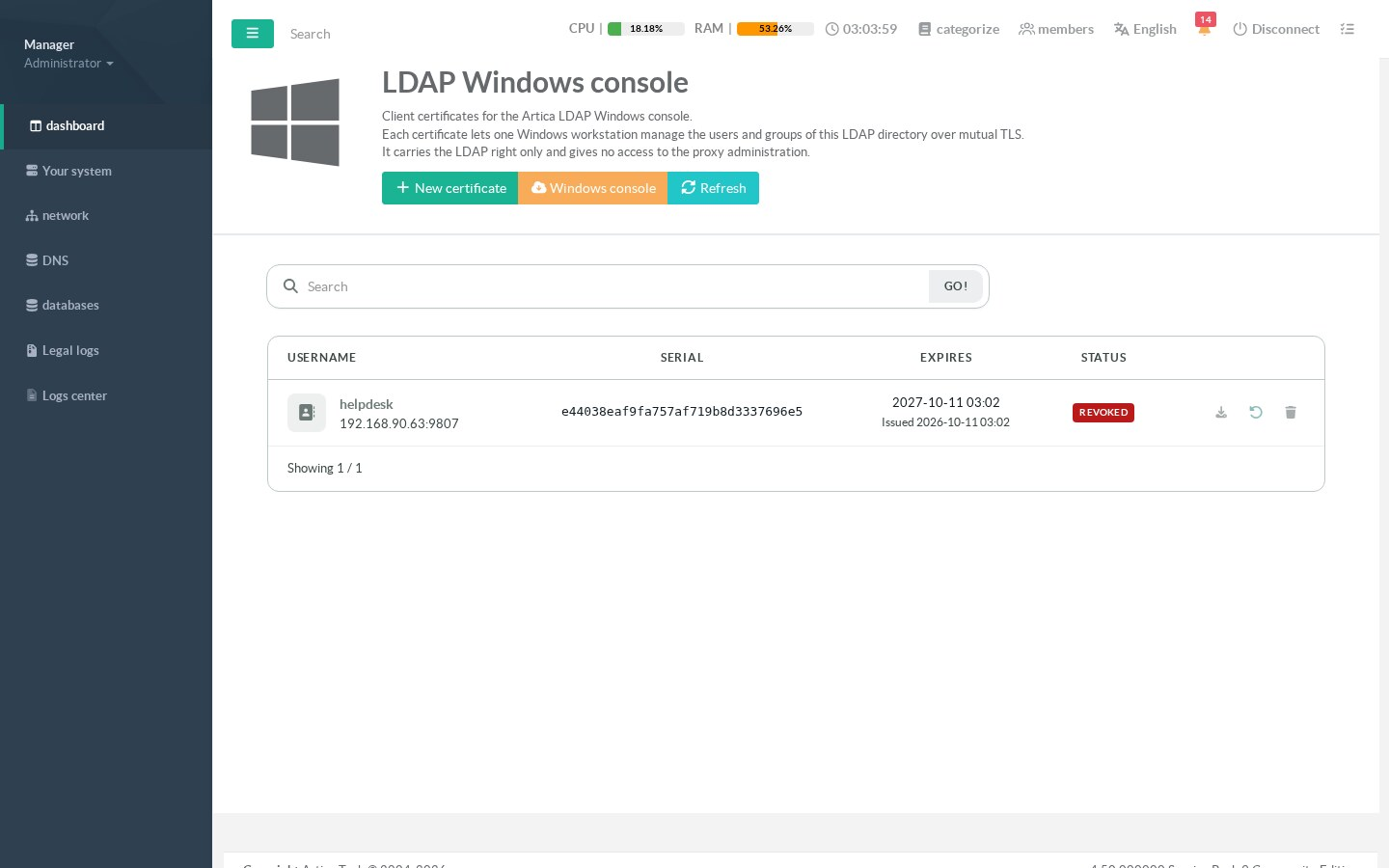
This page shows and acts only on LDAP certificates.
Before each action, the appliance checks again that the serial number belongs to an LDAP certificate.
The certificates of the Proxy Windows console stay on their own page and cannot be revoked from here.
The Proxy Windows console page (Artica Proxy section) can also issue an LDAP certificate.
It refuses to combine the LDAP right with a proxy right.
¶ Security notes
- The LDAP right gives access to the directory routes only.
It cannot reach the proxy, the system or the Web console. - The holder of a certificate can read, create, change and delete the users and groups of the directory.
Issue one certificate per person or per workstation, so you can revoke one without affecting the others. - The
.p12password and the file should travel through different channels. - No password, key or certificate is written in the console messages, logs or exported files.
- Every creation, change, password change, deletion, group change and import is recorded in the administrators audit log (
admin_tracks).
The line names the certificate holder followed by (mTLS console), and the workstation IP address.
It never contains a password. - On a replication consumer, the write buttons are greyed and the status bar says read-only.
Make changes on the master.
¶ Limitations
The appliance does not offer these operations to the console yet.
The console shows them as unavailable instead of pretending.
- Delete, rename or describe a group.
- List the members of a group.
- Create or delete an organisation.
- Enable or disable an account.
¶ Troubleshooting
| Message or symptom | Cause and solution |
|---|---|
| The Web console page shows Mutual TLS listener stopped. | Click on Enable The Listener. |
| the appliance is unreachable or did not answer | Check that the workstation reaches the address and port written in the certificate (9807 by default). Check the firewall between them. |
| certificate rejected by the appliance | The certificate is revoked, expired or was removed. Issue a new one. |
| The certificate is refused at import and the message names a proxy right. | It is a Proxy Windows console certificate. Issue one from the OpenLDAP section. |
| The workstation uses another name or IP than the one in the certificate. | The address is written in the certificate. Issue a new certificate with the right Server Address. |
| The write buttons are greyed. | The appliance is a replication consumer, or its version is too old to give its directory rules. The status bar tells which. |
| The console stops on an unexpected error. | Send the file %APPDATA%\ArticaLDAPWindows\crash.log to the support. |