An Artica SIEM appliance stores and analyses the traffic of the proxies that report to it.
Before a proxy can send anything, it must be declared on the SIEM and given a client certificate.
This page walks through the whole operation: the SIEM side in Statistics/SIEM > Nodes, then the proxy side in Your proxy > Stream logs to Artica SIEM.
¶ Why connect a proxy to the SIEM
A proxy on its own only knows its own traffic, and only for as long as it keeps its logs. Sending its access logs to a SIEM changes that in several concrete ways.
- One place for every proxy.
Ten proxies across five sites answer as a single dataset: one search, one dashboard, one bandwidth ranking — instead of ten consoles to open and compare by hand.
- Long retention without loading the proxy.
Events are stored in ClickHouse on the SIEM and pre-aggregated into rollups. The proxy keeps only what it needs to run, and a year-old question is still answerable.
- Real time, over an encrypted link.
Logs are streamed as they happen over mutual TLS, not collected by a nightly batch. An investigation started at 14:00 sees 13:59.
- Your data stays on your premises.
The SIEM is an appliance you own. Nothing is sent to a cloud service, which is what makes the setup usable where a hosted SIEM is not an option.
- Tenant separation.
Each proxy is attached to a tenant. An operator scoped to one tenant sees that tenant only — the separation is resolved by the server, not by the interface.
- Identity you can revoke.
A proxy is identified by its certificate fingerprint. Revoking one proxy stops that proxy and leaves every other one untouched.
- Enrichment the proxy cannot do alone.
Geolocation, category breakdowns, per-user and per-site rankings and alerting are computed on the SIEM, from data several proxies contribute to.
¶ Use cases
- Multi-site organisation. One proxy per branch, one SIEM at head office. Bandwidth, blocked requests and top destinations are compared across branches on the same screen.
- Managed service provider. One SIEM, one tenant per customer. Each customer's operators see their own traffic; the provider keeps a global view.
- Compliance and legal retention. Access logs are retained on a dedicated appliance, away from the machine that produces them — so a compromised or reinstalled proxy does not take the history with it.
- Incident investigation. "Which workstation reached this domain, when, and was it blocked?" is one search on the SIEM rather than a grep on every proxy.
- Capacity planning. Bandwidth per site and per user over months is what tells you which link to upgrade.
¶ Before you begin
- The proxy must reach the SIEM on TCP 9443 (the ingestion port).
Check it from the proxy before starting. - At least one tenant must exist on the SIEM (
Statistics/SIEM > Tenants).
The proxy form cannot be saved without one. - The SIEM ingestion port must be serving TLS.
See Troubleshooting below: if it serves cleartext, the proxy install fails with an error that appears to blame the certificate. - You need an account with the global role on the SIEM console;
the Proxies page is refused otherwise.
¶ Declare the proxy on the SIEM
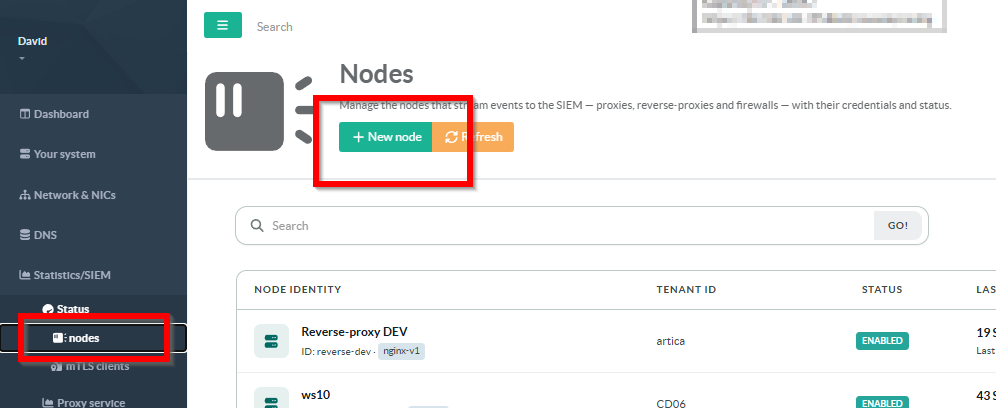
On the SIEM console, open Statistics/SIEM > Nodes.
The page lists every declared collector with its tenant, its status, when it was last seen, and its certificate.
Two columns answer “is this collector alive?” together, and they are not redundant.
Last seen tells you a packet arrived. Events (24h) tells you how much traffic actually flowed over the last day — a proxy that reconnects every minute and forwards nothing looks perfectly healthy on Last seen alone.
A dash in that column means the SIEM could not compute the figure, which is not the same statement as a zero.
Click New Node to open the declaration form.
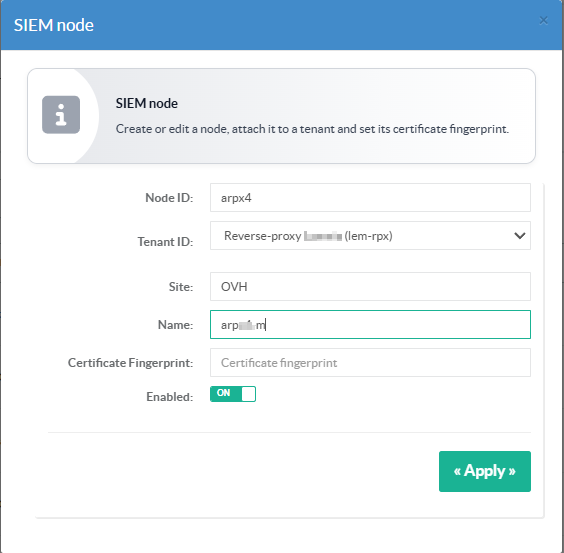
| Proxy ID | Required. The technical identity of the collector, and the Common Name written into its certificate. Use something stable and readable — proxy-129, proxy-paris. It cannot be changed later without issuing a new certificate. |
| Tenant ID | Required. The tenant this proxy's traffic belongs to. It becomes the certificate's Organization field and drives who is allowed to see the data. |
| Site | Optional. A free label used to group nodes of the same location in the dashboards. |
| Name | Optional. The display name in the console. Falls back to the node ID when empty. |
| Certificate fingerprint | Leave empty. It is filled automatically when you generate the certificate in step 2. |
| Enabled | Whether the SIEM accepts data from this node. Leave it on. |
Click Apply.
The node appears in the list with a green DOWNLOAD button in the Certificate column and Never under Last seen — it has been declared but has not sent anything yet.
¶ Generate the client certificate
Click DOWNLOAD on the node's row. The console asks for confirmation, then your browser downloads <node-id>-install.tar.gz.
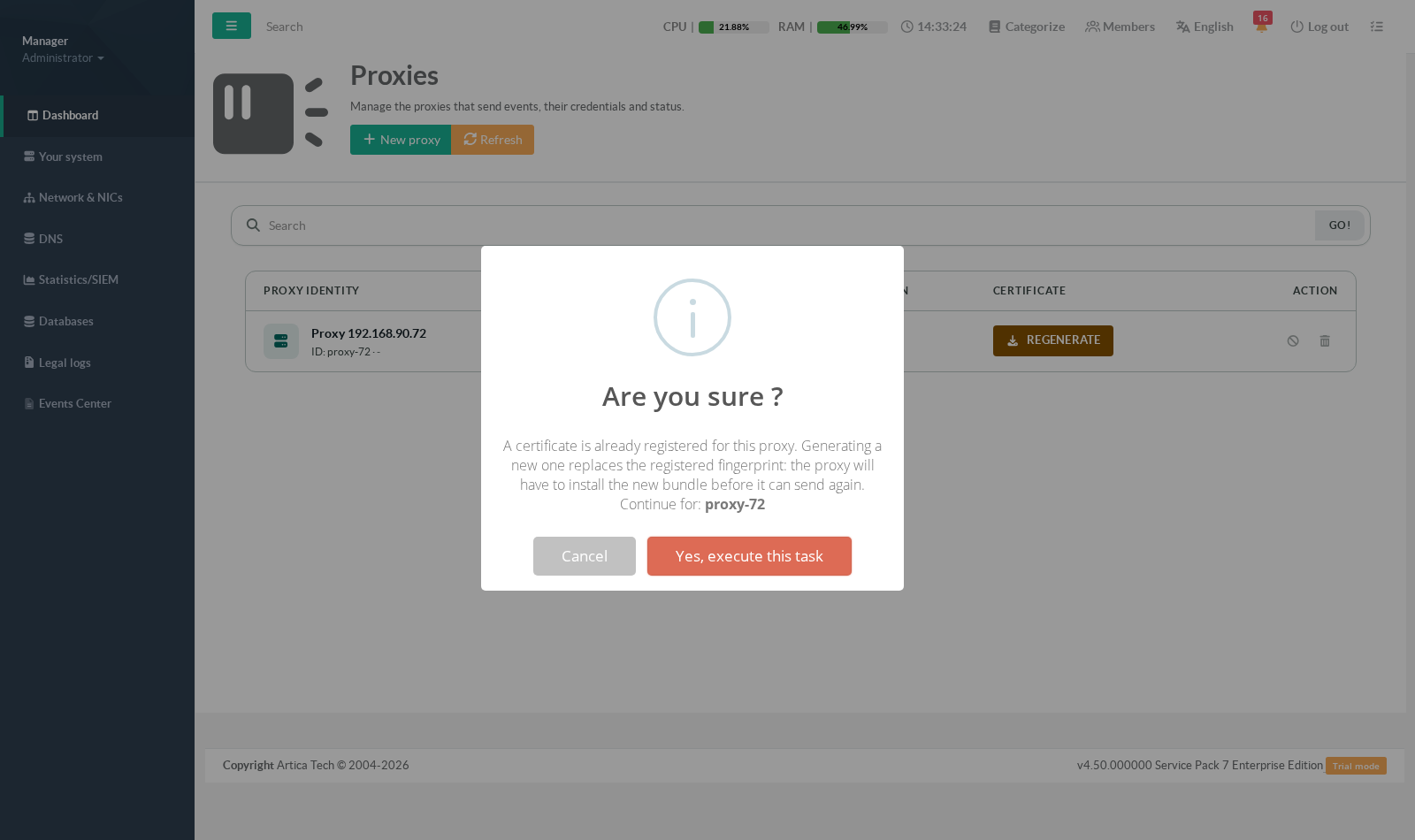
The archive contains three files:
client.crt— the node's certificate (Common Name = node ID, Organization = tenant, valid two years)client.key— its private keyca.crt— the SIEM's certificate authority, used by the node to authenticate the SIEM
The button says REGENERATE once a certificate exists, and it turns amber.
Generating a certificate is not re-downloading the previous one: a new certificate is issued and its fingerprint replaces the registered one, so the copy currently installed on the proxy stops being accepted. Use it when a proxy is reinstalled or a key is compromised — and plan to install the new bundle immediately.
¶ Step 3 — Install the bundle on the proxy
On the proxy console, open Your proxy → Stream logs to Artica SIEM/Statistics service. While no SIEM is configured, the widget reads This proxy is not connected to a SIEM.
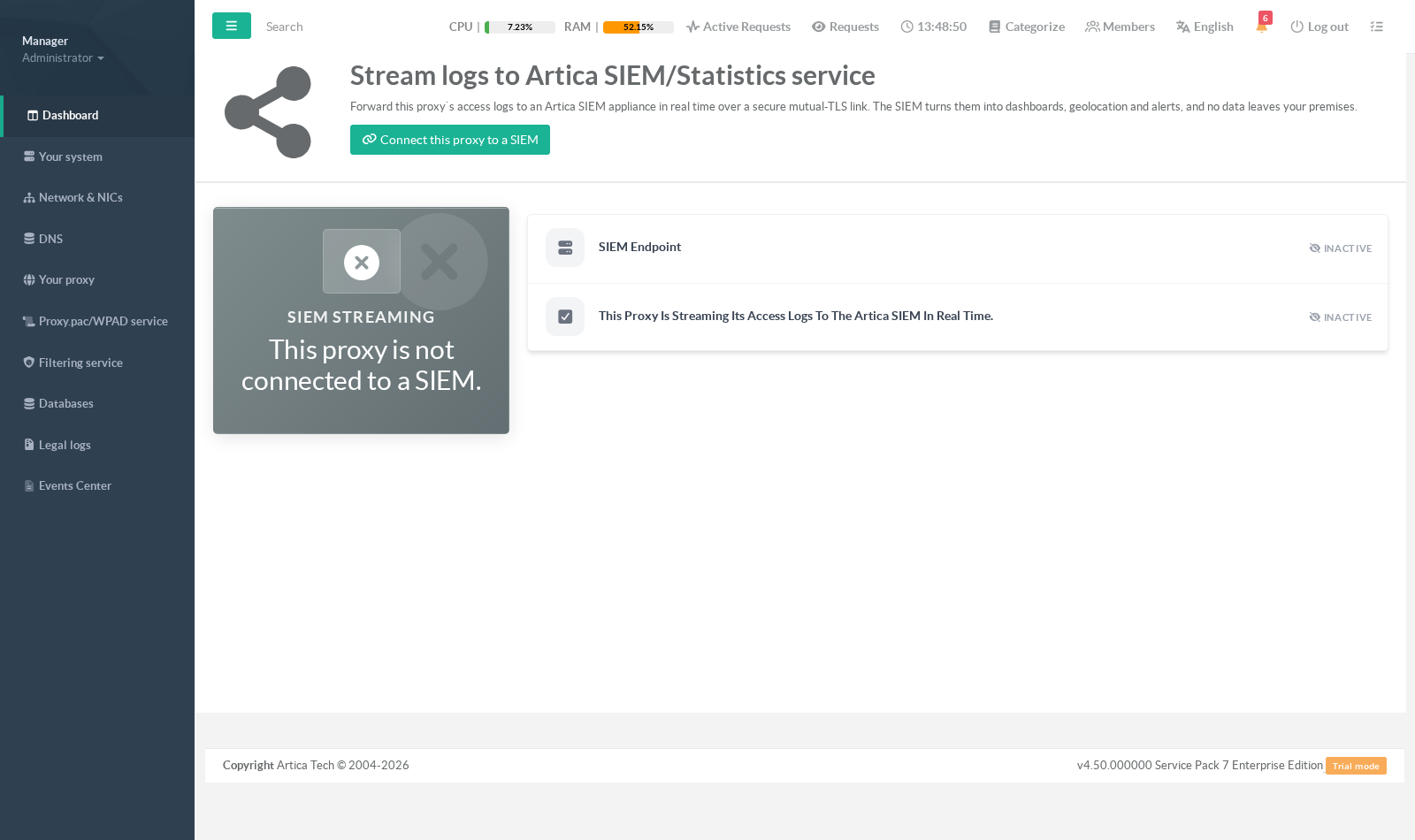
Click Connect this proxy to a SIEM, upload the .tar.gz you downloaded in step 2, and enter the SIEM address.
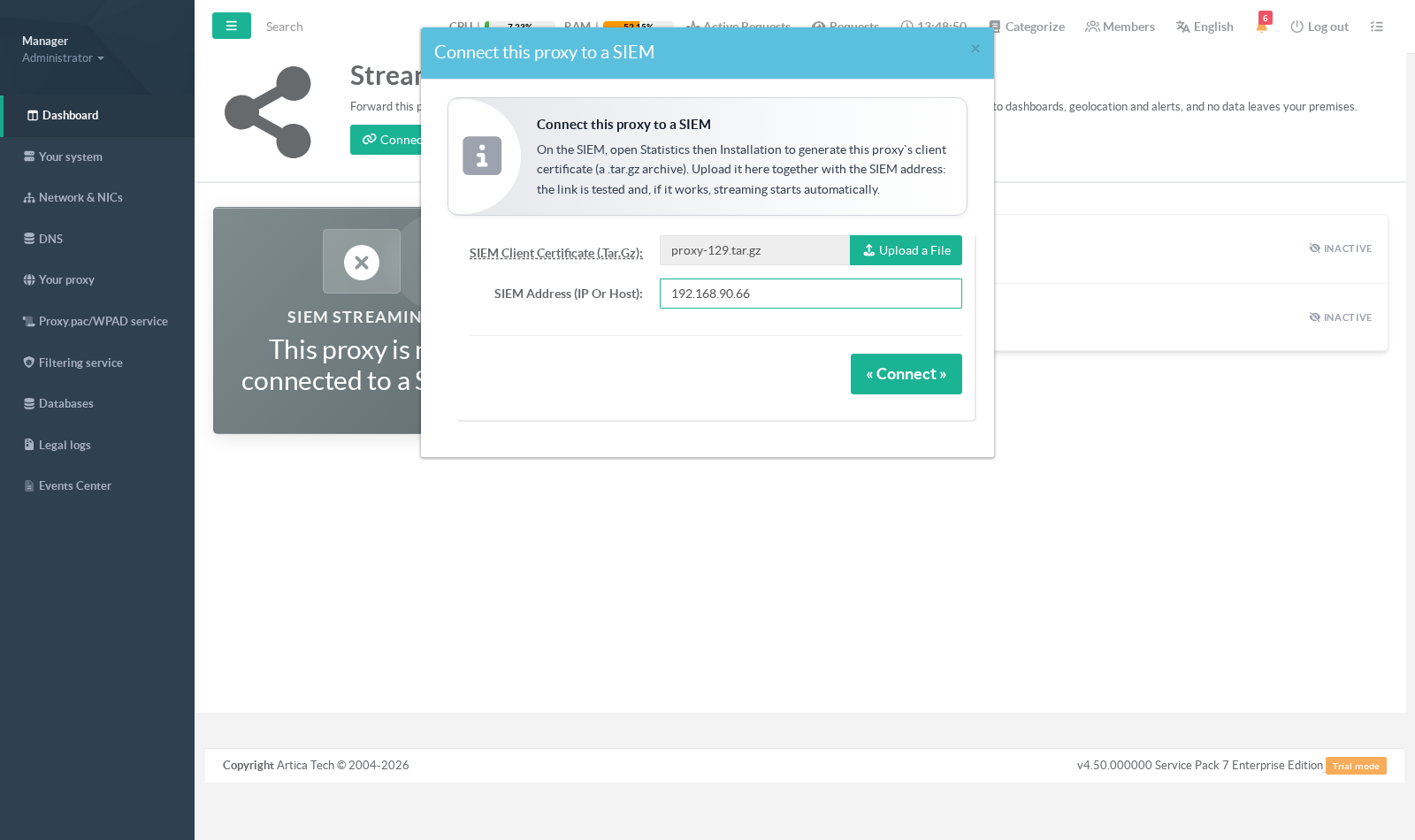
- SIEM client certificate (.tar.gz)
The archive, uploaded as-is.
Do not unpack it. - SIEM address (IP or host)
The address of the SIEM appliance, here192.168.90.66.
It must be the address the proxy can reach on port 9443, and it must match what the SIEM certificate presents.
Click Connect.
The proxy stores the certificate, tests the mutual-TLS link and, only if the test succeeds, enables streaming.
A failure is reported in the dialog and nothing is enabled — so a wrong address or a stale certificate never leaves the proxy half-configured.
¶ Step 4 — Verify
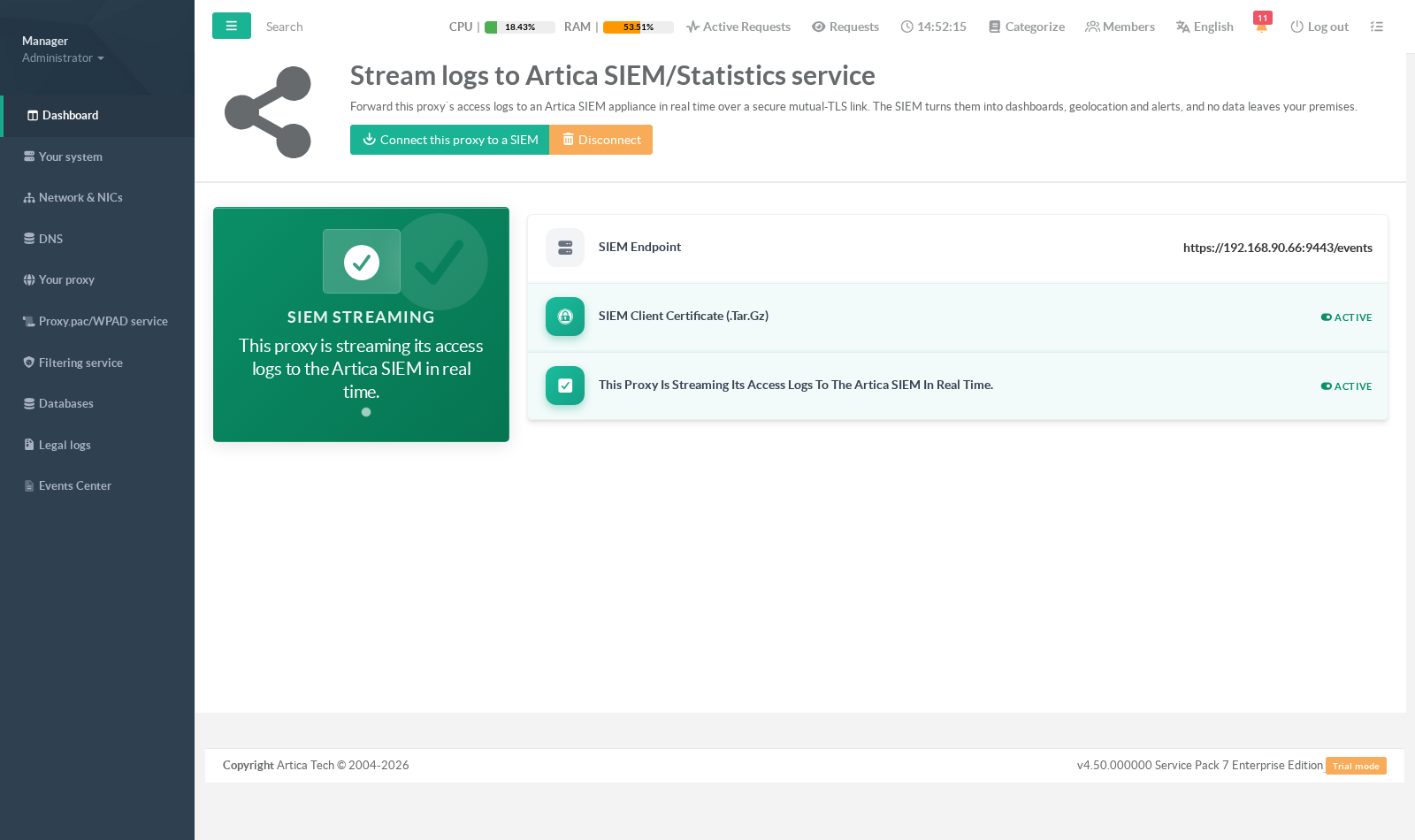
- Once connected, the proxy panel turns green and shows the SIEM endpoint it reached.
The certificate state and the streaming state — together with a Disconnect button to stop it again.
- On the SIEM, go back to Statistics/SIEM → Proxies.
The row now reports the protocol the proxy speaks (lfdb-v2) next to its ID, and Events (24h) starts counting.
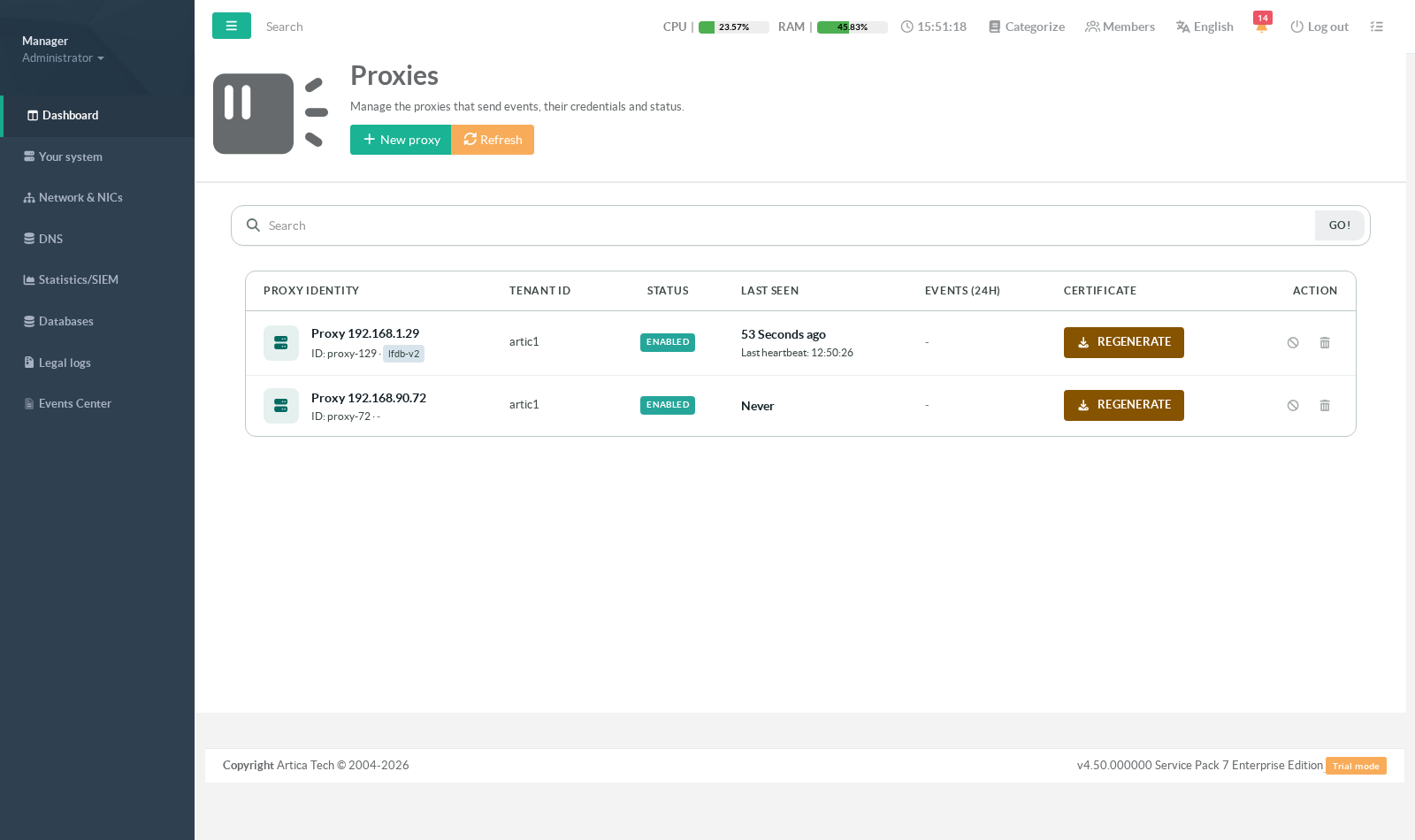
- The Last seen column switches from Never to a relative age (“2 mins ago”) with the exact time underneath.
That column is the real proof of the link — a collector that stops reporting is called out in red rather than shown as an old but ordinary date.
¶ Managing a collector afterwards
| Revoke | Stops accepting data from this proxy while keeping its declaration and its history. Reversible with the play icon. |
| Re-enable | Puts a revoked proxy back into service. It is a separate, explicit action — toggling Enabled in the form is not what re-enables a collector. |
| Delete | Removes the declaration. Data already stored is not deleted with it. |
| Regenerate | Issues a new certificate and invalidates the current one (see the warning in step 2). |
¶ Troubleshooting
“server gave HTTP response to HTTPS client”
The proxy always dials https:// on port 9443, because presenting its client certificate is the whole point of the bundle. This error means the SIEM ingestion port answered in cleartext, so the problem is on the SIEM, not with the certificate you just installed.
Check /etc/artica-siem/config.yml on the SIEM:
- The
securitysection must point at an existingcert_fileandkey_file, - The ingestion listener must actually be serving TLS.
You can confirm it from any machine that reaches the SIEM:
curl -sk https://<siem>:9443/health/live # expected: livecurl -s http://<siem>:9443/health/live # expected: refused as an HTTP request to an HTTPS server
If the plain-HTTP call answers live instead, the port is serving cleartext and no client certificate will ever get you in. Restart the SIEM service after fixing the configuration.
Last seen stays on “Never”
- The proxy cannot reach the SIEM on TCP 9443 — test it from the proxy itself.
- The certificate was regenerated on the SIEM after being installed: the fingerprint no longer matches. Download the bundle again and re-install it.
- The collector is revoked: its status badge reads DISABLED in the list.
Events (24h) shows a dash
A dash is not a zero. It means the SIEM did not return the figure — either the activity query failed, or the appliance runs a version that does not compute it yet. The collector may well be sending normally; check Last seen, which comes from a different source.
The proxy form refuses to save
Proxy ID and Tenant ID are both mandatory. If the tenant list is empty, declare a tenant first in Statistics/SIEM → Tenants.
The SIEM address field
Enter the address of the SIEM appliance, not of the proxy. The field is deliberately left empty: a pre-filled localhost is valid-looking and almost always wrong, and it produces a connection failure that appears to blame the certificate.