Access Rules let you build advanced, self-contained web-access policies around the HTTP protocol and your network environment. Each rule pairs a set of incoming criteria (who the request comes from) with a set of outgoing criteria (where the request is going) and a single verdict — Allow or Deny. Rules are evaluated top-to-bottom, first match wins.
¶ Overview
The Access Rules page (Your proxy > Access rules) is the simplest way to express a complete web-filtering decision without editing raw Squid ACLs.
A rule reads naturally as one sentence:
“Deny the Sales subnet (incoming) access to Facebook, TikTok and Instagram (outgoing).”
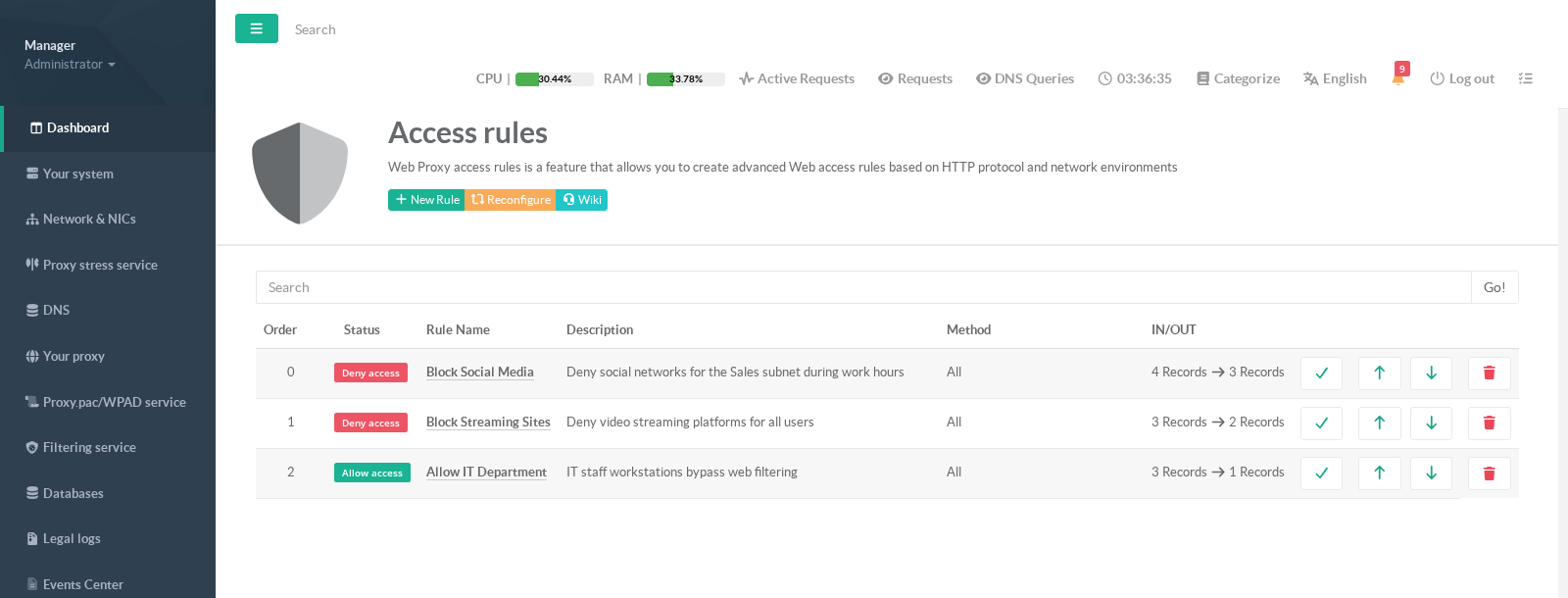
Every row shows, from left to right: the evaluation Order, the Status verdict badge (Deny access / Allow access), the Rule Name, a free-text Description, the listening Method (which proxy port the rule applies to, or All), and the IN/OUT counters (number of incoming and outgoing criteria attached).
The action icons let you enable/disable, reorder (up/down) and delete a rule.
Access Rules are powered by the Web-filtering filtering engine.
If the engine is disabled the page offers a one-click Install Go-Shield Server button before any rule can run.
¶ Benefits
- Readable policy, no ACL syntax.
Express an allow/deny decision as one plain-language rule instead of hand-writingacl/http_accessdirectives.
- Two-dimensional matching.
Combine who (source IP, MAC address, client hostname) with where (destination domain or content category) in a single rule.
- Deterministic ordering.
Rules are first-match-wins and can be reordered live, so you can layer broad allows under narrow denies (or the reverse) with predictable results.
- Categories, not endless lists.
Attach a whole Artica web-filtering category (Social networks, Streaming, Advertising, Artificial Intelligence…) instead of maintaining a domain list by hand.
- Custom block pages.
Each deny rule can serve its own branded notification page to the user.
- Non-disruptive editing.
Toggle a rule on/off or change its order without deleting it — ideal for troubleshooting or scheduled exceptions.
¶ Use cases
| Goal | Verdict | Incoming criteria | Outgoing criteria |
|---|---|---|---|
| Block social networks for one department | Deny | Source IP 192.168.1.0/24 |
Domains facebook.com, tiktok.com, instagram.com |
| Block video streaming for everyone | Deny | Source IP 10.0.0.0/8 |
Category Audio/Video streaming (or domains youtube.com, netflix.com) |
| Exempt IT staff from all filtering | Allow (placed above the deny rules) | Source subnet + admin laptop MAC address | All destinations (*) |
| Guest Wi-Fi: allow only a business whitelist | Allow the whitelist, then a final Deny * | Guest subnet | Approved domains, then * |
¶ Creating a rule
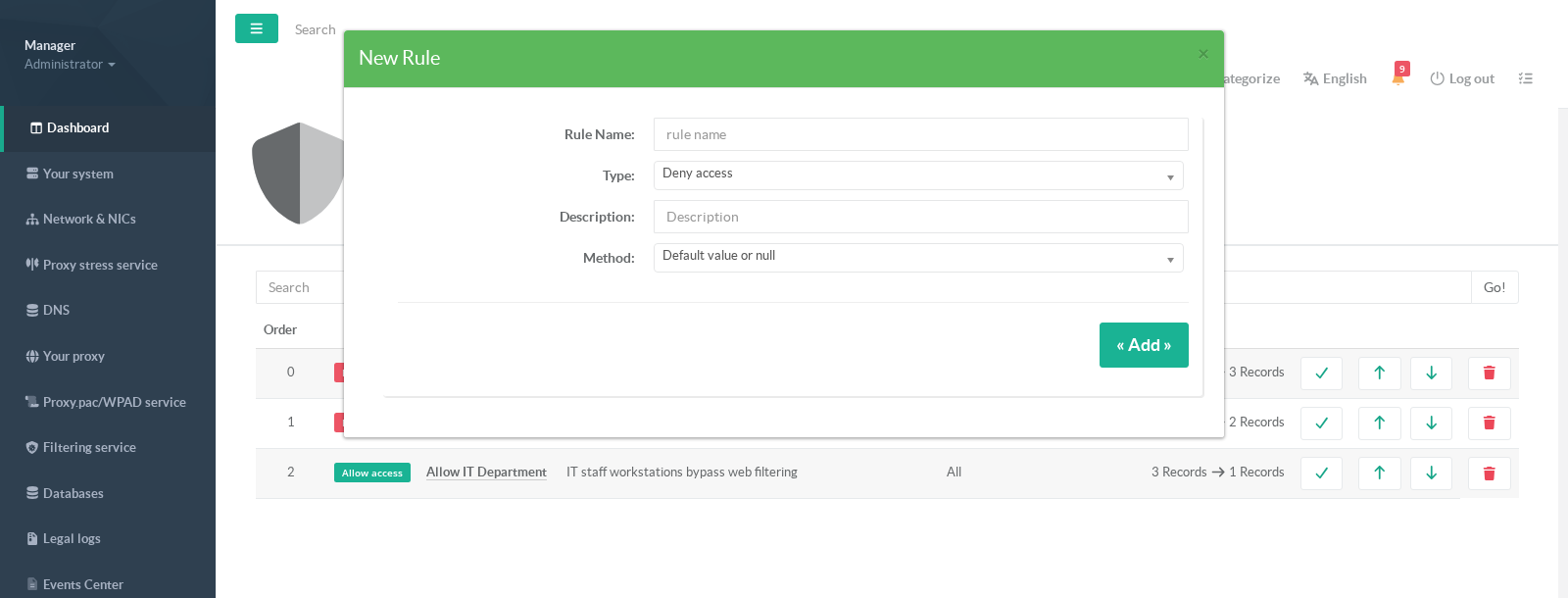
- Click New Rule in the page header.
Give the rule a name, choose its type (Deny access or Allow access), an optional description, and the method (the proxy listening port it applies to, or leave the default to apply to all ports).
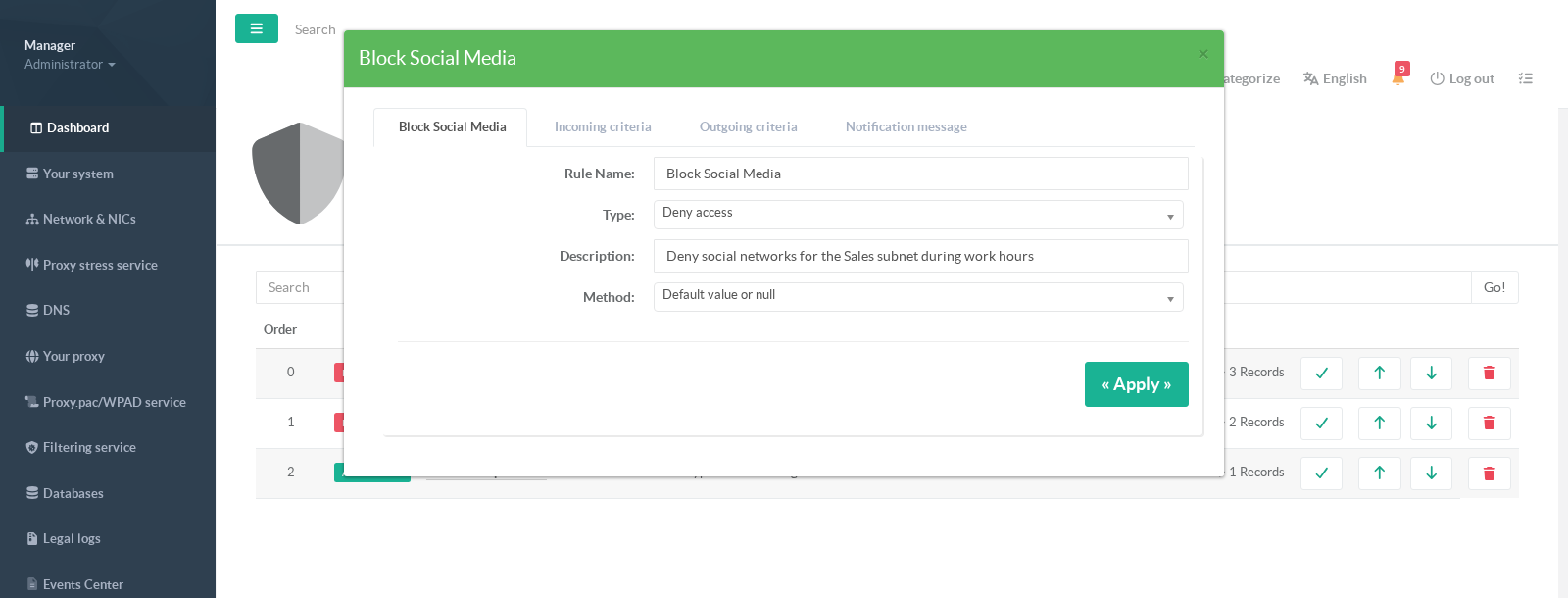
- Once created, click the rule name to open its settings.
The first tab holds the same core properties and an Apply button.
¶ Incoming criteria (who)
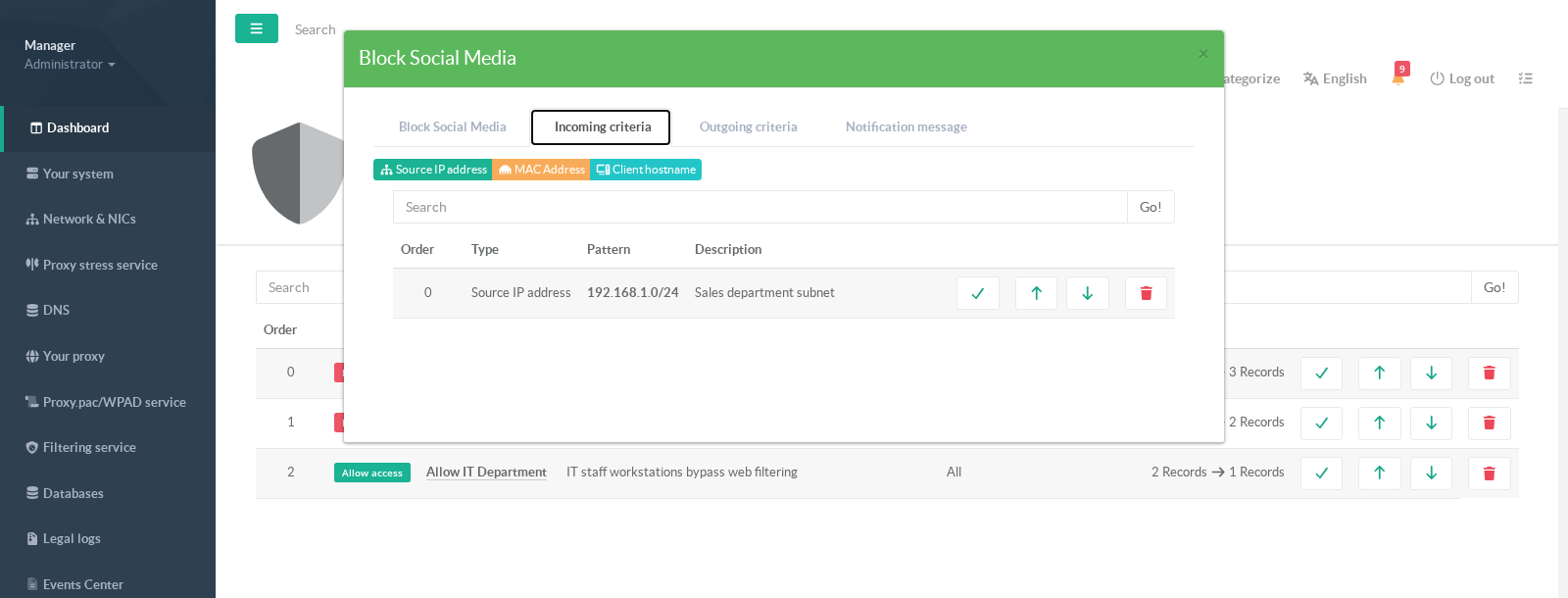
The Incoming criteria tab defines the source of the request.
Use the header buttons to add one or more of:
- Source IP address — a single host or a CIDR subnet (e.g.
192.168.1.0/24). - MAC Address — match a specific network card on the local LAN.
- Client hostname — match by the client’s resolved host name.
If a rule has no incoming criteria it matches every source.
¶ Outgoing criteria (where)
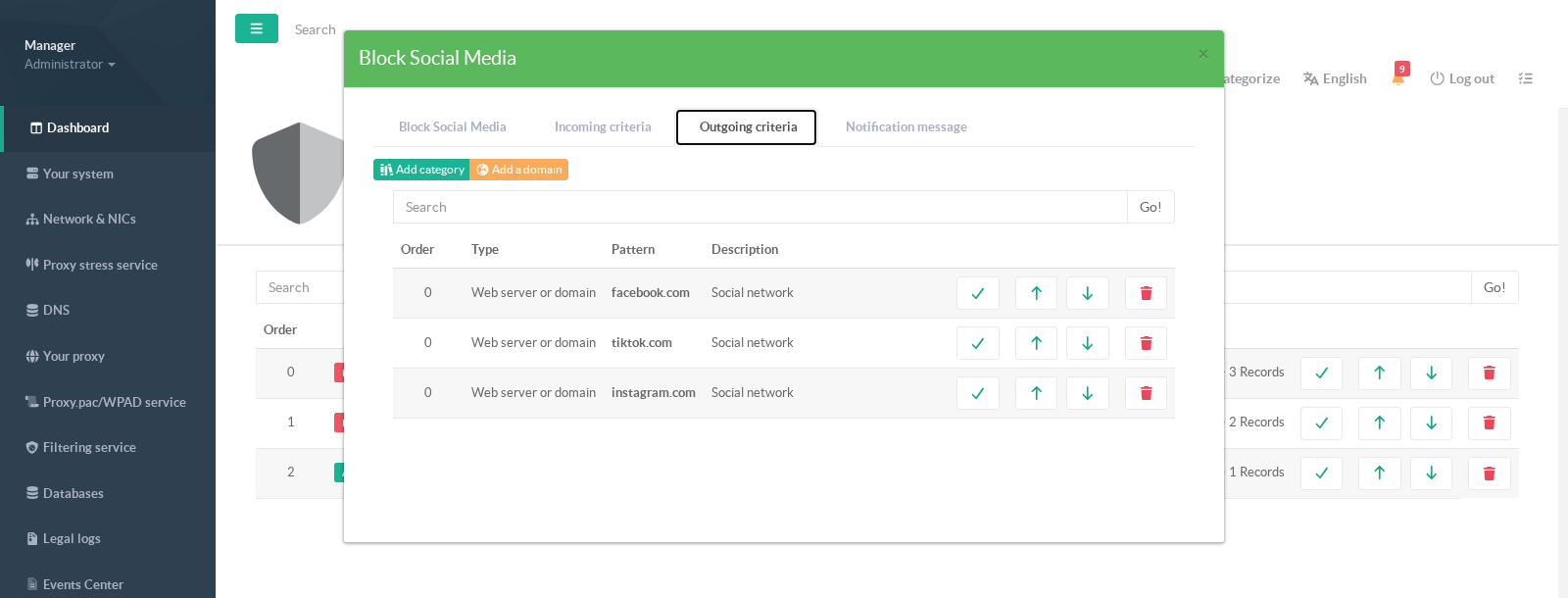
The Outgoing criteria tab defines the destination. Use the header buttons to add:
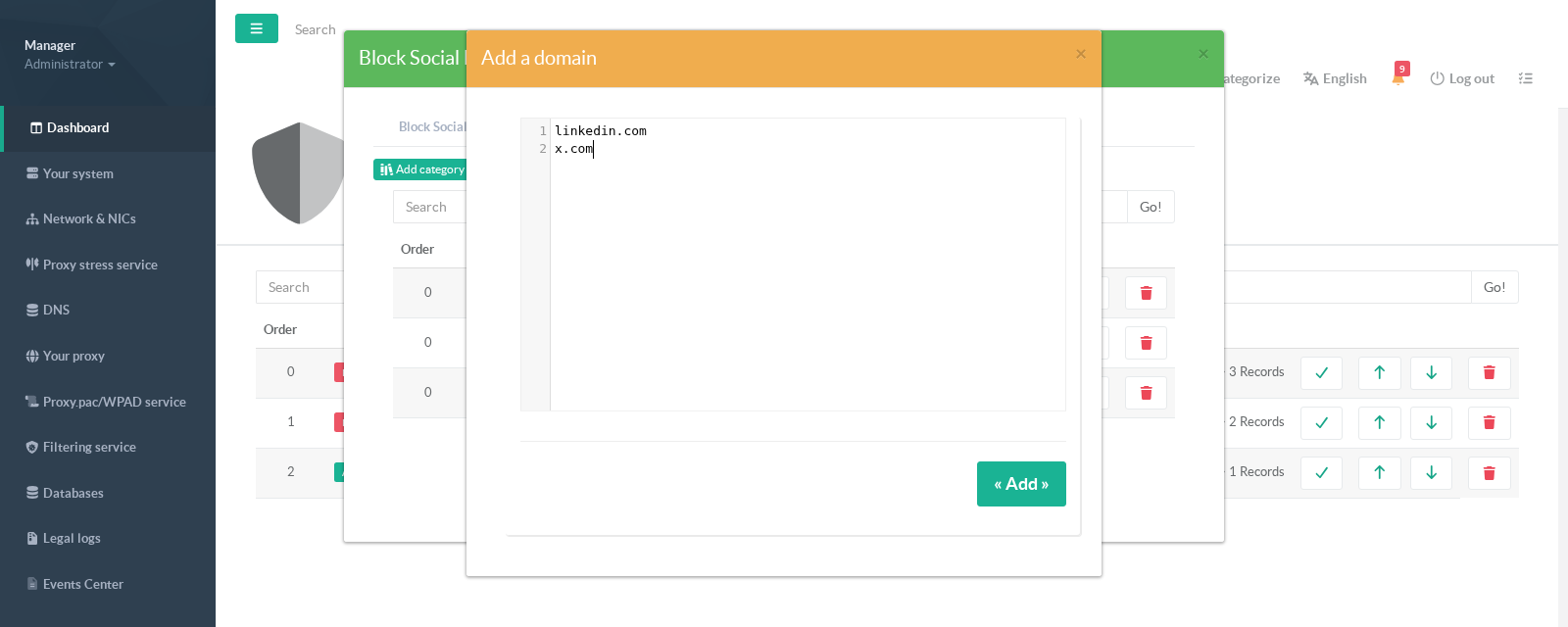
- Add a domain — one or more destination domains, one per line. A single
*matches every destination (useful for a catch-all Allow/Deny).
URLs are automatically reduced to their host, and IDNs are converted to ASCII. - Add category — attach a whole Artica web-filtering category so the rule follows the category as it is updated.
If a rule has no outgoing criteria it matches every destination.
¶ Adding domains
- Paste destination domains one per line. Entries are cleaned and de-duplicated on save.
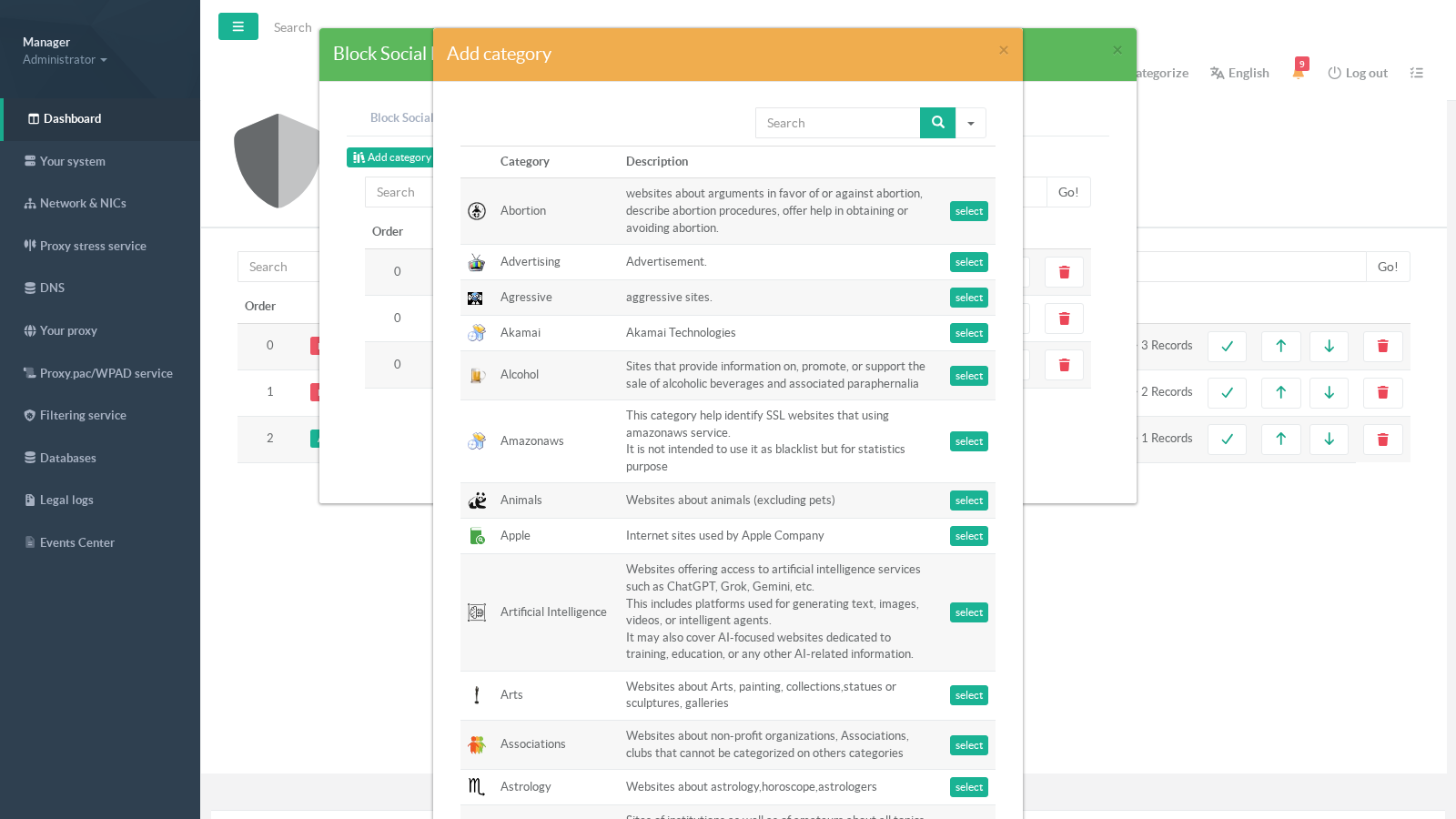
¶ Adding a category
- Pick a category from the searchable picker to match an entire class of sites at once (Social networks, Advertising, Artificial Intelligence, Alcohol…).
Categories already attached to the rule are hidden from the list.
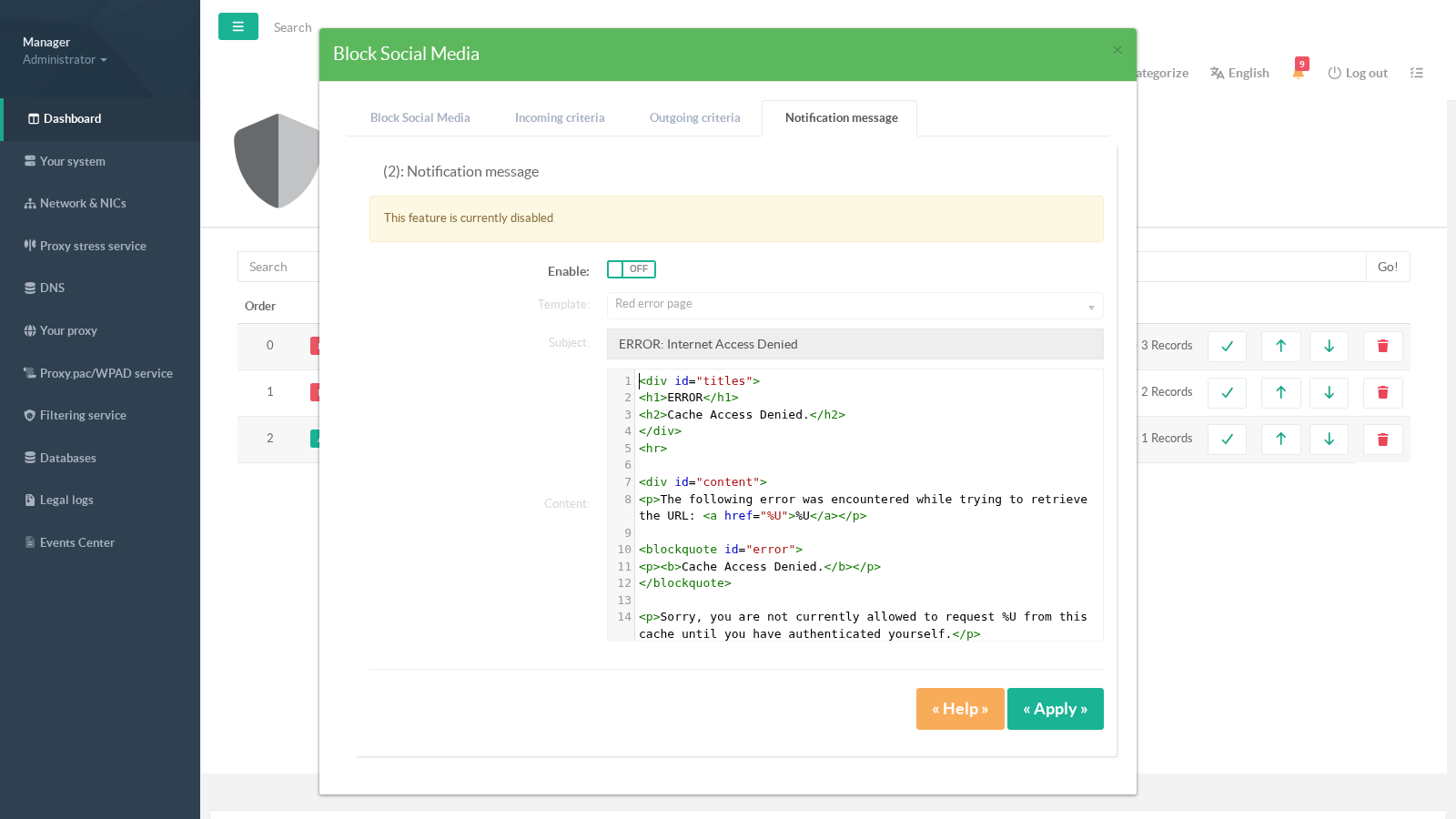
¶ Notification message (deny rules)
- For a Deny rule, the Notification message tab lets you serve a custom block page instead of the generic proxy error.
Enable it, pick a template, set the subject and edit the HTML body. Squid substitution macros such as%U(requested URL),%h(host) and%T(timestamp) are supported.
¶ Applying changes
After adding, editing or reordering rules and criteria, the configuration is pushed to the filtering engine automatically.
If you change several rules at once, use the Reconfigure button in the page header to force an immediate rebuild.
¶ Ordering matters
Because evaluation is first-match-wins, place narrow exceptions above broad rules.
For example, to let IT staff bypass a company-wide streaming block, the Allow IT Department rule must sit above the Block Streaming Sites rule.
Use the up/down arrows on each row to adjust priority.