The Windows agent connects your Windows workstations to the Artica File Server appliance through a certificate-authenticated channel.
Once a workstation is enrolled, its users get their personal drive, a search box over every document they are allowed to read, search results in their web browser, and an automatic backup of their Documents, Pictures and Music folders — without typing a server name, a share path or a password twice.
This page covers the administrator side:
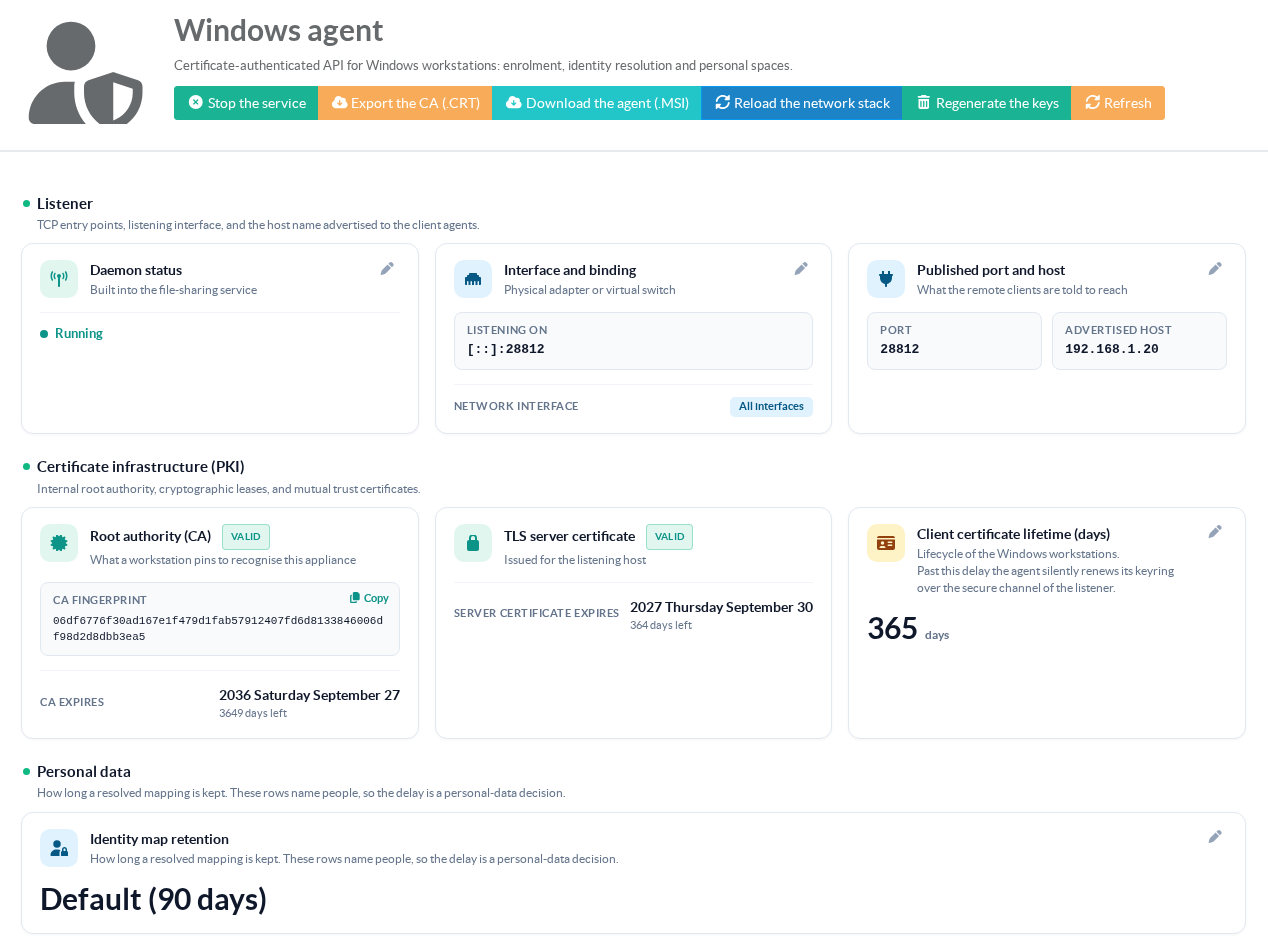
The Windows agent page of the console (Files Sharing › Windows agent), the deployment of the agent on the workstations, and the enrolment of each workstation on an instance.
¶ Concept
Four pieces work together:
- The listener
A TLS 1.3 entry point built into the file-sharing service of the appliance (TCP port 28812 by default). It stays closed until you start it from this page.
- The appliance's own certificate authority (CA)
Created the first time the service starts. It signs the listener's server certificate and one client certificate per workstation. A workstation trusts this appliance, and only this appliance, because it pins the fingerprint of this CA.
- The agent on the workstation
A Windows service (running as LocalSystem) that holds the workstation's certificate, plus a notification-area icon in each user session. It is installed from an .MSI package, by hand or by Group Policy.
- The enrolment code
A one-time code minted by the administrator for a given instance. Typed once on the workstation, it proves the workstation may join, and it is consumed on first use. The workstation then receives its own certificate and never needs the code again.
A certificate identifies a workstation, not a person.
What a workstation may search is therefore decided by the administrator:
Each enrolled workstation is bound to a server account, and every search it sends runs with the rights of that account.
A workstation with no bound account cannot search at all — it never falls back to "everything that is readable by everyone".
¶ What the users get
- Their personal drive, mounted automatically.
With personal spaces enabled on the instance, the first connection creates the user's home directory on the appliance and maps it as drive U:.
If the matching Samba account does not exist yet, the icon asks the user once for the password to give it.
- A "Search…" window in the notification-area icon.
Word-start search with suggestions, over the document index of the instance, filtered by the permissions of the bound account.
A result opens in its application (Word, Photos, Notepad…) or in Explorer.
- Search from the web browser.
The agent adds an @artica search keyword to Firefox (Chrome and Edge are guided through the same step), served by a local gateway on the workstation — the appliance's web console is never exposed to the users.
- Automatic backup of Documents, Pictures and Music.
Changes are sent to the user's personal space in the background.
An automatic brake pauses the backup when too many known files are rewritten or change extension within 10 minutes (200 files or 20 % of the folder, whichever is larger) — the typical footprint of ransomware encrypting a laptop — so the copy on the appliance is not overwritten. The user resumes it from the icon once the cause is understood.
¶ Why use it
- Search is instant because it does not crawl the network.
The workstation does not open, list or read the shares to find a file:
It asks the appliance, which answers from its own index.
Only the result list crosses the network — a few kilobytes instead of browsing thousands of folders over SMB — and the answer time does not depend on the size of the shares.
- Permissions are enforced by the server, not trusted from the client.
Every candidate result is re-checked against the live file permissions of the bound account before it is returned.
A user never sees the name of a document they cannot open.
- No password prompts, no mapping scripts.
The drive is mapped with the user's Windows session credentials, and the workstation authenticates to the appliance with its certificate.
There is no logon script to maintain and no shared password to distribute.
- Backups move only what changed.
The agent watches the folders and sends the modified files as they change, instead of copying whole folders on a schedule.
A laptop that barely changes costs almost nothing on the network.
- Long-lived, silently renewed credentials.
A client certificate is valid for 365 days by default and is renewed automatically over the secure channel before it expires:
No workstation has to be touched again after its enrolment.
- Immediate revocation.
Revoking a workstation (a stolen laptop, a departed employee) takes effect at once, including on its connections already open.
¶ Use cases
- Replacing a Windows file server.
Users keep a drive letter and gain a search engine over every share they are entitled to, without learning where each document lives.
- Home directories for every employee.
Enable personal spaces on the instance: each user's U: drive is created and mapped on first connection, with no per-user configuration.
- Protecting laptop documents.
Documents, Pictures and Music are backed up to the appliance continuously, where the embedded backup engine can snapshot them in turn.
- Mass deployment.
Push the MSI to every computer with a Group Policy; each workstation only needs its enrolment code afterwards.
- Lost or stolen workstation.
Revoke it from the Workstations list: it can no longer search or reach the appliance, whatever it still has in memory.
¶ 1. Start the service
The page opens with the service stopped: nothing listens and no certificate authority exists yet.
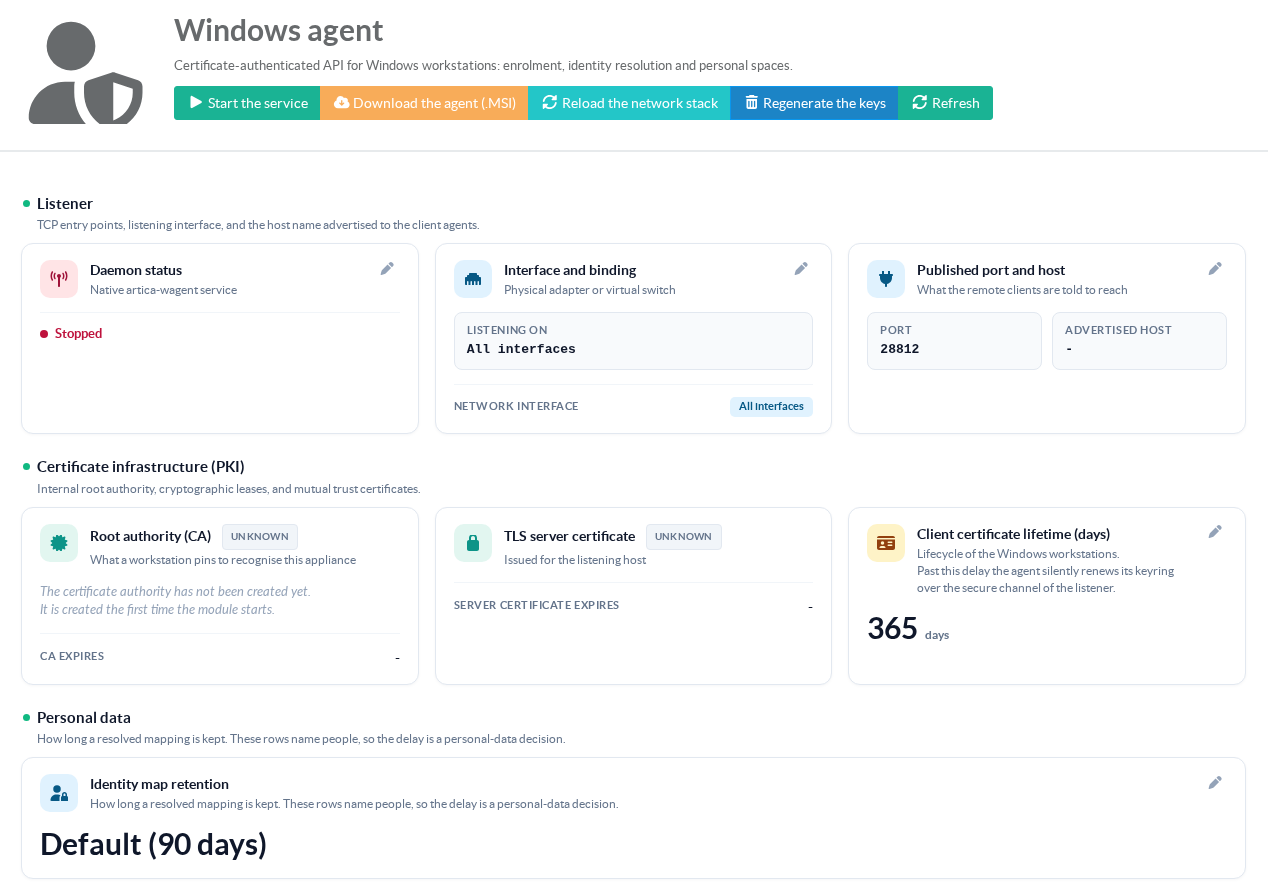
Click Start the service.
The dialog reminds you which interface and port will be opened; switch the agent on.
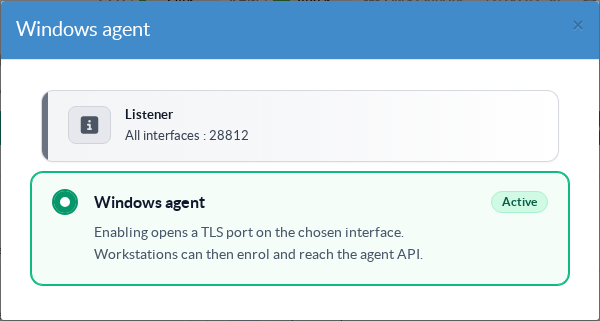
On the first start the appliance creates its certificate authority (valid 10 years) and the listener's server certificate (valid 1 year, renewed automatically).
The Root authority (CA) card then shows the CA fingerprint: this is the value a workstation pins to recognise this appliance. Keep it at hand for the deployment.
¶ 2. Listener settings
The pencil of the Interface and binding or Published port and host card opens the listener settings:
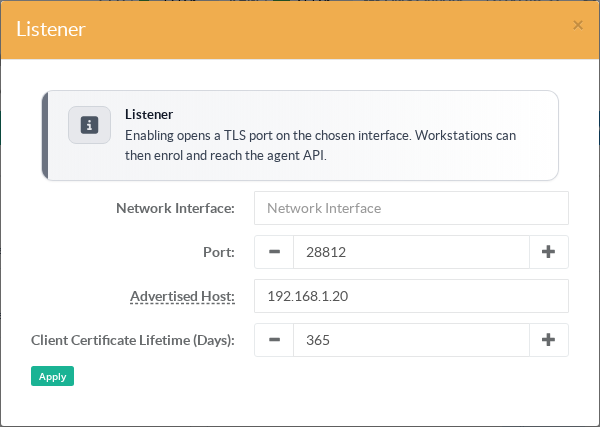
- Network Interface
The appliance interface to listen on (for exampleeth0).
Leave it empty to listen on all interfaces.
- Port
28812 by default. Open it on any firewall between the workstations and the appliance.
- Advertised Host
The name or address the workstations are told to reach (for examplenas.company.lanor192.168.1.20). It is written into the enrolment codes, so set it before minting codes.
- Client Certificate Lifetime (Days)
How long a workstation certificate is valid (365 by default). The agent renews it silently before it expires.
The header buttons complete the picture:
- Export the CA (.CRT) downloads the certificate authority, for instance to inspect it or to distribute it to your own tools.
- Download the agent (.MSI) downloads the Windows installer.
- Reload the network stack restarts the listener after a network change (new address, interface renamed) without stopping the file-sharing service.
- Regenerate the keys replaces the certificate authority. Every enrolled workstation is disowned: its certificate was signed by the previous authority and is no longer accepted, so each one has to enrol again. Use it only if the CA may have been compromised.
¶ 3. Personal data retention
When a workstation asks the appliance which server account a Windows user corresponds to, the answer is recorded in the Windows identities list of the instance. These rows name people, so how long they are kept is a personal-data decision:
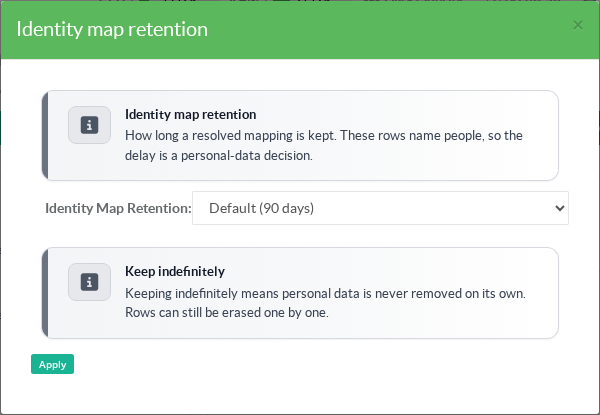
The default keeps a mapping 90 days after it was last seen. You can choose another delay, or keep the rows indefinitely; they can still be erased one by one from the Windows identities list.
¶ 4. Deploy the agent on the workstations
Download the installer with Download the agent (.MSI), or directly from https://artica-iso.b-cdn.net/ArticaSambaClient.msi.
The package installs the service and the notification-area icon in C:\Program Files\ArticaSamba.
¶ Interactive or silent installation
Run it from an elevated command prompt. The two properties SERVER and CA_FINGERPRINT pin the workstation to your appliance, so that it can only ever be enrolled with a code from this appliance:
msiexec /i ArticaSambaClient.msi /qn /norestart SERVER=192.168.1.20:28812 CA_FINGERPRINT=<CA fingerprint shown on the Windows agent page> /l*v C:\Windows\Temp\artica-agent.logBoth properties go together, or neither. Without them the installation still works, and the server is pinned at the first enrolment instead.
| Exit code | Meaning |
|---|---|
| 0 | Installed, upgraded or removed. |
| 3010 | Done, a restart is required to finish (a file was in use). |
| 1603 | Failed and rolled back. A newer version already installed also returns 1603. |
The cause of a failure is written to C:\ProgramData\ArticaSamba\msi-actions.log (for example an invalid fingerprint). Remove the agent with:
msiexec /x ArticaSambaClient.msi /qn /norestartUninstalling keeps the workstation's enrolment and its pinned server in C:\ProgramData\ArticaSamba: reinstalling or upgrading does not require a new enrolment code. Upgrading closes the icons that are open, replaces the files and starts the icons again in the same user sessions.
¶ Deployment by Group Policy
- Copy the MSI to a share readable by Domain Computers.
- On a Windows administration workstation, create a transform that carries your appliance's address and CA fingerprint with the script
New-ArticaSambaTransform.ps1given below:.\New-ArticaSambaTransform.ps1 -Msi .\ArticaSambaClient.msi -Server nas.company.lan:28812 -CAFingerprint <fingerprint> -Out .\site.mst - In the Group Policy Management Editor: Computer Configuration › Policies › Software Settings › Software installation › New › Package, choose the MSI, select Advanced, and add
site.mstin the Modifications tab. - The agent is installed at the next computer start. To deploy a newer version later, add it as a new package that upgrades the previous one.
The transform only carries public values (an address and a fingerprint): no secret ever sits on the Group Policy share.
Save this script as New-ArticaSambaTransform.ps1. It checks both values before writing the transform, and uses only the Windows Installer API built into Windows:
<#
.SYNOPSIS
  Creates the transform (.mst) that pins the Artica File Server appliance
  (address and CA fingerprint) for a Group Policy deployment of the Windows agent MSI.
.EXAMPLE
  .\New-ArticaSambaTransform.ps1 -Msi .\ArticaSambaClient.msi -Server nas.corp.lan:28812 `
      -CAFingerprint efaa0ddd... -Out .\site.mst
#>
param(
  [Parameter(Mandatory)][string]$Msi,
  [Parameter(Mandatory)][string]$Server,
  [Parameter(Mandatory)][string]$CAFingerprint,
  [Parameter(Mandatory)][string]$Out
)
$ErrorActionPreference = 'Stop'
if ($Server -notmatch '^(\[[0-9A-Fa-f:.]+\]|[A-Za-z0-9.-]+):([0-9]{1,5})$' -or [int]$Matches[2] -lt 1 -or [int]$Matches[2] -gt 65535) {
  throw "Server must be host:port (e.g. nas.corp.lan:28812 or [fe80::1]:28812): '$Server'"
}
if ($CAFingerprint -notmatch '^[0-9A-Fa-f]{64}$') {
  throw "CAFingerprint must be 64 hexadecimal characters (SHA-256): '$CAFingerprint'"
}
$CAFingerprint = $CAFingerprint.ToLowerInvariant()
$Msi = (Resolve-Path -LiteralPath $Msi).Path
$Out = [IO.Path]::GetFullPath($Out)
function Call($o, [string]$m, [object[]]$a) { $o.GetType().InvokeMember($m, [Reflection.BindingFlags]::InvokeMethod, $null, $o, $a) }
$inst = New-Object -ComObject WindowsInstaller.Installer
$work = [string](Join-Path $env:TEMP ("asmb-" + [guid]::NewGuid().ToString() + ".msi"))
Copy-Item -LiteralPath $Msi -Destination $work
try {
  $db = Call $inst 'OpenDatabase' ([object[]]@($work, [int]1))
  foreach ($p in @(@('SERVER', $Server), @('CA_FINGERPRINT', $CAFingerprint))) {
    $v = Call $db 'OpenView' ([object[]]@([string]("INSERT INTO ``Property`` (``Property``, ``Value``) VALUES ('" + $p[0] + "', '" + $p[1] + "')")))
    Call $v 'Execute' ([object[]]@()) | Out-Null
    Call $v 'Close' ([object[]]@()) | Out-Null
  }
  Call $db 'Commit' ([object[]]@()) | Out-Null
  $orig = Call $inst 'OpenDatabase' ([object[]]@([string]$Msi, [int]0))
  Call $db 'GenerateTransform' ([object[]]@($orig, [string]$Out)) | Out-Null
  Call $db 'CreateTransformSummaryInfo' ([object[]]@($orig, [string]$Out, [int]0, [int]0)) | Out-Null
  $null = [Runtime.InteropServices.Marshal]::ReleaseComObject($orig)
  $null = [Runtime.InteropServices.Marshal]::ReleaseComObject($db)
} finally {
  Remove-Item -LiteralPath $work -ErrorAction SilentlyContinue
}
"Transform written: $Out"¶ 5. Enrol a workstation
Enrolment is done per instance, from the instance's Workstations page (Files Sharing › Instances › your instance › Workstations).
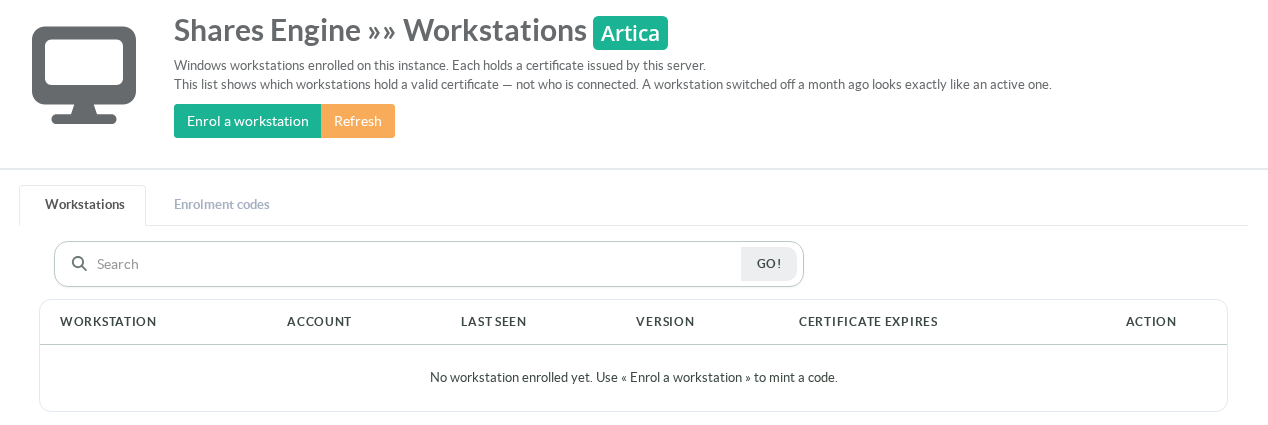
Click Enrol a workstation:
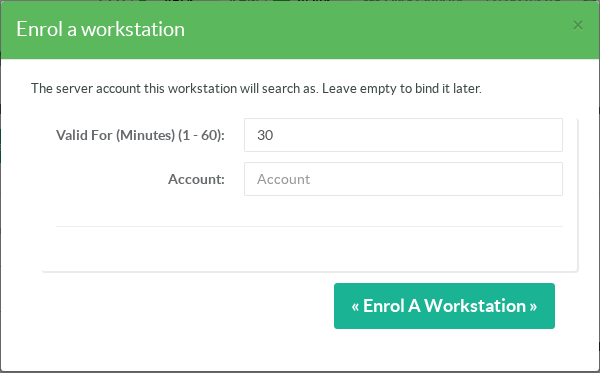
- Valid For (Minutes)
How long the code can be used, from 1 to 60 minutes (30 by default).
- Account
The server account the workstation will search as. It can be left empty and bound later from the Workstations list.
The code is displayed once. Copy it and type it on the workstation (notification-area icon › Enroll this workstation…).
It is valid for a single workstation and only until it expires; Discard this code cancels it immediately.
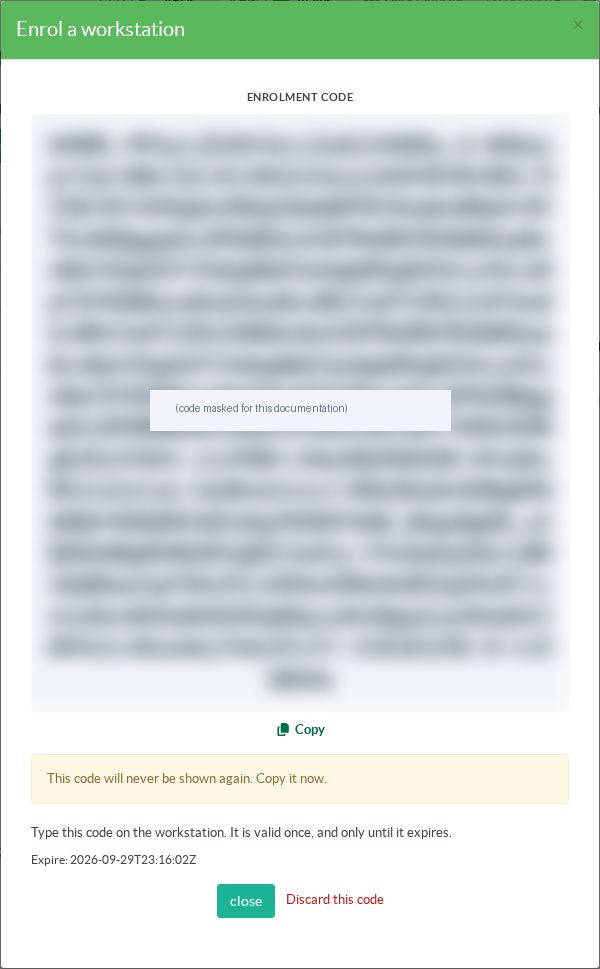
The code designates this appliance and its certificate authority: a workstation pinned to another appliance refuses it.
Codes not used yet are listed in the Enrolment codes tab, without their value.
Once enrolled, the workstation appears in the Workstations list with its account, last contact, agent version and certificate expiry.
From there you can bind or change its account, or revoke it.
The list shows which workstations hold a valid certificate — not who is connected: a workstation switched off for a month looks exactly like an active one.
¶ 6. Windows identities
The instance's Windows identities page lists which server account each Windows identity resolved to, from which workstation and when:
what the server established (resolved account, certificate identity, last request) next to what the workstation announced (name, SID, UPN).
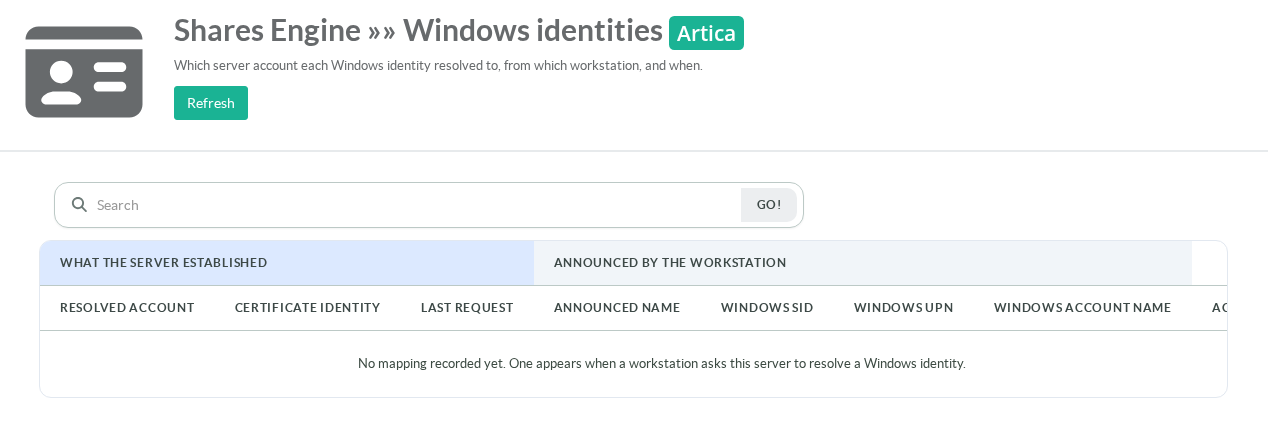
Rows are removed automatically after the retention delay chosen above, and can be erased individually at any time.
¶ Troubleshooting
- The workstation cannot reach the appliance
Check that the service is Running, that the port (28812) is open on the firewalls, and that the Advertised Host resolves from the workstation.
After a network change, use Reload the network stack.
- The enrolment code is refused
The code expired, was already used, or comes from another appliance than the one pinned at installation. Mint a new code.
- Search says "No account is linked to this workstation for search"
Bind a server account to the workstation in the Workstations list.
- Files found by the search do not open ("access denied")
The file opens over SMB with the user's own credentials: the user must be connected (icon › Connect) and must have a Samba account on the instance.